Category Archives: CA

Arcserve RHA ER00105 Unable to send file (file to send unable to be open)

ER00105 976683 Error 192.168.120.13 2/10/2022 12:24:30 PM Unable to send file D:/Program Files/CA/ARCserve RHA/Engine/tmp/spool/1222255101_2/bl_sync_1196825767.rqv to 192.168.128.20 (file to send unable to be open)

Arcserve Official link for this error ID https://support.arcserve.com/s/article/202043989?language=en_US but in my case this is not worked for me. This is how it fixed for me

1 Stop Scenario

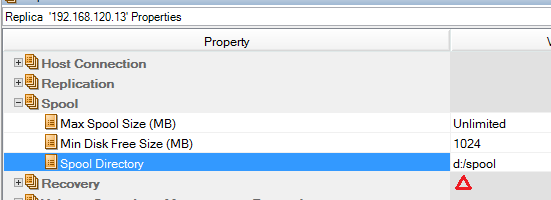
2 Change spool directory path on reported server

3 Start scenario

Enabling Document-Level Backups for Microsoft Exchange

CA ARCserve Backup uses Microsoft’s Messaging Application Programming Interface (MAPI) and Collaboration Data Objects (CDO) technologies to perform granular e-mail backups and restores.

Microsoft Exchange versions 2007 and 2010 do not include these technologies by default. The Exchange Administrator will need to download the MAPI-CDO package from http://www.microsoft.com/en-us/download/details.aspx?id=1004 and install it on the Exchange servers that you will be protecting.

If the MAPI-CDO package is installed before the CA ARCserve Backup Agent for Exchange is installed, ARCserve will detect the presence of the required binaries and automatically prepare the Exchange server for granular backups and restores during the Agent Installation.

If the MAPI-CDO package is installed after the CA ARCserve Backup Agent for Exchange is installed, please perform the following steps to enable granular backups and restores:

Continue reading Enabling Document-Level Backups for Microsoft Exchange

How to manually install the Alert Manager for BrightStor ARCserve Backup For Windows

Description

When trying to launch the Alert Manager, the Alert Manager may not launch or
the following error message is produced, “Failed to open the Alert Service”

Solution

This problem may occur when the Alert Manager Component is not working
properly. To resolve this problem without affecting the ARCserve base option use
the following steps to manually install the Alert Manager component

  1. Close the ARCserve Manager.
  2. Run cstop.bat from c:\Program files\CA\BrightStor ARCserve Backup

Figure 1

Rename the Existing Alert shared folders from
c:\Program files\CA\Shared Components\Alert to Alert_Old

Figure 2


From the BrightStor ARCserve CD Browse to the below path and Extract the
AlertPackage.exe7 (For English Language)

X:\IntelNT\ARCserve\Data1.cab file

Figure 3

After the extracting rename from AlertPackage.exe7 to AlertPackage.exe (English)

Figure 4

Right-click and open with WinZip


Figure 5

Extract the file to a temporary folder


Figure 6


  • Select all files and remove the “Read Only” attributeEdit the InstAlrt.ini file, as below

    InstallToPath=C:\Program
    Files\CA\SharedComponents\Alert
    AppName=ARCserve (Change from Inoculan)

    AppData=ARCserveIT to AppData= BrightStor AB

  • Figure 7

    Figure 8

    Figure 9

    Run InstallAlert.exe from temporary folder

    Figure 10

    Copy all files from temporary folder to C:\Program Files\CA\SharedComponents\Alert

    Figure 11

    Perform CSTART.bat from C:\Program files\CA\Brightstor Arcserve Backup.

    Figure 12

    This should finish the manual installation of the Alert Component for ARCserve
    Backup for Windows.

    How to configure the LDAP settings in Gateway Security 8.1 to perform Invalid recipient protection and for authentication while logging into the user self managed quarantine folder.


    Description

    This document contains procedures that will help you:

    Configure the LDAP settings in Gateway Security 8.1 to perform Invalid Recipient Protection.

    Successfully authenticate while logging into the user’s self-managed Quarantine folder.

    Solution

    1. From the Manager console go to Filtering -> Settings -> Enterprise Settings -> LDAP template.
    2. Figure 1

    3. Click on the Add button to create a new LDAP Template and provide a name, then click Next.
    4. You can select the “All domains” option if you want to have one LDAP template for all the domains that Gateway Security is protecting or choose the specific domains.
    5. Figure 2

    6. You can either choose “Auto detect server” OR click the Add button to add a Valid LDAP server name or IP address. This might be your Domain controller, Exchange server, Lotus Domino, LDAP server, etc.
    7. Figure 3

    8. Give the authentication details to connect to the LDAP Server.
      If the LDAP server requires secure authentication, set the Secure type as ‘Use Secure Authentication’ and click Next.
    9. Figure 4

    10. Select the appropriate LDAP Server Type to load the LDAP attributes automatically, and then click Next.
    11. Figure 5

    12. Leave the default pool settings and click Next.
    13. From the Test window you can do the following:
      1. Test for a single email/Distribution list:
        Enter an email address or distribution list email in the appropriate field and click Send Query.
        Gateway Security will query the LDAP server using the LDAP attributes and return whether it is a valid email address or distribution list.
      2. Web Login Test:
        Enter the username and password that you want to use to login to the Quarantine folder and Gateway Security will verify if the specified login credentials are correct.
    14. Figure 6

    15. Click Next and Finish the LDAP template configuration.
    16. Click OK for Enterprise Settings and distribute the changes.
    17. Go to Filtering -> Settings -> Engine Specific Settings -> LDAP Usage and choose the LDAP template which you created in the Enterprise LDAP settings.
      To ensure that Gateway Security accepts incoming emails only for valid recipients, ensure that the option “Enable SMTP Invalid recipient’s protection” is enabled.
    18. Figure 7

    19. Click Ok and distribute the engine changes.
    20. Go to Filtering -> Settings -> Enterprise Settings ->Quarantine and choose the LDAP template that you want to use to authenticate the users when they try to log into their Quarantine folder.
    21. Figure 8

    22. Click Ok and distribute the changes.


    Which eSCM processes and folders should be excluded from antivirus realtime scanner?

    Description:

    When you install CA Integrated Threat Management or eTrust Antivirus prior to installing eTrust Secure Content Manager r8, the Antivirus Realtime Scanner acts on data before eTrust Secure Content Manager r8 can analyze or use it. This may interfere with the functionally of the eTrust Secure Content Manager r8 engine.

    To avoid conflicts between eTrust Antivirus and eTrust Secure Content Manager r8, you should identify the eTrust Secure Content Manager r8 processes that are running and add the processes to the eTrust Antivirus exclusions list.

    Excluding eSCM Processes and Directories from Antivirus Realtime Scanning.

    Solution:

    Exclude the following process from the Antivirus realtime scanning

    icihttp.exe
    icismtp.exe
    DCollSrv.exe
    QmgrSrv.exe
    CRepSrv.exe
    ECSQDMN.exe
    ECSSAFMGR.exe
    eCCCleaner.exe
    QMgr.exe
    ManagerConsole.exe
    iGateway.exe
    servproc.exe
    Exclude the following directories from the realtime scanning

    :\Program Files\CA\eTrust SCM :\Program Files\CA\Ingres [EI] :\Program Files\CA\SharedComponents

     Other Relevant Information : Realtime scanner exclusions for machines running Microsoft Exchange: TEC393058 (SupportConnect, SupportOnline). https://support.ca.com/irj/portal/anonymous/redirArticles?reqPage=search&searchID=TEC393058 Realtime scanner exclusions for machines running Notes: TEC400737 (SupportConnect, SupportOnline).
    https://support.ca.com/irj/portal/anonymous/redirArticles?reqPage=search&searchID=TEC400737

    Installing and Configuring Microsoft SQL Server 2005 Express Edition for SCM

    https://support.ca.com/irj/portal/anonymous/kbtech?searchID=TEC394780&docid=394780&bypass=yes&fromscreen=kbresults

    Document ID:    TEC394780
    Tech Document
    Title:  Installing and Configuring Microsoft SQL Server 2005 Express Edition

    The eTrust SCM Quarantine Manager and Reporter can use either MS-SQL or Microsoft SQL Server 2005 Express Edition as the database layer.

    According to your needs, you can install a dedicated SQL 2005 Express Server on a remote machine, or install SQL Express 2005 on the same machine as the Quarantine Manager and/or Reporter.

    Please read further about MS SQL Express 2005 server at:

    http://msdn.microsoft.com/vstudio/express/sql/default.aspx

    eTrust SCM r8 Prerequisites

    Perform the following installations and checks before installing eTrust SCM:

    • Install Microsoft SQL Express 2005 edition according to the product’s documentation. Please read further detail in this document.
      Important! Microsoft SQL Express Server must be installed before you install eTrust SCM.
    • Confirm that SQL Express 2005 edition and Windows authentication is enabled in the SQL Express 2005 SQL Server Management Studio Express. To confirm this setting, do the following:
      • SQL Server Management Studio Express.
      • Right click on the Database root and choose the “properties” option.
      • Select the “Security” page at the left pane of the “server properties dialog”, as illustrated in the screenshot at the next page.
      • Confirm that at the “Server Authentication” option the “SQL Server and Windows Authentication radio button is selected (see screenshot).Figure 1
    • Create both the Quarantine and Reports Databases at the SQL level as detailed further down this document.

    Install eTrust SCM after you have confirmed that the above prerequisites have been met.

    Microsoft SQL Server 2005 Express Edition System Requirements

    Please read the MS SQL 2005 Express Edition pre installation requirements carefully at:

    http://download.microsoft.com/download/b/d/1/bd1e0745-0e65-43a5-ac6a-f6173f58d80e/RequirementsSQLEXP2005.htm

    Uninstall beta versions

    Before you install any members of the SQL Server 2005 Express Edition family, you must uninstall any beta or CTP versions of SQL Server 2005, Visual Studio 2005, and the .NET Framework 2.0.

    The following is a summery of the installation prerequisites and we recommend reading the complete requirements from the above line since installation instruction may be modified by Microsoft from time to time.

    • Supported Operating Systems: Windows 2000 Service Pack 4; Windows Server 2003 Service Pack 1; Windows XP Service Pack 2.
    • Computer with Intel or compatible Pentium III 600 MHz or faster processor (1 GHz or faster is recommended).
    • Minimum of 192 MB of RAM (512 MB or more is recommended).
    • 525 MB of available hard disk space.

    You must have administrative rights on the computer to install SQL Server Express.

    Step 1: Download and install Windows Installer 3.0.
    Note: If you are running Windows Server 2003 Service Pack 1 (SP1) or Windows XP SP2, you already have Windows Installer 3.0.

    Step 2: For 32-bit platforms, download and install the 32-bit version of Microsoft .NET Framework 2.0.

    Microsoft Internet Explorer 6.0 Service Pack 1 (SP1) or later (prerequisite for .NET Framework).

    Step 3: Download Microsoft SQL Server 2005 Express Edition  http://msdn.microsoft.com/vstudio/express/sql/default.aspx.

    Direct link:
    http://go.microsoft.com/fwlink/?LinkId=65212

    Step 4: Follow the installation instructions provided in the Readme.
    http://download.microsoft.com/download/b/d/1/bd1e0745-0e65-43a5-ac6a-f6173f58d80e/ReadmeSQLEXP2005.htm

    Creating the Quarantine and Reports Databases

    Download and install the SQL Server Management Studio Express (separate download below), so you will be able to manage your SQL Server Express.

    Download SQL Server Management Studio Express:
    http://msdn.microsoft.com/vstudio/express/sql/default.aspx

    Direct link:
    http://go.microsoft.com/fwlink/?LinkId=65110

    To create the quarantine and reports databases, follow these steps:

    Create the Quarantine Database

    Perform the following steps to create the Quarantine database:

    1. Open the “SQL Server Management Studio Express”.
    2. Connect to the Database Server you have created during the SQL installation. Browse to the Database level.
    3. Choose Database. The default database appears in the right pane:Figure 2
    4. Right-click the right pane and select New Database. The “New Database” dialog appears:Figure 3
    5. Enter a name for the container on the General tab, for example: eSCM_Quarantine_DB.Figure 4
    6. Within this dialog you may adjust the Data Files properties for the Database, adjust the default parameters, if this is a heavily-used database we recommend to use an initial size of more then 2MB to decrease DB fragmentation.
      For Example an initial size of 100MB will be fine.
      The defaults parameters are fine for testing purposes.
      Adjust the parameters for the DB log file as well.

    Figure 5

  • Adjust the Autograph of the DB either by size or by percentage by clicking the button next to the Autogrowth option:Figure 6
  • Click O.K to create the database.
  • Create the Reports Database To create the Reports database, repeat the same steps used to create the Quarantine Database, with the exception of the database name:
    1. On the New Database dialog, enter a unique name for the container on the General tab, for example: eSCM_Reporter_DB.Figure 7
    2. Within this dialog you may adjust the Data Files properties for the Database, adjust the default parameters, if this is a heavily-used database we recommend to use an initial size of more then 2MB to decrease DB fragmentation.
      For Example an initial size of 100MB will be fine.
      The defaults parameters are fine for testing purposes.
      Adjust the parameters for the DB log file as well.
  • Creating an SQL User and Associating It with the Databases

    To create an SQL user and associate it with the databases, follow these steps:

    1. Open the “SQL Server Management Studio Express”.
    2. Connect to the Database Server you have created during the SQL installation.
    3. Browse to the Security folder, and right click on logins folder.
    4. Choose the “New login” option.
      The SQL Server Login Properties – New Login dialog appears:

    Figure 8

  • Create a new user using the SQL Server Authentication option.
    This user does not require administrative privileges anywhere except than for the Quarantine and Reports databases.
  • Enter the password and password confirmation for the new login you have created.Figure 9

    Click the User mapping option, and select the databases to be accessed by this login as follows:

    1. Select the eSCM_Quarantine_DB and specify the roles for the new database.
      In the Database roles, both public and db_owner should be selected, as this user must be the db_owner to create the tables properly.
  • Figure 10

  • Select the eSCM_Reports_DB and specify the roles for the new database. In the Database roles, both public and db_owner should be selected, as this user must be the db_owner to create the tables properly.Figure 11
  • Verify that the login and the connection to the DB are enabled and granted.Figure 12
  • Click OK.
  • Notes:
    There is no need to further tune additional database parameters, or create any tables, or set any ODBC settings. The eTrust SCM installer will do so during the installation. If you change the SQL database credentials after the eTrust SCM installation, use the Manager Console to configure the new credentials. To do so, from the Manager Console’s menu select Settings, Engine settings, Microsoft SQL Tab.

    Troubleshooting

    1. Connecting to the DB with “Named Instance”.In most cases the connection issue might be related to the DB instance name.

      When installing the SQL server and trying to connect on to the ‘localshost’ auto detected SQL DB, SCM installation utility and the SCM DB migration utility might fail to connect to ‘localhost’ DB.

      Instead of ‘localhost’ at the server you’ll need to specified the named instance of the DB.

      Please manually specify:

      MY_SQL_EXPRESS_SERVER_HOTS\MY_SQL_EXPRESS

      The named instance of this copy of the database can be view when logged via the “Microsoft SQL sever Management Studio”.

      While trying to login: MYSQLSERVER\SQLSERVER

      Figure 13

      And at the following example the ‘Named instance’ is “DEV8VM200\SQLEXPRESS”

      Figure 14

    2. Database Login user password expiration.The eTrust SCM installation utility must have a valid connection to SQL server, in order to retrieve information regarding the available SQL servers and DB tables, and display them during the installation procedure.

      In case “User must change password at next login” is checked (see screenshot below), the instillation utility, as well as the eTrust SCM Database migration tool, may face difficulties connecting to the DB interface.

      Figure 15

      Either disable this option at the “Creating an SQL User and Associating It with the Databases” stage, (see step 6 page 10), or re-login to the “SQL Server Management Studio Express” at the DB creation phase and change the password for the user (‘scm’ in this example).

      1. Connect to the SQL Database using the “Microsoft Server Manager studio Express”.Figure 16
      2. Login with the initial password – you’ll be prompted to change the password for the login user.Figure 17
    3. Connecting to a remote SQL Express Database. If you intend to remotely connect to the SQL Express database e.g. using terminal services to the SCM host with the SQL Express database you should enable the TCP/IP protocol of the SQL Express server.

      Logon to the ‘SQL Server Configuration Manager’ – Start ->Programs ->Microsoft SQL Server 2005 -> configuration Tools

      Figure 18

      Right click on the TCP/IP protocol configuration and enable to protocol:

      Figure 19

      The SQL Server service must be restarted in order to load new TCP/IP settings:

      Figure 20