Category Archives: Windows 8

windows 8 tech tips

Update Windows Defender even when Automatic Windows Updates is disabled in Windows 8/10

Windows Defender will not update its definitions, if Windows Updates is not set to Install updates automatically in Windows 10/8. If for some reason you have changed your settings and preferred to set any of the other three updating’s options, viz. Download updates but let me choose whether to install them, Check for updates but let me choose whether to download and install them or Never check for updates, your Windows Defender will not have the latest definitions, till such a time that you update them manually. This is because, Windows Defender and Windows Update in Windows 8 are  both dependent on the Windows Updates services.

This is not a recommended scenario, as one’s security software should be updated as soon as new definitions are available for download.

Update Windows Defender when Automatic Windows Updates is disabled

But you can set it so that Windows Defender will check for, download and install updates as soon as they are available, even if you have disabled Automatic Windows Updates.

To do so, open the Task Scheduler. You will find it under Administrative Tools in your Control Panel.

task-scheduler-1

In the right pane, click on Create Basic Task. The Create Basic Task Wizard will open. Give the task a name and description and click on Next.

ts-2

Select the frequency, viz Daily.

ts-3

Set the Time at which the updating task should run.

ts-4

Next select Start a program.

ts-5

Advt

^

In the Program box, type “C:\Program Files\Windows Defender\MpCmdRun.exe”. MpCmdRun.exe is the executable file of Windows Defender that helps in carrying out common tasks like scanning, scheduling, updating, etc.

In the Add arguments box, type -SignatureUpdate. This is one of the available command line arguments for Windows Defender.

ts-6

Having done this, review the details and click on Finish.

ts-7

You will now be able to see the task in the Task Scheduler Library.

Now your Windows Defender will update itself, regularly, every day at the set time, although you may have disabled Automatic Windows Updates.

If you want Windows Defender to check for signature updates more than once every day, you will have to additionally do the following:

Open its Properties box and click on Triggers tab. Select the task and click on Edit.

def-props

Here check the Repeat task every and from the drop-down menu, select 1 hour. This will check for updates every hour. If you wish to check every 6 hours, simply change the figure from 1 to 6; it works!

edit-trigger

Click OK/Apply and Exit.

When the task is run, a black CMD window will open momentarily and close down.

If you wish to run a silent update, instead of: C:\Program Files\Windows Defender\MpCmdRun.exe –SignatureUpdate you may use: C:\Program Files\Windows Defender\MSASCui.exe -Update.

Let us know how this works for you.

(Credits to http://www.thewindowsclub.com/update-windows-defender-automatic-windows-updates-disabled )
Analyze and clean the WinSXS folder

Please note that the commands will only work on Windows 8 or newer machines.

Here is what you need to do to analyze the WinSXS Folder:

  1. Tap on the Windows-key, type cmd.exe, hold down Shift and Ctrl, and hit the enter key on the keyboard. This opens an elevated command prompt on the system.
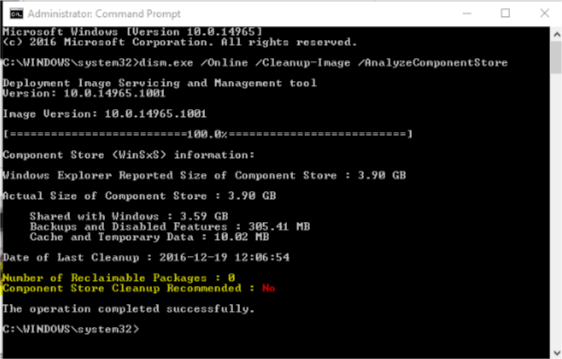
  2. Run the command dism.exe /Online /Cleanup-Image /AnalyzeComponentStore
  3. ceanup

The parameter /Online refers to the current installation, and /Cleanup-Image /AnaylzeComponentStore to analyzing the current component store of that installation (the WinSXS folder).


You can list all available commands using dism.exe /?, and subsequently dism.exe /Online /? and dism.exe /Online /Cleanup-Image /?.

The command runs a scan that takes a moment to complete. It echoes the Windows Explorer size and actual size to the command prompt window, and gives recommendations whether it makes sense to run a cleanup operation.

Cleanup

Windows runs a cleanup regularly using the Task Scheduler. You can check if that is the case on your machine in the following way:

  1. Tap on the Windows-key, type Task Scheduler and hit enter.
  2. Navigate to Task Scheduler (local) > Task Scheduler Library > Microsoft > Windows > Servicing > StartComponentCleanup

You can run the cleanup operation manually at any time using the following command using an elevated command prompt:

dism.exe /Online /Cleanup-Image /StartComponentCleanup

or for more

dism.exe /Online /Cleanup-Image /StartComponentCleanup /ResetBase


For service pack cleanup

dism.exe /Online /Cleanup-Image /spsuperseded /hidesp


How to setup BitLocker Encryption on Windows 8 / 8.1 without TPM

BitLocker is a full disk encryption software that comes standard with PCs running Windows 8 Pro or higher.

BitLocker_Logo_e546caa310

This document provides instructions for encrypting the hard drive without Trusted Platform Module (TPM – integrated security chip) present or enabled, and bypasses the USB flash drive encryption key requirement.

  1. From the Metro UI or the search box, type GPEDIT.MSC and press enter
  2. Open Computer Configuration =>
    Administrative Templates =>
    Windows Components =>
    BitLocker Drive Encryption =>
    Operating System Drives. From the right pane double-click “Require additional authentication at startup” and select “Enabled” and apply it. then run “gpupdate” from a command line.

Now you can enable Bitlocker without TPM


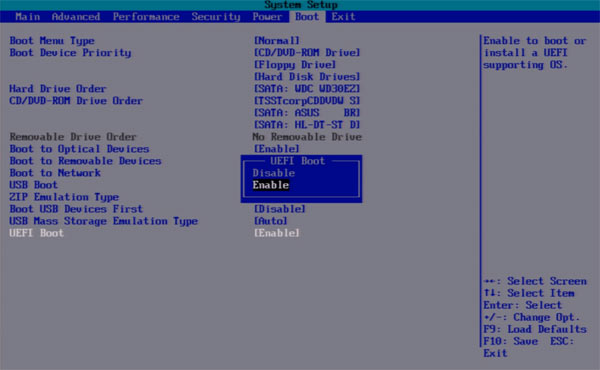
How to install windows 8 in a UEFI environment with Secure boot enabled

UEFI-Boot

If you want to install a clean copy of Windows 8 or Windows 8.1 on a UEFI enabled computer, you will need a UEFI bootable USB flash drive to start with. This is a tutorial to show you how to make such flash drive with and without the help of 3rd party tool.

The manual process

1. Connect the USB flash drive to your computer, of course.

2. Open Command Prompt with Admin rights. Press Win+X and choose Command Prompt (Admin) from the list.

3. Type diskpart to start the diskpart built-in utility. And type list disk and make the note of the disk # for the USB drive.

4. Type in the following command to properly format the flash drive. Replace # with the actual # you got from step 3 above.

select disk #
clean
create partition primary
format fs=fat32 quick
active
assign
exit

5. Now close the Command Prompt window, and open File Explorer, browser through to the location where saves the Windows 8 installation ISO image file.

6. Mount ISO file by right-clicking the ISO file and choosing Mount. If you don’t see Mount command from the context menu, go to Open With → Windows Explorer instead.

7. Select everything in the ISO file, and copy them into the formatted USB flash drive you prepared earlier

8. One more extra step if you are preparing for a 64-bit version of installation. You will need to copy a file called bootmgfw.efi from inside install.wim file at sources folder to efi\boot folder on USB flash drive, and rename it to bootx64.efi. Sounds tedious, isn’t it? So let’s put an easy way, you can simply download this file (direct download link) and copy to your efi\boot folder.

That’s it. Now, you can boot off from this USB flash drive and start the fresh clean installation.


Quickly Launch Command Prompt as an Administrator with a Keyboard Shortcut

Normally, you could launch Command Prompt with default privileges by simply clicking on it in the search results list, or highlighting it with the keyboard and pressing Enter. Alternatively, you could launch Command Prompt as an administrator by right-clicking on it in the search results and selecting Run as Administrator.

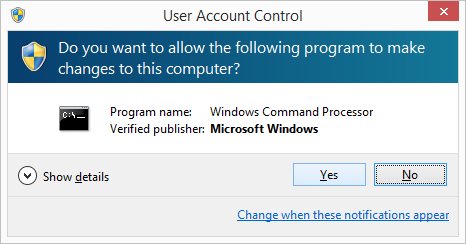
But for the fastest experience, highlight the Command Prompt result in the Windows search bar and press Control-Shift-Enter. Doing so will automatically launch Command Prompt with elevated administrative privileges, and you’ll see the User Account Control (UAC) prompt appear immediately as a result.


How to Back up, Restore Your Windows 8 Start Screen Layout


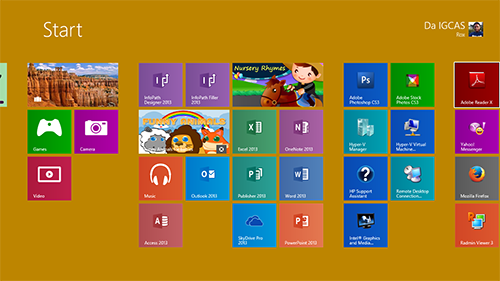
The Windows 8 Start screen is the gateway to your PC and usually the first thing you see when you log in, unless you’ve chosen to go directly to the desktop. The update to Windows 8.1 also introduced many more customization options to the Start screen

Step 1: Open the Run dialog box by hitting Windows key + R.

Step 2: Type, “%LocalAppData%\Microsoft\Windows” and hit Enter to open Windows Explorer to the location of the Start screen layout files.


Step 3: Copy the files, “appsFolder.itemdata-ms” and “appsfolder.itemdata-ms.bak” to your backup folder.

If something happens to your Start screen layout and you want to restore it, just copy the backup files back to the original location and overwrite the files already in the folder.

That’s it. Now if your nephew or a friend comes over and they rearrange your Windows 8 Start screen, you can relax and restore it in just a few minutes.

Windows 8 Recover your system

Windows 8 has performed well for us, but if you find it won’t boot at some point then you now have to press Shift+F8 during the launch process to access its recovery tools.

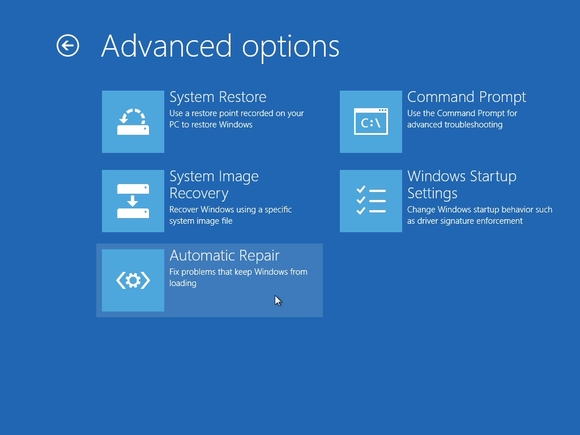
Access the Troubleshoot menu, then Advanced Options, and you’ll be able to try the Automatic Repair tool, which may fix your problems. No luck? The same menu enables you to use the last System Restore point, tweak key Windows Startup settings, and even open a command prompt if you’d like to troubleshoot your system manually.

If that all seems like too much hassle then the Troubleshoot menu’s option to ‘Refresh your PC’ may be preferable, because it essentially reinstalls Windows 8 but keeps your files, and will fix many issues.

But if it doesn’t then there’s always the more drastic ‘Reset your PC’ option, which removes all your files and installs a fresh new copy of Windows 8.

You don’t have to access these features from the boot menu, of course. If Windows 8 starts but seems very unstable, then open the new Recovery applet in Control Panel for easy access to the Refresh, Reset and other disaster recovery features.

Speed up chkdsk (Windows 8)


If you suspect your Windows 8 system may have a corrupted hard drive, then you might be tempted to use the old chkdsk /f command. This does still work, but it’s horribly slow, and won’t do anything at all until you reboot. What’s more, it may no longer be necessary now.

Windows 8 now regularly runs chkdsk in the background, looking for problems, and recording them. And then, when run at boot time, it doesn’t have to scan every single sector of your hard drive. It just fixes the known problems, usually in a few seconds.

The first lesson here is that you probably won’t have to use chkdsk any more.

But if you want to try it anyway, don’t use chkdsk /f first. Enter chkdsk /spotfix instead, agree to run a check when you next reboot, then restart your PC and any fixes will be applied, much more quickly.

While this works most of the time, there are no guarantees. If you’re out of other options then you can still try chkdsk /f later.

Save bandwidth with windows 8

Set up lots of live tiles on the Start screen and you could find they’re using a lot of network bandwidth, which could perhaps become a problem if you’re running a slow or metered connection. But Windows 8 does offer one option that might help.

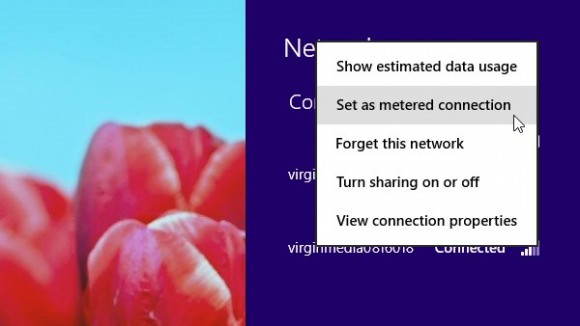
Click your network connection on the taskbar (or the Start Screen Charms bar), right-click your network connection in the list and select “Set as metered connection” (you’ll only see this with wireless adaptors). Windows will then limit what individual live tiles can do, while also downloading only priority Windows updates, and applying a few other restrictions. Right-click the connection again and select “Set as unmetered” to change it back.