Kapothi Tech Blog

Office

Resource Coordinators: Enabling and Disabling the Offline Address Book

by Kapuwa on Jan.11, 2010, under Office, OutLook

that you disable Outlook’s ability to download the Offline Address Book by using the steps outlined in the Disable the Offline Address Book section. Doing so will allow you to see resources in the GAL within a few minutes of creating them using the Resource Coordinator Tools. Otherwise, Outlook stores a “cached” copy of the address book, which is updated daily. Steps to re-enable the Offline Address Book are also provided.

Disable the Offline Address Book – Updated Aug. 1 2008 for Windows Vista

  1. Close Outlook.
  2. Download the Disable/Enable Offline Address Book Scripts (ZIP)
  3. From Windows Explorer, open (by double-clicking) the OutlookOABDownloadScripts.zip file from the location where it was downloaded.
  4. Run (by double-clicking) the OutlookDisableOABDownload.vbs script. Note – in Windows Vista, right-click on the script and select “Run As Administrator” (your local IT support person may need to provide administrative credentials at this step).
  5. If it runs successfully, you should see the following confirmation message:
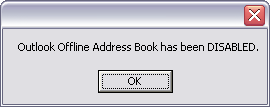
rc_disable_enable_OAB_01

At this point, Outlook will no longer automatically download the offline address book. However, if you click the “Send/Receive” button within Outlook, by default it will reset your offline address book setting – in effect it re-enables the offline address book. To prevent this from happening, complete the following steps.

  • Open Outlook
  • Go to “Tools” > “Send/Receive” > “Send/Receive Settings” > “Define Send/Receive Groups”
  • Highlight the group “All Accounts” and click “Edit”
  • In Outlook 2007, check the “Include the selected account in this group” checkbox
  • Uncheck the “Download offline address book” checkbox
  • Click “OK”
  • Click “Close”
  • Leave a Comment more...

    Office 2007 Breaks Spell Check: French Only

    by Kapuwa on Nov.18, 2009, under Office

    1. Run Setup from another Office installation disk.
    2. Select “Custom Install”.
    3. You’ll have to insert your Product Key.
    4. Turn Off ALL of the product installations. (Right-Click icon and select “Not Available”)
    5. Under “Office Shared Features”, set “Proofing Tools” to “Run all from My Computer”  This should install the English, French, and Spanish dictionaries.  English alone would probably solve the problem,Still have the problem?? if yes install windows live mail to fix the issue for more info pls visit
      http://support.microsoft.com/kb/932974

    Still no luck??? download install spelloe_setup and restart ur pc.

    Leave a Comment more...

    Looking for something?

    Use the form below to search the site:

    Still not finding what you're looking for? Drop a comment on a post or contact us so we can take care of it!