Category Archives: Hyper-v

Kapothi Scroll: Banishing the Ghost VM in Hyper‑V

Kapothi Scroll: Banishing the Ghost VM in Hyper‑V

Kapothi — Sinhala slang for “getting into a big problem.” This scroll documents how we untangled one such haunting: a phantom VM that refused to die, flooding Event Viewer with endless errors.

🌀 The Symptom

Failed to load Hyper-V state for virtual machine 'MEGATRON-SVR-KAP-DSTN-04'
from the configuration: Unspecified error (0x80004005).
(Virtual machine ID 287FCA31-68ED-43C1-8B35-0452C2EDF743).
Hyper-V may not work properly. An attempt to reload the configuration will be made in a few minutes.

🔎 The Investigation Ritual

Check replication status

# PowerShell
Get-VMReplication -VMName "MEGATRON-SVR-KAP-DSTN-04"

→ Showed replication normal, so the issue wasn’t with Replica.

Try removing replication

# PowerShell
Remove-VMReplication -VMName "MEGATRON-SVR-KAP-DSTN-04" -Force

→ Command worked only with -VMName, not -VMId.

Search filesystem and registry

  • Looked under C:\ProgramData\Microsoft\Windows\Hyper-V\Virtual Machines
  • Checked registry keys under HKLM\SOFTWARE\Microsoft\Windows NT\CurrentVersion\Virtualization

→ No folder or key for the GUID found.

Inspect WMI repository

# PowerShell
Get-WmiObject -Namespace root\virtualization\v2 -Class Msvm_ComputerSystem |
Where-Object { $_.Name -eq "287FCA31-68ED-43C1-8B35-0452C2EDF743" }

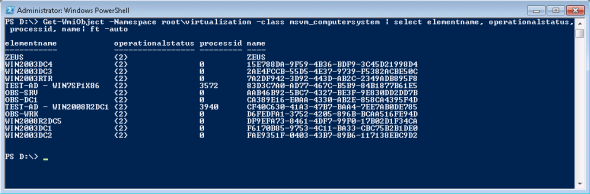
→ Found the ghost entry still alive in WMI, status Degraded.

Check VM list

# PowerShell
Get-VM

→ VM showed as SavedCritical with “Cannot connect to virtual machine configuration storage.”

⚔️ The Cleansing Ritual

Remove ghost from WMI

# PowerShell
Get-WmiObject -Namespace root\virtualization\v2 -Class Msvm_ComputerSystem |
Where-Object { $_.Name -eq "287FCA31-68ED-43C1-8B35-0452C2EDF743" } |
Remove-WmiObject

Force remove VM object

Remove-VM -Name "MEGATRON-SVR-KAP-DSTN-04" -Force

or

Remove-VM -Id "287FCA31-68ED-43C1-8B35-0452C2EDF743" -Force

Purge leftover config files

  • Search for GUID‑named files (287FCA31-68ED-43C1-8B35-0452C2EDF743) under:
    • C:\ProgramData\Microsoft\Windows\Hyper-V\Virtual Machines
    • Replica storage paths (e.g., E:\Hyper-V\Replica\...)

Restart services

Restart-Service vmms

🌑 Final Cleansing (WMI Repository Reset)

If the ghost still lingers after all steps, reset the WMI repository:

net stop winmgmt
winmgmt /resetrepository
net start winmgmt

⚠️ Note: This is the last resort — it rebuilds the entire WMI repository, clearing any corrupted or stale entries.

✅ The Outcome

  • Event Viewer spam stopped.
  • Get-VM no longer listed the ghost VM.
  • Replication remained healthy for other VMs.

📜 Ritual Reflection

The ghost scroll wasn’t just in the shelves (registry) or archives (ProgramData) — it hid in the secret catalog (WMI). Hyper‑V kept trying to read it, failing each time. By purging the catalog entry, removing the VM object, and finally resetting the repository, the shrine keeper’s chant of errors was silenced.

✨ Kapothi Lesson: When Hyper‑V haunts you with “Failed to load state” errors, cleanse all three layers — filesystem, registry, and WMI. If the ghost still lingers, reset the repository to rebuild the shrine’s catalog from scratch.
Kapothi Scroll: Compacting VHD/VHDX with PowerShell & SDelete

Kapothi Scroll: Compacting VHD/VHDX with PowerShell & SDelete

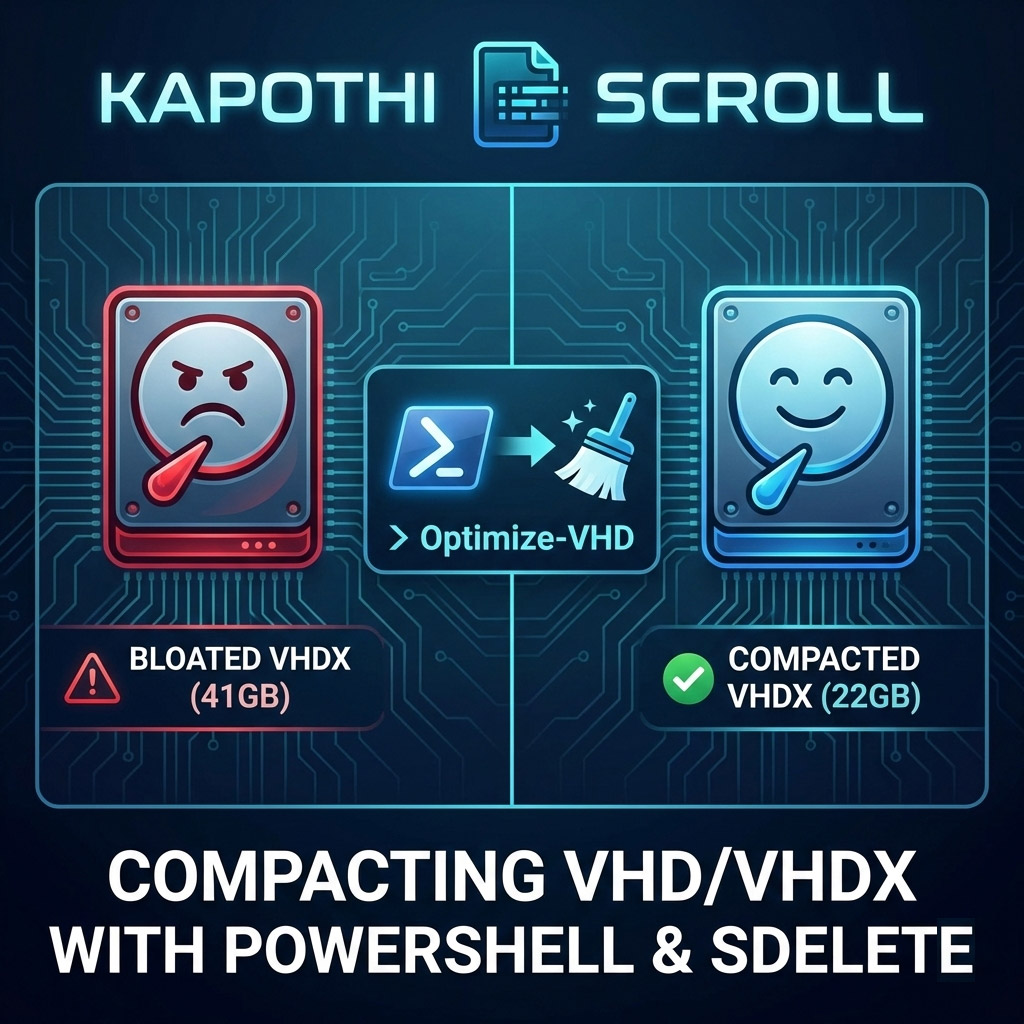
Kapothi — Sinhala slang for “getting into a big problem” — is exactly how it feels when your VHDX file swells to double its real usage size. A 22GB disk showing up as 41GB? That’s a Kapothi moment. Here’s the ritual to reclaim space.

Command Box Legend (Kapothi Style)

What is SDelete and How to Get It

SDelete is part of the legendary Sysinternals Suite created by Mark Russinovich. It is a secure delete utility that can overwrite free space with zeros, making it visible to compaction tools like Optimize-VHD. Without this step, deleted files inside a VM still appear as “used blocks” to the VHDX file, preventing shrinkage.

In Kapothi terms, SDelete is the chalk ritual: it marks the courtyard stones so the lantern keeper knows which ones are truly empty.

How to Get SDelete

  • Download SDelete from the official Microsoft Sysinternals page.
  • Extract the sdelete.exe file.
  • Run it inside your VM from an elevated Command Prompt.
# Example usage inside VM
sdelete -z C:

This command writes zeros to all free space on the C: drive. Once complete, you can shut down the VM and run Optimize-VHD on the host to reclaim space.

Step 1: Sweep the Courtyard (Zero Free Space with SDelete)

Inside the VM, run SDelete to mark free blocks with zeros. Without this, compaction won’t know which stones are truly empty.

# Run inside the VM (Command Prompt as Administrator)
sdelete -z C:

This may take time, but it’s the chalk ritual that reveals unused courtyard tiles.

Step 2: Compact the VHDX (Optimize-VHD)

Back on the host, use PowerShell to mount, optimize, and dismount the disk.

# Mount the VHDX
Mount-VHD -Path "C:\Path\To\YourDisk.vhdx" -ReadOnly

# Compact the disk
Optimize-VHD -Path "C:\Path\To\YourDisk.vhdx" -Mode Full

# Dismount when done
Dismount-VHD -Path "C:\Path\To\YourDisk.vhdx"

-Mode Quick → faster, less thorough
-Mode Full → slower, maximum space reclaimed

Step 3: Verify the Lantern’s Weight

After compaction, check the file size. It should shrink closer to the real usage (~22GB). Some overhead remains, but the bloat is gone.

Step 4: Last Resort — Rebirth with Disk2VHD

If compaction still doesn’t shrink enough, create a new disk using Disk2VHD:

  • Download Disk2VHD from Microsoft Sysinternals.
  • Run it inside the VM.
  • Select the volumes you want to capture.
  • Save to a new VHDX file.
  • Attach the new disk in Hyper-V and retire the bloated one.

This is the rebirth ritual: a fresh lantern forged, carrying only the light you need.

Kapothi Wisdom

SDelete first, then Optimize-VHD → Without sweeping the courtyard, the lantern keeper can’t lift away unused stones.
Protect your shrine tools → Always run compaction after major deletions inside the VM.
Disk2VHD fallback → When the lantern is too heavy, forge a new one.

🕯️ In Kapothi terms, this is turning a “big problem” into a ritual solution: chalk the stones, sweep the courtyard, and if needed, rebuild the lantern itself.

BitLocker auto‑unlock for a data disk in a Hyper‑V VM (no TPM)

BitLocker auto‑unlock for a data disk in a Hyper‑V VM (no TPM)

This enables automatic unlock for a BitLocker‑protected data volume inside a Hyper‑V VM without TPM. Unlock once, then turn on auto‑unlock.

Prerequisites

  • Scope: Data disk (not OS partition)
  • Inside VM: Run all commands in the guest Windows VM
  • Drive letter: Replace D: with your data volume

Step 1: Unlock the data disk once

Use your BitLocker password (you will be prompted interactively):

manage-bde -unlock D: -Password
  

Step 2: Enable automatic unlock

Tell Windows to remember the key and auto‑unlock this data volume whenever the OS volume is unlocked:

manage-bde -autounlock -enable D:
  

Step 3: Verify status

Confirm that auto‑unlock is enabled:

manage-bde -status D:
  

Notes

  • No TPM needed: Auto‑unlock for data volumes stores the key on the OS volume.
  • VM moves: If the VM/VHDX is moved or restored, re‑enable auto‑unlock.
  • Backup: Keep the recovery key safely backed up (file, printout, or account).

ClusterStorage Ghost Folders | Why They Appear and How to Check

ClusterStorage Ghost Folders | Why They Appear and How to Check

In Windows Failover Clustering, you may sometimes notice extra folders like ClusterStorage.000 or ClusterStorage.001 on one host. These are ghost mount points created when the system couldn’t attach the shared volume to the usual C:\ClusterStorage path. They often appear after a failover, reboot, or storage hiccup, and remain even after the cluster stabilizes.

The important thing is: they don’t mean your cluster is broken. They’re just remnants of a past event. Still, it’s wise to verify that no workloads are tied to those ghost paths and that your Cluster Shared Volumes (CSV) are healthy.

🔍 What to Check

  • Cluster Shared Volume health — confirm all shared volumes are online and coordinated by a healthy node.
  • List all VM storage paths — review where your virtual disks (VHDX files) are stored.
  • Check VM configuration files — inspect configs, snapshots, and paging files.
  • Verify CSV mount points — ensure volumes are mounted under C:\ClusterStorage not ghost folders.
  • Inspect cluster resources and logs — check disk resources and recent cluster events.
  • Check redirected I/O state — confirm CSVs are in direct I/O mode.

🛠️ Testing Commands


# List all VM disk paths
Get-VM | Get-VMHardDiskDrive | Select-Object VMName, Path

# Check VM configuration, snapshots, and paging file locations
Get-VM | Select-Object Name, ConfigurationLocation, SnapshotFileLocation, SmartPagingFilePath

# Verify Cluster Shared Volume mount points
Get-ClusterSharedVolume | Select-Object Name, @{Name="Path";Expression={$_.SharedVolumeInfo.FriendlyVolumeName}}

# Run full cluster validation (storage, network, system health)
Test-Cluster

# Show physical disk resources and their status
Get-ClusterResource | Where-Object {$_.ResourceType -eq "Physical Disk"}

# Check cluster events/logs for recent disk or CSV issues
Get-ClusterLog -UseLocalTime -TimeSpan 1

# Show CSV I/O mode (Direct vs Redirected)
Get-ClusterSharedVolumeState

✅ Resolution

If ghost folders are empty and unused, they can be safely deleted. If they contain files, relocate them to the proper ClusterStorage\VolumeX path first. Use the above commands to confirm CSV health and ensure no VM references ghost paths.

🕯️ Kapothi Insight

Ghost doors remain when the shrine once faltered — but the true doorway is open and strong today.

Tags

Hyper‑V, Failover Clustering, ClusterStorage, Kapothi Legacy, Digital Forensics

Optimizing BlueStacks VHDX Files to Reclaim Disk Space

Optimizing BlueStacks VHDX Files to Reclaim Disk Space

Author: IGCAS
Published: November 2025
Tags: BlueStacks, VHDX, Optimize-VHD, Hyper-V, Disk Cleanup, Windows 10, Windows 11

Overview

BlueStacks, a popular Android emulator for Windows, stores its virtual disk as a .vhdx file — typically located at:

C:\ProgramData\BlueStacks_nxt\Engine\Pie64\Data.vhdx

Over time, this file can grow significantly larger than the actual data stored inside the emulator. In one observed case, the .vhdx file reached 54 GB, while actual usage was under 20 GB. This guide explains how to safely compact the file using PowerShell and Hyper-V tools.

Before You Begin: Hyper-V Compatibility

The Optimize-VHD cmdlet is part of the Hyper-V PowerShell module, which requires Hyper-V to be enabled.

Important: Enabling Hyper-V may interfere with other virtualization platforms such as VMware Workstation or VirtualBox. Proceed only if compatible with your setup.


Step-by-Step Instructions

0. Run BlueStacks Disk Cleanup First

Before compacting the .vhdx file, run the built-in Disk Cleanup tool to remove residual data and shrink the virtual disk internally:

  1. Open BlueStacks 5
  2. Go to Settings → User Data → Disk Cleanup
  3. Follow the prompts to clean up unused space

1. Enable Hyper-V (if not already installed)

Run PowerShell as Administrator:

Enable-WindowsOptionalFeature -Online -FeatureName Microsoft-Hyper-V -All

Restart your system if prompted.

2. Import the Hyper-V Module

Import-Module Hyper-V

3. Run the Optimization Command

Optimize-VHD -Path "C:\ProgramData\BlueStacks_nxt\Engine\Pie64\Data.vhdx" -Mode Full

This process may take a few minutes depending on disk speed and file size.

Results

  • Before: 54 GB
  • After: 27 GB
  • Space Saved: 27 GB

This significantly reduces backup size, improves SSD efficiency, and enhances emulator responsiveness.

Who Should Use This

  • Gamers running large Android titles
  • Developers testing APKs and emulated environments
  • Power users managing multiple BlueStacks instances
  • Archivists preserving emulator states and minimizing storage overhead

Additional Notes

  • This method applies to BlueStacks 5 and newer
  • Works only on Windows 10/11 with virtualization support
  • If Hyper-V is not an option, consider third-party VHD tools or manual disk migration

Article prepared by IGCAS — styled for clarity, resilience, and technical accessibility.

🌀 Kapothi Guide: Fixing the Blinking “Verifying Configuration” in Hyper-V Replication

Category: Infrastructure Resilience
Tags: Hyper-V, Replication, Workgroup, Certificate, PowerShell, Troubleshooting
Published by: Kapothi Editorial Archives


🧩 The Symptom

While enabling Hyper-V replication for a virtual machine, the wizard stalled at a mysterious, blinking window:

“Verifying Configuration…”

No error. No crash. Just a flickering dialog that refused to proceed.


🔍 The Hidden Cause

This issue often appears in workgroup environments or hybrid setups where:

  • Certificate-based authentication is used
  • The replica server is reachable, but the wizard cannot validate its configuration
  • The SSL certificate is valid but not automatically selected
  • The UI lacks a field to manually specify the certificate thumbprint

🛠️ The Fix: PowerShell to the Rescue

We bypassed the blinking UI by enabling replication directly via PowerShell:

🧪 PowerShell — Enable VM Replication

PowerShell Enable-VMReplication -VMName “YourVM” -ReplicaServerName “YourReplicaHost” -AuthenticationType Certificate -ReplicaServerPort 443 -CertificateThumbprint “YourThumbprint”

Replace the placeholders with your actual VM name, replica host, and certificate thumbprint. This command initiates replication using the correct certificate.


🔄 Final Step: Resume Initial Replication

After enabling replication, the initial sync must be started manually:

🚀 PowerShell — Start VM Initial Replication

PowerShell Start-VMInitialReplication -VMName “YourVM”

✅ Replication begins immediately — no more blinking, no more guessing.


🧠 Lessons for Sovereign Admins

InsightAction
UI may fail silentlyUse PowerShell for precision
Certificate must match hostnameValidate CN and SAN fields
Thumbprint is mandatoryAlways specify in workgroup setups
Initial replication is manualResume it with Start-VMInitialReplication

📦 Archived as Legacy

This guide now lives in the Kapothi archive — a beacon for those navigating Hyper-V replication in sovereign or hybrid environments. Whether you’re replicating across datacenters or between trusted nodes, remember: when the UI blinks, the shell speaks.

Can’t remove Hyper-V Backup Checkpoint/Snapshot from VM

Hyper-v 2012R2 uses checkpoints to aid the backup process of VM’s.

These checkpoints are created and deleted by the backup Process, the actual checkpoint can not be deleted using hyper-V manager GUI and will not show up in SCVMM at all.
Why you may ask? Well the reason is simple these checkpoints are actually differencing disks. Thats right the backup process creates a differecing disk, while this is basically the same as a checkpoint it can’t be deleted using any available GUI. It should actually be deleted by the backup Process.

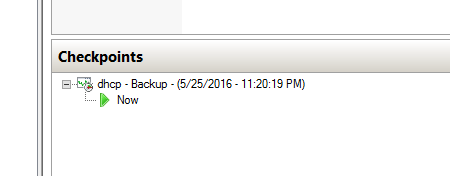
dhcp


Now you may notice that the icon is slighty different from that of a regular checkpoint, that is because this is a differencing disk. Running an inspection of the VHDX file will reveal this.


vhd


In this case a failed backup of the VM left the hindering checkpoint. The only way to deal with it is by using Powershell.

The following command will help you determine that a checkpoint is currently open on the VM:

Get-VMSnapshot -VMName VMNameWithCheckPoint -ComputerName HyperVServerName | fl

this returns the VM state

and his command will remove the checkpoint and merge the AVHDX file into it’s parent VHDX file.

Get-VMSnapshot -VMName VMNameWithCheckPoint -ComputerName HyperVServerName | Remove-VMSnapshot

Hope this helps if you find yourself in a similiar situation.