Category Archives: PowerShell

Kapothi Guide: Uninstalling Software with PowerShell & Winget

Why This Matters: Uninstalling software from the command line is faster, scriptable, and avoids digging through Control Panel menus. With PowerShell and Winget, you can remove apps cleanly and automate the process.


⚙️ Command Method (WMIC / WMIObject)

# List installed programs
wmic product get name

# Uninstall by exact name
wmic product where name="Software Name" call uninstall

💡 Alternative modern PowerShell:

Get-WmiObject -Class Win32_Product |
  Where-Object { $_.Name -eq "Software Name" } |
  ForEach-Object { $_.Uninstall() }

⚙️ Winget Method (Modern Windows Package Manager)

# List all installed apps
winget list

# Uninstall by name
winget uninstall "System Mechanic"

# Batch uninstall multiple apps
winget uninstall "Viber"
winget uninstall "Webex"

📌 Takeaway

With these two methods, Kapothi admins can keep their systems clean and efficient without ever opening Control Panel.

Active Directory Audit Checklist: Privileged Access & Inactive User Reviews with PowerShell

🧾 Kapothi Audit Scroll: Forgotten Access Reviews

Auditors flagged: “User access reviews and privileged access reviews are not being conducted for users within Active Directory.” — a classic Kapothi moment.

When auditors raise this finding, it means the organization has not been regularly checking who has access to Active Directory and whether those users still need it. In practice, accounts may remain active long after employees leave, contractors finish projects, or service accounts are created without proper documentation. Privileged groups like Domain Admins or Enterprise Admins may also accumulate members who no longer require elevated rights. This creates a serious security gap — attackers love stale accounts and unused privileges because they are rarely monitored.

The IT department’s responsibility is to close this gap by:

  • Reviewing privileged groups — Identify all members of high‑risk groups and confirm with management that each one still requires access.
  • Checking inactive accounts — Generate reports of users who haven’t logged in for 30 or 60+ days, then disable or remove them after manual review.
  • Documenting approvals — Keep CSV exports and manager sign‑offs as audit evidence to prove reviews are being conducted.
  • Maintaining service accounts — Ensure every service account has a clear owner, documented purpose, and is excluded from bulk disable actions.
  • Repeating regularly — Schedule these reviews (monthly or quarterly) so auditors see a consistent compliance routine.

In short, the audit flag is a warning that access hygiene has slipped. The IT team must demonstrate control by producing evidence of reviews, showing that inactive accounts are cleaned up, and proving that privileged access is tightly managed. That’s how the Kapothi moment is turned into compliance success.

⚡ Privileged Access Review


  # List privileged accounts
  Get-ADGroup -Filter {Name -like "*Admin*"} |
  ForEach-Object { Get-ADGroupMember $_ |
  Select-Object @{Name="Group";Expression={$_.objectClass}}, Name, SamAccountName }
  

⚡ Inactive User Review (30 Days)


# Find enabled accounts inactive for 30 days
Search-ADAccount -UsersOnly -AccountInactive -TimeSpan 30.00:00:00 |
Where-Object { $_.Enabled -eq $true } |
Select-Object Name, SamAccountName, LastLogonDate

# Export inactive accounts (30 days) to CSV for audit evidence
Search-ADAccount -UsersOnly -AccountInactive -TimeSpan 30.00:00:00 |
Where-Object { $_.Enabled -eq $true } |
Select-Object Name, SamAccountName, LastLogonDate |
Export-Csv "InactiveUsers_30Days.csv" -NoTypeInformation

⚡ Optional Cleanup (Disable 60+ Days)


# OPTIONAL ⚠️ Cleanup Command
# Risk: This can disable service accounts or rarely used but valid accounts.
# Recommended: First run the 30-day inactive user listing command above, review manually,
# and only disable accounts after confirming they are safe to remove.
Search-ADAccount -UsersOnly -AccountInactive -TimeSpan 60.00:00:00 |
Where-Object { $_.Enabled -eq $true } |
Disable-ADAccount

⚡ Sensitive Group Memberships


  # Export key group memberships
  $groups="Domain Admins","Enterprise Admins","Schema Admins","Remote Desktop Users","Backup Operators";
  $groups | ForEach-Object {
    Get-ADGroupMember -Identity $_ |
    Select-Object @{Name="Group";Expression={$_}},Name,SamAccountName
  } | Export-Csv "AD_GroupMemberships.csv" -NoTypeInformation
  

⚡ Full AD Group Memberships (One Line)


  # Export all groups with members
  Get-ADGroup -Filter * | ForEach-Object { $g=$_.Name; 
    Get-ADGroupMember $g |
    Select-Object @{Name="Group";Expression={$g}},Name,SamAccountName 
  } | Export-Csv "All_AD_GroupMemberships.csv" -NoTypeInformation
  

Thus the Kapothi was resolved: from audit red flag to compliance evidence, with scrolls of PowerShell wisdom.

Kapothi Scroll: Banishing the Ghost VM in Hyper‑V

Kapothi Scroll: Banishing the Ghost VM in Hyper‑V

Kapothi — Sinhala slang for “getting into a big problem.” This scroll documents how we untangled one such haunting: a phantom VM that refused to die, flooding Event Viewer with endless errors.

🌀 The Symptom

Failed to load Hyper-V state for virtual machine 'MEGATRON-SVR-KAP-DSTN-04'
from the configuration: Unspecified error (0x80004005).
(Virtual machine ID 287FCA31-68ED-43C1-8B35-0452C2EDF743).
Hyper-V may not work properly. An attempt to reload the configuration will be made in a few minutes.

🔎 The Investigation Ritual

Check replication status

# PowerShell
Get-VMReplication -VMName "MEGATRON-SVR-KAP-DSTN-04"

→ Showed replication normal, so the issue wasn’t with Replica.

Try removing replication

# PowerShell
Remove-VMReplication -VMName "MEGATRON-SVR-KAP-DSTN-04" -Force

→ Command worked only with -VMName, not -VMId.

Search filesystem and registry

  • Looked under C:\ProgramData\Microsoft\Windows\Hyper-V\Virtual Machines
  • Checked registry keys under HKLM\SOFTWARE\Microsoft\Windows NT\CurrentVersion\Virtualization

→ No folder or key for the GUID found.

Inspect WMI repository

# PowerShell
Get-WmiObject -Namespace root\virtualization\v2 -Class Msvm_ComputerSystem |
Where-Object { $_.Name -eq "287FCA31-68ED-43C1-8B35-0452C2EDF743" }

→ Found the ghost entry still alive in WMI, status Degraded.

Check VM list

# PowerShell
Get-VM

→ VM showed as SavedCritical with “Cannot connect to virtual machine configuration storage.”

⚔️ The Cleansing Ritual

Remove ghost from WMI

# PowerShell
Get-WmiObject -Namespace root\virtualization\v2 -Class Msvm_ComputerSystem |
Where-Object { $_.Name -eq "287FCA31-68ED-43C1-8B35-0452C2EDF743" } |
Remove-WmiObject

Force remove VM object

Remove-VM -Name "MEGATRON-SVR-KAP-DSTN-04" -Force

or

Remove-VM -Id "287FCA31-68ED-43C1-8B35-0452C2EDF743" -Force

Purge leftover config files

  • Search for GUID‑named files (287FCA31-68ED-43C1-8B35-0452C2EDF743) under:
    • C:\ProgramData\Microsoft\Windows\Hyper-V\Virtual Machines
    • Replica storage paths (e.g., E:\Hyper-V\Replica\...)

Restart services

Restart-Service vmms

🌑 Final Cleansing (WMI Repository Reset)

If the ghost still lingers after all steps, reset the WMI repository:

net stop winmgmt
winmgmt /resetrepository
net start winmgmt

⚠️ Note: This is the last resort — it rebuilds the entire WMI repository, clearing any corrupted or stale entries.

✅ The Outcome

  • Event Viewer spam stopped.
  • Get-VM no longer listed the ghost VM.
  • Replication remained healthy for other VMs.

📜 Ritual Reflection

The ghost scroll wasn’t just in the shelves (registry) or archives (ProgramData) — it hid in the secret catalog (WMI). Hyper‑V kept trying to read it, failing each time. By purging the catalog entry, removing the VM object, and finally resetting the repository, the shrine keeper’s chant of errors was silenced.

✨ Kapothi Lesson: When Hyper‑V haunts you with “Failed to load state” errors, cleanse all three layers — filesystem, registry, and WMI. If the ghost still lingers, reset the repository to rebuild the shrine’s catalog from scratch.
Kapothi Scroll: Compacting VHD/VHDX with PowerShell & SDelete

Kapothi Scroll: Compacting VHD/VHDX with PowerShell & SDelete

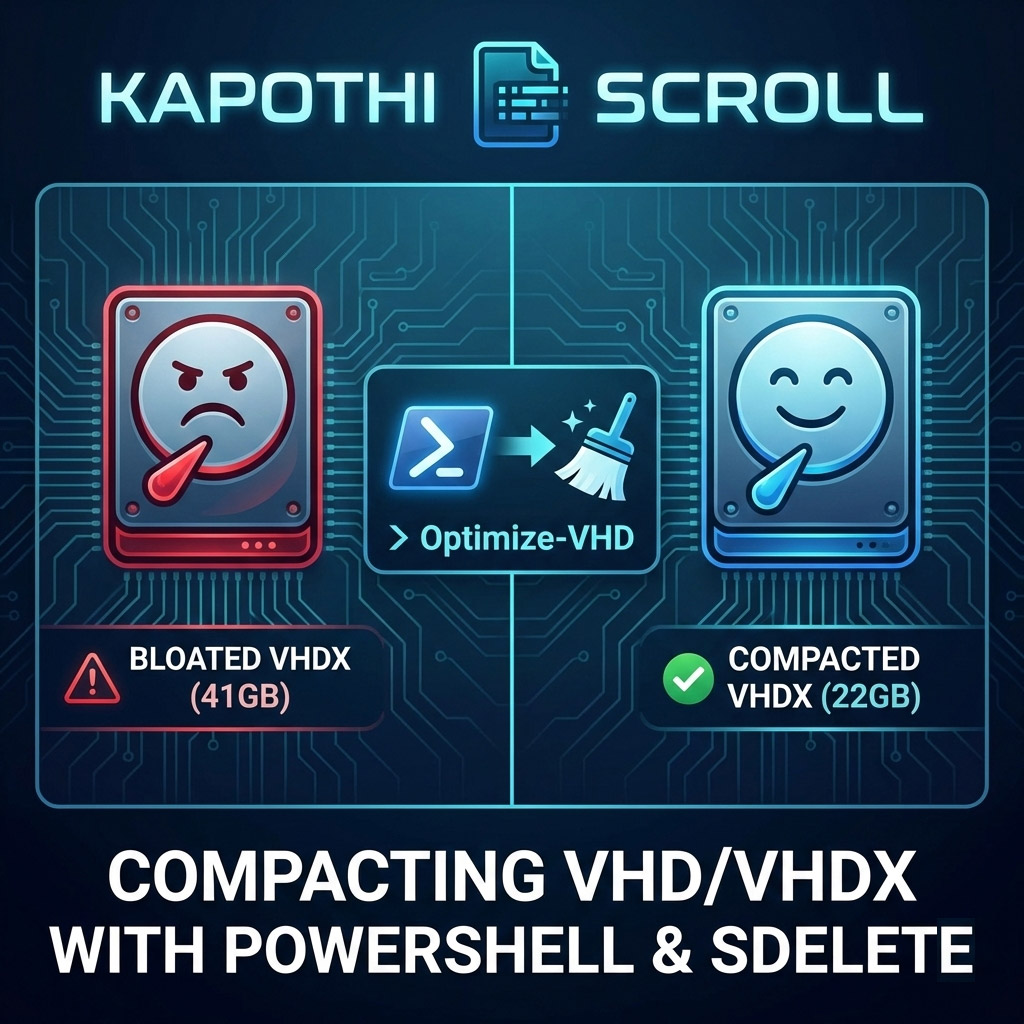
Kapothi — Sinhala slang for “getting into a big problem” — is exactly how it feels when your VHDX file swells to double its real usage size. A 22GB disk showing up as 41GB? That’s a Kapothi moment. Here’s the ritual to reclaim space.

Command Box Legend (Kapothi Style)

What is SDelete and How to Get It

SDelete is part of the legendary Sysinternals Suite created by Mark Russinovich. It is a secure delete utility that can overwrite free space with zeros, making it visible to compaction tools like Optimize-VHD. Without this step, deleted files inside a VM still appear as “used blocks” to the VHDX file, preventing shrinkage.

In Kapothi terms, SDelete is the chalk ritual: it marks the courtyard stones so the lantern keeper knows which ones are truly empty.

How to Get SDelete

  • Download SDelete from the official Microsoft Sysinternals page.
  • Extract the sdelete.exe file.
  • Run it inside your VM from an elevated Command Prompt.
# Example usage inside VM
sdelete -z C:

This command writes zeros to all free space on the C: drive. Once complete, you can shut down the VM and run Optimize-VHD on the host to reclaim space.

Step 1: Sweep the Courtyard (Zero Free Space with SDelete)

Inside the VM, run SDelete to mark free blocks with zeros. Without this, compaction won’t know which stones are truly empty.

# Run inside the VM (Command Prompt as Administrator)
sdelete -z C:

This may take time, but it’s the chalk ritual that reveals unused courtyard tiles.

Step 2: Compact the VHDX (Optimize-VHD)

Back on the host, use PowerShell to mount, optimize, and dismount the disk.

# Mount the VHDX
Mount-VHD -Path "C:\Path\To\YourDisk.vhdx" -ReadOnly

# Compact the disk
Optimize-VHD -Path "C:\Path\To\YourDisk.vhdx" -Mode Full

# Dismount when done
Dismount-VHD -Path "C:\Path\To\YourDisk.vhdx"

-Mode Quick → faster, less thorough
-Mode Full → slower, maximum space reclaimed

Step 3: Verify the Lantern’s Weight

After compaction, check the file size. It should shrink closer to the real usage (~22GB). Some overhead remains, but the bloat is gone.

Step 4: Last Resort — Rebirth with Disk2VHD

If compaction still doesn’t shrink enough, create a new disk using Disk2VHD:

  • Download Disk2VHD from Microsoft Sysinternals.
  • Run it inside the VM.
  • Select the volumes you want to capture.
  • Save to a new VHDX file.
  • Attach the new disk in Hyper-V and retire the bloated one.

This is the rebirth ritual: a fresh lantern forged, carrying only the light you need.

Kapothi Wisdom

SDelete first, then Optimize-VHD → Without sweeping the courtyard, the lantern keeper can’t lift away unused stones.
Protect your shrine tools → Always run compaction after major deletions inside the VM.
Disk2VHD fallback → When the lantern is too heavy, forge a new one.

🕯️ In Kapothi terms, this is turning a “big problem” into a ritual solution: chalk the stones, sweep the courtyard, and if needed, rebuild the lantern itself.

Kapothi System Hygiene Checklist

Kapothi System Hygiene Checklist

🧹 Kapothi System Hygiene Checklist

This guide shows how to detect and remove impostor executables like the fake Windows Driver Foundation (WDF.exe), while also cleaning up unwanted startup entries to save RAM and CPU usage.

🔍 Detect Suspicious Files

Look for oversized or unsigned executables in C:\Windows\. Example: Windows Driver Foundation (WDF).exe (fake, 672 MB).

📋 Export Services & Tasks


  # Export all services with paths
  Get-CimInstance Win32_Service |
  Select-Object Name, DisplayName, StartMode, PathName |
  Out-File C:\services_with_paths.txt
  

🛠️ Alternative: Export to CSV

Get-CimInstance Win32_Service |
Select-Object Name, DisplayName, StartMode, PathName |
Export-Csv C:\services_with_paths.csv -NoTypeInformation
    

This produces a clean spreadsheet‑friendly file with all service details, perfect for filtering and analysis.

⚠️ Quick PowerShell Filter

Get-CimInstance Win32_Service |
Select-Object Name, DisplayName, StartMode, PathName |
Where-Object { $_.PathName -and $_.PathName -notlike "C:\Windows\System32\*" } |
Export-Csv C:\suspicious_services.csv -NoTypeInformation
    

This highlights only services whose executables are outside the standard C:\Windows\System32\ directory, helping you spot anomalies quickly.


  # Export all scheduled tasks with full paths
  Get-ScheduledTask | ForEach-Object {
      foreach ($action in $_.Actions) {
          [PSCustomObject]@{
              TaskName   = $_.TaskName
              Path       = $_.TaskPath
              Execute    = $action.Execute
              Arguments  = $action.Arguments
          }
      }
  } | Out-File C:\tasks_with_full_paths.txt -Width 4096
  

🕵️ Process Explorer

Process Explorer is part of Microsoft’s Sysinternals Suite. It shows detailed information about running processes, including parent processes, command lines, and loaded DLLs. Download it from Microsoft Sysinternals.

Use it to trace suspicious executables:

  • Right‑click the process → Properties
  • Check Parent process to see who launched it
  • Check Command line for hidden scripts
  • Use DLLs tab to inspect loaded modules

🗝️ Registry Check


  # Winlogon Shell should only be explorer.exe
  HKLM\SOFTWARE\Microsoft\Windows NT\CurrentVersion\Winlogon
  Shell = explorer.exe
  

📑 Autoruns

Autoruns is another Sysinternals tool that shows every program configured to run at startup. It covers Logon, Services, Scheduled Tasks, Drivers, and more. Download it from Microsoft Sysinternals.

Check these tabs carefully:

  • Logon — suspicious scripts/executables
  • Scheduled Tasks — hidden triggers
  • Services — verify only legitimate system services
  • Image Hijacks — ensure no debugger hijacks
  • Winlogon — confirm Shell is only explorer.exe

🧹 Cleanup Ritual

  • Restore registry values to defaults (explorer.exe)
  • Disable/remove unwanted Autoruns entries
  • Delete malicious files (WDF.exe, wtime.cmd, wudf.exe)
  • Reboot and confirm clean startup
  • Run full malware scans (Windows Defender, Malwarebytes)

⚡ Benefits

  • Freed up RAM 💾
  • Reduced CPU usage ⚡
  • Faster startup 🚀
  • Cleaner shrine‑home 🕊️

🕯️ Kapothi Insight

Every impostor exe is a hidden chant. Trace the scroll, silence the ritual, and the shrine runs serene.

Hunting Down a Fake Windows Driver Foundation (WDF.exe)

Hunting Down a Fake Windows Driver Foundation (WDF.exe)

🕵️‍♂️ How We Tracked Down a Fake Windows Driver Foundation (WDF.exe)

Malware often hides in plain sight, pretending to be legitimate system files. One such case is the fake Windows Driver Foundation (WDF.exe). Here’s how we detected, traced, and removed it using free tools like Autoruns, PowerShell, and Process Explorer.

Step 1: Spotting the Suspicious File

C:\Windows\Windows Driver Foundation (WDF).exe

A massive 672 MB executable with no signature or version info. Clearly not a legitimate Microsoft file.

Step 2: Autoruns & PowerShell Checks

We exported all services and tasks to confirm no hidden startup entries.

Get-CimInstance Win32_Service | 
Select-Object Name, DisplayName, StartMode, PathName | 
Out-File C:\services_with_paths.txt
Get-ScheduledTask | ForEach-Object {
    foreach ($action in $_.Actions) {
        [PSCustomObject]@{
            TaskName   = $_.TaskName
            Path       = $_.TaskPath
            Execute    = $action.Execute
            Arguments  = $action.Arguments
        }
    }
} | Out-File C:\tasks_with_full_paths.txt -Width 4096

No service or task pointed to WDF.exe. Suspicious.

Step 3: Process Explorer Trail

Process Explorer revealed WDF.exe was spawned by cmd.exe running a script:

C:\Windows\System32\cmd.exe /c "C:\Windows\wtime.cmd"
@echo off
timeout /t 30
cd %windir%
%tmpd%"%windir%\Windows Driver Foundation (WDF).exe"

Step 4: Registry Hijack Discovery

The Winlogon Shell value was hijacked to run the malicious script:

HKLM\SOFTWARE\Microsoft\Windows NT\CurrentVersion\Winlogon
Shell = explorer.exe,wudf.exe wtime.cmd

Normally, Shell should be only:

explorer.exe

Step 5: Cleanup

  • Restored Shell value to explorer.exe
  • Deleted malicious files:
    • C:\Windows\Windows Driver Foundation (WDF).exe
    • C:\Windows\wtime.cmd
    • C:\Windows\wudf.exe
  • Rebooted — malware no longer launched
  • Ran full malware scans for confirmation

Lessons Learned

  • Malware can hijack Winlogon Shell instead of services or tasks
  • Exporting services and tasks with PowerShell helps confirm legitimacy
  • Process Explorer is invaluable for tracing parent processes
  • Always check registry keys for hidden startup hijacks

Conclusion

This detective work shows how persistence and free tools can uncover even the most hidden startup hijacks. By documenting the trail — from Autoruns to PowerShell exports, Process Explorer analysis, and registry inspection — we created a repeatable method for others to follow. Use this guide to protect your PC from impostor files like fake WDF.exe.

🌀 Kapothi Tech Adventure: The Space That Broke the Sync

🌀 Kapothi Tech Adventure: The Space That Broke the Sync

The Mystery

OneDrive showed a scary error:

Bad Request (status code 400)… The provided name cannot contain leading, or trailing, spaces.

The file looked fine, but hidden at the start was a sneaky space:
" Ada Vessantara Raja Putha - Various Artists.mp3"

The Fix

  • Step 1: Spot the hidden space.
  • Step 2: Rename the file to remove it.
  • Step 3: Sync again — and it works!

The PowerShell Spell (for 100s of files)

# Go to the folder where your files are
cd "C:\SINHALA\OLD\Noorthi Gee Collection"

# Clean all filenames in this folder
Get-ChildItem -File | ForEach-Object {
    $newName = $_.Name.Trim()
    if ($newName -ne $_.Name) {
        Rename-Item $_.FullName $newName
    }
}

# If you want to include subfolders too:
Get-ChildItem -File -Recurse | ForEach-Object {
    $newName = $_.Name.Trim()
    if ($newName -ne $_.Name) {
        Rename-Item $_.FullName $newName
    }
}
  

The Lesson

Even invisible spaces can break big systems. Computers are precise, so every character matters.
Removing those ghost spaces turns errors into success — whether it’s one file or hundreds.

PowerShell Remoting — Allowing Only One Trusted Server

PowerShell Remoting — Allowing Only One Trusted Server

For years, Windows admins used WMIC (Windows Management Instrumentation Command-line) to check hardware and system details. Microsoft is now retiring WMIC because it’s old and no longer updated. Instead, they want everyone to use PowerShell, which is more secure, flexible, and future-proof.

If you use WMIC in scripts or management tools, you’ll need to move to PowerShell commands. This guide shows how to safely allow only one trusted server to run PowerShell commands remotely on another server.


Steps to allow only Server2 to access Server1

PowerShell # Enable remoting on Server1
Enable-PSRemoting -Force

PowerShell # Restrict firewall to Server2’s IP
New-NetFirewallRule -DisplayName “Allow WinRM from Server2” `
  -Direction Inbound -Protocol TCP -LocalPort 5985 `
  -RemoteAddress 192.168.1.20 -Action Allow

PowerShell # Configure TrustedHosts on Server2
Set-Item WSMan:\localhost\Client\TrustedHosts -Value “Server1”

PowerShell # Connect with credentials from Server2
Enter-PSSession -ComputerName Server1 -Credential (Get-Credential)

Continue reading PowerShell Remoting — Allowing Only One Trusted Server

📀 ROBOCOPY Commands — Copying Legacy CDs

Each ROBOCOPY command below represents a different method for copying files from a legacy CD into your archive folder. These examples prioritize speed, reliability, and logging — helping you preserve your data with clarity and control.

🧭 Method 1 — Fast Copy Without Verification

This command copies all files and folders from the CD to your archive folder. It skips retries and verification to maximize speed, and saves a log of the copy process.

Command robocopy D:\ “C:\Kapothi\CD_Ingest” /e /r:0 /w:0 /log:”C:\Kapothi\CD_Ingest\copylog.txt”
  • /e → Copy all subdirectories, including empty ones
  • /r:0 → No retries on failed copies
  • /w:0 → No wait time between retries
  • /log → Save output to a log file for review

🧪 Method 2 — Copy with File Verification

This command adds file-level verification using the /v flag. Each copied file is logged with extra detail, making it ideal for critical or sensitive data.

Command robocopy D:\ “C:\Kapothi\CD_Ingest” /e /v /r:0 /w:0 /log:”C:\Kapothi\CD_Ingest\verified_log.txt”
  • /v → Verbose output with file verification
  • All other flags same as Method 1

⚡ Method 3 — Multi-threaded Copy for Speed

This command enables multi-threading for faster copying, using up to 8 threads. It’s ideal for large CD sets or high-speed archival workflows.

Command robocopy D:\ “C:\Kapothi\CD_Ingest” /e /mt:8 /r:0 /w:0 /log:”C:\Kapothi\CD_Ingest\multithread_log.txt”
  • /mt:8 → Enables multi-threading with 8 threads
  • All other flags same as Method 1

🧠 Summary Tip

Purpose: Copy legacy CD content into archive folder
Tools: ROBOCOPY, Logging, Multi-threading, Verification
Use Case: Choose based on speed, accuracy, or performance
Note: Each log file becomes part of your archival documentation

🔄 Alternatively: Use Unstoppable Copier for Damaged Discs

For discs with heavy scratches, CRC errors, or unreadable sectors, Unstoppable Copier by Roadkil offers a graceful fallback. Unlike ROBOCOPY, which halts on read errors, this tool performs sector-level recovery, gently extracting what it can — even from failing media.

  • Silent Operation: Reads so smoothly, your CD-ROM barely makes a sound — a whispering ritual of recovery.
  • Partial File Handling: Recovers what’s readable, logs what’s lost.
  • Ideal For: Legacy audio CDs, mixed-mode discs, or any media where ROBOCOPY fails mid-ingestion.

🧠 Kapothi Tip: Use ROBOCOPY first for speed and structure. If it fails, switch to Unstoppable Copier and document the recovery as a “Silent Ingestion Event.”

The Mystery of Random Restarts: Tracing Why Your Windows PC Rebooted

Not every reboot is a user’s decision. Sometimes, the system whispers its own intentions — through updates, crashes, or power flickers. If your PC restarted without your command, here’s how to uncover the ritual traces left behind.

🧭 Step 1: Use Event Viewer to Decode the Reboot


  • Press Win + R → type eventvwr.msc → Enter
  • Navigate to: Windows Logs → System
  • Look for these Event IDs:
    • 41Kernel-Power (unexpected shutdown or power loss)
    • 1074 → shutdown initiated by a process (e.g., Windows Update)
    • 6008 → previous shutdown was unexpected
    • 1001 → bug check (BSOD)
    • 12, 13, 6005, 6006 → startup/shutdown markers

🧪 PowerShell — Reboot Trace Ritual

PowerShell Get-EventLog -LogName System -Newest 100 | Where-Object {$_.EventID -eq 41 -or $_.EventID -eq 1074 -or $_.EventID -eq 6008}

🧰 Step 3: Reliability Monitor — The Visual Scroll

  • Press Win + R → type perfmon /rel → Enter
  • Look for red Xs or warnings around the reboot time
  • Click entries to see if it was a crash, update, or hardware issue

🔄 Windows Update Rebooted My PC?

Yes — and it leaves behind clear evidence. In Event Viewer, look for:

  • Event ID: 1074
  • Source: USER32

🧪 PowerShell — Windows Update Reboot Check

PowerShell Get-EventLog -LogName System -Newest 1000 | Where-Object {$_.EventID -eq 1074} | Format-Table TimeGenerated, Message -AutoSize

Look for messages like:

The process C:\Windows\servicing\TrustedInstaller.exe has initiated the restart…
The process C:\Windows\uus\packages\preview\AMD64\MoUsoCoreWorker.exe has initiated the restart…

These are system-initiated reboots, not user-triggered. They often occur after cumulative updates or servicing stack operations.

🧠 Reboot Scroll Example

🕰️ Timestamp 🔧 Process Initiated Reboot 🧠 Reason
10/11/2025 5:14:41 AM TrustedInstaller.exe Post-update servicing
10/11/2025 5:07:23 AM MoUsoCoreWorker.exe Update orchestration
10/10/2025 10:57:02 PM TrustedInstaller.exe Cumulative update phase

🧠 Kapothi Scroll Tip

Artifact: Unexpected Reboot
Cause: Windows Update (TrustedInstaller, MoUsoCoreWorker)
Tools: Event Viewer, PowerShell, Reliability Monitor
Tags: Phantom Reboot, Update Ritual, Sonic Scroll Forensics
Notes: Stylize each timestamp as a heartbeat of the system — not user-triggered, but orchestrated by the OS