Play Your iPod Through Your Windows 7 PC’s Speakers

sshot-2009-07-30-_2_

Windows expert Ed Bott finds a useful feature in Windows 7: you can play an external audio device through your computer’s speakers without any extra software using a simple configuration setting.

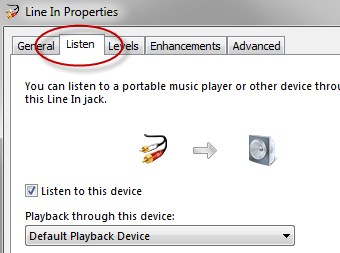
To activate the setting, you’ll need to plug the device into the Line In or microphone jacks, head to the Sounds panel, and then find the new Listen tab under the input jack. You’ll be able to direct the input from your iPod or other device to play directly from your speakers, an extremely useful feature if you’ve got a nice set of speakers connected to your PC.

Readers will note that you can always play your iPod’s music using iTunes, but this method works even if you connect a friend’s iPod or any other sound input you would like to use—and this method doesn’t require using any software.

Windows expert Ed Bott finds a useful feature in Windows 7: you can play an external audio device through your computer’s speakers without any extra software using a simple configuration setting.

To activate the setting, you’ll need to plug the device into the Line In or microphone jacks, head to the Sounds panel, and then find the new Listen tab under the input jack. You’ll be able to direct the input from your iPod or other device to play directly from your speakers, an extremely useful feature if you’ve got a nice set of speakers connected to your PC.

Readers will note that you can always play your iPod’s music using iTunes, but this method works even if you connect a friend’s iPod or any other sound input you would like to use—and this method doesn’t require using any software.

Microsoft® My Phone – Sync your Windows Mobile 6 online

Back up phone information to a password-protected web site

Microsoft My Phone syncs information on your mobile phone to a storage space on a web site hosted by Microsoft. If your phone is lost or stolen, or if you upgrade to a new phone, you can easily restore the contacts, calendar appointments, photos, and other information that you stored on My Phone to a compatible new or replacement phone. Most phones that run the Windows Mobile 6 operating system are compatible with My Phone service.

More info Available @

http://myphone.microsoft.com/


Can my PC run Windows 7?

You may be able to run Windows 7 on your current PC. Here’s how to find out.

Download and run the Upgrade Advisor

In general, if your PC can run Windows Vista, it can run Windows 7. But if you’re not running Windows Vista, or are just not sure if your system is ready to run Windows 7, there’s a quick way to do a simple check.

Just download, install, and run the Windows 7 Upgrade Advisor Beta. You’ll get a report telling you if your PC can run Windows 7 and if there are any known compatibility issues. If an issue can be resolved, you’ll get suggestions for next steps. For example, it may let you know that you need an updated driver for your printer and where to get it

Before you begin

Before you begin

Before you run the Windows 7 Upgrade Advisor Beta, be sure to plug in any USB devices or other devices such as printers, external hard drives, or scanners that are regularly used with the PC you’re evaluating.

Download Link

http://www.microsoft.com/downloads/details.aspx?displaylang=en&FamilyID=1b544e90-7659-4bd9-9e51-2497c146af15

How to Enable Standard Journaling – Exchange 2000

It is recommended that you designate a dedicated Exchange server as the journaling server. Additionally, if you use a dedicated journaling server, you do not have to enable standard journaling on the server. Enable journaling only on those servers with mailbox stores for which you want to journal.

Before You Begin

Review your overall journaling strategy to verify that journaling is enabled on appropriate Exchange server.

To enable standard journaling

  1. In Exchange System Manager, expand Servers, expand <your Exchange server>, expand <storage group>, and then right-click the mailbox store.
  2. On the General tab, select Archive all messages sent or received by mailboxes on this store, and then click Browse to specify a mailbox as the journaling mailbox. All journalized messages for senders on this mailbox store are sent to the mailbox you specify.

Virus.Win32.Sality.aa Removal

Can’t delete Virus.Win32.Sality.aa? Win32.Sality.aa better referred as Virus.Win32.Sality.aa or virus Sality is a virus that can download adware, spyware and other malware threats and generates corrupt files in Windos Win directories. After infecting the system virus Virus.Win32.Sality.aa will trigger diverse malware infections and install corrupt scvhsot.exe, blastclnnn.exe, blastclnnn.exe, hinhem.scr files causing unreliable system speed. Usually, the Virus.Win32.Sality.aa is installed after clicking on unsolicited spam e-mail links, corrupt p2p and freeware downloads or via porn related web sites. The Virus.Win32.Sality.aa is a disruptive virus utility that can send credit card numbers, passwords and oth er sensitive information to distant servers.

Automated Virus.Win32.Sality.aa Removal
(Windows 98, ME, 2000 or XP)
Windows Vista VersionClick Here

Kasperskey Tool to remove Sality

http://support.kaspersky.com/downloads/utils/sality_off.rar

Full instructions at

Open IE’s Private Browsing Mode the Easy Way

Internet Explorer’s “private browsing” mode is an excellent way to hide what you’re looking at from prying eyes, but it’s normally hidden under a menu… but we can make it easier to access.

The Normal Way

To open an InPrivate Browsing window, you can either use the Ctrl+Shift+P shortcut key, or just use the Safety \ InPrivate Browsing item on the menu.

image

And you’ll immediately see a private browsing window, which will leave no traces of your browsing history. Useful!

image

The other thing that private browsing is useful for is checking your email on somebody else’s computer – no danger of cookies lying around letting them back into your email account once you’ve gone.

Windows 7 Makes it Really Simple

If you are using Windows 7, all you have to do is right-click on the icon in the taskbar and choose the InPrivate option. You can also click and hold the left mouse button on the icon, and slide your mouse up… the menu will pop up and you can choose it there.

image 

In other news, Windows 7 is really, really slick. If you haven’t already, check out our coverage of the beta release.

Create a Shortcut to Open Private Browsing Mode

If you haven’t made the switch to Windows 7 yet, you can still create your own shortcut manually. Simply create a new shortcut to Internet Explorer, and add the following to the end (after the quotes).

-private

The final path should look similar to this, depending on your system:

image

Give the icon a useful name indicating that it’s a private mode shortcut…

image

And now you have a shiny new icon to start up Internet Explorer in private browsing mode.

Work Faster with new Windows 7 Short cuts keys

Windows 7 beta 1 includes some handy new shortcut key combinations that allow you to navigate and manage the Windows workspace more efficiently. Here are 10 new Windows 7 shortcuts that will help you speed up your workflow (“Win” means the Windows Key):
Win+Home: Clear all but the active window
Win+Space: All windows become transparent so you can see through to the desktop
Win+Up arrow: Maximize the active window
Win+Down arrow: Minimize the active window or restore the window if it’s maximized
Win+Left/Right arrows: Dock the active window to each side of the monitor
Win+Shift+Left/Right arrows: If you’ve got dual monitors, this will move the active window to the adjacent monitor
Win+T: Shift focus to and scroll through items on the taskbar
Win+P: Adjust presentation settings for your display
Win+(+/-): Zoom in/out
Shift+Click a taskbar item: Open a new instance of that particular application