Category Archives: Windows 11

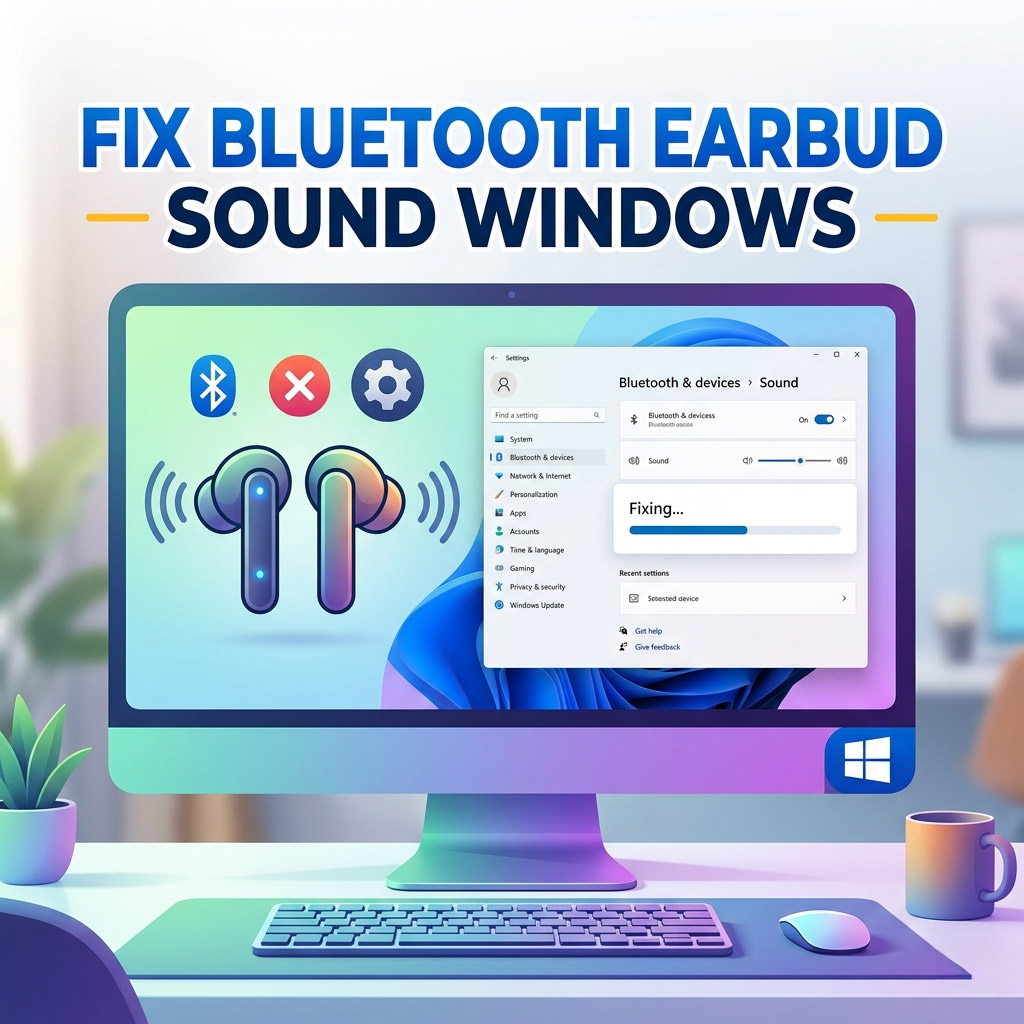
Fix Bluetooth Earbud Sound by Disabling Hands‑Free Telephony in Windows

Fix Bluetooth Earbud Sound: Disable Hands-Free Telephony Windows

Fix Bluetooth Earbud Sound by Disabling Hands‑Free Telephony in Windows

Many Bluetooth earbuds sound great on phones but poor on laptops. This happens because Windows often connects them in Hands‑Free Telephony (HFP/HSP) mode, which prioritizes the mic but drastically reduces audio quality. To get rich stereo sound, you need to force Stereo (A2DP) mode.

Step 1: Check Playback Devices

  1. Right‑click the speaker icon in the taskbar.
    • Windows 10: Choose Sounds.
    • Windows 11: Choose Sound Settings, scroll down, and click More sound settings.
  2. Go to the Playback tab.
  3. Look for two entries for your earbuds:
    • Headset (Hands‑Free AG Audio): Low quality, mono sound.
    • Headphones (Stereo): High quality, rich audio.
  4. Select Headphones (Stereo) and click Set Default.

Step 2: Disable Hands‑Free Telephony

This is the “permanent fix” that prevents Windows from switching back to low-quality audio.

  1. Open Control PanelHardware and SoundDevices and Printers.
  2. Find your earbuds under the “Devices” section. Right‑click them and choose Properties.
  3. Go to the Services tab (wait a few seconds for it to load).
  4. Uncheck the box for Hands‑Free Telephony.
  5. Click Apply. Your earbuds may disconnect and reconnect automatically.
Important Note: Disabling this service turns off the earbud’s built-in microphone. You will need to use your laptop’s internal mic for Zoom or Discord calls.

Step 3: Enable Audio Enhancements

Once your earbuds are locked in Stereo mode, you can further improve the depth of the audio.

  1. Return to the Playback tab (from Step 1).
  2. Select your Stereo Headphones → click Properties.
  3. Open the Enhancements tab. (Note: If this tab is missing, your hardware uses a third-party app like Realtek or Dolby for these settings).
  4. Enable the following:
    • Bass Boost: Adds depth and punch to low frequencies.
    • Loudness Equalization: Balances volume for a fuller sound.
  5. Click ApplyOK.

Result

By removing the Hands-Free bottleneck, your Bluetooth earbuds will sound richer, warmer, and closer to phone‑level quality—even on older hardware. You can re-enable the service at any time if you find you specifically need the earbud mic for a call.

Conclusion

Unlocking the Stereo (A2DP) profile is the best way to enjoy music and movies on Windows. While you lose the earbud microphone, the massive jump in audio quality is almost always worth the trade-off.

Fix Smart App Control Blocking Apps in Windows 11

Fix Smart App Control Blocking Apps in Windows 11

Windows 11 includes Smart App Control, a security feature that blocks apps it doesn’t recognize. This helps protect your PC, but sometimes it blocks safe apps like dongle drivers or setup tools. Here’s how to fix it.

Step 1: Check the Blocked App

If you see a message like “Smart App Control blocked an app that may be unsafe”, note the file name (for example, Setup.exe from a 4G dongle).

Step 2: Disable Smart App Control Temporarily

To install trusted software, you can turn off Smart App Control:

  1. Open Settings.
  2. Go to Privacy & Security → Windows Security → App & Browser Control.
  3. Select Smart App Control settings.
  4. Switch it Off (requires a restart).

Step 3: Install the Software

After restarting, run the installer again. It should now work without being blocked.

Step 4: Re‑Enable Smart App Control

Once the software is installed, go back to the same settings and turn Smart App Control On again to keep your PC protected.

Alternative: Use Official Drivers

For extra safety, download the latest drivers directly from the manufacturer’s website instead of using the bundled installer on the device.

Conclusion

Smart App Control is useful for security, but sometimes it blocks apps you trust. By disabling it temporarily, installing your software, and then turning it back on, you can balance safety with functionality.

Fix Missing or Corrupted Windows Files with DISM and SFC

Fixing Missing or Corrupted Windows Files with DISM and SFC

When Windows system files go missing or get corrupted, tools may stop working or show errors. Instead of copying files manually, the safest way is to use DISM and SFC. These built‑in commands repair and restore system files automatically.

Step 1: Repair the Windows Image with DISM

# Repair the Windows image
DISM /Online /Cleanup-Image /RestoreHealth

This checks the Windows component store and repairs it. Run this first before using SFC.

Step 2: Scan and Fix System Files with SFC

# Scan and fix system files
sfc /scannow

This scans all protected system files and replaces any that are missing or corrupted. Restart your computer after repairs.

More Useful DISM Options

# Quick check, no changes
DISM /Online /Cleanup-Image /CheckHealth

# Deep scan, no repair yet
DISM /Online /Cleanup-Image /ScanHealth

# Restore health using local source (ISO)
DISM /Online /Cleanup-Image /RestoreHealth /Source:D:\Sources\install.wim /LimitAccess
  • CheckHealth → Quick check, tells you if corruption exists.
  • ScanHealth → Deep scan, confirms the extent of corruption.
  • RestoreHealth → Repairs corruption using Windows Update or a local source.
  • Source option → Useful if Windows Update is disabled; point DISM to a local ISO or installation media.

Step 3: Verify the Repair

If SFC reports “Windows Resource Protection did not find any integrity violations”, your system files are healthy. Tools like Remote Desktop (mstsc.exe) should now open without errors. If problems remain, run Windows Update or consider an in‑place repair install.

Conclusion

Whenever Windows system files go missing or get corrupted, DISM + SFC is the safest and most reliable fix. With DISM’s extra options, you can check, scan, and repair in different ways — making it a powerful tool for any Windows troubleshooter.

Enable BitLocker without TPM on Windows 10 & 11

Enable BitLocker without TPM on Windows 10 & 11

BitLocker is Microsoft’s built‑in drive encryption tool. By default it prefers a Trusted Platform Module (TPM), but you can enable BitLocker on PCs without TPM by adjusting a policy and using a password or USB startup key.


Step‑by‑step guide (OS Drive)

  1. Open Group Policy Editor
    Press Win + R, type gpedit.msc, and press Enter.
  2. Navigate to BitLocker settings
    Go to:
    Computer Configuration → Administrative Templates → Windows Components → BitLocker Drive Encryption → Operating System Drives
  3. Enable non‑TPM option
    Open Require additional authentication at startup → set to Enabled → tick Allow BitLocker without a compatible TPMApplyOK.
  4. Restart your PC
    This ensures the policy takes effect.
  5. Turn on BitLocker
    Control Panel → BitLocker Drive Encryption → select your system drive → Turn on BitLocker.
    Choose Password or USB startup key as your unlock method and follow the prompts.

Encrypting Other Partitions (Data Drives)

BitLocker policies are divided into three categories: Operating System Drives, Fixed Data Drives, and Removable Data Drives. The TPM requirement applies mainly to OS drives. For other partitions, you can enable BitLocker directly.

  1. Fixed Data Drives (D:, E:, etc.)
    – Open Control Panel → BitLocker Drive Encryption.
    – Select the partition → Turn on BitLocker.
    – Choose a password or smart card unlock method.
    – Optional: Configure policies under Computer Configuration → Administrative Templates → Windows Components → BitLocker Drive Encryption → Fixed Data Drives.
  2. Removable Drives (USB, external HDD)
    – BitLocker To Go handles these.
    – Turn on BitLocker from Control Panel.
    – Set a password to unlock on any PC.
    – Optional policies under BitLocker Drive Encryption → Removable Data Drives.

PowerShell quick start (optional)

# Enable policy for OS drives without TPM
reg add "HKLM\SOFTWARE\Policies\Microsoft\FVE" /v EnableBDEWithNoTPM /t REG_DWORD /d 1 /f

# Turn on BitLocker on C: with password
Manage-bde -on C: -Password

# Encrypt a data drive (example D:)
Manage-bde -on D: -Password

# View status
Manage-bde -status

Best practices

  • Backup first: Always back up important files before encrypting.
  • Save your recovery key: Store it in multiple safe locations (USB, password manager, and a printed copy).
  • Performance: Initial encryption can take hours depending on drive size; you can keep working while it runs.
  • Password strength: Use a long passphrase if not using TPM.

Comfort insight: Think of OS drives as the main shrine gate needing special ritual keys, while data drives are side gates that can be locked with simpler keys. Configure each gate according to its role for maximum serenity and security.

Kapothi Tech Scroll: Clearing WhatsApp Ghost Popups on Windows

Kapothi Tech Scroll: Clearing WhatsApp Ghost Popups on Windows

Kapothi Tech Scroll: Clearing WhatsApp Ghost Popups on Windows

Sometimes WhatsApp popups refuse to close — even after you exit the app or end it in Task Manager. They linger on the desktop like phantom scrolls, blocking your view.

The Problem

  • Notification Center glitch: Windows keeps a “toast” notification stuck in the UI layer.
  • Background services: WhatsApp helper processes may still run after the main app is closed.
  • Desktop compositor bug: The visual layer doesn’t refresh, leaving the popup frozen.

Quick Fix

Press Win + A to open Action Center. This forces Windows to redraw the notification stack, instantly clearing the ghost popup.

Permanent Fix

Restart Windows Explorer — the bearer of your desktop scrolls.

Task Manager method:

Ctrl + Shift + Esc
Find Windows Explorer
Right‑click → Restart

PowerShell one‑liner:

Stop-Process -Name explorer -Force; Start-Process explorer

Batch file shortcut: Save as RestartExplorer.bat and double‑click anytime.

@echo off
echo Restarting Windows Explorer…
taskkill /f /im explorer.exe
start explorer.exe
echo Done!

Comfort Insight

Think of Windows Explorer as the scroll bearer of your shrine wall. Restarting it forces the system to redraw everything, rolling up any phantom WhatsApp scrolls that refuse to vanish.

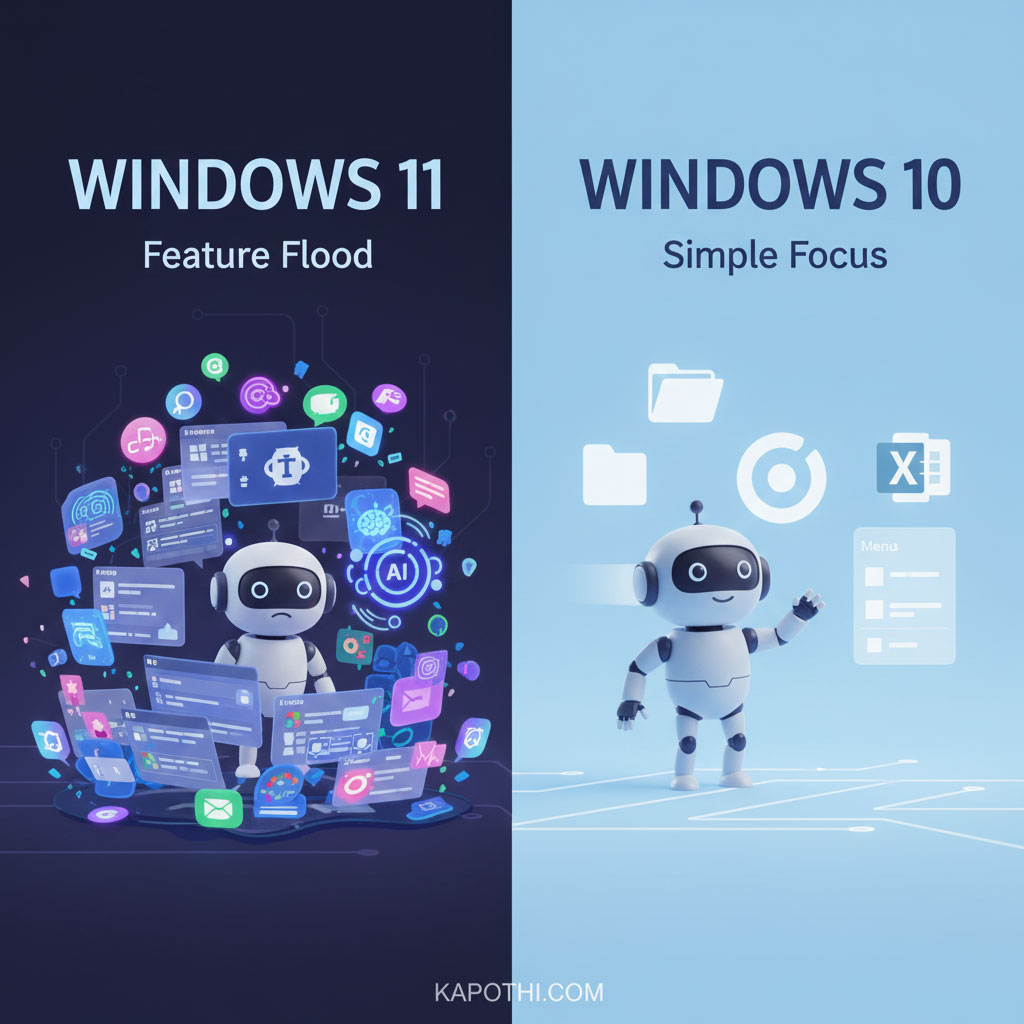
Windows 11’s Feature Flood vs Windows 10’s Lean Rituals

Windows 11’s Many New Features vs Windows 10’s Simple Focus

Introduction

Microsoft’s Windows computer system is always changing and getting new things. With Windows 11, they added lots and lots of new features – like widgets, built-in Teams chat, smart ways to arrange windows, and easy-to-use touch menus. But the truth is simple: most people don’t use these new things. They stick to the same everyday tasks they’ve done for years.

What most people do on Windows every day

  • File Explorer: opening, copying, renaming, and organizing files.
  • Web browsing: Using Chrome, Edge, or Firefox for daily internet stuff.
  • Office apps: Word, Excel, Outlook — important tools for work or school.
  • Basic settings: Adjusting Wi‑Fi, printers, sound, and screen.
  • Entertainment: watching videos, listening to music, or playing simple games.

These are the main things people do every day. Everything else just sits there, unused.

Why Windows 11 feels slow or heavy

  • Background programs: Widgets, data collection, and Teams chat run all the time, even if you’re not using them.
  • Design extras: Rounded corners and fancy looks use up more of your computer’s power.
  • Right-click menu changes: You often have to click “Show more options” which takes longer for experienced users.
  • Preloaded apps: Many apps come already installed, using up computer resources even when idle.
  • Memory use: Windows 11 uses more RAM (your computer’s short-term memory) when just sitting there, compared to Windows 10.

For many, this makes Windows 11 feel a bit heavy and slow, even if it looks nice.

The difference between what Microsoft wants and what users do

Microsoft sees Windows as a system for everything: getting work done, having fun, working together, and using AI. But most people just use it as a simple tool for their main tasks. This difference causes problems: new features keep appearing, but not many people actually use them.

Why Windows 10 still feels right

  • Fast performance: It has fewer programs running in the background.
  • Direct design: No extra clicks needed for menus.
  • Less extra software: Fewer pre-installed apps.
  • Familiar setup: Users already know where everything is.

Windows 10 is like a clear, simple tool — fast, direct, and easy to use.

Conclusion

Windows 11 might have over a thousand features, but most people only need a few. The rest are just extra decorations, admired by some but ignored by many. For everyday computer use, keeping things simple is better than having too much. Windows 10 stays faster and more responsive for those who prefer speed and clarity over fancy looks.

Windows 10 vs Windows 11: Rituals of Use

# Daily ritual Windows 10 Windows 11
1 File Explorer Classic, direct, full context menu Decluttered, extra “Show more options” step
2 Web browsing Runs smoothly with minimal background load Slightly heavier due to Edge integration & services
3 Office apps Seamless, lightweight performance Same apps, but UI layering adds overhead
4 Basic settings Straightforward Control Panel & Settings Modern Settings app, but slower navigation
5 Entertainment Lean playback, minimal bundled extras Extra apps & services preloaded, heavier footprint
6 Background services Fewer processes, lighter idle RAM use Widgets, Teams, telemetry increase idle load
7 UI design Flat, fast, minimal GPU demand Rounded corners, Fluent Design = heavier graphics
8 System footprint Lower RAM and CPU usage Higher idle RAM, more processes
9 User adoption Familiar, widely trusted Mixed — many stick to basics, ignore new features
10 Overall feel Light, responsive shrine Decorated shrine — heavier, ornamental

SQL Express on Windows 11 — Connection Limits Explained

SQL Express on Windows 11 — Connection Limits Explained

Windows 11 is widely used for development and small-scale hosting. When installing SQL Server Express, it’s important to understand which limits apply to the operating system and which are specific to SQL Express itself.


Connection limits in Windows 11

  • File sharing (SMB): Limited to 20 concurrent inbound connections.
  • Remote Desktop (RDP): Only 1 interactive session at a time.
  • SQL Server Express via TCP (port 1433): No operating system limit. Multiple users can connect, subject to hardware resources.

SQL Server Express resource limits

  • Database size: 10 GB per database.
  • Memory usage: 1 GB RAM per instance.
  • CPU usage: 1 socket, up to 4 cores.
  • Connections: No hard cap; performance depends on the above limits.

Windows 11 vs Windows Server — Connection limits

Feature / Limit Windows 11 (Client OS) Windows Server (Server OS)
File sharing (SMB) Max 20 concurrent inbound connections Thousands of concurrent connections supported
Remote Desktop (RDP) 1 interactive session at a time Multiple concurrent sessions (with RDS licensing)
SQL Server Express (TCP) No OS-imposed limit; resource-bound only No OS-imposed limit; resource-bound only
Database size (Express) 10 GB per database 10 GB per database (same Express cap)
Memory (Express) 1 GB RAM per instance 1 GB RAM per instance (same Express cap)
CPU (Express) 1 socket, up to 4 cores 1 socket, up to 4 cores (same Express cap)
Scalability Suitable for small apps, dev/test Suitable for production workloads, large user bases

Best use cases

  • Windows 11 + SQL Express: Ideal for developers, testing environments, small business apps, or limited multi-user scenarios.
  • Windows Server + SQL Server (Express/Standard/Enterprise): Recommended for production workloads, larger user bases, multiple RDP sessions, or when SMB connections exceed 20.

Download and install SQL Server Express 2022 on Windows 11

Option A: Quick GUI install (official installer)

  1. Download: Visit the official Microsoft SQL Server Express download page and get SQL Server 2022 Express.
  2. Run the installer: Choose “Basic” for a fast setup or “Custom” to select features and installation path.
  3. Finish: Note the instance name (default: SQLEXPRESS), and confirm SQL Server Browser service if you plan remote connections.

Option B: Command line install (silent)

Use a silent unattended install for repeatable setups and documentation.

# 1) Download the SQL Server 2022 Express setup bootstrapper
$uri = "https://go.microsoft.com/fwlink/?linkid=2203201"  # SQL 2022 Express bootstrapper (evergreen link)
$setup = "$env:TEMP\SQLEXPRESS2022.exe"
Invoke-WebRequest -Uri $uri -OutFile $setup

# 2) Run a silent install of Database Engine only
& $setup /QS /ACTION=Install /FEATURES=SQLEngine /INSTANCENAME=SQLEXPRESS `
  /IACCEPTSQLSERVERLICENSETERMS `
  /SECURITYMODE=SQL /SAPWD="Strong!Passw0rd" `
  /TCPENABLED=1 /SQLSVCACCOUNT="NT AUTHORITY\NETWORK SERVICE" `
  /UPDATEENABLED=TRUE

# Notes:
# - Change SAPWD to your strong password if enabling Mixed Mode (SQL logins).
# - /QS = quiet simple UI; use /Q for fully silent.

Enable remote TCP connections (optional)

  1. Open SQL Server Configuration Manager: Enable TCP/IP under “SQL Server Network Configuration” for your instance.
  2. Firewall rule: Allow inbound TCP on port 1433 (or your chosen port).
    New-NetFirewallRule -DisplayName "SQL Server 1433" -Direction Inbound -Protocol TCP -LocalPort 1433 -Action Allow
        
  3. Restart services: Restart the SQL Server (SQLEXPRESS) service after changes.

SQL Server Management Studio (SSMS)

  • Download SSMS: Install SSMS to manage databases, users, and queries.
  • Connect: Use localhost\SQLEXPRESS or machine-name\SQLEXPRESS. For remote clients, use IP:1433 if a custom port is configured.

Post-install checklist

  • Authentication mode: Choose Windows-only or Mixed Mode depending on your app requirements.
  • Backups: Set up regular backups (full/diff/log) based on change rate and recovery objectives.
  • Performance basics: Verify indexes, set appropriate file growth, and monitor memory usage (Express cap is 1 GB per instance).
  • Security: Restrict inbound access, use strong passwords, and patch regularly.

Summary

Windows 11 limits SMB connections (20) and allows only one interactive RDP session, but it does not impose a limit on TCP connections to SQL Server Express. SQL Express caps database size, memory, and CPU, not connection count. For higher concurrency and production workloads, Windows Server with SQL Server Standard or Enterprise is the recommended path.

With Windows 11 version 25H2, Microsoft has officially ended support for 32-bit (x86) processors

🛑 Farewell to x86: Windows 11 25H2 Marks the End of 32-Bit Support

With the release of Windows 11 version 25H2, Microsoft has officially retired support for 32-bit (x86) processors, closing a chapter that began nearly four decades ago.

This architectural shift means that new installations of Windows 11 will require 64-bit (x64 or ARM64) processors. Devices running legacy x86 hardware will no longer be eligible for upgrades, signaling a clear move toward modern, secure, and performance-optimized computing.

🧠 Why This Matters

  • x86 architecture, once the backbone of personal computing, is limited to ~4 GB of RAM and narrower CPU registers.
  • x64 systems, by contrast, can theoretically address up to 18.4 million TB of memory, enabling richer multitasking, virtualization, and security features.
  • Microsoft’s decision aligns with industry trends — most operating systems, apps, and hardware vendors have already phased out 32-bit support.

🌀 What It Means for You

  • If your device runs on x64 hardware, the transition is seamless — 25H2 arrives as a lightweight enablement package.
  • If you still rely on x86 systems, it’s time to plan your upgrade path. While older versions of Windows may continue to function, they’ll no longer receive the latest features or security updates.

📜 Editorial Note

At KAPOTHI, we see this not as an end, but as a ritualized evolution — a farewell to legacy constraints and a step toward sovereign computing. Whether you’re an archivist of old machines or a builder of future infrastructure, this moment deserves to be remembered.

“Legacy dissolves. Architecture evolves. 25H2 marks the silent farewell.”

Windows 11 25H2: The Vanishing Local Account and the Rise of Cloud-Only Identity

and yes, Windows 11 version 25H2 does make it harder to create local accounts, especially during setup. But here’s the twist: it’s still possible, just not obvious.

What Microsoft Changed

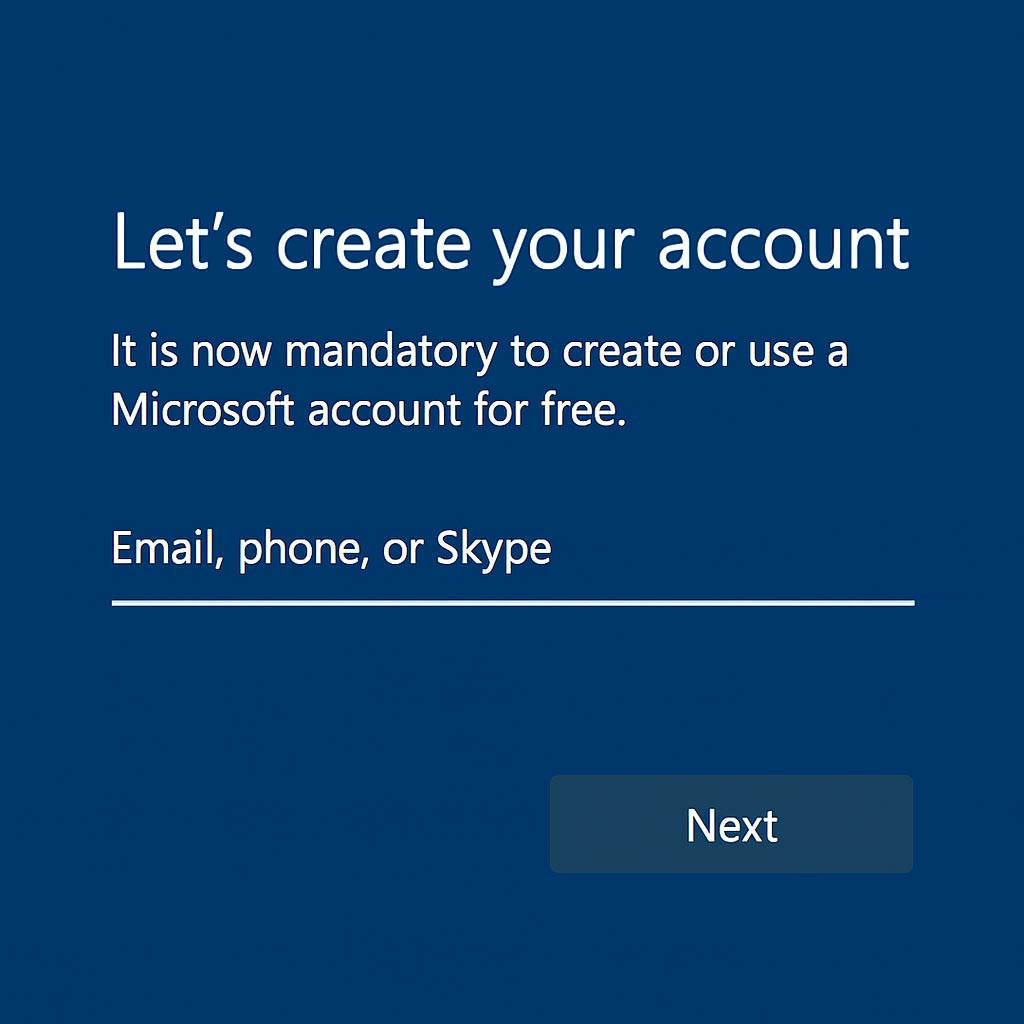
  • In 25H2, Microsoft enforces Microsoft account sign-in during installation for most editions (Home, Pro)
  • The usual tricks like entering a fake email or skipping Wi-Fi no longer work reliably
  • This is part of their push toward cloud-connected experiences, syncing, and telemetry

🛠️ How You Can Still Create a Local Account in Windows 11 25H2

Microsoft enforces Microsoft account sign-in during setup, but there are still hidden ways to create a local account. These are unofficial workarounds and may change in future builds.

🔹 Command Prompt Trick

Use this hidden command during setup:

Command Prompt # On the setup screen, press Shift + F10
start ms-cxh:localonly

This launches a hidden flow that lets you create a local account without needing a Microsoft login.

🔹 Registry Hack (if needed)

If the above fails, you can add a registry key to bypass the requirement:

Command Prompt reg add “HKLM\SOFTWARE\Microsoft\Windows\CurrentVersion\OOBE” /v BypassNRO /t REG_DWORD /d 1 /f

Restart setup after adding this key, and you’ll be able to create a local account.

🌐 Cloud vs Local Identity in Windows 11

Microsoft is moving toward cloud-only identity, but local accounts still matter for sovereignty and control. Here’s a clear comparison:

☁️ Cloud Identity (Microsoft Account / Entra ID)

Pros • Easy password recovery
• Syncs settings, files, and apps across devices
• Integrated with OneDrive, Outlook, Microsoft Store
• Required for some features (Copilot, Widgets, Teams)
Cons • Requires internet during setup
• More telemetry and data sharing
• Less control for offline or sovereign setups
• Dependency on Microsoft ecosystem

🖥️ Local Identity (Traditional Local Account)

Pros • Works fully offline
• Greater privacy and sovereignty
• No dependency on Microsoft services
• Ideal for test labs, archival machines, or secure setups
Cons • Harder to set up in 25H2
• No automatic sync or recovery
• Some features disabled or hidden
• Requires manual backups and updates

⚖️ Bottom line: Cloud identity offers convenience and integration, while local identity preserves sovereignty and offline control. Choose based on your needs.

⚠️ Important Note

These methods are unofficial and may stop working in future updates. They are best used for testing, offline machines, or sovereign setups where cloud identity is not desired.