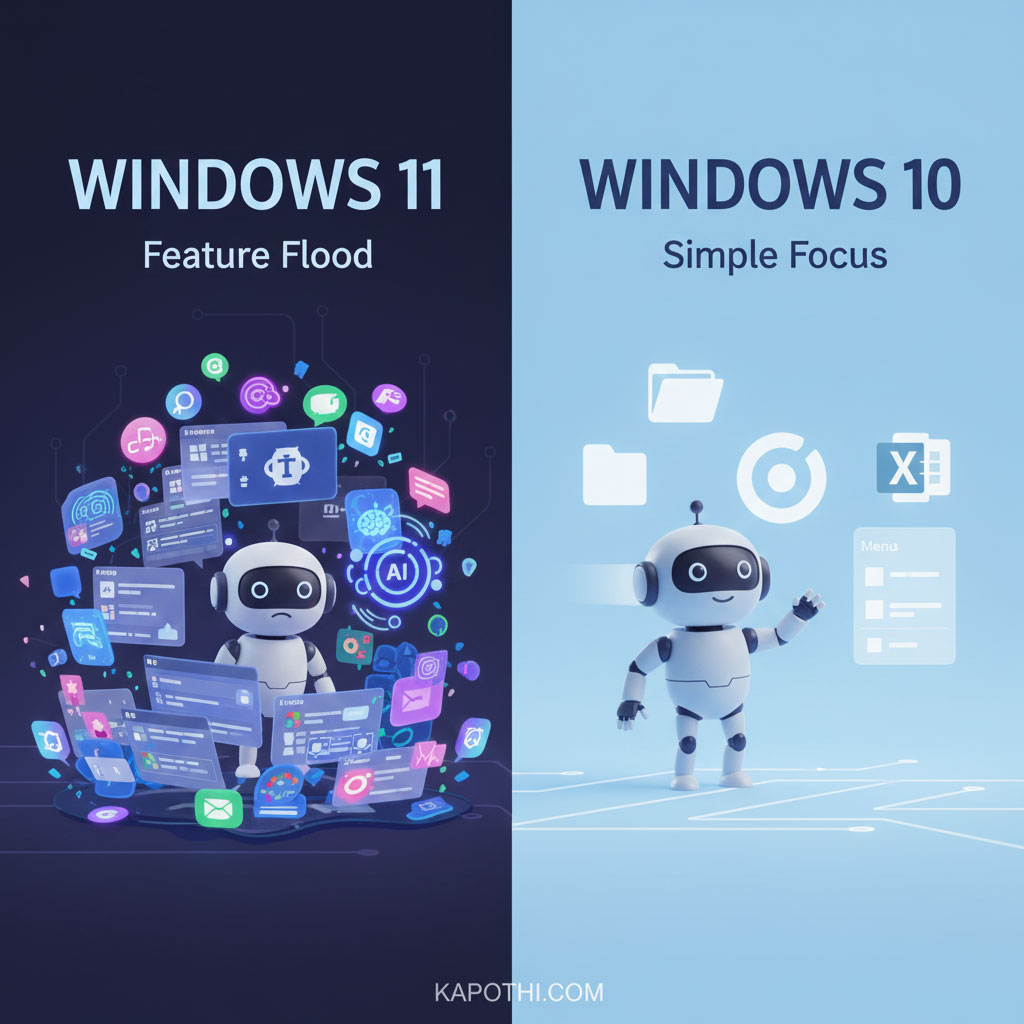
Windows 11’s Many New Features vs Windows 10’s Simple Focus
Introduction
Microsoft’s Windows computer system is always changing and getting new things. With Windows 11, they added lots and lots of new features – like widgets, built-in Teams chat, smart ways to arrange windows, and easy-to-use touch menus. But the truth is simple: most people don’t use these new things. They stick to the same everyday tasks they’ve done for years.
What most people do on Windows every day
- File Explorer: opening, copying, renaming, and organizing files.
- Web browsing: Using Chrome, Edge, or Firefox for daily internet stuff.
- Office apps: Word, Excel, Outlook — important tools for work or school.
- Basic settings: Adjusting Wi‑Fi, printers, sound, and screen.
- Entertainment: watching videos, listening to music, or playing simple games.
These are the main things people do every day. Everything else just sits there, unused.
Why Windows 11 feels slow or heavy
- Background programs: Widgets, data collection, and Teams chat run all the time, even if you’re not using them.
- Design extras: Rounded corners and fancy looks use up more of your computer’s power.
- Right-click menu changes: You often have to click “Show more options” which takes longer for experienced users.
- Preloaded apps: Many apps come already installed, using up computer resources even when idle.
- Memory use: Windows 11 uses more RAM (your computer’s short-term memory) when just sitting there, compared to Windows 10.
For many, this makes Windows 11 feel a bit heavy and slow, even if it looks nice.
The difference between what Microsoft wants and what users do
Microsoft sees Windows as a system for everything: getting work done, having fun, working together, and using AI. But most people just use it as a simple tool for their main tasks. This difference causes problems: new features keep appearing, but not many people actually use them.
Why Windows 10 still feels right
- Fast performance: It has fewer programs running in the background.
- Direct design: No extra clicks needed for menus.
- Less extra software: Fewer pre-installed apps.
- Familiar setup: Users already know where everything is.
Windows 10 is like a clear, simple tool — fast, direct, and easy to use.
Conclusion
Windows 11 might have over a thousand features, but most people only need a few. The rest are just extra decorations, admired by some but ignored by many. For everyday computer use, keeping things simple is better than having too much. Windows 10 stays faster and more responsive for those who prefer speed and clarity over fancy looks.
Windows 10 vs Windows 11: Rituals of Use
| # | Daily ritual | Windows 10 | Windows 11 |
|---|---|---|---|
| 1 | File Explorer | Classic, direct, full context menu | Decluttered, extra “Show more options” step |
| 2 | Web browsing | Runs smoothly with minimal background load | Slightly heavier due to Edge integration & services |
| 3 | Office apps | Seamless, lightweight performance | Same apps, but UI layering adds overhead |
| 4 | Basic settings | Straightforward Control Panel & Settings | Modern Settings app, but slower navigation |
| 5 | Entertainment | Lean playback, minimal bundled extras | Extra apps & services preloaded, heavier footprint |
| 6 | Background services | Fewer processes, lighter idle RAM use | Widgets, Teams, telemetry increase idle load |
| 7 | UI design | Flat, fast, minimal GPU demand | Rounded corners, Fluent Design = heavier graphics |
| 8 | System footprint | Lower RAM and CPU usage | Higher idle RAM, more processes |
| 9 | User adoption | Familiar, widely trusted | Mixed — many stick to basics, ignore new features |
| 10 | Overall feel | Light, responsive shrine | Decorated shrine — heavier, ornamental |