Category Archives: AntiVirus

Conficker – How do I protect myself?

Conficker – How do I protect myself? KB Solution ID: SOLN2209|Last Revised: September 02, 2009

Your risk of exposure to the Win32/Conficker threat is due to a Microsoft operating system vulnerability (Microsoft released a patch for this vulnerability in October 2008). To help avoid infection caused by Microsoft operating system vulnerabilities make sure your computer is always up to date with the latest Microsoft Windows update. You can find the latest updates at http://update.microsoft.com/.

Preventing Infection 
If you do not wish to download all Windows updates but want to ensure that you are at least protected against the Win32/Conficker threats, download the following patches from these Microsoft Security Bulletins:


NOTE: In addition to downloading and installing the latest security patches, you can take other precautionary measures to reduce the risk of infection. Click here for more strategies to minimize the risk of a malware attack. If you are a network administrator, click here for steps you can take to minimize the rest of an infection on your network.

 
Cleaning Steps 
If you encounter or have encountered the Win32/Conficker malware, a fully updated version of an ESET security product (version 3.0 or later) will clean the infection.

Important! To avoid re-infecting the operating system, it must be patched using the links directly above.

 
If you don’t have an ESET security product (3.0 or later) installed, you can download and run our standalone cleaner:
 
 
To verify that the standalone cleaner removed the Conficker threat, rerun the standalone cleaner and then run a scan with your ESET security product.
 
After successfully running the ESET standalone cleaner, we recommend that you read the following Microsoft article for information about important security patches and recommended group changes:

NOTE: If the ESET standalone cleaner does not fully remove the Conficker threat, the following Microsoft article also contains manual Conficker removal instructions.


For maximum protection against future threats, make sure your operating system is patched according to Microsoft’s recommendations and that your ESET security product is up to date.
 
To find further information on protecting yourself against the Conficker worm please refer to our following Conficker (Update) Blog: http://www.eset.com/threat-center/blog/?p=865

How can I set up Microsoft IIS as an ESET update Mirror server?

How can I set up Microsoft IIS as an ESET update Mirror server?

KB Solution ID: SOLN2270|Last Revised: July 24, 2009

After you have created a Mirror server and configured clients to access the Mirror server for updates, you can set the Microsoft Internet Information Services (IIS) to act as the mirror server. To learn more about Mirror servers and their functionality, click here. To use Microsoft Internet Information Services (IIS) as an ESET update mirror server, follow the steps below:
Warning: If your ESET Remote Administrator Server (ERAS) is also a web server that is already hosting websites through IIS, move ERAS to another server and do not proceed with the following steps. The settings configured in the steps below may interfere with your existing websites.
Important! The following procedures use Microsoft Windows Server 2003 and Microsoft IIS Manager 6.0. Specific steps may vary slightly on other operating systems or with different versions of Microsoft IIS Manager.
 

  1. Open the ESET Remote Administrator Console (ERAC) by clicking Start → All Programs → ESET → ESET Remote Administrator Console → ESET Remote Administrator Console.
  2. Click Tools → Server Options → Updates. Deselect the Provide update files via internal HTTP server option. Click OK.
  3. Open IIS Manager by clicking Start → All Programs → Administrative Tools → Internet Information Services (IIS) Manager.
  4. Click the + next to your server name to expand the menu tree. Right-click Web sites and select New → Web site from the context menu to open the Web Site Creation Wizard. Click Next in the first screen of the Web Site Creation Wizard to begin.
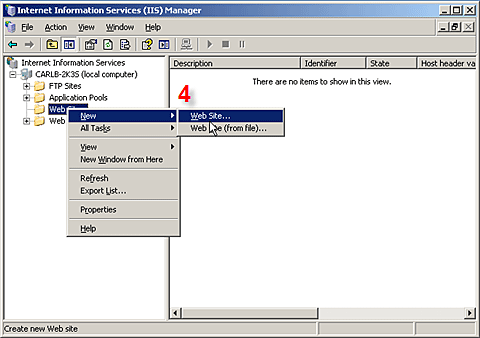
1
Fig. 1-1


  1. Enter a name for the website in the Description field. For example: ESET mirror. Click Next.
  2. Leave the Enter the IP address to use for this Web site field at its default setting: (All Unassigned). Enter 2221 in the TCP port this Web site should use field (default is 80). Leave the Host header for this Web site field empty. Click Next.

2
Fig. 1-2


  1. Click the Browse button and browse to the mirror folder by following the path below:

C:\Documents and Settings\All Users\Application Data\ESET\ESET Remote Administrator\Server\Mirror
NOTE: The path above is the default location for the Mirror folder.
 

Select the Allow anonymous access to this Web site option. Click Next.

  1. Select the Read check box from the list of access permissions. Click Next and then Finish to complete and exit the Web Site Creation Wizard.
  2. ESET Mirror should now be listed under Web Sites in the IIS Manager menu tree, with the contents of the mirror folder displayed in the primary window. Right-click ESET Mirror from the menu tree and select Properties from the context menu.
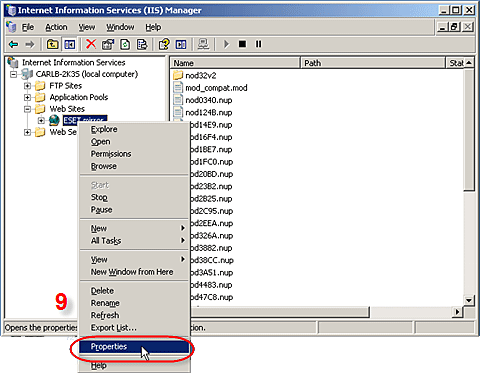
3

Fig. 1-3

  1. On the Web Site tab, check that the TCP port field is set to 2221 and the SSL port field is blank.
  2. Click the HTTP Headers tab and then click the MIME Types… button.
     
  3. In the MIME Types window, click New…. In the pop-up MIME Type window, enter * in the Extension field and then enter application/octet-stream in the MIME type field. Click OK in each window.
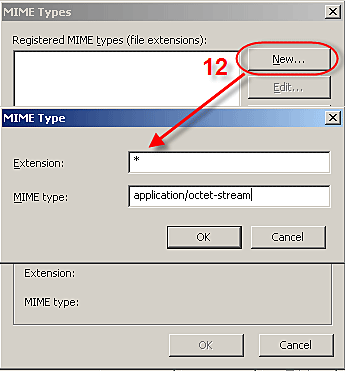
4

Fig. 1-4


  1. Click the Documents tab and deselect Enable default content page. Click OK to return to IIS Manager.
  2. Close IIS Manager. Open a web browser and enter the following URL:

http://servername:2221/update.ver
Important! In the above URL, servername should be replaced with the server name.
 

If there are no errors, your web browser will display a text file with update information.

  1. Test the newly configured mirror server by directing an ESET client workstation (running ESET Smart Security or ESET NOD32 Antivirus) to update from http://servername:2221/update.ver and check its connection.

Uninstallers (removal tools) for common antivirus software

antivirus

Running two antivirus products on the same computer can cause system instability and degraded performance. It is important that any previously installed antivirus software is uninstalled from your system before installing your ESET security product.

For your convenience, as typical uninstallation using the Windows removal tool (Add/Remove Programs) is often insufficient,  removal tools* for common antivirus programs can be downloaded by following the links below.

  1. Click the link associated with the antivirus software currently installed on your system and follow the prompts or instructions on the website.
     
  2. After uninstallation is complete, you will need to restart your computer. You may then proceed with installing your ESET security product.

ESET

http://kb.eset.com/esetkb/index?page=content&id=SOLN2289&actp=search&viewlocale=en_US&searchid=1250477370884

Avast:
http://files.avast.com/files/eng/aswclear.exe

AVG:
www.avg.com/download-tools 

BitDefender:
http://kb.bitdefender.com/KB333-en–How-to-uninstall-BitDefender.html

CA:
http://homeofficekb.ca.com/CIDocument.asp?KDId=3125&Preview=0&Return=0&GUID=DF325E0AA0AB4264AF47E4BEA49F571B

F-Secure:
http://support.f-secure.com/enu/corporate/downloads/removeav.shtml

Kaspersky:
http://usa.kaspersky.com/support/home-support.php?selected_faq_id=193239348&selected_product_id=176492845&selected_topic_id=176492916

McAfee:
http://download.mcafee.com/products/licensed/cust_support_patches/MCPR.exe

Panda:
http://www.pandasecurity.com/resources/sop/UNINSTALLER_08.exe

Symantec (Norton):
http://solutions.symantec.com/sdccommon/asp/symcu…


Trend Micro:

http://esupport.trendmicro.com/support/viewxml.do?ContentID=EN-1033129

Virus.Win32.Sality.aa Removal

Can’t delete Virus.Win32.Sality.aa? Win32.Sality.aa better referred as Virus.Win32.Sality.aa or virus Sality is a virus that can download adware, spyware and other malware threats and generates corrupt files in Windos Win directories. After infecting the system virus Virus.Win32.Sality.aa will trigger diverse malware infections and install corrupt scvhsot.exe, blastclnnn.exe, blastclnnn.exe, hinhem.scr files causing unreliable system speed. Usually, the Virus.Win32.Sality.aa is installed after clicking on unsolicited spam e-mail links, corrupt p2p and freeware downloads or via porn related web sites. The Virus.Win32.Sality.aa is a disruptive virus utility that can send credit card numbers, passwords and oth er sensitive information to distant servers.

Automated Virus.Win32.Sality.aa Removal
(Windows 98, ME, 2000 or XP)
Windows Vista VersionClick Here

Kasperskey Tool to remove Sality

http://support.kaspersky.com/downloads/utils/sality_off.rar

Full instructions at