All posts by neyomax

How to Turn Your Windows 8 Laptop into a Wireless Access Point


image


A lot of companies are starting to sell portable 3G routers that you can take with you when you go out, but what happens when you forget, luckily How-To Geek is here to save the day with this neat command line trick.

Creating Your Own WI-FI Hotspot

Press the Windows + R key combination to bring up a run box, type ncpa.cpl and hit enter.


When your network connections open right-click on your Wireless network adapter and select properties from the context menu.

Now switch over to the Sharing tab and allow other devices to use your machines internet by selecting the first checkbox and then unchecking the second before clicking on the OK button.

Now right-click in the bottom left of your screen, to launch an administrative command prompt.

The first thing we need to do is set up the wireless network, this is done using the netsh command like so:

netsh wlan set hostednetwork mode=allow ssid=”How-To Geek” key=”Pa$$w0rd”

Where ssid is the name of your network and key is the password you want users to connect with, its also worth mentioning that the access point is created with WPA2-PSK (AES) encryption.

Now we are ready to start broadcasting our network:

netsh wlan start hostednetwork

The last command you will need to know is the show command, it will tell you things like the channel you are on as well as the number of clients connected to your network:

netsh wlan show hostednetwork


Killing a Windows Service that seems to hang on “Stopping”

It sometimes happens (and it’s not a good sign most of the time): you’d like to stop a Windows Service, and when you issue the stop command through the SCM (Service Control Manager) or by using the ServiceProcess classes in the .NET Framework or by other means (net stop, Win32 API), the service remains in the state of “stopping” and never reaches the stopped phase. It’s pretty simple to simulate this behavior by creating a Windows Service in C# (or any .NET language whatsoever) and adding an infinite loop in the Stop method. The only way to stop the service is by killing the process then. However, sometimes it’s not clear what the process name or ID is (e.g. when you’re running a service hosting application that can cope with multiple instances such as SQL Server Notification Services). The way to do it is as follows:

  1. •Go to the command-prompt and query the service (e.g. the SMTP service) by using sc:
    sc queryex SMTPSvc
  2. •This will give you the following information:
    SERVICE_NAME: SMTPSvc
    TYPE : 20 WIN32_SHARE_PROCESS
    STATE : 4 RUNNING
    (STOPPABLE, PAUSABLE, ACCEPTS_SHUTDOWN)
    WIN32_EXIT_CODE : 0 (0x0)
    SERVICE_EXIT_CODE : 0 (0x0)
    CHECKPOINT : 0x0
    WAIT_HINT : 0x0
    PID : 388
    FLAGS :
  3. •or something like this (the “state” will mention stopping).
    •Over here you can find the process identifier (PID), so it’s pretty easy to kill the associated process either by using the task manager or by using taskkill:
    taskkill /PID 388 /F

Please be careful when you do this; it’s useful for emergencies but you shouldn’t use it on a regular basis (use it as a last chance to solve the problem or to avoid the need of a reboot in an exceptional situation). It can even be used to stop a service that has the “NOT-STOPPABLE” and/or “IGNORES_SHUTDOWN” flag set (e.g. Terminal Services on a Windows Server 2003 is non-stoppable), at least when it’s not hosted in the system process. You can query all this information by means of the sc command.

where the /F flag is needed to force the process kill (first try without the flag).

Retrieve License Details In ESET

ESET’s customers can recover a lost Username and/or Password by entering the email address used to purchase or activate the software or the Username, below. To find your username, open the ESET Smart Security or ESET NOD32 Antivirus main program window and click Update → Username and Password setup. Your username will appear in the License details window.

Follow the following link

http://go.eset.com/us/support/lost-license


How to manually install the Alert Manager for BrightStor ARCserve Backup For Windows

Description

When trying to launch the Alert Manager, the Alert Manager may not launch or
the following error message is produced, “Failed to open the Alert Service”

Solution

This problem may occur when the Alert Manager Component is not working
properly. To resolve this problem without affecting the ARCserve base option use
the following steps to manually install the Alert Manager component

  1. Close the ARCserve Manager.
  2. Run cstop.bat from c:\Program files\CA\BrightStor ARCserve Backup

Figure 1

Rename the Existing Alert shared folders from
c:\Program files\CA\Shared Components\Alert to Alert_Old

Figure 2


From the BrightStor ARCserve CD Browse to the below path and Extract the
AlertPackage.exe7 (For English Language)

X:\IntelNT\ARCserve\Data1.cab file

Figure 3

After the extracting rename from AlertPackage.exe7 to AlertPackage.exe (English)

Figure 4

Right-click and open with WinZip


Figure 5

Extract the file to a temporary folder


Figure 6


  • Select all files and remove the “Read Only” attributeEdit the InstAlrt.ini file, as below

    InstallToPath=C:\Program
    Files\CA\SharedComponents\Alert
    AppName=ARCserve (Change from Inoculan)

    AppData=ARCserveIT to AppData= BrightStor AB

  • Figure 7

    Figure 8

    Figure 9

    Run InstallAlert.exe from temporary folder

    Figure 10

    Copy all files from temporary folder to C:\Program Files\CA\SharedComponents\Alert

    Figure 11

    Perform CSTART.bat from C:\Program files\CA\Brightstor Arcserve Backup.

    Figure 12

    This should finish the manual installation of the Alert Component for ARCserve
    Backup for Windows.

    Configuring updates stage 3 of 3. 0% complete – SYSTEM RESTARTS [Windows Vista , win2008, win7]


    First
    make sure you are able to boot to the desktop.

    You can try performing the Method 3 suggested in the article

    ( http://support.microsoft.com/kb/949358)

    Try performing the following steps:

    Start Windows Vista and go to the System Recovery options:

    1.
    Insert the Windows Vista installation disc in the disc drive, and then restart
    the computer.

    2. When you are prompted to restart from the disc, press any key.

    3. When you are prompted, configure the Language to install, Time and currency
    format, and Keyboard or input method options that you want, and then click
    Next.

    4. On the Install Windows page, click Repair your computer.

    5. On the System Recovery Options page, click the version of the Windows Vista
    operating system that you want to repair, and then click Next.

    6. Use the System Recovery options to rename the Pending.xml file and edit the
    registry:

    7. On the System Recovery Options page, click Command Prompt.

    8. Type cd C:\windows\winsxs, and then press ENTER.

    9. Type ren pending.xml pending.old, and then press ENTER.

    10. Type regedit, and then press ENTER.

    11. Select HKEY_LOCAL_MACHINE.

    12. On the File menu, click Load Hive.

    13. Locate the following folder:

    14. C:\windows\system32\config\components

    15. When you are prompted for a name, type Offline_Components.

    16. In Registry Editor, locate and then delete the following registry subkey:

    17. HLKM\Offline Components\AdvancedInstallersNeedResolving

    18. HKLM\Offline Components\PendingXmlIdentifier

    19. Exit Registry Editor, At the command prompt, type exit to exit Registry
    Editor. Press ENTER.Click Restart.

    20. Once you are back on the desktop try performing windows updates and check

    How to move ESET Remote Administrator (ERA) clients from one server to another?

    To change the server your clients report to from OLD_SERVER to NEW_SERVER in ESET Remote Administrator (ERA), ERA Server must be running on both servers. You can then direct all the clients under OLD_SERVER’s control to start reporting to NEW_SERVER by following the steps below:

    1. From ERA Console, connect to OLD_SERVER.
    2. From the Clients tab, select all clients that currently connect to OLD_SERVER.
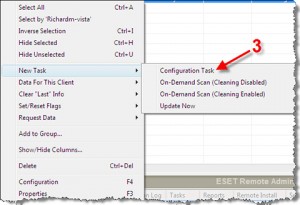
    3. Right-click the selected clients, and select New Task → Configuration Task.


    4. In the Configuration for Clients dialog box, click Create…

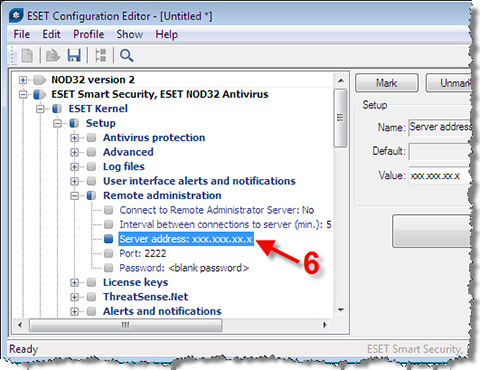
    5. In the Configuration Editor, navigate to ESET Smart Security, ESET NOD32 AntivirusESET KernelSetupRemote administration.

    6. Change the Server address to NEW_SERVER (no http://), or use the IP address of NEW_SERVER, in the form xxx.xxx.xx.x (again no http://).

  • 7. To configure the update server, navigate to Update moduleProfile Setup.
  • 8. In the Update server parameter, enter the IP address of NEW_SERVER (http://xxx.xxx.x.x:xxxx).

  • 9. Close the Configuration Editor and click Yes when asked to save changes.
  • 10. Within a few minutes (according to the Interval between connections to server setting) the clients will pick up the configuration change and begin reporting to the new server.
  • How do I configure a Mirror server using ESET Smart Security Business Edition or ESET NOD32 Antivirus Business Edition?

    Configuring an ESET client solution as a local Mirror Server

    ESET Smart Security Business Edition and ESET NOD32 Antivirus Business Edition client solutions can be configured to store copies of virus signature update files, much like a standard Mirror server. These virus signature files can then be used to update other workstations that are running ESET Smart Security or ESET NOD32 Antivirus. A version 4.x or version 3.0 ESET client solution that is configured as a Mirror server cannot be used to update ESET NOD32 Antivirus 2.7 clients.

    To configure an ESET client solution as a Mirror server, perform the following steps:

  • Open the main program window by clicking the ESET icon  next to your system clock or by clicking Start → All Programs → ESET → ESET Smart Security or ESET NOD32 Antivirus.
     
  • Press the F5 key to display the Advanced Setup window (enter a password if the client is password-protected).
     
  • From the Advanced Setup tree, click Miscellaneous → Licenses and click Add…. Navigate to your license file (nod32.lic) and click Open then click OK.
  • Press the F5 key to display the Advanced Setup window. From the Advanced Setup tree, click Update and enter the license information supplied by ESET in the Username and Password fields. Make sure the Update server: drop-down is set to Choose Automatically.

  • Click the Setup… button next to Advanced update setup: and click the Mirror tab.
     
  • From this point you can configure the Mirror to provide updates via an internal HTTP server, or via a shared network folder. To provide updates via an internal HTTP server, perform the following steps directly below (to provide updates via a shared network folder, click here):

    1. Select the Create update mirror and Provide update files via internal HTTP server check boxes.
       
    2. In the Folder to store mirrored files: field, enter the directory path to the folder that will contain the update files. Do not enter values in the Username and Password fields.
       
    3. If you wish to use a port other than the default port (2221), click the Advanced setup button and enter the value in the Server port: check box (the default value is recommended unless you have other applications communicating on this port).

  • Click OK three times to save the settings and return to the main program window.
  • To configure the Mirror to provide updates via a shared network folder, perform the steps directly below after clicking the Setup… button in step 5.

    1. Created a shared folder on a local or network device. This folder must be readable by all users running ESET software, and writeable by the local SYSTEM account (If the shared folder is located on another computer in the network, it is necessary to specify authentication for accessing that computer. Click here for additional information).
       
    2. Select the Create update mirror check box. Do not select the Provide update files via internal HTTP server check box.
       
    3. Enter the name of the shared folder (created in step 1) in the format \\UNC\PATH.

  • Click OK twice to save the settings and return to the main program window.
     
  • For detailed instructions on installing ESET Remote Administrator and configuring a standard Mirror server, click here.

    If you are looking for instructions on configuring an ESET client solution to access a Mirror server for virus signature and program component updates, please see sections 3.2 and 5.1 in the ESET Remote Administrator Guide.

    How to Change Licence key Kaspersky 6

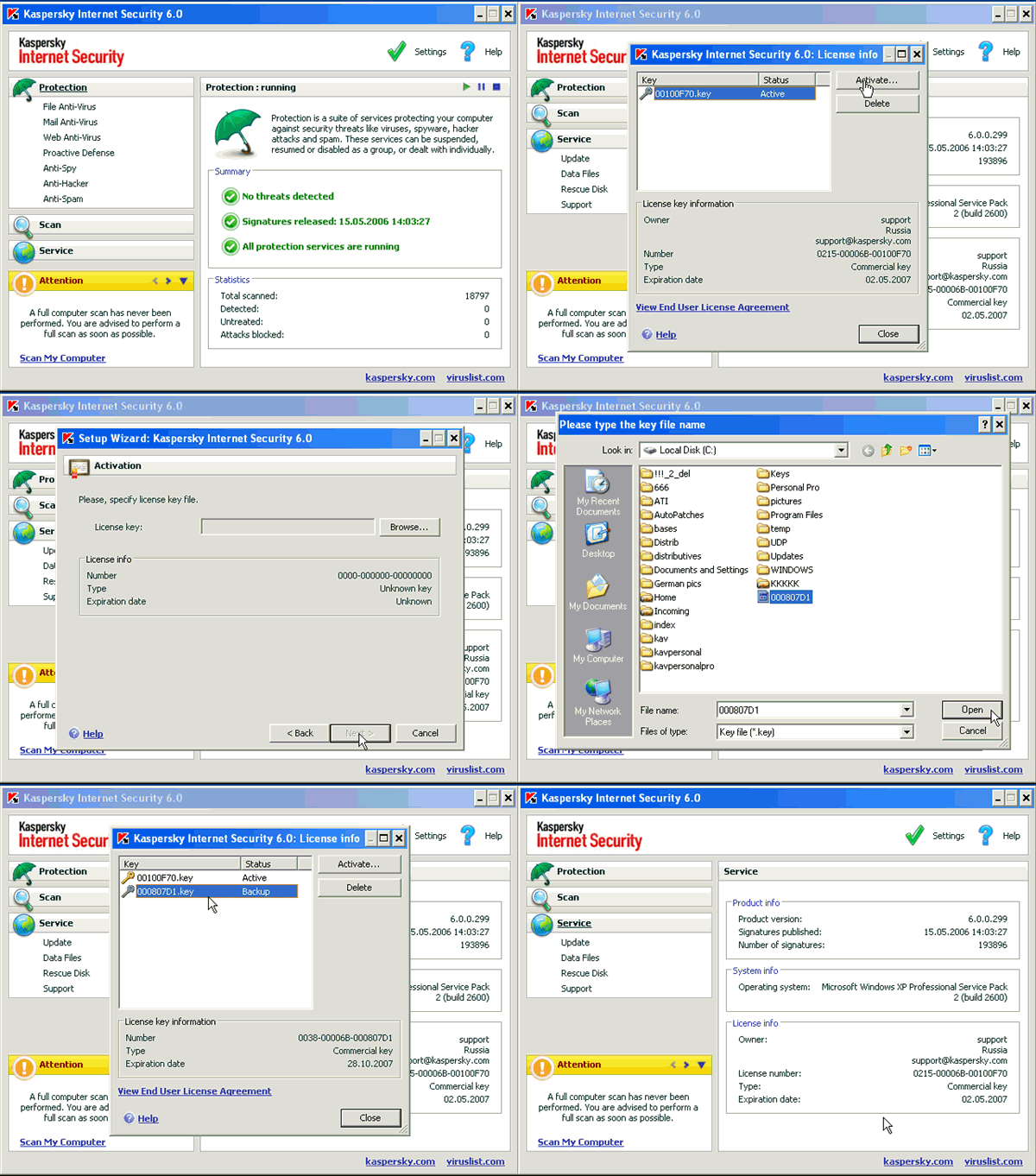
      How to install a new key file: 

    • open Kaspersky Anti-Virus 6.0 or Kaspersky Internet Security 6.0 main application window 
    • go to the Service tab
    • left-click the License Info section
    • in the open window click the Activate button 
    • in the Setup Wizard window select Apply existing license key 
    • click Next

    Note: if the currently used key file for Kaspersky Anti-Virus 6.0 or Kaspersky Internet Security 6.0 is still valid, the corresponding warning window will be displayed. 

    • in the Activation window click the Browse button 
    • select the folder in which you unpacked the contents of the received archive with the key file/ saved the key file 
    • double-click the key file 
    • see the information about the added key file and click Next 
    • in the last Activation window click Finish 
    • close the window with the info about the used license keys 
    • minimize the main window of Kaspersky Anti-Virus 6.0 or Kaspersky Internet Security 6.0

    Note: the dialog windows in the article are given for Kaspersky Internet Security 6.0. The dialog windows for Kaspersky Anti-Virus 6.0 product are the same, but for the name of the product.

    onlineactivation3

    Eset Standalone malware removal tools

    servers_tabs[1]
    ESET security products automatically identify and clean the majority of infected files. Occationally, infiltrations require a special removal tool to completely clean the system. ESET provides tools to remove particularly resilient threats, including rogue antivirus programs and malware.

    If you are experiencing trouble removing one of the following viruses, you can download the relevant malware removal tool from below link :

    http://kb.eset.com/esetkb/index?page=content&id=SOLN2372&actp=LIST_RECENT

    My ESET firewall is blocking the HomeGroup feature in Windows 7. How do I fix it?

    If the Windows 7 HomeGroup feature is having difficulty connecting to other users, your ESET Smart Security Perasonal firewall may be blocking the connection. To allow HomeGroup connectivity, you will need to create rules on every computer protected by the ESET Smart Security firewall on the network.

    1. Open the main program window by clicking the ESET icon  next to the system clock or by clicking Start → All Programs → ESET → ESET Smart Security.
    2. If you see Display: Standard mode in the lower left corner, switch to Advanced mode by clicking Change… or by pressing CTRL + M on your keyboard.
    3. Click Setup → Personal firewall in the main menu on the left and then click Switch to interactive filtering mode in the Personal firewall area.                                                                                                                                                      
    4. Attempt to connect to other computers in your HomeGroup. Your ESET Personal firewall will prompt you to allow or deny each connection that is not defined by an existing rule. To create the rules you need, select the Remember action (create rule) option in the dialog window.

    .

    When you have created the rules you need, set the Personal firewall to Automatic mode with exceptions: While in the Advanced mode display, click Setup → Personal firewall (see steps 1-3) and then click Switch to automatic filtering mode with exceptions

    The Personal firewall will now function as it would in Automatic mode, while maintaining the specific exceptions (rules) that you defined for problematic applications in Interactive mode. For advanced troubleshooting information on blocked connections in the Personal firewall, click here.