All posts by neyomax

Settings are password protected How to Remove ESET Smart Security and ESET NOD32 Antivirus 3.x)


http://www.eset.eu/knowledge-base/settings-are-password-protected

PROBLEM:
When I try to access the settings, the program asks for a password. What should I do?

SOLUTION:
Such notification is displayed when the ESET NOD32 Antivirus (or ESET Smart Security) program settings are password-protected. The password serves as a protection against incidental or unauthorized changes.  If you don’t know the password, ask the person who set it to give it to you – if it is a company network, ask your network administrator. In the event that you created the password and later forgot it, ESET has created an Unlock Utility to remove the administrative password and restore your access to the configuration settings. Please follow the instructions below to use the ESET Unlock Utility:

  1. Save the program unlockv3.exe to your local harddisk.
  2. Run program unlockv3.exe (double-click on the file icon) – a new window displays on the desktop.
  3. Send us the ID number that displays via e-mail to [email protected] together with your username and password that was sent to you after the purchase (for verification). If you don’t know your username and password, it is possible to have them sent. (More detailed info here ).
  4. Close the window by clicking on the Quit button.
  5. Wait for your UNLOCK CODE – it will be sent back to your e-mail address.
  6. When you receive the e-mail with your UNLOCK CODE, run unlockv3.exe again. (in Windows Vista, please make sure you run it under an administrator account).
  7. Insert the UNLOCK CODE into the “UNLOCK CODE” dialog box (please enter the code correctly).
  8. Click on the “Unlock” button.
  9. Click on the Quit button.

Program parameters should be unlocked now. 

How do I reset the ESET Remote Administrator Console password? (3.1.11)

KB Solution ID: SOLN741|Last Revised: October 01, 2009

ESET Remote Administrator (ERA) should be installed on a computer which is accessible by system or network administrators only. The information in this article is intended for such users.

The ESET Remote Administrator Console (ERAC) password is used to prevent unauthorized changes to the ESET Remote Administrator Server (ERAS) settings. By default, this password is blank (If no password has been created, leave the Password field blank and click OK when prompted). However, if a previously created password has been lost or forgotten, the password can be reset. Please follow the steps below to remove the ERAC password:


NOTE: Confirm that you can see hidden files and folders by  clicking Start → Control Panel → Appearance and Personalizations → Show hidden files and folders under Folder Options and select the Show hidden files and folders option. 

Windows XP:

  1. Click Start Run and type:

    C:\Documents and Settings\All Users\Application Data\ESET\ESET Remote Administrator\Server\configuration
     

  2. Click OK. Right-click the era_private.xml file and choose Open With Wordpad. 


  3. Remove the entire line containing ‘ps_password_hash_con’. Close and save the file.


  • Restart the ESET Remote Administrator Server service.
     
  • You will now be able to open ERAC without entering a password (When prompted for a password, leave it blank and click OK).
  • Windows Vista:

    1. Click Start Run and type:

      C:\Program Data\ESET\ESET Remote Administrator\Server\configuration
       

    2. Click OK. Right-click the era_private.xml file and choose Open With Wordpad.

    3. Remove the entire line containing ‘ps_password_hash_con’. Close and save the file.
       
    4. Restart the ESET Remote Administrator Server service.
       
    5. You will now be able to open ERAC without entering a password (When prompted for a password, leave it blank and click OK).

    NOTE: If you wish to set a new password for ERAC, click Tools → Server Options, and click the Security tab. Click the Change… button to the right of Password for Console.

    How to restore default .EXE file association?

    When you use the Open With dialog to associate .exe files with another application, the settings are stored in the following registry key:

    HKEY_CURRENT_USER \ Software \ Microsoft \ Windows \ CurrentVersion \ Explorer \ FileExts \ .exe \ UserChoice

    There will be a value named Progid in the right pane. The Progid data will contain the application’s exe file name (Applications\Notepad.exe, Applications\IExplore.exe, or a Programatic Identifier such as txtfile, jpegfile etc).

    Note that despite this problem, you should be able to launch applications by double-clicking on the data files. For example, with the above setting, you should be able to launch Microsoft Word application by double-clicking on a .doc file, but not by running Winword.exe directly.)

    Registry fix

    To fix the problem, you need to delete the UserChoice key above using a REG file or a script. Download exefix_cu.reg attached at the end of this article, and save it to Desktop. Right-click on the REG file and choose Merge.

    For other file types

    To undo the Open With setting for other file types, the registry location is the same. (Replace the text .exe in the above registry key with the actual file extension).

    Example:

    HKEY_CURRENT_USER \ Software \ Microsoft \ Windows \ CurrentVersion \ Explorer \ FileExts \ .xyz \ UserChoice

    Where .xyz is the file extension for which you want to undo the Open With action.

    Download file : https://kapothi.com/wp-content/uploads/2009/10/exefix_cu.reg

    How do I display the ESET icon in my Windows 7 system tray (next to the system clock)?

    How do I display the ESET icon in my Windows 7 system tray (next to the system clock)?

    KB Solution ID: SOLN2350|Last Revised: October 22, 2009

    By default, Windows 7 will not display your ESET security product’s icon in the Windows notification area (system tray). To place the icon next to your system clock, follow the steps below:

    1. Click the small up arrow next to the system clock in the bottom-right corner of your screen. 
    2. Click Customize… from the context menu.
    3. Find the ESET GUI listing, and select Show icons and notifications from the drop-down menu on the right.

    4. Click OK.  Your ESET icon will now be displayed in the system tray at all times.

    ESET NOD32 Antivirus installation error codes (Windows)

    KB Solution ID: SOLN177|Last Revised: June 08, 2009

     When installing ESET NOD32 Antivirus for Windows, several different error codes may be encountered. See the list below for descriptions of potential installation errors.

    Error 

    Meaning 
    101 administration rights required
    102 no configuration file specified
    103 lack of memory
    104 old version of the Operating System
    105 cannot create a temporary folder for extracting the installation files
    106 error extracting files
    107 internal program error
    108 attempting to overinstall with an older component
    109 internal program error
    110 internal program error
    111 cannot create a file on the disk
    112 internal program error
    113 internal program error
    114 SETUP.XML file damaged or missing; error can also be caused by Norton still being present
    115 the current version is not compatible with the old version (you need to uninstall the old version)
    116 error writing to the operating system registry
    117 upgrade required (installation failed)
    118 attempting to overinstall with a different language version (uninstall the previous version first)
    119 corrupt uninstall file
    120 registering service error
    121 component installation error
    122 cannot install a cetrain component to the computer
    123 attempting to install the trial version again errror
    124 wrong Operating System, the installation is intended for:
    Windows NT/2000/XP/2003 Operating System
    125 wrong Operating System, the installation is intended for:
    – Windows 95/98/ME Operating System


    To help determine the cause of a failed installation, run the install file (setup.exe file) with the /TEST parameter (i.e., setup.exe/test). A detailed description of the installation progress, along with possible error messages, will be saved in the C:\Program Files\Eset\Install\nsetup.txt file.

    Send the nsetup.txt file to our technical support lab at the address supplied by our support team. Our experts will help you to solve your problem. For detailed information on running the install file with the /TEST parameter, click here. To create a new case using our Customer Care Support Form, click here.

    When you run Dcpromo.exe to create a replica domain controller, you receive the “Failed to modify the necessary properties for the machine account. Access is denied” error message

    http://support.microsoft.com/kb/232070

    SYMPTOMS

    When you run Dcpromo.exe to create a replica domain controller, you receive one…

    When you run Dcpromo.exe to create a replica domain controller, you receive one of the following error messages in Dcpromo.exe:

    Error message 1

    Failed to modify the necessary properties for the machine account. Access is denied.

    Error message 2

    Error – The Active Directory Installation Wizard was unable to convert the computer account <Computer Name>$ to a domain controller account. (5)
    Examination of the Dcpromoui.log file indicates that the initial part of the promotion was successful (this is also verified because the computer becomes a member server in the domain), but that the promotion to domain controller did not succeed because Dcpromo.exe could not modify the machine account.

    CAUSE

    This problem can occur if the account that is used for the promotion operation h…

    This problem can occur if the account that is used for the promotion operation has not been assigned the “Delegation Privilege” right. Or, if this right has been assigned, the policy has not propagated yet, possibly because of replication latency. By default, only members in the Administrators group have the “Delegation Privilege” right.

    RESOLUTION

    To resolve this problem, use an account in the Administrators group, or add the…

    To resolve this problem, use an account in the Administrators group, or add the appropriate account to the Administrators group. To grant this right to another user or group, set the delegation privilege on the Group Policy object:

    1. In the Active Directory Users and Computers snap-in, edit the Default Domain Controllers Policy on the Domain Controllers Organizational Unit.
    2. Double-click Computer Configuration, click Windows Settings, click Security Settings, click Local Policies, and then click User Rights Assignment.
    3. Under Enable Computer and User Accounts to be trusted for Delegation, add the appropriate account or group.
    4. Apply the policy using one of the following methods:
    • If it is a Windows 2000 domain controller, open a command prompt, and then type:

    secedit /refreshpolicy machine_policy /enforce

    • If it is a Windows Server 2003 or a Windows Server 2008 domain controller, open a command prompt, and type:

    gupdate /force

    1. Force replication from the domain controller on which the policy was changed to the other domain controllers in the domain by using repadmin, replmon, or Active Directory Sites and Services.

    To apply the updated policy, restart the problematic server which you wanted to promote as a domain controller.

    Conficker – How do I protect myself?

    Conficker – How do I protect myself? KB Solution ID: SOLN2209|Last Revised: September 02, 2009

    Your risk of exposure to the Win32/Conficker threat is due to a Microsoft operating system vulnerability (Microsoft released a patch for this vulnerability in October 2008). To help avoid infection caused by Microsoft operating system vulnerabilities make sure your computer is always up to date with the latest Microsoft Windows update. You can find the latest updates at http://update.microsoft.com/.

    Preventing Infection 
    If you do not wish to download all Windows updates but want to ensure that you are at least protected against the Win32/Conficker threats, download the following patches from these Microsoft Security Bulletins:


    NOTE: In addition to downloading and installing the latest security patches, you can take other precautionary measures to reduce the risk of infection. Click here for more strategies to minimize the risk of a malware attack. If you are a network administrator, click here for steps you can take to minimize the rest of an infection on your network.

     
    Cleaning Steps 
    If you encounter or have encountered the Win32/Conficker malware, a fully updated version of an ESET security product (version 3.0 or later) will clean the infection.

    Important! To avoid re-infecting the operating system, it must be patched using the links directly above.

     
    If you don’t have an ESET security product (3.0 or later) installed, you can download and run our standalone cleaner:
     
     
    To verify that the standalone cleaner removed the Conficker threat, rerun the standalone cleaner and then run a scan with your ESET security product.
     
    After successfully running the ESET standalone cleaner, we recommend that you read the following Microsoft article for information about important security patches and recommended group changes:

    NOTE: If the ESET standalone cleaner does not fully remove the Conficker threat, the following Microsoft article also contains manual Conficker removal instructions.


    For maximum protection against future threats, make sure your operating system is patched according to Microsoft’s recommendations and that your ESET security product is up to date.
     
    To find further information on protecting yourself against the Conficker worm please refer to our following Conficker (Update) Blog: http://www.eset.com/threat-center/blog/?p=865

    How can I set up Microsoft IIS as an ESET update Mirror server?

    How can I set up Microsoft IIS as an ESET update Mirror server?

    KB Solution ID: SOLN2270|Last Revised: July 24, 2009

    After you have created a Mirror server and configured clients to access the Mirror server for updates, you can set the Microsoft Internet Information Services (IIS) to act as the mirror server. To learn more about Mirror servers and their functionality, click here. To use Microsoft Internet Information Services (IIS) as an ESET update mirror server, follow the steps below:
    Warning: If your ESET Remote Administrator Server (ERAS) is also a web server that is already hosting websites through IIS, move ERAS to another server and do not proceed with the following steps. The settings configured in the steps below may interfere with your existing websites.
    Important! The following procedures use Microsoft Windows Server 2003 and Microsoft IIS Manager 6.0. Specific steps may vary slightly on other operating systems or with different versions of Microsoft IIS Manager.
     

    1. Open the ESET Remote Administrator Console (ERAC) by clicking Start → All Programs → ESET → ESET Remote Administrator Console → ESET Remote Administrator Console.
    2. Click Tools → Server Options → Updates. Deselect the Provide update files via internal HTTP server option. Click OK.
    3. Open IIS Manager by clicking Start → All Programs → Administrative Tools → Internet Information Services (IIS) Manager.
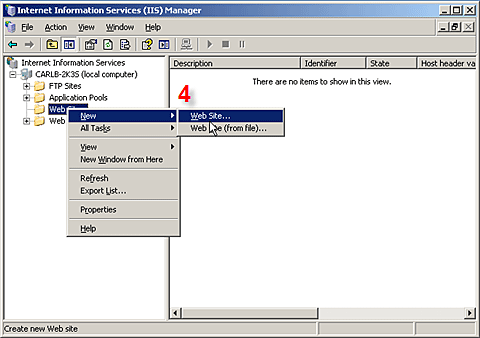
    4. Click the + next to your server name to expand the menu tree. Right-click Web sites and select New → Web site from the context menu to open the Web Site Creation Wizard. Click Next in the first screen of the Web Site Creation Wizard to begin.

    1
    Fig. 1-1


    1. Enter a name for the website in the Description field. For example: ESET mirror. Click Next.
    2. Leave the Enter the IP address to use for this Web site field at its default setting: (All Unassigned). Enter 2221 in the TCP port this Web site should use field (default is 80). Leave the Host header for this Web site field empty. Click Next.

    2
    Fig. 1-2


    1. Click the Browse button and browse to the mirror folder by following the path below:

    C:\Documents and Settings\All Users\Application Data\ESET\ESET Remote Administrator\Server\Mirror
    NOTE: The path above is the default location for the Mirror folder.
     

    Select the Allow anonymous access to this Web site option. Click Next.

    1. Select the Read check box from the list of access permissions. Click Next and then Finish to complete and exit the Web Site Creation Wizard.
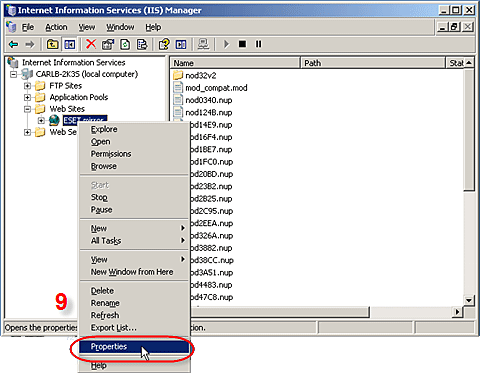
    2. ESET Mirror should now be listed under Web Sites in the IIS Manager menu tree, with the contents of the mirror folder displayed in the primary window. Right-click ESET Mirror from the menu tree and select Properties from the context menu.

    3

    Fig. 1-3

    1. On the Web Site tab, check that the TCP port field is set to 2221 and the SSL port field is blank.
    2. Click the HTTP Headers tab and then click the MIME Types… button.
       
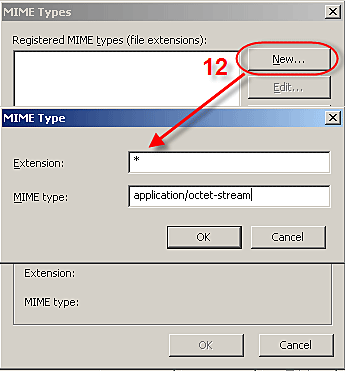
    3. In the MIME Types window, click New…. In the pop-up MIME Type window, enter * in the Extension field and then enter application/octet-stream in the MIME type field. Click OK in each window.

    4

    Fig. 1-4


    1. Click the Documents tab and deselect Enable default content page. Click OK to return to IIS Manager.
    2. Close IIS Manager. Open a web browser and enter the following URL:

    http://servername:2221/update.ver
    Important! In the above URL, servername should be replaced with the server name.
     

    If there are no errors, your web browser will display a text file with update information.

    1. Test the newly configured mirror server by directing an ESET client workstation (running ESET Smart Security or ESET NOD32 Antivirus) to update from http://servername:2221/update.ver and check its connection.

    How to configure the LDAP settings in Gateway Security 8.1 to perform Invalid recipient protection and for authentication while logging into the user self managed quarantine folder.


    Description

    This document contains procedures that will help you:

    Configure the LDAP settings in Gateway Security 8.1 to perform Invalid Recipient Protection.

    Successfully authenticate while logging into the user’s self-managed Quarantine folder.

    Solution

    1. From the Manager console go to Filtering -> Settings -> Enterprise Settings -> LDAP template.
    2. Figure 1

    3. Click on the Add button to create a new LDAP Template and provide a name, then click Next.
    4. You can select the “All domains” option if you want to have one LDAP template for all the domains that Gateway Security is protecting or choose the specific domains.
    5. Figure 2

    6. You can either choose “Auto detect server” OR click the Add button to add a Valid LDAP server name or IP address. This might be your Domain controller, Exchange server, Lotus Domino, LDAP server, etc.
    7. Figure 3

    8. Give the authentication details to connect to the LDAP Server.
      If the LDAP server requires secure authentication, set the Secure type as ‘Use Secure Authentication’ and click Next.
    9. Figure 4

    10. Select the appropriate LDAP Server Type to load the LDAP attributes automatically, and then click Next.
    11. Figure 5

    12. Leave the default pool settings and click Next.
    13. From the Test window you can do the following:
      1. Test for a single email/Distribution list:
        Enter an email address or distribution list email in the appropriate field and click Send Query.
        Gateway Security will query the LDAP server using the LDAP attributes and return whether it is a valid email address or distribution list.
      2. Web Login Test:
        Enter the username and password that you want to use to login to the Quarantine folder and Gateway Security will verify if the specified login credentials are correct.
    14. Figure 6

    15. Click Next and Finish the LDAP template configuration.
    16. Click OK for Enterprise Settings and distribute the changes.
    17. Go to Filtering -> Settings -> Engine Specific Settings -> LDAP Usage and choose the LDAP template which you created in the Enterprise LDAP settings.
      To ensure that Gateway Security accepts incoming emails only for valid recipients, ensure that the option “Enable SMTP Invalid recipient’s protection” is enabled.
    18. Figure 7

    19. Click Ok and distribute the engine changes.
    20. Go to Filtering -> Settings -> Enterprise Settings ->Quarantine and choose the LDAP template that you want to use to authenticate the users when they try to log into their Quarantine folder.
    21. Figure 8

    22. Click Ok and distribute the changes.