Category Archives: Microsoft Windows

Find All Locked Out Accounts

Use Saved Queries to quickly locate all locked out user accounts.

You can use the Saved Queries feature of Windows Server 2003 to query Active Directory for any locked-out accounts. Just open the Active Directory Users and Computers console, right-click on Saved Queries in the console tree and select New –> Query. Type a name and description for the query, specify a query root (where in your namespace your query begins searching), and click the Define Query button. Since there’s no default option for finding locked-out accounts in the Common Queries box, select Custom Search instead to open the Find Custom Search box. Then select the Advanced tab and enter the following LDAP string in the Enter LDAP Query textbox:


(&(&(&(objectCategory=person)(objectClass=user)(lockoutTime:1.2.840.113556.1.4.804:=4294967295))))


Click OK twice to create and run the saved query.


The string works on Windows Server 2003 SP1.


Update: Here’s another LDAP query that finds all locked out accounts:
 
(&(objectCategory=Person)(objectClass=User)(lockoutTime>=1))

BitLocker To Go Encrypts Portable Flash Drives in Windows 7

The BitLocker feature was introduced in Windows Vista and allowed you to encrypt the content of your hard drive.  Now in Windows 7 they offer BitLocker To Go which allows you to encrypt portable USB flash drives.

First open up My Computer and Right-click on the flash drive you want to encrypt and select Turn on BitLocker.

1

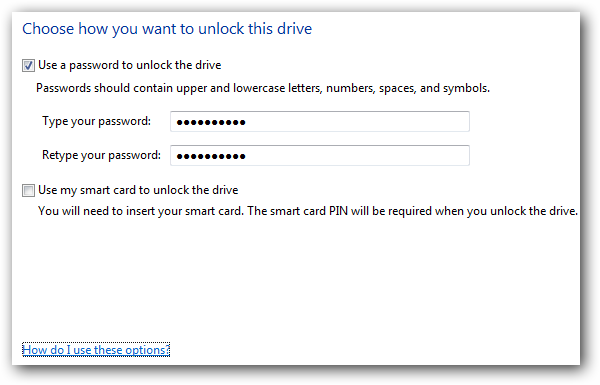
After BitLocker initialized the flash drive you will need to enter in a password to unlock the drive.  You can also set up a Smartcard which are usually used in a work environment so talk to you IT staff.

2 pw

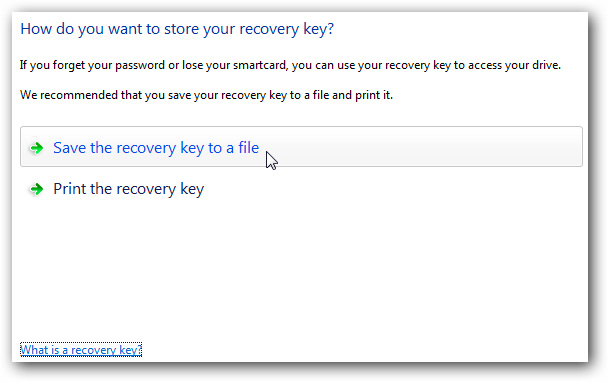
Next you will be prompted to store the recovery key which is used in the event you lose your password or smartcard.  If you store it as a file make sure that it is not on the same drive that you’re encrypting.  

3 key

After the key has been saved as a file or printed you will see a confirmation message.

4 save confirm

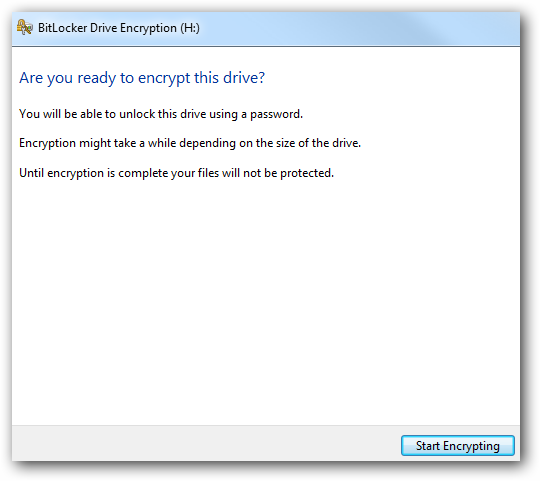
Finally you will be ready to start encrypting the drive so just click the Start Encrypting button.

5 confirm

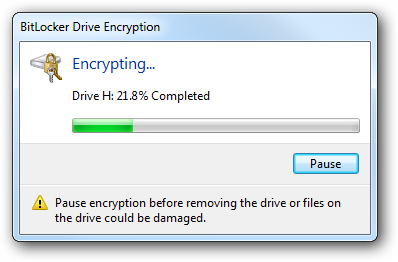
While it is encrypting there will be a progress screen displayed.

6 progress

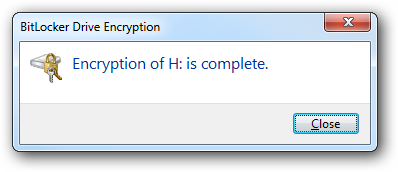
A successful encryption of the USB flash drive. notice that the drive icon will change to show its encrypted with BitLocker.

7 complete 

Notice that the drive icon will change to show its encrypted with BitLocker where the gold lock indicates it is locked up and the gray lock is displayed after you have unlocked it.

 8 iconunlock

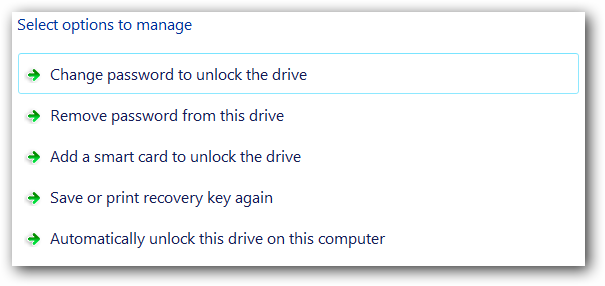
Right-click on that icon to bring up options to manage BitLocker encryption.

9 options

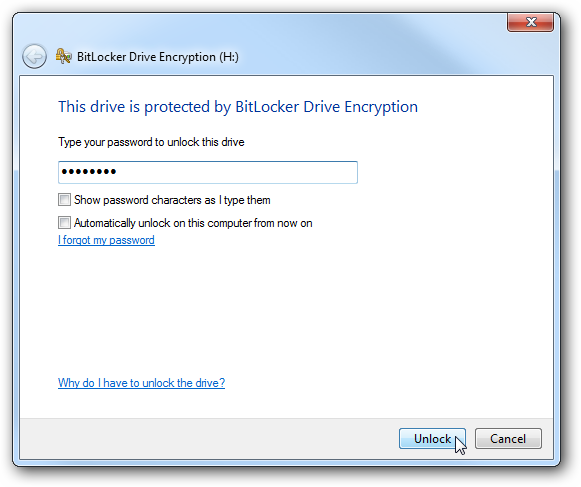
The next time you plug in the drive to a Windows 7 machine you will be prompted to enter the password to gain access to the drive.  You can also always have it unlocked on specific machines in the future.

enter 

You can also use the encrypted drive in Vista and XP.  Here we will look at how it looks in XP, when you plug it in you will be prompted for the password to launch BitLocker To Go Reader (the utility is installed automatically on the drive by Windows 7).

bitlocker XP

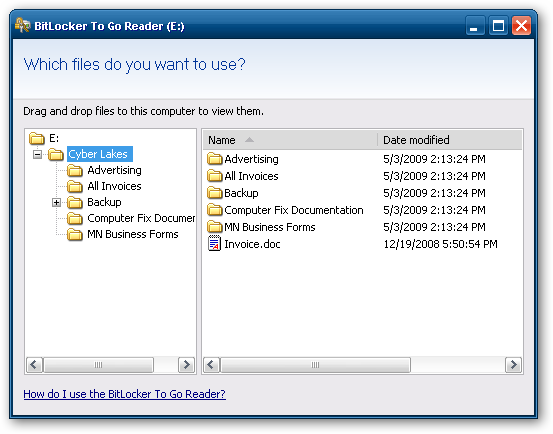
BitLocker To Go Reader is a Windows Explorer type navigation utility for showing the content of the drive.

bitlocker reading

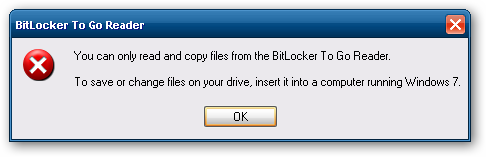
With a BitLocker encrypted drive you will only be able to read and copy files.  If you need to add files or change them you will need to use a Windows 7 machine.

error

This is a great way to easily make sure sensitive data on your USB flash drive is safe.  Right now anyone who has Windows 7 RC1 Ultimate can use this feature.

Disable Aero Shake in Windows 7

One of the interesting new features in Windows 7 is the way you can grab a window by the title bar and “shake” it back and forth to minimize everything else. It’s a fun feature, but just in case you want to disable it we’ve got the solution for you.

Disable Aero Shake Manual Registry Hack

Open up regedit.exe through the start menu search or run box, and then navigate down to the following key:

HKEY_CURRENT_USER\Software\Policies\Microsoft\Windows

Once you are there, right-click on the Windows key and create a new key called Explorer.

Disable Aero Shake Regedit

Now right-click on the right-hand side, create a new 32-bit DWORD with the following settings:

  • Name: NoWindowMinimizingShortcuts
  • Value: 1

Disable Aero Shake Regedit

Once you’ve created this, you should log off and back on for the change to take effect.

Downloadable Registry Hack

Simply download, extract, and double-click on DisableAeroShake.reg to enter the information into the registry. To re-enable use the other file.

Download DisableAeroShake registry hack

To copy the IAS configuration to another server

To copy the IAS configuration to another server
Open Command Prompt.

At the command prompt, type netsh aaaa show config >path\file.txt.
This stores configuration settings (including registry settings) in a text file. The path can be relative or absolute, or it can be a UNC path.

Copy the file you created to the destination computer.

At a command prompt on the destination computer, type netsh exec path\file.txt.
A message appears indicating whether the update was successful

Error message when you create the trusted side of a trust between Windows Server 2003-based domains: "The parameter is incorrect"

http://support.microsoft.com/kb/930218

If the names of two domains collide, you can rename one of the domains. If the SIDs of the domains are duplicate, you have to remove one of the domains. Typically, this situation occurs when one of the following scenarios exists:

  • One domain was cloned from the other domain.
  • Before a computer became the first domain controller in either of the two domains, you clone this computer without using the SYSPREP tool.

Alternatively, you can migrate one of the domains to a new domain. However, you cannot migrate a domain to a new SID by using the sIDHistory property. Even if you successfully create a trust after you migrate one of the domain SIDs, you still have duplicate SIDs in user access tokens. Then, users who have duplicate SIDs can access resources that they should be unable to access.