Category Archives: Microsoft Windows

Speed up chkdsk (Windows 8)


If you suspect your Windows 8 system may have a corrupted hard drive, then you might be tempted to use the old chkdsk /f command. This does still work, but it’s horribly slow, and won’t do anything at all until you reboot. What’s more, it may no longer be necessary now.

Windows 8 now regularly runs chkdsk in the background, looking for problems, and recording them. And then, when run at boot time, it doesn’t have to scan every single sector of your hard drive. It just fixes the known problems, usually in a few seconds.

The first lesson here is that you probably won’t have to use chkdsk any more.

But if you want to try it anyway, don’t use chkdsk /f first. Enter chkdsk /spotfix instead, agree to run a check when you next reboot, then restart your PC and any fixes will be applied, much more quickly.

While this works most of the time, there are no guarantees. If you’re out of other options then you can still try chkdsk /f later.

Save bandwidth with windows 8

Set up lots of live tiles on the Start screen and you could find they’re using a lot of network bandwidth, which could perhaps become a problem if you’re running a slow or metered connection. But Windows 8 does offer one option that might help.

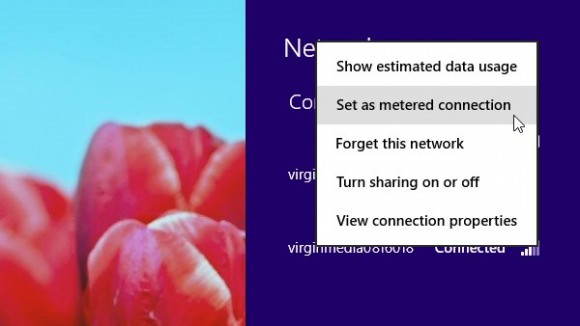
Click your network connection on the taskbar (or the Start Screen Charms bar), right-click your network connection in the list and select “Set as metered connection” (you’ll only see this with wireless adaptors). Windows will then limit what individual live tiles can do, while also downloading only priority Windows updates, and applying a few other restrictions. Right-click the connection again and select “Set as unmetered” to change it back.


Learn Windows key shortcuts


  • Win : switch between the Start screen and the last-running Windows 8 app
  • Win + C : displays the Charms: the Settings, Devices, Share and Search options
  • Win + D : launches the desktop
  • Win + E : launches Explorer
  • Win + F : opens the File Search pane
  • Win + H : opens the Share pane
  • Win + I : opens Settings
  • Win + K : opens the Devices pane
  • Win + L : locks your PC
  • Win + M : minimises the current Explorer or Internet Explorer window (works in the full-screen IE, too)
  • Win + O : toggles device orientation lock on and off
  • Win + P : switch your display to a second display or projector
  • Win + Q : open the App Search pane
  • Win + R : opens the Run box
  • Win + U : open the Ease of Access Centre
  • Win + V : cycle through toasts (notifications)
  • Win + W : search your system settings (type POWER for links to all power-related options, say)
  • Win + X : displays a text menu of useful Windows tools and applets
  • Win + Z : displays the right-click context menu when in a full-screen app
  • Win + + : launch Magnifier and zoom in
  • Win + – : zoom out
  • Win + , : Aero peek at the desktop
  • Win + Enter : launch Narrator
  • Win + PgUp : move the current screen to the left-hand monitor
  • Win + PgDn : move the current screen to the right-hand monitor
  • Win + PrtSc : capture the current screen and save it to your Pictures folder
  • Win + Tab : switch between running apps
  • The IIS Admin Service service terminated with service-specific error 2149648394 (0x8021080A)

    The IIS Admin Service service terminated with service-specific error 2149648394 (0x8021080A).

    IIS Admin Service goes away after restoring a VHD / VPC Server

    I recently had the unexpected pleasure of losing my IIS Admin server – altogether!!! Translate – 150% !!!

    Now, before this – everything was going great – except. During an upgrade of MOSS (Microsoft Office SharePoint Server) I encounted an issue that forced me to restore a VPC image – essentially bringing over another copy of the VHD and firing the server back up.

    Interstingly, during that reboot – which for all intents should have gone fine – I see a hoard of DSKCHK processes running. Invariably, something got out of wack on the NTFS volumn between my shutting the image down and bringing it back up. During the ‘fixing’ process – a number of files invaribly can become corrupt – and the Metabase.xml – the blood-life of your IIS Admin service – is no exception. SO

    Check in C:\Windows\System32\Inetsrv and you’ll find a ‘History’ folder. Within here – hopefully – you’ll find fairly recent backups of the Metabase.XML and MBSchema.XML objects. Before doing the following – be sure to backup the existing Metabase.xml and MBSchema.xml from C:\Windows\System32\Inetsrv first.

    Now, rename a recent backup from the ‘History’ folder – renaming a recently Metabase.XML object, and then a recent MBSchema.XML object. Copy / Paste each of these to the C:\Windows\System32\Inetsrv.

    Ahh, not quite done.

    Now do a IISRESET from a command prompt.

    Hopefully this will get you back to where you need to be.

    (source)

    Install stuck at “setup is preparing your computer for first use”…


    1) I clicked SHIFT+F10 to get a command prompt, then typed in devmgmt.msc to get the device manager. It will have the unknown or devices without drivers expanded. I disabled some but I also found that you can install drivers too. If you have all your manufacturer drivers on a USB stick then just right-mouse and select update driver and then browse to the root of your USB stick e.g. E:\ and have it search subdirectories and it should find the right driver for that device.

    —-and at the same time I..

    2)   typed in taskmgr.exe to get the Task Manager and in  the processes list I killed any running msiexec.exe processes and cmd.exe command prompts if they looked like they were hung i.e. no CPU and the disk light on the Laptop wasn’t really running. This step 2) is the most important step as it seemed to allow the first use setup to step on.

    The install then quickly finished the “setup is preparing your computer for first use” stage and I got the username, hostname and so-on questions.

    The SHIFT+F10 trick and using the devmgmr.msc and taskmgr.exe works at any stage from the “setup is preparing your computer for first use” display onwards because Windows is actually running only services haven’t started and the hostname and account details haven’t been created.

    Physical Memory Limits: Windows 8 and Windows 2012


    Physical Memory Limits: Windows 8

    The following table specifies the limits on physical memory for Windows 8.

    Version Limit on X86 Limit on X64
    Windows 8 Enterprise 4 GB 512 GB
    Windows 8 Professional 4 GB 512 GB
    Windows 8 4 GB 128 GB


    Physical Memory Limits: Windows Server 2012

    The following table specifies the limits on physical memory for Windows Server 2012.      Windows Server 2012 is available only in X64 editions.

    Version Limit on X64
    Windows Server 2012 Datacenter 4 TB
    Windows Server 2012 Standard 4 TB
    Windows Server 2012 Essentials 64 GB
    Windows Server 2012 Foundation 32 GB
    Windows Storage Server 2012 Workgroup 32 GB
    Windows Storage Server 2012 Standard 4 TB
    Hyper-V Server 2012 4 TB


    How to activate Windows 8 Enterprise

    To enter your MAK on Windows 8 Enterprise and successfully activate, you can complete one of the following steps:
    • Command Line option:Hit the Windows+R hotkeys to open the Run box and run the following command:slmgr -ipk xxxxx-xxxxx-xxxxx-xxxxx-xxxxx
    • GUI option:Hit the Windows+R hotkeys to open the Run box and run the following command:slui.exe 3

      This command will open the following Dialog Box in which you can manually enter your MAK:

    Enter your MAK in the “Product Key” field shown above, click the “Activate” button and you should be good to go!

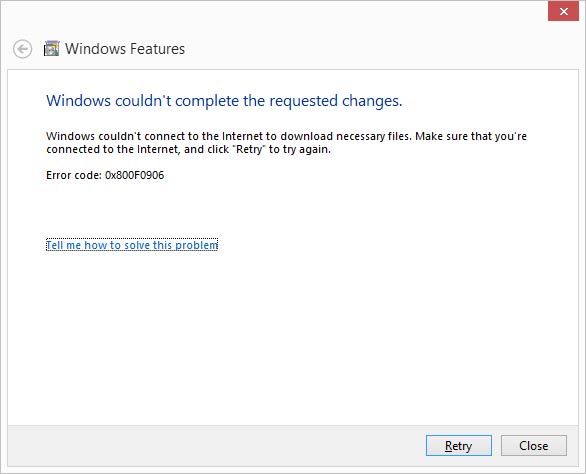
    Windows 8 : Error 0x800F0906 while enabling Microsoft .NET Framework 3.5.1


    [UPDATE 2025 MARCH]

    to enable .net 3.5 For server 2022 and 2025 try this command

    Dism.exe /online /enable-feature /featurename:NetFX3 /All /Source:E:\sources\sxs /LimitAccess

    Replace E: with your DVD/CD Rom Drive letter


    [UPDATED ON 2019 JAN 25]

    Make sure the Windows 8 disk is in the drive (if your drive is not the d:\ drive, change the source drive letter to match your drive)

    dism.exe /online /enable-feature /featurename:NetFX3 /Source:d:\sources\sxs

    The install will take a few minutes to run.

    Note* – If Windows update service is disabled , enable it before run the command other wise you will get more errors like Error: 0x800f081f

    NEW UPDATE –

    IF YOUR HAVING BUILD VERSION 1806 USE THE SAME BUILD DVD TO INSTALL THE FEATURE

    TRY THIS COMMAND IF ABOVE COMMAND IS NOT WORKING

    Dism.exe /online /enable-feature /featurename:NetFX3 /source:d:\sources\sxs /LimitAccess 


    How to Reset Local Security Policy Settings to Default in Windows XP and Vista

    Even if you remove the computer from the domain and put it into a workgroup, the local security policies that were changed will not be removed. This can be very annoying because local security policies include settings like preventing users from installing printers, restricting who can use the CD-ROM drive, requiring a smart card, restricted logon hours, password requirements and more!

    These are all great in a corporate environment, but will cause all kinds of grief to a normal computer user. So what you can do to solve this problem is to reset the local security settings to their default settings.

    The way this can be done is by using the default security configuration templates that come with all versions of Windows XP and Vista. This may sound too technical, but all you have to do is run one command.

    First, click on Start, Run and then type in CMD. Now copy and paste the following command into the window:

    secedit /configure /cfg %windir%\repair\secsetup.inf /db secsetup.sdb /verbose

    If you are running Windows Vista and need to reset the security settings to their default values, use this command instead:

    secedit /configure /cfg %windir%\inf\defltbase.inf /db defltbase.sdb /verbose