Category Archives: Windows Server

🔍 Troubleshooting Active Directory Connectivity

Troubleshooting Active Directory Connectivity

🔍 Troubleshooting Active Directory Connectivity

⚠️ Important: Replace kapothi.com in the commands below with your own AD domain name. For example, if your domain is example.local, substitute accordingly.

1. Check IP & DNS

This command shows the full network configuration of your PC. It helps verify that your DNS server is pointing to your Active Directory DNS, not a public one like Google or Cloudflare.

ipconfig /all
  

2. Ping Domain & Controller

Use ping to confirm basic network connectivity. If the domain or controller doesn’t respond, you may have a firewall or routing issue.

ping kapothi.com
ping <DomainControllerName>
  

3. DNS Resolution

Active Directory relies on DNS. These commands check if your domain resolves correctly and if the required SRV records for LDAP are present.

nslookup kapothi.com
nslookup -type=SRV _ldap._tcp.dc._msdcs.kapothi.com
  

4. Find Domain Controller

nltest queries the domain to locate an available Domain Controller. If this fails, your PC may not be properly joined to the domain or DNS is misconfigured.

nltest /dsgetdc:kapothi.com
  

5. Test Secure Channel

This PowerShell command checks the trust relationship between your PC and the domain. If broken, you can repair it using administrator credentials without rejoining the domain.

Test-ComputerSecureChannel -Server <DomainControllerName> -Verbose
Test-ComputerSecureChannel -Repair -Credential kapothi.com\<AdminUser>
  

6. Kerberos & Time Sync

Kerberos authentication requires synchronized clocks. This command checks that your PC’s time matches the domain controller’s time.

net time /domain:kapothi.com
  

7. Flush DNS Cache

If you’ve recently changed DNS settings, cached records may cause issues. Flushing clears old entries and forces fresh lookups.

ipconfig /flushdns
  

8. On the Domain Controller

Run these commands directly on the DC to check its health and replication status. They help confirm whether the issue is with the PC or the AD infrastructure itself.

dcdiag /test:Connectivity
repadmin /replsummary
  

đź’ˇ Tip: Always check Event Viewer logs on both PC and DC for detailed error messages. Look under System and Directory Service categories.

🛠 Domain Join Fix – File and Printer Sharing

One common cause of “The specified network name is no longer available” during domain join is that File and Printer Sharing is disabled on Domain Controllers. This service is required for SMB and RPC traffic, which Active Directory uses to establish secure channels.

Step 1 – Enable File and Printer Sharing

  • On each Domain Controller, open Control Panel → Network and Sharing Center → Advanced sharing settings.
  • Turn on File and Printer Sharing.
  • Alternatively, check Windows Firewall inbound rules for File and Printer Sharing (SMB-In) and ensure they are enabled.

Step 2 – Verify Access

From a workstation, confirm you can reach the domain shares:

\\kapothi.com\SYSVOL
\\kapothi.com\NETLOGON

If these folders are visible, the DCs are correctly allowing SMB traffic and the workstation should be able to join the domain.

Step 3 – Retry Domain Join

Once File and Printer Sharing is enabled and SYSVOL/NETLOGON are accessible, retry the domain join process. The secure channel should now establish successfully.
Understanding Kubernetes: The Kitchen Story

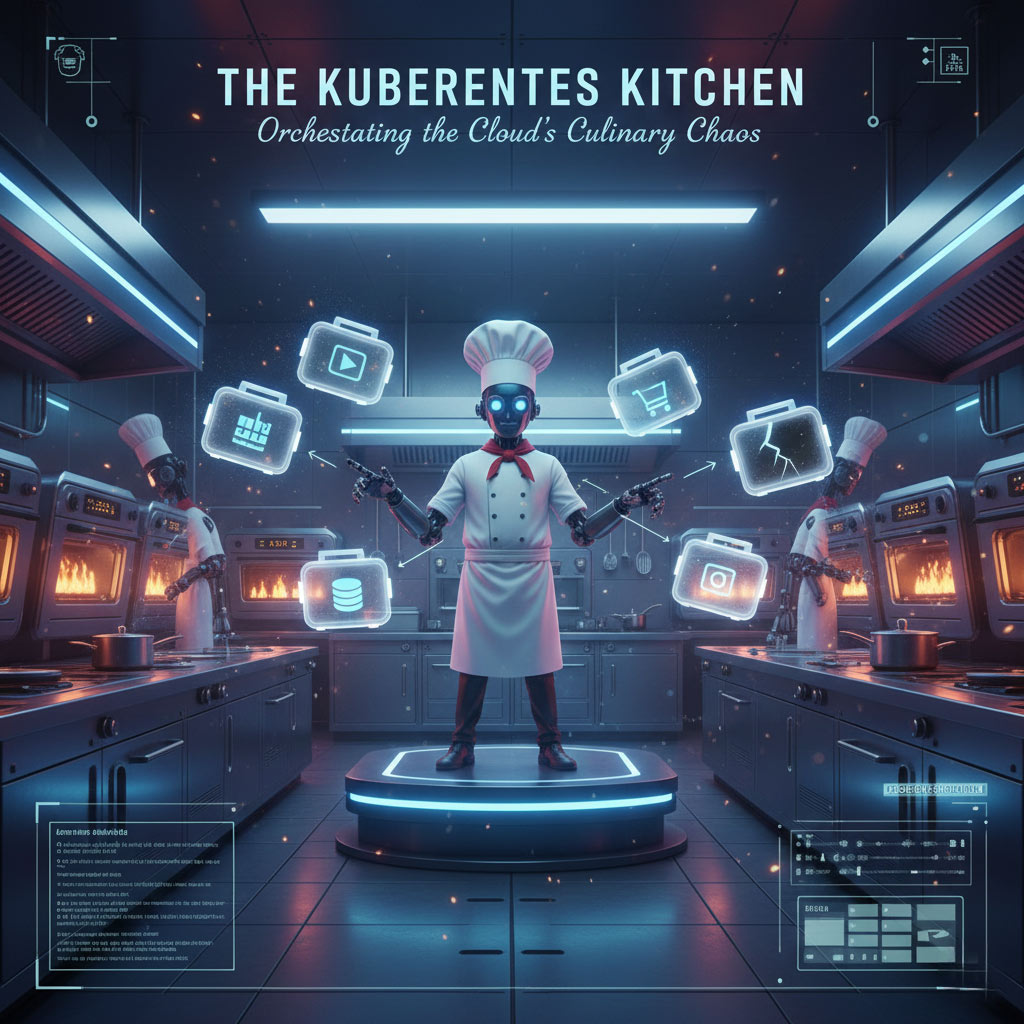
Understanding Kubernetes: The Kitchen Story

Kubernetes (often called K8s) is an open‑source system that orchestrates containers across clusters of computers. The easiest way to grasp it is through a kitchen story that turns complex tech into everyday sense.

The Restaurant Analogy

To understand why we need orchestration, imagine you are running a world-class restaurant:

  • The Head Chef (Kubernetes): You don’t cook every dish yourself. You manage many chefs, ovens, and stations. Kubernetes ensures every dish (container) is assigned to the right station (node) at the right time.
  • The Lunch Boxes (Containers): Each recipe is packed neatly with its own ingredients. These are your “containers.” Kubernetes decides where to place those boxes in the kitchen and ensures they’re prepared correctly.
  • Dynamic Staffing (Scaling): If 100 customers walk in, the Head Chef calls in more staff. If the restaurant is empty, he sends people home to save costs.
  • The Backup Plan (Self‑healing): If an oven breaks, the Head Chef moves the dish to a working one immediately. The customer never even knows there was a problem.

Teaching Flow

StepConceptAnalogy
1ContainersStandardized Lunch Boxes
2ClusterThe Entire Restaurant Kitchen
3OrchestrationHead Chef assigning stations
4Auto-ScalingHiring/Releasing staff based on crowd
5Self‑healingReplacing a broken oven or sick chef

Why Kubernetes Matters

In the modern digital world, K8s is the industry standard because it is:

  • Reliable: Keeps apps running even when hardware fails.
  • Scalable: Handles traffic spikes without manual intervention.
  • Efficient: Maximizes server usage to save money.
  • Portable: Works the same in any cloud environment.

Conclusion

Kubernetes is the “Head Chef” of the modern cloud. It manages the chaos of thousands of containers so that your applications stay smooth, scalable, and resilient—even during peak hours.

Active Directory SID Quick Reference

Active Directory SID Quick Reference

  • SID format: S-1-5-21-<domainID>-<RID>
  • Domain ID: The long middle section (e.g. 3450839898-1007371689-2406560646) is constant for all accounts in the domain.
  • RID: The last number (e.g. 7147) uniquely identifies the user or group.
  • Identity resolution:
Get-ADUser -Identity <SID>
  

→ Returns the user object (SamAccountName, DistinguishedName, etc.).

Useful PowerShell Commands

Full details of user

Get-ADUser -Identity <SID> -Properties *
  

Group memberships

Get-ADUser -Identity <SID> | Get-ADPrincipalGroupMembership
  

Username → SID lookup

Get-ADUser -Identity <username> | Select SID
  

Ritual View 🌱

  • Domain ID → temple walls (shared by all accounts).
  • RID → unique scroll inside the shrine.
  • SID → the true identity key, unchanged even if names are altered.

ClusterStorage Ghost Folders | Why They Appear and How to Check

ClusterStorage Ghost Folders | Why They Appear and How to Check

In Windows Failover Clustering, you may sometimes notice extra folders like ClusterStorage.000 or ClusterStorage.001 on one host. These are ghost mount points created when the system couldn’t attach the shared volume to the usual C:\ClusterStorage path. They often appear after a failover, reboot, or storage hiccup, and remain even after the cluster stabilizes.

The important thing is: they don’t mean your cluster is broken. They’re just remnants of a past event. Still, it’s wise to verify that no workloads are tied to those ghost paths and that your Cluster Shared Volumes (CSV) are healthy.

🔍 What to Check

  • Cluster Shared Volume health — confirm all shared volumes are online and coordinated by a healthy node.
  • List all VM storage paths — review where your virtual disks (VHDX files) are stored.
  • Check VM configuration files — inspect configs, snapshots, and paging files.
  • Verify CSV mount points — ensure volumes are mounted under C:\ClusterStorage not ghost folders.
  • Inspect cluster resources and logs — check disk resources and recent cluster events.
  • Check redirected I/O state — confirm CSVs are in direct I/O mode.

🛠️ Testing Commands


# List all VM disk paths
Get-VM | Get-VMHardDiskDrive | Select-Object VMName, Path

# Check VM configuration, snapshots, and paging file locations
Get-VM | Select-Object Name, ConfigurationLocation, SnapshotFileLocation, SmartPagingFilePath

# Verify Cluster Shared Volume mount points
Get-ClusterSharedVolume | Select-Object Name, @{Name="Path";Expression={$_.SharedVolumeInfo.FriendlyVolumeName}}

# Run full cluster validation (storage, network, system health)
Test-Cluster

# Show physical disk resources and their status
Get-ClusterResource | Where-Object {$_.ResourceType -eq "Physical Disk"}

# Check cluster events/logs for recent disk or CSV issues
Get-ClusterLog -UseLocalTime -TimeSpan 1

# Show CSV I/O mode (Direct vs Redirected)
Get-ClusterSharedVolumeState

âś… Resolution

If ghost folders are empty and unused, they can be safely deleted. If they contain files, relocate them to the proper ClusterStorage\VolumeX path first. Use the above commands to confirm CSV health and ensure no VM references ghost paths.

🕯️ Kapothi Insight

Ghost doors remain when the shrine once faltered — but the true doorway is open and strong today.

Tags

Hyper‑V, Failover Clustering, ClusterStorage, Kapothi Legacy, Digital Forensics