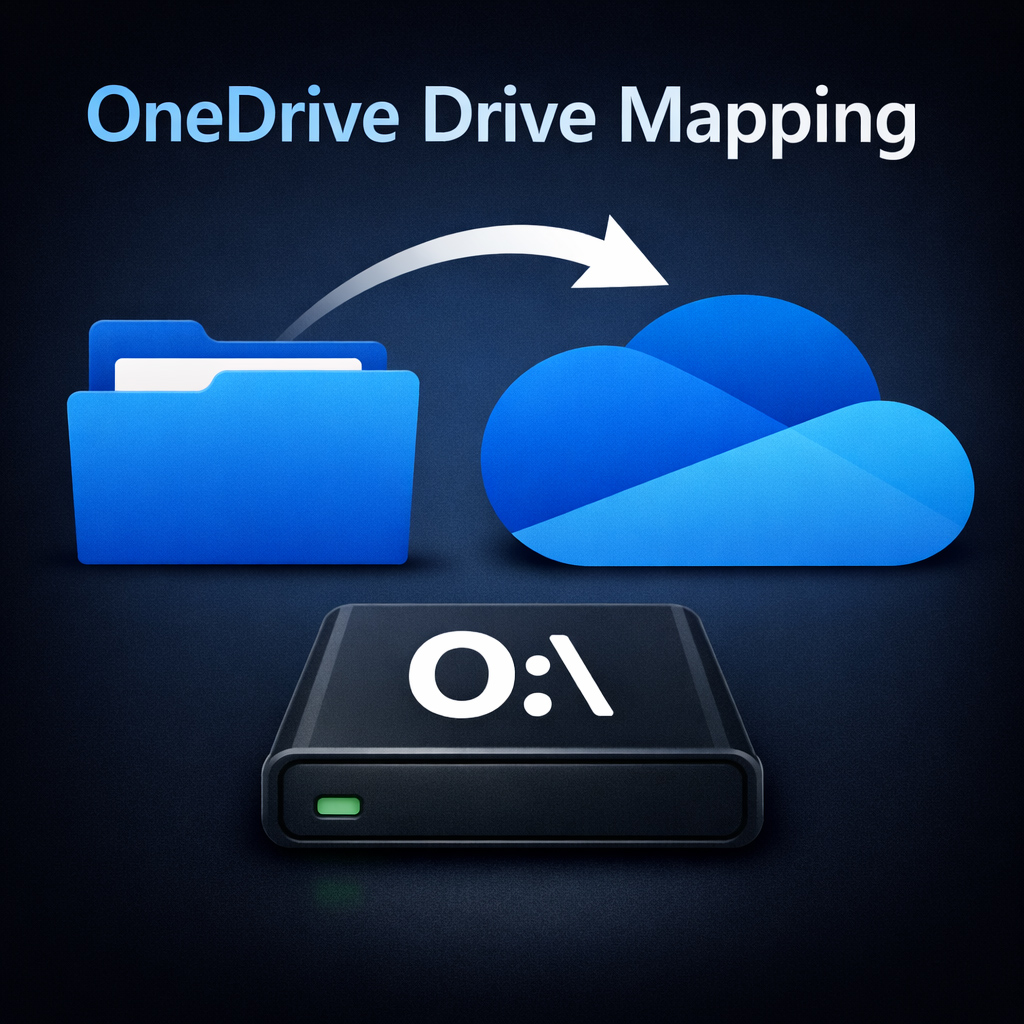
Mounting OneDrive as a Local Drive
Anyone can mount their OneDrive folder as a drive letter in Windows. This makes your cloud storage feel like a local disk, perfect for backups, archives, or daily use.
First install the OneDrive sync client and sign in with your Microsoft account. During setup, choose a folder location (for example D:\OneDriveVM). Then open PowerShell and run the following command to map that folder as a drive letter:
C:\>POWERSHELL.EXE New-PSDrive -Name O -PSProvider FileSystem -Root “C:\Users\Cham\OneDrive” -Persist
What is New‑PSDrive?
New‑PSDrive is a built‑in PowerShell command that lets you mount a folder, registry hive, or remote share as a virtual drive. With -Persist, the mapping survives reboots just like a normal drive.
# Example
New-PSDrive -Name O -PSProvider FileSystem -Root “C:\Users\Cham\OneDrive” -Persist
# Breakdown
-Name O → Drive letter O:\
-PSProvider FileSystem → Treats path as file system
-Root → Folder you want to mount
-Persist → Makes it permanent
Kapothi Takeaway
Now your OneDrive feels like a local disk. Simple trick, but powerful for VM backups, Kapothi content, or just keeping your files synced 🚀.