Upgrade of Windows 7 Beta to RC and RTM

windows_upgrade

If you are running Windows 7 Beta and you try to upgrade to Windows 7 RC straight from the installation media, you’ll get an error telling you that this is not possible. Similarly, if you are trying to upgrade from Windows 7 Beta or RC to Windows 7 RTM, you’ll get a similar message.

The upgrade is possible. You just have to do a bit of mucking around. To perform the upgrade, do the following:

  1. Copy the contents of the ISO or DVD to a separate storage location (such as a bootable USB storage device, a separate partition or whatever)
  2. Open the file \sources\cversion.ini in a text editor and modify the MinClient number to a number lower than the version Windows 7 that you want to upgrade from – so for the beta you would set this to something like 6900.
  3. Save the file and then run the install routine from the location with the modified file

How to force windows updates with wuauclt.exe

202px-Windows_update_icon

In order to use WSUS the PC needs to be in Active Directory. Once the PC is in Active directory you can run:

wuauclt.exe /detectnow

This will force the PC to talk to WSUS to get the updates needed instead of waiting for the PC to talk to WSUS.

To view the log go to c:\windows\WindowsUpdate.log or Windows Update.log
In the log you can view any updates the PC may need if any at all.

If you are having issues getting wsus updates try:

wuauclt.exe /resetauthorization /detectnow

This will force the PC to download a new certificate, and then download the updates from WSUS. Again check the log in c:\windows\WindowsUpdate.log to see if the Pc was able to reauthorize and obtain new updates.

Windows Vista could not detect a dial-up modem

The warning message is “windows could not detect a dial-up”

Make Sure following serverices are up and running

STEP – 01

Remote Procedure Call (RPC)
Remote Procedure Call locator (RPC) (Normally this is not started.Make sure this service is in working state)Remote Access Connection Manager
Remote Access Auto Connection Manager (Normally this is not started.Make sure this service is in working state)

STEP – 02

Try those commands

1.Start – run – sc.exe config RasMan depend= “”
2.Start – run – sc config RasMan depend= TapiSrv

Still no luck ??

STEP – 03

Deleted EAP in using regedit on HKEY_LOCAL_MACHINE\SYSTEM\CurrentControlSet\Services\RasMan\PPP\EAP

No luck?

STEP 04

Try Microsoft Remote Access Connections Repir tool

https://kapothi.com/wp-content/uploads/2009/08/rarepair.exe

Hope it will fix ur problem.

10 reasons why Windows 7’s XP Mode is a big deal

windows-7-xp-mode

Author: Brien Posey


Windows 7 features a new twist: XP Mode, which lets you run your Windows XP apps without compatibility issues. Brien Posey explains why XP Mode is significant and outlines its benefits.


One of the most exciting Windows 7 features is Windows XP Mode. It uses a brand new version of Virtual PC to provide seamless access to Windows XP applications, either through a virtual Windows XP desktop or directly through the Windows 7 desktop. Here’s a look at some of the benefits XP Mode offers.

Note: This article is also available as a PDF download.

1: It solves compatibility problems

The biggest beef that most IT folks seem to have with Windows Vista is its notorious hardware and software compatibility problems. Windows 7’s Windows XP mode allows you to run Windows XP applications without worrying about application compatibility.

2: It provides a much needed upgrade to Virtual PC

Virtual PC has been around for a long time, and although it has improved from one version to the next, it still leaves a lot to be desired. Among the improvements in the new version is the ability to access the computer’s physical hard drives (including the host operating system’s volumes) through a virtual machine.

3: It offers USB Support

Another much needed improvement to Virtual PC (which Windows XP Mode depends on) is that it now offers USB support. It has previously been impossible to access USB devices from within a virtual machine.

4: It’s a way to modernize Windows XP

I know that there are those who would disagree with me, but Windows XP hasn’t aged well. First introduced in 2001, Windows XP is quickly becoming outdated. Windows XP Mode provides enables you to run Windows XP inside a modern operating system, which helps it take advantage of some of the improvements that have been made to things like hardware support and security. Windows XP itself hasn’t changed, but because Windows XP Mode is dependent on the host operating system, it can reap some of these benefits.

5: It ensures long-term technical support

Microsoft’s continued support for Windows XP has been questionable for quite some time now. Every time Microsoft gets ready to pull the plug on main stream technical support, they give in to pressure from customers and extend the support period. It’s great that Microsoft has been so accommodating, but nobody knows how long that will last. Having Windows XP Mode built into Windows 7 helps ensure that Windows XP support will be available for many years to come.

6: Microsoft has made a commitment to XP

For the last several years, Microsoft has urged customers to adopt Windows Vista, but most of Microsoft’s corporate customers have chosen to continue using Windows XP. By including Windows XP mode in Windows 7, Microsoft has finally acknowledged the importance of Windows XP to its customers and given diehard XP fans a real solution that will allow them to move forward without giving up the OS they’ve depended on for almost a decade.

7: It offers seamless integration

One of my favorite things about Windows XP Mode is that it’s completely seamless. Sure, you can work within a full-blown Windows XP virtual machine, but you don’t have to. In fact, if you close the Windows XP virtual machine, you can access your Windows XP applications directly through the Windows 7 start menu and run those applications seamlessly alongside applications that are installed directly on Windows 7.

8: It’s a first

This is the first time Microsoft has ever given us this type of support for an older product. Exchange 2000 included a copy of Exchange 5.5, but that was only included as part of the migration path for Exchange 5.0 users. Microsoft wasn’t expecting customers to actually use both products. Making Windows XP part of the Windows 7 operating system is unprecedented.

9: It opens the door to lightweight operating systems

Windows has always had a bad reputation for being excessively bloated. One of the reasons for the bloat is that most versions of Windows have included a significant amount of code to provide backward compatibility with the previous version. By relying on virtualization to provide this compatibility, Microsoft may be able to greatly reduce the size of the core operating system in Windows 8.

10: Future plug-ins are possible

The way Microsoft has connected Windows XP to Windows 7 through virtualization opens the door to future operating system plug-ins. Don’t be surprised if Windows 8 gives you the ability to pick and choose the legacy operating systems you want to support. Microsoft could end up offering virtualization plug-ins that will allow it to support Windows XP, Vista, and Windows 7. Using this method would allow customers to pick the type of backward compatibility they need without having to install any unnecessary legacy code

BOOTMGR is compressed. Press Ctrl+Alt+Del to restart

Boot Manager is compressed
If by accident having compressed the entire boot partition, then Vista will display the following error:

BOOTMGR is compressed. Press Ctrl+Alt+Del to restart

Check points for fixing compressed boot-manager:

* Boot into Windows Recovery Environment (WinRE) and perform a “Startup Repair”.

* If the above doesn’t solve the problem then boot into WinRE again, but when selecting the Vista-installation, then       press “Load Drivers” (Instead of “Next”) and use the mini Windows Explorer to right-click the boot-drive and deselect       “Compress this Drive” and choose Apply to sub-folders and files.

* If that also fails then boot into WinRE again, and go to the “Command Prompt” and execute these commands:
o compact /U C:\bootmgr
o compact /U C:\ntldr

if you cannot find the compact command go to x:\windows\system32\ and execute the command.

Explaining Movie sources

movie-sources

CAM

A cam is a theater rip usually done with a digital video camera. A mini tripod is sometimes used, but a lot of the time this wont be possible, so the camera make shake. Also seating placement isn’t always idle, and it might be filmed from an angle. If cropped properly, this is hard to tell unless there’s text on the screen, but a lot of times these are left with triangular borders on the top and bottom of the screen. Sound is taken from the onboard microphone of the camera, and especially in comedies, laughter can often be heard during the film. Due to these factors picture and sound quality are usually quite poor, but sometimes we’re lucky, and the theater will be fairly empty and a fairly clear signal will be heard.

 TELESYNC (TS)

 A telesync is the same spec as a CAM except it uses an external audio source (most likely an audio jack in the chair for hard of hearing people). A direct audio source does not ensure a good quality audio source, as a lot of background noise can interfere. A lot of the times a telesync is filmed in an empty cinema or from the projection booth with a professional camera, giving a better picture quality. Quality ranges drastically, check the sample before downloading the full release. A high percentage of Telesyncs are CAMs that have been mislabeled.

 TELECINE (TC)

 A telecine machine copies the film digitally from the reels. Sound and picture should be very good, but due to the equipment involved and cost telecines are fairly uncommon. Generally the film will be in correct aspect ratio, although 4:3 telecines have existed. A great example is the JURASSIC PARK 3 TC done last year. TC should not be confused with TimeCode , which is a visible counter on screen throughout the film.

 SCREENER (SCR)

A pre VHS tape, sent to rental stores, and various other places for promotional use. A screener is supplied on a VHS tape, and is usually in a 4:3 (full screen) a/r, although letterboxed screeners are sometimes found. The main draw back is a “ticker” (a message that scrolls past at the bottom of the screen, with the copyright and anti-copy telephone number). Also, if the tape contains any serial numbers, or any other markings that could lead to the source of the tape, these will have to be blocked, usually with a black mark over the section. This is sometimes only for a few seconds, but unfortunately on some copies this will last for the entire film, and some can be quite big. Depending on the equipment used, screener quality can range from excellent if done from a MASTER copy, to very poor if done on an old VHS recorder thru poor capture equipment on a copied tape. Most screeners are transferred to VCD, but a few attempts at SVCD have occurred, some looking better than others.

DVD-SCREENER (DVDscr)

Same premise as a screener, but transferred off a DVD. Usually letterbox , but without the extras that a DVD retail would contain. The ticker is not usually in the black bars, and will disrupt the viewing. If the ripper has any skill, a DVDscr should be very good. Usually transferred to SVCD or DivX/XviD

 R5

This is fairly new movie format. Basically the same as DVD Screener – this kind of release is legal DVD released in Russia to decrease the level of pirated movies in this country. Retail is rushed out by the studio, so there is little to no cleanup of the film after the telecine process. As a result, you can see some scratches, hairs or other mess on the picture, but you will hardly notice it while watching. External English audio is often used, as these are supplied with Russian sound by default.

DVDRip 

a copy of the final released DVD. If possible this is released PRE retail (for example, Star Wars episode 2) again, should be excellent quality. DVDrips are released in SVCD and DivX/XviD.

 VHSRip

Transferred off a retail VHS, mainly skating/sports videos and XXX releases.

TVRip

TV episode that is either from Network (capped using digital cable/satellite boxes are preferable) or PRE-AIR from satellite feeds sending the program around to networks a few days earlier (do not contain “dogs” but sometimes have flickers etc) Some programs such as WWF Raw Is War contain extra parts, and the “dark matches” and camera/commentary tests are included on the rips. PDTV is capped from a digital TV PCI card, generally giving the best results, and groups tend to release in SVCD for these. VCD/SVCD/DivX/XviD rips are all supported by the TV scene.

WORKPRINT (WP)

 A workprint is a copy of the film that has not been finished. It can be missing scenes, music, and quality can range from excellent to very poor. Some WPs are very different from the final print (Men In Black is missing all the aliens, and has actors in their places) and others can contain extra scenes (Jay and Silent Bob) . WPs can be nice additions to the collection once a good quality final has been obtained.

DivX Re-Enc

 A DivX re-enc is a film that has been taken from its original VCD source, and re-encoded into a small DivX file. Most commonly found on file sharers, these are usually labeled something like Film.Name.Group(1of2) etc. Common groups are SMR and TND. These aren’t really worth downloading, unless you’re that unsure about a film u only want a 200mb copy of it. Generally avoid.

Watermarks

A lot of films come from Asian Silvers/PDVD (see below) and these are tagged by the people responsible. Usually with a letter/initials or a little logo, generally in one of the corners. Most famous are the “Z” “A” and “Globe” watermarks.

Asian Silvers / PDVD

 These are films put out by eastern bootleggers, and these are usually bought by some groups to put out as their own. Silvers are very cheap and easily available in a lot of countries, and its easy to put out a release, which is why there are so many in the scene at the moment, mainly from smaller groups who don’t last more than a few releases. PDVDs are the same thing pressed onto a DVD. They have removable subtitles, and the quality is usually better than the silvers. These are ripped like a normal DVD, but usually released as VCD.

Play Your iPod Through Your Windows 7 PC’s Speakers

sshot-2009-07-30-_2_

Windows expert Ed Bott finds a useful feature in Windows 7: you can play an external audio device through your computer’s speakers without any extra software using a simple configuration setting.

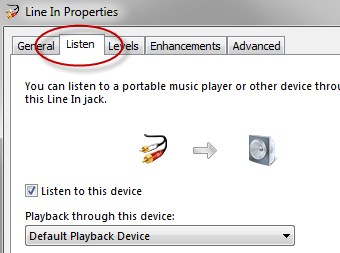
To activate the setting, you’ll need to plug the device into the Line In or microphone jacks, head to the Sounds panel, and then find the new Listen tab under the input jack. You’ll be able to direct the input from your iPod or other device to play directly from your speakers, an extremely useful feature if you’ve got a nice set of speakers connected to your PC.

Readers will note that you can always play your iPod’s music using iTunes, but this method works even if you connect a friend’s iPod or any other sound input you would like to use—and this method doesn’t require using any software.

Windows expert Ed Bott finds a useful feature in Windows 7: you can play an external audio device through your computer’s speakers without any extra software using a simple configuration setting.

To activate the setting, you’ll need to plug the device into the Line In or microphone jacks, head to the Sounds panel, and then find the new Listen tab under the input jack. You’ll be able to direct the input from your iPod or other device to play directly from your speakers, an extremely useful feature if you’ve got a nice set of speakers connected to your PC.

Readers will note that you can always play your iPod’s music using iTunes, but this method works even if you connect a friend’s iPod or any other sound input you would like to use—and this method doesn’t require using any software.

Microsoft® My Phone – Sync your Windows Mobile 6 online

Back up phone information to a password-protected web site

Microsoft My Phone syncs information on your mobile phone to a storage space on a web site hosted by Microsoft. If your phone is lost or stolen, or if you upgrade to a new phone, you can easily restore the contacts, calendar appointments, photos, and other information that you stored on My Phone to a compatible new or replacement phone. Most phones that run the Windows Mobile 6 operating system are compatible with My Phone service.

More info Available @

http://myphone.microsoft.com/


Can my PC run Windows 7?

You may be able to run Windows 7 on your current PC. Here’s how to find out.

Download and run the Upgrade Advisor

In general, if your PC can run Windows Vista, it can run Windows 7. But if you’re not running Windows Vista, or are just not sure if your system is ready to run Windows 7, there’s a quick way to do a simple check.

Just download, install, and run the Windows 7 Upgrade Advisor Beta. You’ll get a report telling you if your PC can run Windows 7 and if there are any known compatibility issues. If an issue can be resolved, you’ll get suggestions for next steps. For example, it may let you know that you need an updated driver for your printer and where to get it

Before you begin

Before you begin

Before you run the Windows 7 Upgrade Advisor Beta, be sure to plug in any USB devices or other devices such as printers, external hard drives, or scanners that are regularly used with the PC you’re evaluating.

Download Link

http://www.microsoft.com/downloads/details.aspx?displaylang=en&FamilyID=1b544e90-7659-4bd9-9e51-2497c146af15