Resource Coordinators: Enabling and Disabling the Offline Address Book

that you disable Outlook’s ability to download the Offline Address Book by using the steps outlined in the Disable the Offline Address Book section. Doing so will allow you to see resources in the GAL within a few minutes of creating them using the Resource Coordinator Tools. Otherwise, Outlook stores a “cached” copy of the address book, which is updated daily. Steps to re-enable the Offline Address Book are also provided.

Disable the Offline Address Book – Updated Aug. 1 2008 for Windows Vista

  1. Close Outlook.
  2. Download the Disable/Enable Offline Address Book Scripts (ZIP)
  3. From Windows Explorer, open (by double-clicking) the OutlookOABDownloadScripts.zip file from the location where it was downloaded.
  4. Run (by double-clicking) the OutlookDisableOABDownload.vbs script. Note – in Windows Vista, right-click on the script and select “Run As Administrator” (your local IT support person may need to provide administrative credentials at this step).
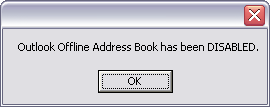
  5. If it runs successfully, you should see the following confirmation message:

rc_disable_enable_OAB_01

At this point, Outlook will no longer automatically download the offline address book. However, if you click the “Send/Receive” button within Outlook, by default it will reset your offline address book setting – in effect it re-enables the offline address book. To prevent this from happening, complete the following steps.

  • Open Outlook
  • Go to “Tools” > “Send/Receive” > “Send/Receive Settings” > “Define Send/Receive Groups”
  • Highlight the group “All Accounts” and click “Edit”
  • In Outlook 2007, check the “Include the selected account in this group” checkbox
  • Uncheck the “Download offline address book” checkbox
  • Click “OK”
  • Click “Close”
  • How to Disable Clicking Sound from Internet Explorer in Vista and Windows 7?

    Have you ever thought that the clicking sound is annoying when you click on the links in Internet Explorer (IE7 or IE8) or refresh the Window? Especially in the night when your friends or family members are sleeping and when you browse? Then disabling that clicking sound will be a good option. Unfortunately you can’t disable it from IE and you have to do it through the system sound settings.

    So how to disable the clicking sound in IE?


    Go to Start button –> Control Panel –> Hardware and Sound.

    Under Sound, click Change System Sounds.

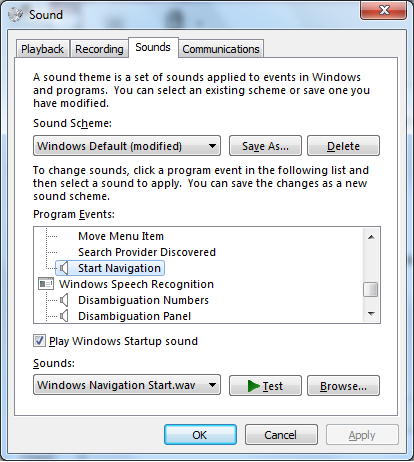
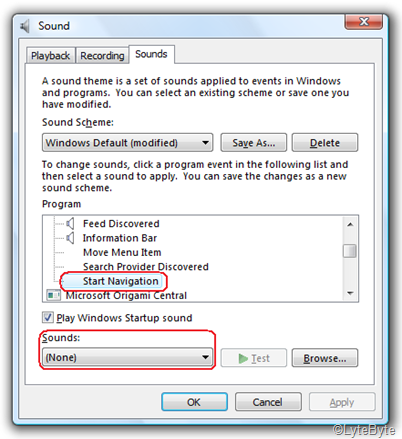
    There you will see the list of programs whose sound system is managed by Windows Vista,  Scroll down to see Windows Explorer. There choose Start Navigation and from the Sounds drop down menu choose None. Click OK.

    clicksound

    You may also want to change the settings for Complete Navigation to None, if its not already set to None. Also if you don’t want any noise while you are browsing, you can also disable the sound when you have a blocked pop-up window. Choose Blocked Pop-up Window and change it to None.

    Stupid Windows 7 trick: unlock the secret God Mode folder

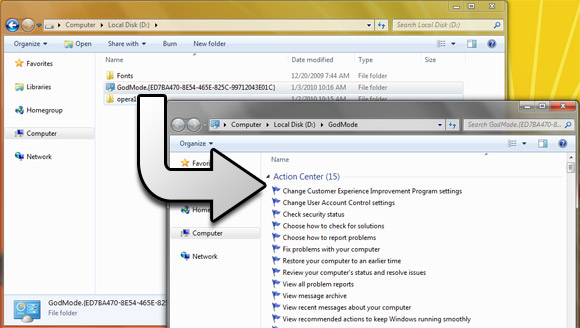
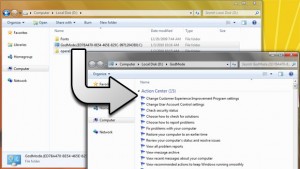
     godmode-asdvfasdf-

    So, what exactly is God Mode in Windows 7?

    Well, for starters, it’s not really a mode. And it’s nothing you need to be a deity to pull off, either.

    Rather, it’s a folder packed with shortcuts to just about every settings change and administrative function in Windows 7. Everything you’ll find in the Action Center, Backup and Restore, Autorun, Desktop Gadgets, Devices and Printers — it’s all there. All dumped in one central location for easy access.

    No, this trick doesn’t involve entering IDDQD in the run box – but it’s just about that simple. Here’s the magic,

    • Create a new folder anywhere (I set mine up in d:\)
    • Rename the folder and paste in the following text: GodMode.{ED7BA470-8E54-465E-825C-99712043E01C}

    That’s it! You’ve now got your new, somewhat handy folder. Why somewhat handy? Well, because you can already access everything in there by typing a few letters into the search box on your start menu.

    Still, it’s a pretty long list of things to remember – so having a nice reference like this could actually be useful from time to time 
    • Create a new folder anywhere (I set mine up in d:\)
    • Rename the folder and paste in the following text: GodMode.{ED7BA470-8E54-465E-825C-99712043E01C}

    That’s it! You’ve now got your new, somewhat handy folder. Why somewhat handy? Well, because you can already access everything in there by typing a few letters into the search box on your start menu.

    Still, it’s a pretty long list of things to remember – so having a nice reference like this could actually be useful from time to time