
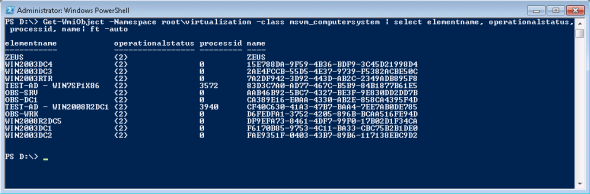
Copy the following command and enter it in a PowerShell window with elevated credentials:
Get-WmiObject -Namespace root\virtualization -class msvm_computersystem | select elementname, operationalstatus, processid, name| ft -auto
For example:

The torrent history is saved in resume.dat stored in %appdata%\utorrent.
A quick solution is to move the partial files (if you want to store on your new HD of course) then the folder %appdata%\utorrent to the new HD. Then you edit resume.dat with http://forum.utorrent.com/viewtopic.php?id=31306 by using the function ‘find/replace’ to change the path or drive letter if something changed.
Then you start uT, it should resume your torrents.

The IIS Admin Service service terminated with service-specific error 2149648394 (0x8021080A).
IIS Admin Service goes away after restoring a VHD / VPC Server
I recently had the unexpected pleasure of losing my IIS Admin server – altogether!!! Translate – 150% !!!
Now, before this – everything was going great – except. During an upgrade of MOSS (Microsoft Office SharePoint Server) I encounted an issue that forced me to restore a VPC image – essentially bringing over another copy of the VHD and firing the server back up.
Interstingly, during that reboot – which for all intents should have gone fine – I see a hoard of DSKCHK processes running. Invariably, something got out of wack on the NTFS volumn between my shutting the image down and bringing it back up. During the ‘fixing’ process – a number of files invaribly can become corrupt – and the Metabase.xml – the blood-life of your IIS Admin service – is no exception. SO
Check in C:\Windows\System32\Inetsrv and you’ll find a ‘History’ folder. Within here – hopefully – you’ll find fairly recent backups of the Metabase.XML and MBSchema.XML objects. Before doing the following – be sure to backup the existing Metabase.xml and MBSchema.xml from C:\Windows\System32\Inetsrv first.
Now, rename a recent backup from the ‘History’ folder – renaming a recently Metabase.XML object, and then a recent MBSchema.XML object. Copy / Paste each of these to the C:\Windows\System32\Inetsrv.
Ahh, not quite done.
Now do a IISRESET from a command prompt.
Hopefully this will get you back to where you need to be.

1) I clicked SHIFT+F10 to get a command prompt, then typed in devmgmt.msc to get the device manager. It will have the unknown or devices without drivers expanded. I disabled some but I also found that you can install drivers too. If you have all your manufacturer drivers on a USB stick then just right-mouse and select update driver and then browse to the root of your USB stick e.g. E:\ and have it search subdirectories and it should find the right driver for that device.
—-and at the same time I..
2) typed in taskmgr.exe to get the Task Manager and in the processes list I killed any running msiexec.exe processes and cmd.exe command prompts if they looked like they were hung i.e. no CPU and the disk light on the Laptop wasn’t really running. This step 2) is the most important step as it seemed to allow the first use setup to step on.
The install then quickly finished the “setup is preparing your computer for first use” stage and I got the username, hostname and so-on questions.
The SHIFT+F10 trick and using the devmgmr.msc and taskmgr.exe works at any stage from the “setup is preparing your computer for first use” display onwards because Windows is actually running only services haven’t started and the hostname and account details haven’t been created.

Steps 1
1. Go to Start > Run > type cmd
2. Dos will open type cd\
3. Now type the drive letter in which you want to Unhide the files lets suppose in my case its E: this will open the E: drive
4. If you want to see all hidden files and folders type E:\>dir/ah
5. Now type attrib *. -h -s /s /d
6. Now close cmd using exit command
Steps 2 (folder by folder)
1. Go to Start > Run > type cmd
2. Dos will open type cd\
3. Now type the drive letter in which you want to Unhide the files lets suppose in my case its E: this will open the E: drive
4. If you want to see all hidden files and folders type E:\>dir/ah (*you will now see the files/folders with hidden attributes )
5. Type “attrib [name of file/folder] -r -a -s -h” if you’re going to unhide files, you should type the whole name plus the extension (example: attrib banner.psd -r -a -s -h)
6. Now check you drive.. it should be there

Step 1: Open Control Panel → Windows Firewall → Advanced Settings.
Step 2: Click Inbound Rules → New Rule.
Step 3: Select Port, then choose TCP.
Step 4: Enter 1433 (default SQL Server port).
Step 5: Choose Allow the connection.
Step 6: Apply to Domain, Private, Public profiles as needed.
Step 7: Name the rule SQL Server Port 1433 and finish.
Save the following as OpenSQLPort.bat and run as Administrator:
@echo off
REM === Open SQL Server port on Windows Firewall ===
set PORT=1433
set RULE_NAME="SQL Server Port %PORT%"

netsh advfirewall firewall add rule name=%RULE_NAME% ^
    dir=in action=allow protocol=TCP localport=%PORT%

pause
⚠️ Security Tip: If you want to restrict access, add:
remoteip=192.168.1.100
This limits SQL connections to a specific server IP.
🗑️ To remove the rule later:
netsh advfirewall firewall delete rule name="SQL Server Port 1433"
🔍 Connectivity Test: After opening the port, confirm with:
telnet SERVERNAME 1433
If the connection opens, the firewall rule is working.

The following table specifies the limits on physical memory for Windows 8.
| Version | Limit on X86 | Limit on X64 |
|---|---|---|
| Windows 8 Enterprise | 4 GB | 512 GB |
| Windows 8 Professional | 4 GB | 512 GB |
| Windows 8 | 4 GB | 128 GB |
The following table specifies the limits on physical memory for Windows Server 2012. Windows Server 2012 is available only in X64 editions.
| Version | Limit on X64 |
|---|---|
| Windows Server 2012 Datacenter | 4 TB |
| Windows Server 2012 Standard | 4 TB |
| Windows Server 2012 Essentials | 64 GB |
| Windows Server 2012 Foundation | 32 GB |
| Windows Storage Server 2012 Workgroup | 32 GB |
| Windows Storage Server 2012 Standard | 4 TB |
| Hyper-V Server 2012 | 4 TB |
This command will open the following Dialog Box in which you can manually enter your MAK: