please visit
http://windows.microsoft.com/en-us/windows-8/create-reset-refresh-media
Normally, you could launch Command Prompt with default privileges by simply clicking on it in the search results list, or highlighting it with the keyboard and pressing Enter. Alternatively, you could launch Command Prompt as an administrator by right-clicking on it in the search results and selecting Run as Administrator.
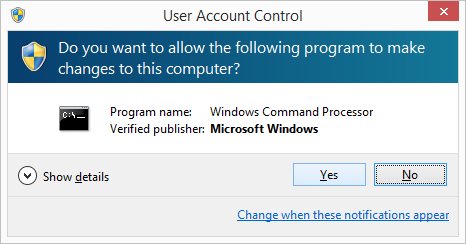
But for the fastest experience, highlight the Command Prompt result in the Windows search bar and press Control-Shift-Enter. Doing so will automatically launch Command Prompt with elevated administrative privileges, and you’ll see the User Account Control (UAC) prompt appear immediately as a result.
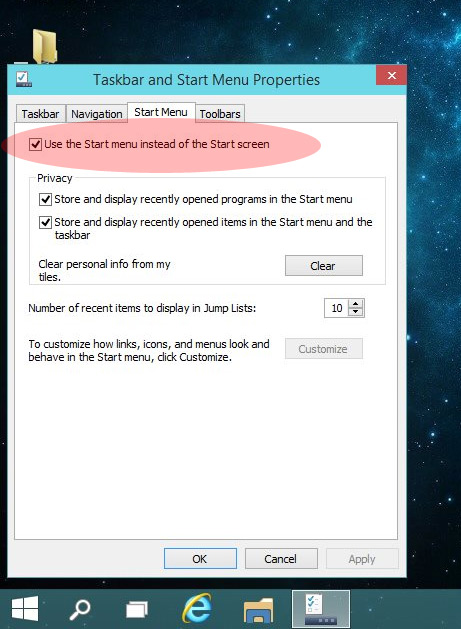
To switch from the Start Menu to the Start Screen in Windows 10, head to your Windows Desktop, right-click on the Taskbar, and choose Properties. In the Taskbar and Start Menu Properties window, navigate to the Start Menu tab and find the checkbox titled “Use the Start menu instead of the Start screen.” As you can guess from its description, uncheck this box to restore the Windows 8-style Start Screen interface in Windows 10.
Click OK to accept the change and close the window. Switching from the Start Menu to the Start Screen in Windows 10 requires the user to sign out before the change will take effect. A dialog box will appear to notify you of this. If your work is saved and you’re ready to sign out, click Sign out and change settings to complete the process.
1) Go to Programs & Features, and in the Features section, enable/install “Desktop Experience”. The downside to this is that you will need to reboot your server after installating this and it installs other components you do not need on a server.
2) [RECOMMENDED] – All you really need to do is copy some files that are already located on your server into specific system folders, as described at http://technet.microsoft.com/en-us/library/ff630161(WS.10).aspx
The location of the files you need to copy depend on your version of Windows:
| Operating System | Architecture | File Location |
| Windows Server 2008 R2 | 64-bit | C:\Windows\winsxs\amd64_microsoft-windows-cleanmgr_31bf3856ad364e35_6.1.7600.16385_none_c9392808773cd7da\cleanmgr.exe |
| Windows Server 2008 R2 | 64-bit | C:\Windows\winsxs\amd64_microsoft-windows-cleanmgr.resources_31bf3856ad364e35_6.1.7600.16385_en-us_b9cb6194b257cc63\cleanmgr.exe.mui |
| Windows Server 2008 | 64-bit | C:\Windows\winsxs\amd64_microsoft-windows-cleanmgr.resources_31bf3856ad364e35_6.0.6001.18000_en-us_b9f50b71510436f2\cleanmgr.exe.mui |
| Windows Server 2008 | 64-bit | C:\Windows\winsxs\amd64_microsoft-windows-cleanmgr_31bf3856ad364e35_6.0.6001.18000_none_c962d1e515e94269\cleanmgr.exe.mui |
| Windows Server 2008 | 32-bit | C:\Windows\winsxs\x86_microsoft-windows-cleanmgr.resources_31bf3856ad364e35_6.0.6001.18000_en-us_5dd66fed98a6c5bc\cleanmgr.exe.mui |
| Windows Server 2008 | 32-bit | C:\Windows\winsxs\x86_microsoft-windows-cleanmgr_31bf3856ad364e35_6.0.6001.18000_none_6d4436615d8bd133\cleanmgr.exe |
Once you’ve located the files move them to the following locations:
You can now launch the Disk cleanup tool by running Cleanmgr.exe from the command prompt.
Step 1: Pull up the Run dialog box and launch the Registry Editor (regedit).
Step 2: In Registry Editor, navigate to the following value:
HKEY_LOCAL_MACHINE\SYSTEM\CurrentControlSet\Services\UsbStorStep 3: From the right-side pane, double-click Start and change the value to “4”. Make sure that the value type is Hexadecimal.
Step 4: Apply your changes and reboot the machine.
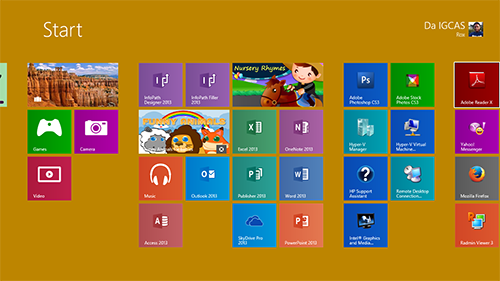
The Windows 8 Start screen is the gateway to your PC and usually the first thing you see when you log in, unless you’ve chosen to go directly to the desktop. The update to Windows 8.1 also introduced many more customization options to the Start screen
Step 1: Open the Run dialog box by hitting Windows key + R.
Step 2: Type, “%LocalAppData%\Microsoft\Windows” and hit Enter to open Windows Explorer to the location of the Start screen layout files.
Step 3: Copy the files, “appsFolder.itemdata-ms” and “appsfolder.itemdata-ms.bak” to your backup folder.
If something happens to your Start screen layout and you want to restore it, just copy the backup files back to the original location and overwrite the files already in the folder.
That’s it. Now if your nephew or a friend comes over and they rearrange your Windows 8 Start screen, you can relax and restore it in just a few minutes.
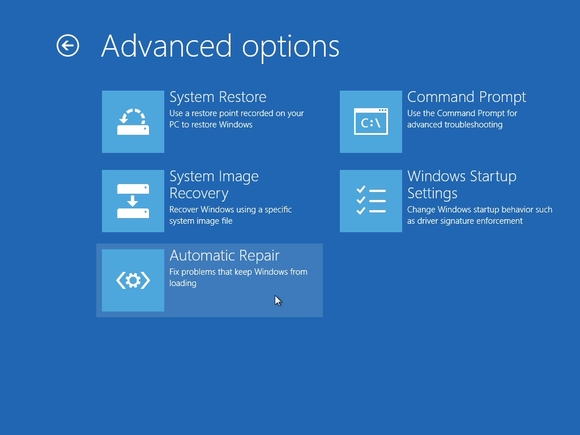
Windows 8 has performed well for us, but if you find it won’t boot at some point then you now have to press Shift+F8 during the launch process to access its recovery tools.
Access the Troubleshoot menu, then Advanced Options, and you’ll be able to try the Automatic Repair tool, which may fix your problems. No luck? The same menu enables you to use the last System Restore point, tweak key Windows Startup settings, and even open a command prompt if you’d like to troubleshoot your system manually.
If that all seems like too much hassle then the Troubleshoot menu’s option to ‘Refresh your PC’ may be preferable, because it essentially reinstalls Windows 8 but keeps your files, and will fix many issues.
But if it doesn’t then there’s always the more drastic ‘Reset your PC’ option, which removes all your files and installs a fresh new copy of Windows 8.
You don’t have to access these features from the boot menu, of course. If Windows 8 starts but seems very unstable, then open the new Recovery applet in Control Panel for easy access to the Refresh, Reset and other disaster recovery features.
If you suspect your Windows 8 system may have a corrupted hard drive, then you might be tempted to use the old chkdsk /f command. This does still work, but it’s horribly slow, and won’t do anything at all until you reboot. What’s more, it may no longer be necessary now.
Windows 8 now regularly runs chkdsk in the background, looking for problems, and recording them. And then, when run at boot time, it doesn’t have to scan every single sector of your hard drive. It just fixes the known problems, usually in a few seconds.
The first lesson here is that you probably won’t have to use chkdsk any more.
But if you want to try it anyway, don’t use chkdsk /f first. Enter chkdsk /spotfix instead, agree to run a check when you next reboot, then restart your PC and any fixes will be applied, much more quickly.
While this works most of the time, there are no guarantees. If you’re out of other options then you can still try chkdsk /f later.
Set up lots of live tiles on the Start screen and you could find they’re using a lot of network bandwidth, which could perhaps become a problem if you’re running a slow or metered connection. But Windows 8 does offer one option that might help.
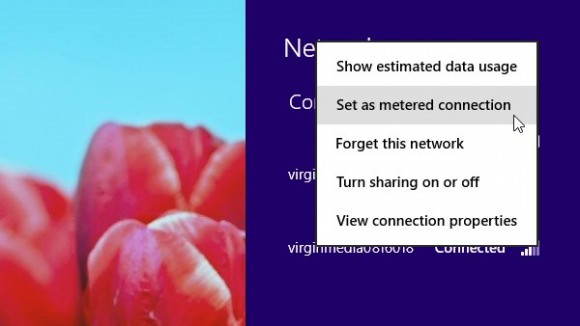
Click your network connection on the taskbar (or the Start Screen Charms bar), right-click your network connection in the list and select “Set as metered connection” (you’ll only see this with wireless adaptors). Windows will then limit what individual live tiles can do, while also downloading only priority Windows updates, and applying a few other restrictions. Right-click the connection again and select “Set as unmetered” to change it back.