All posts by Kapuwa

Internet Explorer 10 Release Preview – Why don’t toolbars and add-ons work?


Internet Explorer 10 provides an “add-on free” experience. It supports HTML 5 for video content, but you can’t install toolbars and add-ons in Internet Explorer 10.

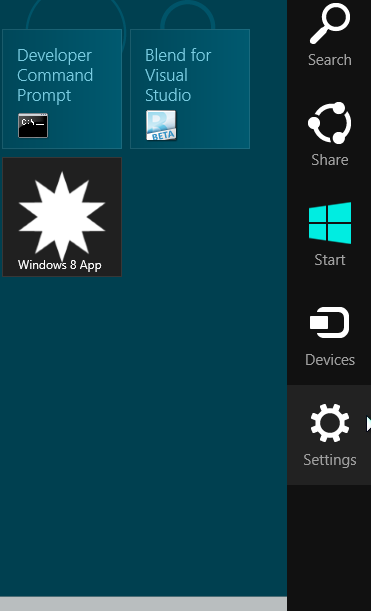
If you are viewing a webpage that requires an add-on or uses Flash, you can view the content by opening the website in  Internet Explorer for the desktop. To do this, swipe in from the right edge of the screen (if you’re using a mouse, point to the upper-right corner of the screen), tap or click Settings, and then tap or click Use the desktop.

How to add Media Center to Windows 8 (Release Preview)

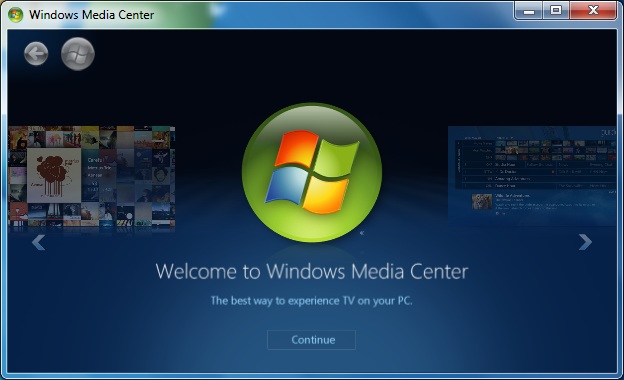
As we know Media Center is no longer an integral part of Windows 8 and will be delivered as an Add-on to Windows 8 for few bucks.


Windows Media Center is not preinstalled in Windows 8 Release Preview. If you want to use Windows Media Center, you need to add it by following these steps:

  1. Swipe in from the right edge of the screen, and then tap Search.
    (If you’re using a mouse, point to the upper-right corner of the screen, and then click Search.)
  2. Enter add features in the search box, and then tap or click                     Add features to Windows 8.
  3. Tap or click I already have a product key.
  4. Enter this product key: MBFBV-W3DP2-2MVKN-PJCQD-KKTF7 and then click Next.
  5. Select the checkbox to accept the license terms  and then click Add features.

    Your PC will restart and Windows Media Center will now be on your PC and the tile will be pinned to the Start screen.

How to shutdown Windows 8

Shutdown Windows 8 and close all apps running on Windows 8 OS is a 3-step process.
First move your mouse to the bottom right corner of the Windows 8 screen.


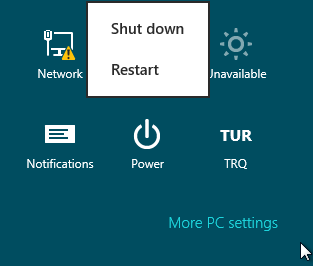
A dynamic menu will appear on the right side of the screen. These controls are new with Windows 8 and they are called charms.


Click on the Settings icon to display Settings charm. You will see Power icon on the Windows 8 Settings charm. When you click on the Power icon, a context menu will be displayed. You will see Shut down and Restart menu commands.


When you click Shut down in the Power context menu, Windows 8 will close all apps and turn off the PC.

Is it confusing? I guess you will get use to shut down Windows 8, new Windows OS on your PC by using the new Windows 8 Settings charm Power button.

Volumes larger than 2088958 megabytes cannot be protected

Windows Server Backup – Can’t handle greater than 2TB Volumes

I have just discovered that Windows Server Backup on Windows server 2008 R2 is incapable of backing up any volume 2TB or over. This, it turns out, is due to a VHD file limit. Backup essentially creates a VHD for each volume in the backup, which is great for recovery, but causes this annoying problem.

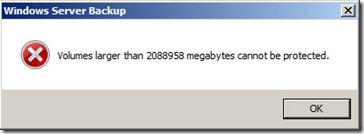
The not very helpful message you will receive if you try a full server backup when one of the volumes is too large is

“Volumes larger than 2088958 megabytes cannot be protected.”The work-around is to not do full volume backups, but make your selection of folders. Choose ‘Custom’ backup configuration and then just select all the folders on the volume that is too large.


The work-around is to not do full volume backups, but make your selection of folders. Choose ‘Custom’ backup configuration and then just select all the folders on the volume that is too large.

You receive a “c1034a7f” error message when you delete a mailbox store: “One or more users currently use this mailbox store”

This article describes several methods that you can use to work around an issue in which you cannot delete a Microsoft Exchange 2000 Server or Microsoft Exchange Server 2003 mailbox store.


When you try to delete a mailbox store from a server that is running Exchange 2000 or Exchange 2003, you may receive the following error message:

One or more users currently use this mailbox store. These users must be moved to a different mailbox store or be mail disabled before deleting this store.

ID no: c1034a7f

Exchange System Manager

This issue occurs if there are mailboxes that are homed on the store that you are trying to delete. You cannot delete a mailbox store if there are any users who have mailboxes that are homed on that store.

The following sections offer a different method to find the mailboxes that are homed on a mailbox store. When you have determined that a particular account owns a mailbox on a particular store, you can either move the mailbox or disable the account.

Method 1: Use the LDP tool to search for mailboxes that are on a mailbox store


  1. Start Ldp.exe.
  2. Click Connection, and then click Connect.
  3. Enter the name of a domain controller, and then click OK.
  4. Click Connection, and then click Bind.
  5. Enter the user name, the password, and the domain name of an administrative account, and then click OK.
  6. On the View menu, click Tree.
  7. Make sure that the Base DN box is blank, and then click OK.

    If the Base DN box is not blank, clear its contents, and then click OK.

  8. Right-click the container that you want to search, such as the CN=Users container, and then click Search.
  9. Click the Filter box, and then type the following:
    (&(objectCategory=person)(objectClass=user)(msExchHomeServerName=/o=ORGANIZATION NAME/ou=ADMINISTRATIVE GROUP NAME/cn=Configuration/cn=Servers/cn=SERVER-NAME-TO-REMOVE))
  10. Click Subtree, and then click Run.
  11. When you have identified which users have mailboxes on this store, you can use Active Directory Users and Computers to move the mailboxes to a different store or to delete the user’s mailbox.

Method 2: Use the LDP tool (Ldp.exe) to browse for mailboxes that are on a mailbox store


You can use the LDP tool to find all the accounts that have mailboxes on a particular mailbox store. This tool is included with the Microsoft Windows 2000 Support Tools package.

To use the LDP tool to find all the accounts that have mailboxes on a particular mailbox store, follow these steps:

  1. Start Ldp.exe.
  2. Click Connection, and then click Connect.
  3. Enter the name of a domain controller, and then click OK.

    We recommend that you enter a domain controller in the root domain of the forest.

  4. Click Connection, and then click Bind.
  5. Enter the user name, the password, and the domain name of an administrative account, and then click OK.
  6. On the Browse menu, click Search.
  7. Click to select the “DC=domainname,DC=local” by Base DN check box.
  8. Click the Filter box, and then type the following text:
    (msExchHomeServerName=*Exchange Virtual Server Name*)
  9. Click Subtree, and then click Run.
  10. Identify the users who have mailboxes on this store. Then, use the Active Directory Users and Computers snap-in to move the mailboxes to a different store or to delete the mailboxes.

For more information about how to use the LDP tool, see the LDP documentation in the Microsoft Windows 2000 Resource Kit.

For more information about how to find data by using the LDP tool, click the following article number to view the article in the Microsoft Knowledge Base:

224543 (http://support.microsoft.com/kb/224543/ ) Using Ldp.exe to find data in the Active Directory

Method 3: Use Active Directory Users and Computers to browse for mailboxes that are on a mailbox store


  1. Start Active Directory Users and Computers on a computer that has Exchange System Manager installed on it.
  2. In Active Directory Users and Computers, click View, click to select the Advanced Features check box, and then click OK.
  3. Click View, and then click Choose Columns.
  4. In the Modify Columns box, click Exchange Mailbox Store in the Hidden Columns list, click Add, and then click OK to add the Exchange Mailbox Store to the Displayed Columns list.

    An Exchange Mailbox Store column appears in Active Directory Users and Computers that shows the mailbox store that a user has a mailbox on.

  5. When you have identified which users have mailboxes on this store, you can use Active Directory Users and Computers either to move the mailboxes to a different store or to delete the user’s mailbox.

Method 4: Use Active Directory Users and Computers to search for mailboxes that are on a mailbox store


  1. Start Active Directory Users and Computers.
  2. Right-click the domain that you want, and then click Find.
  3. Click the Advanced tab, click Field, point to User, and then click Exchange Home Server.
  4. In the Condition list, click Ends with, type the name of the Exchange computer, and then click Find Now.
  5. If you are prompted to add the current criteria to your search, click Yes.
  6. When you have identified which users have mailboxes on this store, you can use Active Directory Users and Computers either to move the mailboxes to a different store or to delete the user’s mailbox.

The mailbox search results appear in the bottom pane.

Method 5: Use the LDIFDE tool (Ldifde.exe) to create an export file that contains the mailboxes that are on a mailbox store


  1. At a command prompt, type an LDIFDE command that resembles the following. Then press ENTER.

    ldifde -d “DC=ROOT,DC=COM” -f c:\output.txt -r “(&(objectCategory=person)(objectClass=user)(msExchHomeServerName=/o=ORGANIZATION NAME/ou=ADMINISTRATIVE GROUP NAME/cn=Configuration/cn=Servers/cn=SERVER-NAME-TO-REMOVE))”

  2. Quit the command prompt.
  3. Start Notepad or some other text editor, and then load the Output.txt file that you created in step 1 to view the mailboxes that are on the mailbox store.
  4. When you have identified which users have mailboxes on this store, you can use Active Directory Users and Computers either to move the mailboxes to a different store or to delete the user’s mailbox.

For more information about the LDIFDE tool, type the following command at a command prompt on a computer that is running a product that is listed in the “Applies To” section:

ldifde /?

Archive items manually – Outlook 2010


An efficient
way to reduce the size of your Outlook Data File (.pst) or Exchange mailbox is
to regularly archive older items. Unlike a traditional backup in which a copy of
Outlook items is made, archived items are moved to a separate Outlook Data File
(.pst). Archived items can be accessed at any time by opening the file.

Note The Archive command and feature doesn’t appear
for any account in your Outlook profile if you include an Exchange Server
account and your organization uses Microsoft Exchange Server Online Archive.
Your network administrator can also disable this feature.

By default, older Outlook items archived automatically on a regular interval.
To learn more about AutoArchive, see Use
AutoArchive to back up or delete items
.
You can also manually back up and archive items, in addition to AutoArchive
or as a replacement. Manual archiving provides flexibility, and allows you to
specify exactly which folders are included in the archive, and which archive
Outlook Data File (.pst) is used.
To manually archive Outlook items, do the following:

  1. Click the File tab
  2. Click Cleanup Tools.
  3. Click Archive.
  4. Click the Archive this folder and all subfolders option, and
    then click the folder that you want to archive. Any subfolder of the folder you
    select is included in this manual archive.
  5. Under Archive items older than, enter a date.

Archive dialog box

  1. If you do not want to use the default file or location, under Archive file, click Browse to specify a new file or
    location. Browse to find the file that you want, or enter the file name, then
    click OK. The destination file location appears in the Archive file box.
  2. Select the Include items with “Do not AutoArchive” checked
    check box to include any items that might be individually marked to be excluded
    from automatic archiving. This option does not remove that exclusion from these
    items, but instead ignores the Do not AutoArchive check box for
    this archive only.

Turn off AutoArchive

If you want to archive only manually, you must turn off AutoArchive. Do the
following:

  1. Click the File tab.
  2. Click Options.
  3. On the Advanced tab, under AutoArchive,
    click AutoArchive Settings.
  4. Clear the Run AutoArchive every n days check box.

Ports used by Exchange


Protocol: LDAPPort (TCP/UDP): 389 (TCP)Description: Lightweight Directory Access Protocol (LDAP), used by Active Directory, Active Directory Connector, and the Microsoft Exchange Server 5.5 directory.

Protocol: LDAP/SSLPort (TCP/UDP): 636 (TCP)Description: LDAP over Secure Sockets Layer (SSL). When SSL is enabled, LDAP data that is transmitted and received is encrypted. To enable SSL, you must install a Computer certificate on the domain controller or Exchange Server 5.5 computer.

Protocol: LDAPPort (TCP/UDP): 379 (TCP)Description: The Site Replication Service (SRS) uses TCP port 379.

Protocol: LDAPPort (TCP/UDP): 390 (TCP)Description: While not a standard LDAP port, TCP port 390 is the recommended alternate port to configure the Exchange Server 5.5 LDAP protocol when Exchange Server 5.5 is running on a Microsoft Windows 2000 Active Directory domain controller.

Protocol: LDAPPort (TCP/UDP): 3268 (TCP)Description: Global catalog. The Windows 2000/2003 Active Directory global catalog listens on TCP port 3268. When you are troubleshooting issues that may be related to a global catalog, connect to port 3268 in LDP.

Protocol: LDAP/SSLPort (TCP/UDP): 3269 (TCP)Description: Global catalog over SSL. Applications that connect to TCP port 3269 of a global catalog server can transmit and receive SSL encrypted data. To configure a global catalog to support SSL, you must install a Computer certificate on the global catalog.

Protocol: IMAP4Port (TCP/UDP): 143 (TCP)Description: Internet Message Access Protocol version 4, may be used by “standards-based” clients such as Microsoft Outlook Express or Netscape Communicator to access the e-mail server. IMAP4 runs on top of the Microsoft Internet Information Service (IIS) Admin Service (Inetinfo.exe), and enables client access to the Exchange 2000/2003 information store.

Protocol: IMAP4/SSLPort (TCP/UDP): 993 (TCP)Description: IMAP4 over SSL uses TCP port 993. Before an Exchange 2000 server supports IMAP4 (or any other protocol) over SSL, you must install a Computer certificate on the Exchange 2000/2003 server.

Protocol: POP3Port (TCP/UDP): 110 (TCP)Description: Post Office Protocol version 3, enables “standards-based” clients such as Outlook Express or Netscape Communicator to access the e-mail server. As with IMAP4, POP3 runs on top of the IIS Admin Service, and enables client access to the Exchange 2000/2003 information store.

Protocol: POP3/SSLPort (TCP/UDP): 995 (TCP)Description: POP3 over SSL. To enable POP3 over SSL, you must install a Computer certificate on the Exchange 2000/2003 server.

Protocol: NNTPPort (TCP/UDP): 119 (TCP)Description: Network News Transport Protocol, sometimes called Usenet protocol, enables “standards-based” client access to public folders in the information store. As with IMAP4 and POP3, NNTP is dependent on the IIS Admin Service.

Protocol: NNTP/SSLPort (TCP/UDP): 563 (TCP)Description: NNTP over SSL. To enable NNTP over SSL, you must install a Computer certificate on the Exchange 2000/2003 Server.

Protocol: HTTPPort (TCP/UDP): 80 (TCP)Description: the protocol used primarily by Microsoft Outlook Web Access (OWA), but also enables some administrative actions in Exchange System Manager. HTTP is implemented through the World Wide Web Publishing Service (W3Svc), and runs on top of the IIS Admin Service.

Protocol: HTTP/SSLPort (TCP/UDP): 443 (TCP)Description: HTTP over SSL. To enable HTTP over SSL, you must install a Computer certificate on the Exchange 2000/2003 server.

Protocol: SMTPPort (TCP/UDP): 25 (TCP)Description: Simple Mail Transfer Protocol, is the foundation for all e-mail transport in Exchange 2000/2003. The SMTP Service (SMTPSvc) runs on top of the IIS Admin Service. Unlike IMAP4, POP3, NNTP, and HTTP, SMTP in Exchange 2000/2003 does not use a separate port for secure communication (SSL), but rather, employs an “in-band security sub-system” called Transport Layer Security (TLS).

Protocol: SMTP/LSAPort (TCP/UDP): 691 (TCP)Description: The Microsoft Exchange Routing Engine (also known as RESvc) listens for routing link state information on TCP port 691. Exchange 2000/2003 uses routing link state information to route messages and the routing table is regularly updated. The Link State Algorithm (LSA) propagates outing status information between Exchange 2000/2003 servers. This algorithm is based on the Open Shortest Path First (OSPF) protocol from networking technology, and transfers link state information between routing groups by using the X-LSA-2 command verb over SMTP and by using a Transmission Control Protocol (TCP) connection to port 691 in a routing group.

Protocol: X.400Port (TCP/UDP): 102 (TCP)Description: ITU-T Recommendation X.400 is really a series of recommendations for what an electronic message handling system (MHS) should look like. TCP port 102 is defined in IETF RFC-1006, which describes OSI communications over a TCP/IP network. In brief, TCP port 102 is the port that the Exchange message transfer agent (MTA) uses to communicate with other X.400-capable MTAs.

Protocol: MS-RPCPort (TCP/UDP): 135 (TCP)Description: Microsoft Remote Procedure Call is a Microsoft implementation of remote procedure calls (RPCs). TCP port 135 is actually only the RPC Locator Service, which is like the registrar for all RPC-enabled services that run on a particular server. In Exchange 2000/2003, the Routing Group Connector uses RPC instead of SMTP when the target bridgehead server is running Exchange 5.5. Also, some administrative operations require RPC. To configure a firewall to enable RPC traffic, many more ports than just 135 must be enabled. Please take note… however, you can static the port by changing the registry. Let me share with you all in future articles…

Protocol: DNSPort (TCP/UDP): 53 (TCP)Description: Domain Name System (DNS) is at the heart of all of the services and functions of Windows 2000/2003 Active Directory and Exchange 2000/2003 Server. You cannot underestimate the impact that a DNS issue can have on the system. Therefore, when service issues arise, it is always good to verify proper name resolution.

This definately clear all of your mind when you want to put in Front End in DMZ…

Last not least, we will always recommend to put in ISA rather than opening ports. This is also the recommended way from MSFT.

Back up your Facebook profile


If you’re an avid Facebook use you’ll have a lot of information on the site.  It’s a good idea to make a backup so, should Facebook fail, you won’t lose  everything

To backup your data on Facebook:

  • Login to your account.
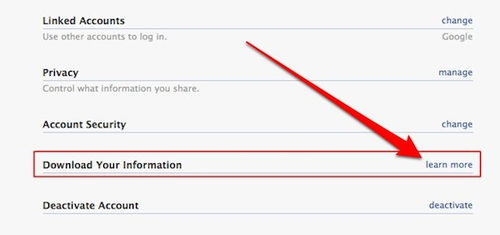
  • then open the Account menu on the top right. Choose Account Settings. At the  next screen, scroll down to the Download your information option and click the ‘learn more’ link


  • It is on this screen as you confirm that you want to save your data.
  • A popup window appears, click Download.
  • Your request has been sent to Facebook.
  • Within a few hours or days you will receive an email with a link allowing you to download your data.