Open Registry editor
Navigate to :
HKEY-CURRENTUSER-> Software -> Microsoft -> Windows -> Current Version -> Internet Settings -> Zones -> Delete folder other than 0,1,2,3,4
Open Registry editor
Navigate to :
HKEY-CURRENTUSER-> Software -> Microsoft -> Windows -> Current Version -> Internet Settings -> Zones -> Delete folder other than 0,1,2,3,4
1st try this
Click “Start”
Then Click “Run”
Copy and Paste this ” regsvr32 MSXML3.dll ”
Click “OK”
You should see a dialog box stating that the operation has suceeded.
Then open Messenger again and sign in.
If this doesn’t work then try to clear your DNS cache by:
Click “Start” then “Run” and type “cmd.exe”
Then type “ipconfig /flushdns”. You should get a message stating that the cache has been cleared.
if thats not working try this
edit the registry and find for this key ‘UseWUServer’ if the value is ‘1’ ). I changed it to ‘0’, rebooted, and Run Windows Update

1. Please download and install the Windows Installer Cleanup Utility msicuu2. To install it simply run msicuu2.exe.
2. Once it is installed go to Start>All Programs>Windows Install Clean Up
3. Scroll through the options and highlight Microsoft Windows Server Update Services 3.0
4. Click remove
5. Open a command prompt and run the following commands:
net stop wsusservice
net stop wsuscertserver
sc delete wsusservice
sc delete wsuscertserver
6. When complete, go back to the Windows Installer Cleanup Utility and highlight Windows Internal Database (MICROSOFT##SSEE) and click remove.
7. Go back to the command line and run the following commands
net stop mssql$microsoft##ssee
sc delete mssql$microsoft##ssee
8. Delete or edit the associated reg keys as noted below:
a. Go to HKEY_LOCAL_MACHINE\SOFTWARE\Microsoft\Microsoft SQL Server and edit the “InstalledInstances” value and remove “MICROSOFT##SSEE”
b. Remove the “MICROSOFT##SSEE” subkey under HKEY_LOCAL_MACHINE\SOFTWARE\Microsoft\Microsoft SQL Server
c. Remove the “MSSQL.2005” subkey under HKEY_LOCAL_MACHINE\SOFTWARE\Microsoft\Microsoft SQL Server
d. Rename the following folder:
\%Windir%\SYSMSI\SSEE\MSSQL.2005\MSSQL\Data
to
\%Windir%\SYSMSI\SSEE\MSSQL.2005\MSSQL\Data.old
At the completion of this you should be at a point where you can reinstall WSUS from scratch if you like.
—
 thanks to a new Windows 7 feature called Virtual Wi-Fi.
The idea is a simple one: the operating system can virtualise any compatible wireless adapter, to make it appear as though you’ve as many additional adapters as you need.
The effect is dramatic. Once it’s set up, then any Wi-Fi compatible device that can connect to you – another desktop, laptop, or an iPod Touch, say – will immediately be able to get online, by sharing your internet connection through a duplicate of your wireless adapter.
Getting this working isn’t too difficult, either, as long as you can get over the first hurdle: finding a virtual Wi-Fi-compatible driver for your wireless adapter.
Intel’s latest 32-bit and 64-bit drivers now include support, as do various others for Atheros, Broadcom, Realtek and other big players, but these don’t apply to every chipset. Check the support site for your wireless adapter to see what’s available.
If you’re in luck and manage to find and install an up-to-date Windows 7 driver for your adapter, then the next step is to set it up, and for that you’ll need an elevated command prompt. Click Start, type CMD, right-click the Cmd.exe link and select “Run as Administrator”.
Now type the following command:
netsh wlan set hostednetwork mode=allow ssid=MyNet key=MyPassword
and press [Enter]. Replace “MyNet” with the name you’d like to use for your custom network, and “MyPassword” with a password that’s a little harder to guess.
Still at the command line, type
netsh wlan start hostednetwork
and press [Enter] to fire up the virtual adapter.
Now click Control Panel > Network and Internet > Network and Sharing Centre > Change Adapter Settings, right-click your internet connection and select Properties. Click the Sharing tab, check “Allow other network users to connect…”, choose your virtual Wi-Fi adaptor – and that’s it.
Any nearby Wi-Fi enabled device should see a new network appear with the SSID you defined above. They’ll be able to connect to it using your password, and can then immediately share your internet connection
n an Active Directory domain network environment, you apply a “Desktop Wallpaper” Group Policy setting to the domain users. However, the setting is not applied to domain users who log on to client computers that are running Windows 7 or Windows Server 2008 R2.
This issue varies if the following conditions are true:
Additionally, in the Personalization window of the client computer, the desktop background is displayed as being changed to the setting that you applied.
Hotfix Download Available
windows 7 / windows 2008 R2 x64
windows 7 / windows 2008 R2 x86
Tech Doc source
http://support.microsoft.com/kb/977944
Requirements
Step 1
Restart Windows 2003 in Directory Service Restore Mode.
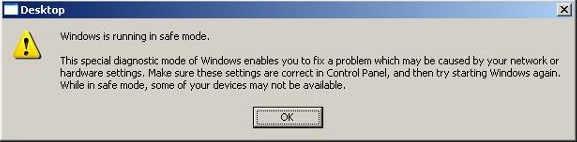
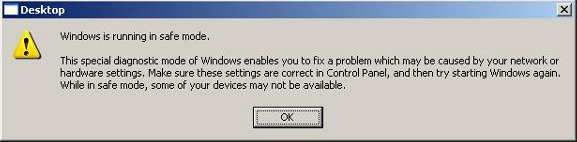
Note: At startup, press F8 and choose Directory Service Restore Mode. It disables Active Directory. When the login screen appears, log on as Local Administrator. You now have full access to the computer resources, but you cannot make any changes to Active Directory.
Step 2
You are now going to install SRVANY. This utility can virtually run any programs as a service. The interesting point is that the program will have SYSTEM privileges (LSA) (as it inherits the SRVANY security descriptor), i.e. it will have full access on the system. That is more than enough to reset a Domain Admin password. You will configure SRVANY to start the command prompt (which will run the ‘net user’ command).
Copy SRVANY and INSTSRV to a temporary folder, mine is called D:\temp. Copy cmd.exe to this folder too (cmd.exe is the command prompt, usually located at %WINDIR%\System32).
Start a command prompt, point to d:\temp (or whatever you call it), and type:
instsrv PassRecovery “d:\temp\srvany.exe”
(change the path to suit your own).
It is now time to configure SRVANY.
Start Regedit, and navigate to
HKEY_LOCAL_MACHINE\System\CurrentControlSet\Services\PassRecovery
Create a new subkey called Parameters and add two new values:
name: Application
type: REG_SZ (string)
value: d:\temp\cmd.exe
name: AppParameters
type: REG_SZ (string)
value: /k net user administrator 123456 /domain
Replace 123456 with the password you want. Keep in my mind that the default domain policy require complex passwords (including digits, respecting a minimal length etc) so unless you’ve changed the default domain policy use a complex password such as P@ssw0rd
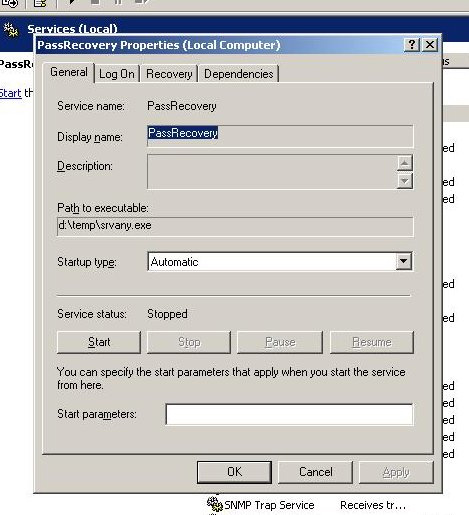
Now open the Services applet (Control Panel\Administrative Tools\Services) and open the PassRecovery property tab. Check the starting mode is set to Automatic.
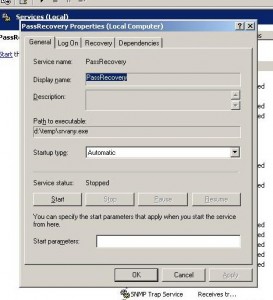
Go to the Log On tab and enable the option Allow service to interact with the desktop.
Restart Windows normally, SRVANY will run the NET USER command and reset the domain admin password.
Step 3
Log on with the Administrator’s account and the password you’ve set in step #2.
Use this command prompt to uninstall SRVANY (do not forget to do it!) by typing:
net stop PassRecovery
sc delete PassRecovery
Now delete d:\temp and change the admin password if you fancy.
Done!

If you try to run the server on your system with teamviewer, you might face problem. The issue is that teamviewer also listens to port 80 which conflicts with the webserver such as xampp, wamp etc, as it also listens to port 80 by default.
Now the solution to this issue is to either change the port selection for the webserver or alternatively change the port definied in teamviewer. Here we will discuss how to change the port to be listened by teamviewer from http / 80 to some thing else.
The steps to make teamviewer working with any other software that listens to port 80 too is to edit the registry of your windows, to change the values in it , making teamviewer NOT listening and engaging / using the http / 80 port. To get this done, follow this:
1. opening the alternate port
if you are using a firewall, make sure that port 5938 (TCP) is open on your firewall.
2. editing the registry
you need to check the registry.
Goto start -> run -> regedit
Goto location:
[HKEY_LOCAL_MACHINE\SOFTWARE\TeamViewer\Version5]
select the Key ’GatewayAllowed’ and set its registry value to 0 [ on some machines this value is not exisit.if its not exisits go to next step]
Now goto the registry location:
[HKEY_LOCAL_MACHINE\SOFTWARE\TeamViewer\Version5]
and there select the Key ’ListenHttp’ and change its value to 0 too.
Close teamviewer and server and / or restart your computer. Check if its working fine now.
In early reviews, geeks raved about Windows 7. But if you’re an ordinary mortal, learning what this new system is all about will be challenging. Fear not: David Pogue’s Windows 7: The Missing Manual comes to the rescue. Like its predecessors, this book illuminates its subject with reader-friendly insight, plenty of wit, and hardnosed objectivity for beginners as well as veteran PC users.
Windows 7 fixes many of Vista’s most painful shortcomings. It’s speedier, has fewer intrusive and nagging screens, and is more compatible with peripherals. Plus, Windows 7 introduces a slew of new features, including better organization tools, easier WiFi connections and home networking setup, and even touchscreen computing for those lucky enough to own the latest hardware.
With this book, you’ll learn how to:
Navigate the desktop, including the fast and powerful search function
Take advantage of Window’s apps and gadgets, and tap into 40 free programs
Breeze the Web with Internet Explorer 8, and learn the email, chat, and videoconferencing programs
Record TV and radio, display photos, play music, and record any of these to DVD using the Media Center
Use your printer, fax, laptop, tablet PC, or smartphone with Windows 7
Beef up your system and back up your files
Collaborate and share documents and other files by setting up a workgroup network
In early reviews, geeks raved about Windows 7. But if you’re an ordinary mortal, learning what this new system is all about will be challenging. Fear not: David Pogue’s Windows 7: The Missing Manual comes to the rescue. Like its predecessors, this book illuminates its subject with reader-friendly insight, plenty of wit, and hardnosed objectivity for beginners as well as veteran PC users.
Windows 7 fixes many of Vista’s most painful shortcomings. It’s speedier, has fewer intrusive and nagging screens, and is more compatible with peripherals. Plus, Windows 7 introduces a slew of new features, including better organization tools, easier WiFi connections and home networking setup, and even touchscreen computing for those lucky enough to own the latest hardware.
With this book, you’ll learn how to:
Navigate the desktop, including the fast and powerful search function
Take advantage of Window’s apps and gadgets, and tap into 40 free programs
Breeze the Web with Internet Explorer 8, and learn the email, chat, and videoconferencing programs
Record TV and radio, display photos, play music, and record any of these to DVD using the Media Center
Use your printer, fax, laptop, tablet PC, or smartphone with Windows 7
Beef up your system and back up your files
Collaborate and share documents and other files by setting up a workgroup network