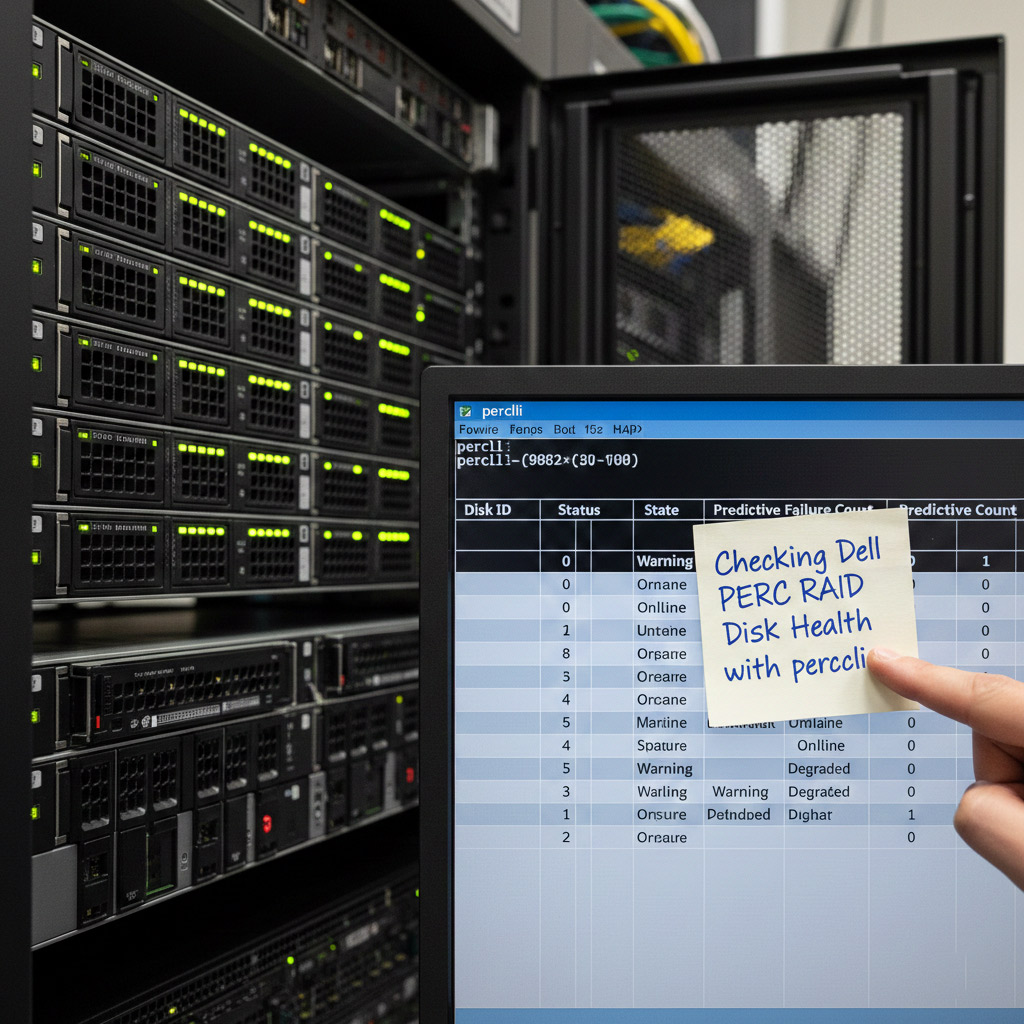
Checking Dell PERC RAID Disk Health with perccli
If you are running Dell servers with PERC controllers (like the H730 Mini), you can use Dell’s perccli command-line utility to check disk health, error counts, and rebuild progress. This is especially useful when OMSA GUI doesn’t show detailed counters.
Step 1: Download perccli
- Go to Dell’s official support site.
- Search for perccli (sometimes listed as “MegaRAID Command Line Interface”).
- Download the Windows version and extract
perccli.exeto a folder (e.g.,C:\perccli).
Step 2: Open Command Prompt
- Run Command Prompt as Administrator.
- Navigate to the folder where
perccli.exeis located.
Step 3: Basic Controller Info
perccli /c0 showThis shows controller details, firmware, and topology.
Step 4: List All Physical Disks
perccli /c0/eall/sall show allDisplays every disk with slot ID, status, and error counts.
Step 5: Check a Specific Disk
perccli /c0/e32/s12 show allReplace s12 with the slot you want to inspect. Look for:
- Media Error Count – bad sectors
- Other Error Count – communication errors
- S.M.A.R.T alert – flagged if predictive failure
Step 6: Monitor Rebuild Progress
perccli /c0/v0 show rebuildShows rebuild status of the RAID virtual disk.
Step 7: Patrol Read Status
perccli /c0 show patrolreadDisplays background scan status for bad blocks.
Tip: Automate Logging
You can create a batch file to run these commands and export results to text files in C:\perccli. This way you’ll have a rolling log of disk health and rebuild progress.
Conclusion
Using perccli gives you deeper visibility into RAID health than OMSA alone. Always back up your data before replacing drives, and prefer enterprise-grade disks for RAID workloads.