Category Archives: Storage

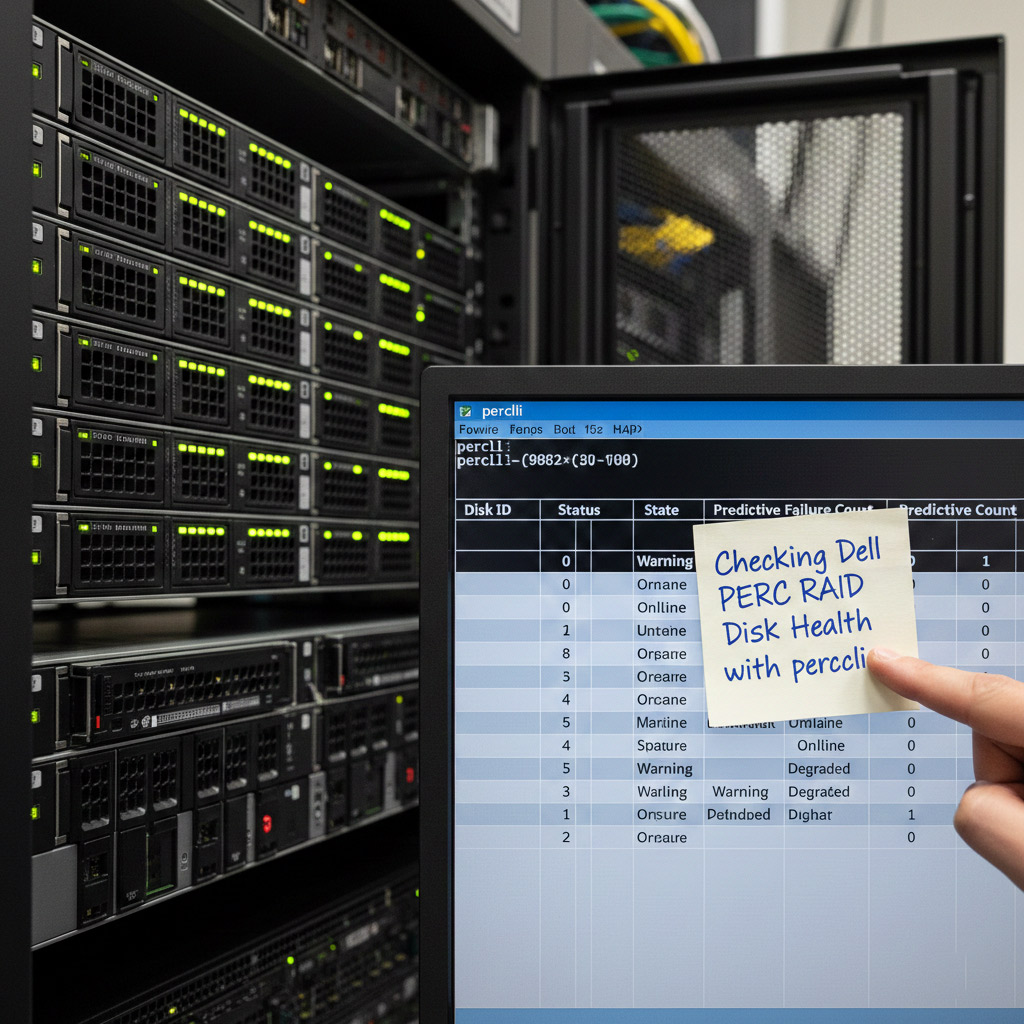
Checking Dell PERC RAID Disk Health with perccli

Checking Dell PERC RAID Disk Health with perccli

If you are running Dell servers with PERC controllers (like the H730 Mini), you can use Dell’s perccli command-line utility to check disk health, error counts, and rebuild progress. This is especially useful when OMSA GUI doesn’t show detailed counters.

Step 1: Download perccli

  • Go to Dell’s official support site.
  • Search for perccli (sometimes listed as “MegaRAID Command Line Interface”).
  • Download the Windows version and extract perccli.exe to a folder (e.g., C:\perccli).

Step 2: Open Command Prompt

  • Run Command Prompt as Administrator.
  • Navigate to the folder where perccli.exe is located.

Step 3: Basic Controller Info

perccli /c0 show

This shows controller details, firmware, and topology.

Step 4: List All Physical Disks

perccli /c0/eall/sall show all

Displays every disk with slot ID, status, and error counts.

Step 5: Check a Specific Disk

perccli /c0/e32/s12 show all

Replace s12 with the slot you want to inspect. Look for:

  • Media Error Count – bad sectors
  • Other Error Count – communication errors
  • S.M.A.R.T alert – flagged if predictive failure

Step 6: Monitor Rebuild Progress

perccli /c0/v0 show rebuild

Shows rebuild status of the RAID virtual disk.

Step 7: Patrol Read Status

perccli /c0 show patrolread

Displays background scan status for bad blocks.

Tip: Automate Logging

You can create a batch file to run these commands and export results to text files in C:\perccli. This way you’ll have a rolling log of disk health and rebuild progress.

Conclusion

Using perccli gives you deeper visibility into RAID health than OMSA alone. Always back up your data before replacing drives, and prefer enterprise-grade disks for RAID workloads.

🖥️ Kapothi Tech Note: Windows Installer Not Detecting Storage – RAID / VMD / AHCI Settings

🖥️ Kapothi Tech Note: Windows Installer Not Detecting Storage – RAID / VMD / AHCI Settings

✨ If you’ve ever tried to install Windows and suddenly realized your drive is missing, don’t panic. This is a common issue across desktops, towers, and even gaming laptops. The cause is usually hidden in BIOS settings — and the fix is simpler than it looks. Let’s walk through the shrine‑grade solutions.


⚠️ Issue

During Windows installation, the storage drive may not appear.

🔍 Cause

Many PCs ship with the storage controller set to RAID (Intel RST/VMD) mode. In this mode, Windows requires additional drivers to detect the drive. Gaming laptops, workstations, and towers can all show this behavior.

🔧 Solution Path 1: Switch to AHCI (Simpler)

  • Enter BIOS (F10 or the relevant key at boot).
  • Navigate to Advanced → Device Configurations → Storage Options.
  • Change RAID to AHCI.
  • Save and reboot, then retry Windows installation.

✅ Works instantly, no extra drivers needed.
⚠️ Switching back to RAID later without preparing drivers will break boot.

🔧 Solution Path 2: Keep RAID/VMD Enabled (Proper Way)

  1. Download Intel Rapid Storage Technology (RST) drivers from your PC vendor’s support site or directly from Intel RST Driver Page.
  2. Copy the driver files to a USB stick.
  3. Start Windows installation.
  4. When the installer asks “Where do you want to install Windows?”, click Load Driver.
  5. Browse to the USB stick and load the Intel RST driver.
  6. The storage drive will now appear.
  7. Continue installation as normal.

✅ Keeps RAID/VMD enabled for advanced storage features.
⚠️ Slightly more complex, requires driver prep before installation.

🔧 Note for Users Without RAID/AHCI Options

On some systems, instead of RAID/AHCI, the BIOS shows Intel VMD Controller.
– In that case, disable Intel VMD to expose the NVMe drive directly.
– Or, if you want to keep VMD enabled, follow the same driver‑loading method as above using Intel RST drivers.


🧠 Verdict

For most users: AHCI mode (or disabling VMD) is simpler and stable.
For enterprise/RAID setups: Use the proper driver‑loading method to keep RAID/VMD enabled.

✨ With these paths, anyone facing the “no storage detected” issue during Windows installation can find clarity — whether on a tower, workstation, or gaming laptop. Kapothi keeps the ritual simple, universal, and shrine‑grade.

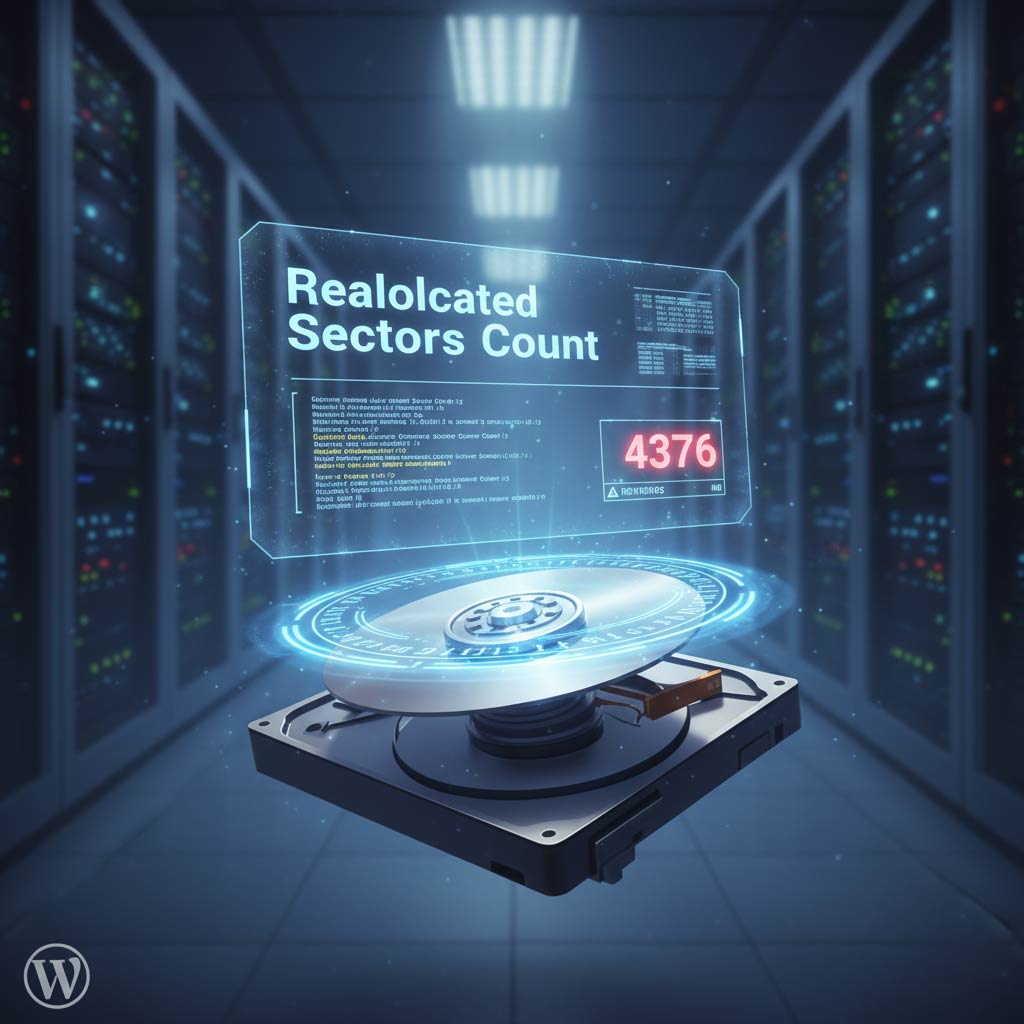
What the ‘Reallocated Sectors Count’ on Your Hard Drive Really Means

In the realm of digital resilience, few metrics speak louder than Reallocated Sectors Count. It’s the heartbeat of your hard disk’s integrity — a silent sentinel that warns of physical decay before disaster strikes.

🧠 Interpreting SMART: Reallocated Sectors Count

FieldMeaning
Current: 100Health score — higher is better. 100 is perfect.
Worst: 100Lowest value ever recorded — still perfect.
Threshold: 50Warning level — if Current drops below this, the drive is considered failing.
Raw Value: 0Actual number of reallocated sectors — zero bad sectors so far.

✅ What This Means

  • The Current and Worst values are ideal (100), far above the threshold (50).
  • No need to worry or replace — this SMART attribute shows zero signs of wear or failure.

…it means your drive has zero bad sectors, and its health is sovereign. But this is just one of many sacred attributes in the SMART codex.


🔍 Other SMART Attributes Worth Archiving

AttributeWhat It MeansWhy It Matters
Reallocated Sectors CountTracks bad sectors swapped outEarly sign of physical damage
Current Pending Sector CountSectors waiting to be re-testedCan cause read/write errors
Uncorrectable Sector CountSectors that failed recoveryIndicates serious data loss risk
Power-On HoursTotal time the drive has runHelps estimate wear and usage
Start/Stop CountNumber of spin-up cyclesHigh count may signal mechanical wear
TemperatureReal-time thermal readingOverheating shortens lifespan
Spin Retry CountFailed spin-up attemptsMechanical failure warning
Seek Error RateErrors during head movementPrecision issues in reading data
Load Cycle CountHead parking/unparking cyclesExcessive cycles = wear on laptop drives

🧠 Kapothi Ritual: SMART Sovereignty Scroll

  • Archive SMART logs monthly
  • Stylize thresholds and alerts with color-coded visuals
  • Create onboarding guides for clients to interpret SMART health
  • Include SMART snapshots in hardware legacy scrolls