Category Archives: Microsoft

Archive items manually – Outlook 2010


An efficient
way to reduce the size of your Outlook Data File (.pst) or Exchange mailbox is
to regularly archive older items. Unlike a traditional backup in which a copy of
Outlook items is made, archived items are moved to a separate Outlook Data File
(.pst). Archived items can be accessed at any time by opening the file.

Note The Archive command and feature doesn’t appear
for any account in your Outlook profile if you include an Exchange Server
account and your organization uses Microsoft Exchange Server Online Archive.
Your network administrator can also disable this feature.

By default, older Outlook items archived automatically on a regular interval.
To learn more about AutoArchive, see Use
AutoArchive to back up or delete items
.
You can also manually back up and archive items, in addition to AutoArchive
or as a replacement. Manual archiving provides flexibility, and allows you to
specify exactly which folders are included in the archive, and which archive
Outlook Data File (.pst) is used.
To manually archive Outlook items, do the following:

  1. Click the File tab
  2. Click Cleanup Tools.
  3. Click Archive.
  4. Click the Archive this folder and all subfolders option, and
    then click the folder that you want to archive. Any subfolder of the folder you
    select is included in this manual archive.
  5. Under Archive items older than, enter a date.

Archive dialog box

  1. If you do not want to use the default file or location, under Archive file, click Browse to specify a new file or
    location. Browse to find the file that you want, or enter the file name, then
    click OK. The destination file location appears in the Archive file box.
  2. Select the Include items with “Do not AutoArchive” checked
    check box to include any items that might be individually marked to be excluded
    from automatic archiving. This option does not remove that exclusion from these
    items, but instead ignores the Do not AutoArchive check box for
    this archive only.

Turn off AutoArchive

If you want to archive only manually, you must turn off AutoArchive. Do the
following:

  1. Click the File tab.
  2. Click Options.
  3. On the Advanced tab, under AutoArchive,
    click AutoArchive Settings.
  4. Clear the Run AutoArchive every n days check box.
How to manually remove all of WSUS

1. Please download and install the Windows Installer Cleanup Utility msicuu2.  To install it simply run msicuu2.exe.

2. Once it is installed go to Start>All Programs>Windows Install Clean Up

3. Scroll through the options and highlight Microsoft Windows Server Update Services 3.0

4. Click remove

5. Open a command prompt and run the following commands:

net stop wsusservice

net stop wsuscertserver

sc delete wsusservice

sc delete wsuscertserver

6. When complete, go back to the Windows Installer Cleanup Utility and highlight Windows Internal Database (MICROSOFT##SSEE) and click remove.

7. Go back to the command line and run the following commands

net stop mssql$microsoft##ssee

sc delete mssql$microsoft##ssee

8. Delete or edit the associated reg keys as noted below:

a. Go to HKEY_LOCAL_MACHINE\SOFTWARE\Microsoft\Microsoft SQL Server and edit the “InstalledInstances” value and remove “MICROSOFT##SSEE”

b. Remove the “MICROSOFT##SSEE” subkey under HKEY_LOCAL_MACHINE\SOFTWARE\Microsoft\Microsoft SQL Server

c. Remove the “MSSQL.2005” subkey under HKEY_LOCAL_MACHINE\SOFTWARE\Microsoft\Microsoft SQL Server

d. Rename the following folder:

\%Windir%\SYSMSI\SSEE\MSSQL.2005\MSSQL\Data

to

\%Windir%\SYSMSI\SSEE\MSSQL.2005\MSSQL\Data.old

At the completion of this you should be at a point where you can reinstall WSUS from scratch if you like.

Resource Coordinators: Enabling and Disabling the Offline Address Book

that you disable Outlook’s ability to download the Offline Address Book by using the steps outlined in the Disable the Offline Address Book section. Doing so will allow you to see resources in the GAL within a few minutes of creating them using the Resource Coordinator Tools. Otherwise, Outlook stores a “cached” copy of the address book, which is updated daily. Steps to re-enable the Offline Address Book are also provided.

Disable the Offline Address Book – Updated Aug. 1 2008 for Windows Vista

  1. Close Outlook.
  2. Download the Disable/Enable Offline Address Book Scripts (ZIP)
  3. From Windows Explorer, open (by double-clicking) the OutlookOABDownloadScripts.zip file from the location where it was downloaded.
  4. Run (by double-clicking) the OutlookDisableOABDownload.vbs script. Note – in Windows Vista, right-click on the script and select “Run As Administrator” (your local IT support person may need to provide administrative credentials at this step).
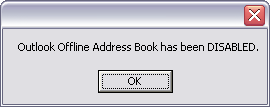
  5. If it runs successfully, you should see the following confirmation message:

rc_disable_enable_OAB_01

At this point, Outlook will no longer automatically download the offline address book. However, if you click the “Send/Receive” button within Outlook, by default it will reset your offline address book setting – in effect it re-enables the offline address book. To prevent this from happening, complete the following steps.

  • Open Outlook
  • Go to “Tools” > “Send/Receive” > “Send/Receive Settings” > “Define Send/Receive Groups”
  • Highlight the group “All Accounts” and click “Edit”
  • In Outlook 2007, check the “Include the selected account in this group” checkbox
  • Uncheck the “Download offline address book” checkbox
  • Click “OK”
  • Click “Close”
  • Office 2007 Breaks Spell Check: French Only

    1. Run Setup from another Office installation disk.
    2. Select “Custom Install”.
    3. You’ll have to insert your Product Key.
    4. Turn Off ALL of the product installations. (Right-Click icon and select “Not Available”)
    5. Under “Office Shared Features”, set “Proofing Tools” to “Run all from My Computer”  This should install the English, French, and Spanish dictionaries.  English alone would probably solve the problem,Still have the problem?? if yes install windows live mail to fix the issue for more info pls visit
      http://support.microsoft.com/kb/932974

    Still no luck??? download install spelloe_setup and restart ur pc.

    Copy the names in AutoComplete to another computer

    Important You must exit Outlook before starting the following procedure. The names will be included in AutoComplete when you restart Outlook.

    On the computer with the saved AutoComplete names, go to drive:\Documents and Settings\user name\Application Data\Microsoft\Outlook.

    Note Depending on your file settings, this folder might be hidden. To view the files in this folder, do one of the following:

    Microsoft Windows XP

    1. Click Start, and then click My Computer.
    2. On the Tools menu, click Folder Options.
    3. Click the View tab, and then, under Advanced settings, under Hidden files and folders, click Show hidden files and folders.

      Microsoft Windows 2000

      1. Double-click My Computer on your desktop.
      2. On the Tools menu, click Folder Options.
      3. Click the View tab, and then click Show hidden files and folders.

    1. Right-click profile name.nk2, and then click Copy.Tip You can copy the file to removable media, such as a floppy disk or a CD, and then copy the file to the correct location on the other computer. Or you can attach the file to an e-mail message and send the message to yourself. On the new computer, open the attachment in Outlook, and then save it to the correct location.
    2. On the computer where you want to populate the AutoComplete feature, copy the file to drive:\Documents and Settings\user name\Application Data\Microsoft\Outlook.
    3. If the Outlook user profile name is different on the computer where you are moving the .nk2 file, you must rename the file with the same Outlook user profile name after you copy it to the correct folder. For example, if you move Kim Akers.nk2 from the original computer with an Outlook user profile name of Kim Akers, and you copy the Kim Akers.nk2 file to the new computer, you must rename it with the Outlook profile name being used on the new computer.
    4. When prompted about replacing the existing file, click Yes.
    5. Open Outlook to view changes.

    How to Minimize Windows Live Messenger to System Tray in Windows 7

    Windows 7 has one of the major changes in UI in the form of task bar which is called Super taskbar. Windows Live Messenger or any other IM clients generally minimizes to system tray in Windows Vista, but in Windows 7, even when minimized it stays in the task bar. If you feel the task bar gets crowded with icons, you can minimize messengers to system tray using the simple hack.

    1. First close any running instances of Windows Live Messenger and then open Program files-> Windows  Live-> Messenger folder

    2. Here you can find msnmgsr.exe file. Right click on the file and select properties.

    3. In the properties window, select compatibility tab. Tick the check box for Run this program in compatibility mode for under “Compatibility Mode”, and then select Windows Vista from the drop down list.

    image242

    4. Click OK and now sign in back to Windows Live Messenger. Now if you minimize (or click X) the messenger, it goes to system tray.


    Clear the Auto-Complete Email Address Cache in Outlook.com

    outlook

    Outlook 2003 has an automatic completion for any email address that you try to type into the To or CC fields. This feature does not pull from the contacts or address book, because you may have tried to email somebody that wasn’t in your contact list, and it will still add that to the auto complete list.

    The problem comes in when you put in a bad address, and then every time you go to type in the email address, the incorrect one appears in the auto complete list.

    To fix this problem, there are two ways around this. The easiest way is this:

    • Start typing in the address that shows up incorrectly.
    • Hit the Down arrow key to select the auto completed address.
    • Hit the Delete key to delete the auto complete address

    The other way is by opening the profile folder and deleting the .nk2 file.

    • Open up windows explorer, and paste the following into the address bar: %APPDATA%\Microsoft\Outlook
    • Delete the Outlook.NK2 file that you find in this folder.

    How to force windows updates with wuauclt.exe

    202px-Windows_update_icon

    In order to use WSUS the PC needs to be in Active Directory. Once the PC is in Active directory you can run:

    wuauclt.exe /detectnow

    This will force the PC to talk to WSUS to get the updates needed instead of waiting for the PC to talk to WSUS.

    To view the log go to c:\windows\WindowsUpdate.log or Windows Update.log
    In the log you can view any updates the PC may need if any at all.

    If you are having issues getting wsus updates try:

    wuauclt.exe /resetauthorization /detectnow

    This will force the PC to download a new certificate, and then download the updates from WSUS. Again check the log in c:\windows\WindowsUpdate.log to see if the Pc was able to reauthorize and obtain new updates.

    Microsoft® My Phone – Sync your Windows Mobile 6 online

    Back up phone information to a password-protected web site

    Microsoft My Phone syncs information on your mobile phone to a storage space on a web site hosted by Microsoft. If your phone is lost or stolen, or if you upgrade to a new phone, you can easily restore the contacts, calendar appointments, photos, and other information that you stored on My Phone to a compatible new or replacement phone. Most phones that run the Windows Mobile 6 operating system are compatible with My Phone service.

    More info Available @

    http://myphone.microsoft.com/