Category Archives: Microsoft

The Console Handshake — Validating Hikvision iVMS-4200 SQL Sync

Purpose: To document the full ritual of integrating Hikvision iVMS-4200 with SQL Server, ensuring future resilience and communal clarity.

🔧 Phase 1: SQL Server Preparation

1. Enable TCP/IP and Port 1433

  1. Open SQL Server Configuration Manager
  2. Navigate to SQL Server Network Configuration → Protocols for MSSQLSERVER
  3. Right-click TCP/IPEnable
  4. Double-click TCP/IP → go to IP Addresses tab
  5. Scroll to IPAll section → set TCP Port = 1433
  6. Click OK and restart the SQL Server service

Verify SQL Server is listening on the correct port:

SQL
SELECT local_net_address, local_tcp_port
FROM sys.dm_exec_connections
WHERE local_tcp_port IS NOT NULL;

2. Enable Mixed Mode Authentication

  1. Open SQL Server Management Studio
  2. Right-click your server name → Properties
  3. Go to Security tab
  4. Select SQL Server and Windows Authentication mode
  5. Click OK and restart the SQL Server service

Confirm Mixed Mode is active:

SQL
EXEC xp_instance_regread
  N'HKEY_LOCAL_MACHINE',
  N'Software\Microsoft\MSSQLServer\MSSQLServer',
  N'LoginMode';

If the result is 2, Mixed Mode is enabled ✅

3. Test Manual Connection

CMD
sqlcmd -S 192.168.1.10,1433 -U sa -P [PASSWORD]

🔥 Phase 2: Windows Firewall Verification

Create a firewall rule to allow SQL Server traffic:

PowerShell
New-NetFirewallRule -DisplayName "SQL Server 1433 Inbound" -Direction Inbound -Protocol TCP -LocalPort 1433 -Action Allow

🧠 What This Command Does

  • Creates a new rule named SQL Server 1433 Inbound
  • Direction: Inbound — allows incoming traffic
  • Protocol: TCP — used by SQL Server
  • LocalPort: 1433 — the default SQL Server port
  • Action: Allow — permits traffic through the firewall

🧱 Phase 3: Table Schema Alignment

Step 1: Create the Database

SQL
CREATE DATABASE Attendance;

Step 2: Switch to the Database

SQL
USE Attendance;

Step 3: Create the Table

SQL
CREATE TABLE TimeAttendance (
  ATTENDANCE_id INT,
  ATTENDANCE_date_time DATETIME,
  ATTENDANCE_date DATE,
  ATTENDANCE_time TIME,
  ATTENDANCE_direction NVARCHAR(10),
  ATTENDANCE_device NVARCHAR(50),
  ATTENDANCE_serial NVARCHAR(50),
  ATTENDANCE_name NVARCHAR(100),
  ATTENDANCE_card NVARCHAR(50)
);

Step 4: Verify Field Names

SQL
SELECT COLUMN_NAME FROM INFORMATION_SCHEMA.COLUMNS
WHERE TABLE_NAME = 'TimeAttendance';

🧪 Optional Verification Query: Confirming sa Access

To verify that the built-in sa login is mapped to the database:

SQL
SELECT name, type_desc
FROM sys.database_principals
WHERE name = 'sa';

If this query returns a row, sa is explicitly mapped. If not, it still has full access via sysadmin role unless denied.

🧪 Phase 4: Profiler-Based Validation

  1. Launch SQL Server Profiler
  2. Filter by LoginName = sa and DatabaseName = Attendance
  3. Click Save in iVMS-4200
  4. If no activity: internal block
    If activity appears: SQL handshake confirmed ✅

🔄 Phase 5: Console Reset

  1. Exit iVMS-5200 Service Management from system tray
  2. Open Hikvision Watchdog and restart all services
  3. Close and reopen iVMS-4200 Client
  4. Create a new Third-Party DB profile
  5. Use updated IP: 192.168.1.10
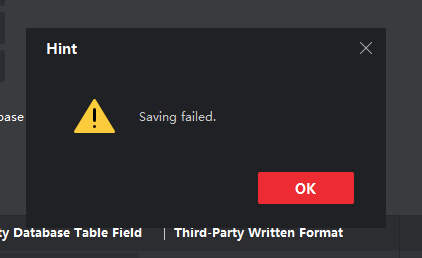
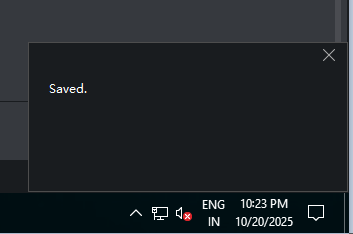
  6. Click Save — success message appears 🎉

🧠 Optional Enhancements

  • Install SQL Server Native Client
  • Monitor inserts with triggers or logs
  • Begin device-level sync once console config is validated
This scroll is now part of the Kapothi Vault — a communal artifact of sovereign troubleshooting and digital mastery.

Continue reading The Console Handshake — Validating Hikvision iVMS-4200 SQL Sync

📀 ROBOCOPY Commands — Copying Legacy CDs

Each ROBOCOPY command below represents a different method for copying files from a legacy CD into your archive folder. These examples prioritize speed, reliability, and logging — helping you preserve your data with clarity and control.

🧭 Method 1 — Fast Copy Without Verification

This command copies all files and folders from the CD to your archive folder. It skips retries and verification to maximize speed, and saves a log of the copy process.

Command robocopy D:\ “C:\Kapothi\CD_Ingest” /e /r:0 /w:0 /log:”C:\Kapothi\CD_Ingest\copylog.txt”
  • /e → Copy all subdirectories, including empty ones
  • /r:0 → No retries on failed copies
  • /w:0 → No wait time between retries
  • /log → Save output to a log file for review

🧪 Method 2 — Copy with File Verification

This command adds file-level verification using the /v flag. Each copied file is logged with extra detail, making it ideal for critical or sensitive data.

Command robocopy D:\ “C:\Kapothi\CD_Ingest” /e /v /r:0 /w:0 /log:”C:\Kapothi\CD_Ingest\verified_log.txt”
  • /v → Verbose output with file verification
  • All other flags same as Method 1

⚡ Method 3 — Multi-threaded Copy for Speed

This command enables multi-threading for faster copying, using up to 8 threads. It’s ideal for large CD sets or high-speed archival workflows.

Command robocopy D:\ “C:\Kapothi\CD_Ingest” /e /mt:8 /r:0 /w:0 /log:”C:\Kapothi\CD_Ingest\multithread_log.txt”
  • /mt:8 → Enables multi-threading with 8 threads
  • All other flags same as Method 1

🧠 Summary Tip

Purpose: Copy legacy CD content into archive folder
Tools: ROBOCOPY, Logging, Multi-threading, Verification
Use Case: Choose based on speed, accuracy, or performance
Note: Each log file becomes part of your archival documentation

🔄 Alternatively: Use Unstoppable Copier for Damaged Discs

For discs with heavy scratches, CRC errors, or unreadable sectors, Unstoppable Copier by Roadkil offers a graceful fallback. Unlike ROBOCOPY, which halts on read errors, this tool performs sector-level recovery, gently extracting what it can — even from failing media.

  • Silent Operation: Reads so smoothly, your CD-ROM barely makes a sound — a whispering ritual of recovery.
  • Partial File Handling: Recovers what’s readable, logs what’s lost.
  • Ideal For: Legacy audio CDs, mixed-mode discs, or any media where ROBOCOPY fails mid-ingestion.

🧠 Kapothi Tip: Use ROBOCOPY first for speed and structure. If it fails, switch to Unstoppable Copier and document the recovery as a “Silent Ingestion Event.”

The Mystery of Random Restarts: Tracing Why Your Windows PC Rebooted

Not every reboot is a user’s decision. Sometimes, the system whispers its own intentions — through updates, crashes, or power flickers. If your PC restarted without your command, here’s how to uncover the ritual traces left behind.

🧭 Step 1: Use Event Viewer to Decode the Reboot


  • Press Win + R → type eventvwr.msc → Enter
  • Navigate to: Windows Logs → System
  • Look for these Event IDs:
    • 41Kernel-Power (unexpected shutdown or power loss)
    • 1074 → shutdown initiated by a process (e.g., Windows Update)
    • 6008 → previous shutdown was unexpected
    • 1001 → bug check (BSOD)
    • 12, 13, 6005, 6006 → startup/shutdown markers

🧪 PowerShell — Reboot Trace Ritual

PowerShell Get-EventLog -LogName System -Newest 100 | Where-Object {$_.EventID -eq 41 -or $_.EventID -eq 1074 -or $_.EventID -eq 6008}

🧰 Step 3: Reliability Monitor — The Visual Scroll

  • Press Win + R → type perfmon /rel → Enter
  • Look for red Xs or warnings around the reboot time
  • Click entries to see if it was a crash, update, or hardware issue

🔄 Windows Update Rebooted My PC?

Yes — and it leaves behind clear evidence. In Event Viewer, look for:

  • Event ID: 1074
  • Source: USER32

🧪 PowerShell — Windows Update Reboot Check

PowerShell Get-EventLog -LogName System -Newest 1000 | Where-Object {$_.EventID -eq 1074} | Format-Table TimeGenerated, Message -AutoSize

Look for messages like:

The process C:\Windows\servicing\TrustedInstaller.exe has initiated the restart…
The process C:\Windows\uus\packages\preview\AMD64\MoUsoCoreWorker.exe has initiated the restart…

These are system-initiated reboots, not user-triggered. They often occur after cumulative updates or servicing stack operations.

🧠 Reboot Scroll Example

🕰️ Timestamp 🔧 Process Initiated Reboot 🧠 Reason
10/11/2025 5:14:41 AM TrustedInstaller.exe Post-update servicing
10/11/2025 5:07:23 AM MoUsoCoreWorker.exe Update orchestration
10/10/2025 10:57:02 PM TrustedInstaller.exe Cumulative update phase

🧠 Kapothi Scroll Tip

Artifact: Unexpected Reboot
Cause: Windows Update (TrustedInstaller, MoUsoCoreWorker)
Tools: Event Viewer, PowerShell, Reliability Monitor
Tags: Phantom Reboot, Update Ritual, Sonic Scroll Forensics
Notes: Stylize each timestamp as a heartbeat of the system — not user-triggered, but orchestrated by the OS

🏭 What Is Windows 11 IoT Enterprise — And When Do You Need It?

As Microsoft continues to evolve Windows 11, one edition remains quietly powerful: Windows 11 IoT Enterprise. Unlike the consumer or business editions, this version is designed for fixed-purpose, mission-critical devices — the kind that run one job, reliably, for years.

🧠 What Is Windows 11 IoT Enterprise?

Windows 11 IoT Enterprise is a specialized operating system built for embedded systems. It offers the full power of Windows 11, but with tools to lock down, stabilize, and extend the life of devices that need to stay consistent and secure.

🛠️ When Should You Use It?

If you’re deploying devices that must perform a single, focused task — and do it without interruption — IoT Enterprise is the scroll you need.

Use CaseWhy IoT Enterprise Fits
🏧 ATMs & Banking TerminalsRequires 10-year support, no UI changes
🏥 Medical DevicesRegulatory compliance, predictable OS behavior
🏨 Hotel Kiosks & POS SystemsSingle-app mode, USB lockdown, no feature updates
🏭 Factory Automation PCsStability over time, no forced reboots
🖥️ Digital SignageAssigned Access, Unified Write Filter (UWF)
🚛 Fleet Management ConsolesRemote control, Azure IoT integration

🔐 Key Features

  • LTSC (Long-Term Servicing Channel) — 10 years of support, no feature updates
  • No Microsoft Store, Cortana, or consumer bloatware
  • Enhanced lockdown tools — USB restrictions, kiosk mode, write filters
  • Security-first — TPM 2.0, Secure Boot, BitLocker, Defender Application Control
  • Azure IoT integration — for cloud-connected telemetry or remote management

🌀 Editorial Insight

Windows 11 IoT Enterprise isn’t for browsing or multitasking — it’s for sovereign devices that must run silently, securely, and predictably. Whether you’re building kiosks, signage, or industrial control systems, this edition offers the ritual stability your infrastructure deserves.

“When uptime is sacred, IoT Enterprise stands guard.”

🛡️ Windows Defender Management Commands

🛡️ Windows Defender Management Commands

✅ Check if Defender is Running

PowerShell Get-Service -Name WinDefend

📅 Check Last Update Time

PowerShell Get-MpComputerStatus | Select-Object AntivirusSignatureLastUpdated

🔄 Force Update Definitions

PowerShell Update-MpSignature

🧠 Check Overall Defender Status

PowerShell Get-MpComputerStatus

🚀 Run a Quick Scan

PowerShell Start-MpScan -ScanType QuickScan

🧹 Run a Full Scan

PowerShell Start-MpScan -ScanType FullScan

📂 Exclude a Folder

PowerShell Add-MpPreference -ExclusionPath “C:\Your\Folder\Path”

📄 Exclude a File

PowerShell Add-MpPreference -ExclusionProcess “C:\Your\Folder\app.exe”

🧩 Exclude a File Extension

PowerShell Add-MpPreference -ExclusionExtension “.log”

❌ Remove Folder Exclusion

PowerShell Remove-MpPreference -ExclusionPath “C:\Your\Folder\Path”

📋 View All Exclusions

PowerShell Get-MpPreference | Select-Object -ExpandProperty Exclusion*

⏸️ Disable Real-Time Protection

PowerShell Set-MpPreference -DisableRealtimeMonitoring $true

▶️ Re-enable Real-Time Protection

PowerShell Set-MpPreference -DisableRealtimeMonitoring $false

🛡️ Enable Defender Tray Icon on Windows Server

PowerShell Set-MpPreference -UILockdown $false

🧠 Registry Tweak (Optional)

Registry Path HKEY_LOCAL_MACHINE\SOFTWARE\Microsoft\Windows Defender\UX Configuration
DWORD Value Notification_Systray = 1

After applying these, restart or log off to see the Defender shield icon in your system tray. This works on Windows Server 2016, 2019, and 2022.

🧭 Force Update via CMD

Command Prompt “%ProgramFiles%\Windows Defender\MpCmdRun.exe” -SignatureUpdate

🧭 Run Quick Scan via CMD

Command Prompt “%ProgramFiles%\Windows Defender\MpCmdRun.exe” -Scan -ScanType 1

🧭 Run Full Scan via CMD

Command Prompt “%ProgramFiles%\Windows Defender\MpCmdRun.exe” -Scan -ScanType 2

These commands help you ritualize Defender’s vigilance—ensuring your server remains clean, updated, and ready to archive without interruption.

Slow Outlook 2016 Autodiscover with Office 365 or Internal Exchange Server

In case you run into slow account setup with Outlook 2016, which can take up to 10 mins or more. To workaround this issue, you may use the following Registry settings to force Outlook to bypass the root domain discovery and redirect to the autodiscover CNAME or A record to resolve the address for autodiscover settings.

For Outlook 2016:

Windows Registry Editor Version 5.00
[HKEY_CURRENT_USER\SOFTWARE\Microsoft\Office\16.0\Outlook\AutoDiscover]
“ExcludeHttpsRootDomain”=dword:00000001

Note: For Office PC that has joined the Microsoft Active Directory, there is no need to amend the registry. This setting will be applied via the group policy when you login the system. and make sure Exchange Internal auto discovery DNS Entries are already created to auto discover internal Exchange Server


More Information Available at http://www.mistercloudtech.com/2015/12/08/how-to-resolve-slow-office-2016-autodiscover-with-office-365/

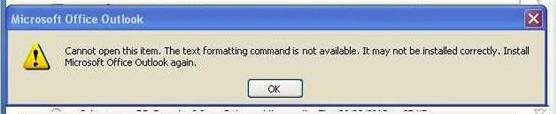
Cannot open this item. The text formatting command is not available. It may not be installed correctly. Install Microsoft Office Outlook again

outlook1000

Symptoms

When you try to open an email message in Microsoft Outlook 2013, Outlook 2010, or Outlook 2007, you receive the following error message:

Cannot open this item. The text formatting command is not available. It may not be installed correctly. Install Microsoft Outlook again.
Microsoft Solution for this avilable

Some say that computer problems happen at the worst times. I’m not sure that is true, but I won’t argue. Without warning, my Outlook email stopped working last week. I could receive email, but I couldn’t open any items. Instead, I saw an error message that read “Cannot open this item. The text formatting command is not available. It may not be installed correctly. Install Microsoft Office Outlook again.” Fortunately, my main email address runs in parallel so I wasn’t totally hosed.

For most of my Outlook email problems, I can work my way to a solution. This one had me stumped although I had some functionality running Outlook in safe mode.

To start Microsoft Outlook in safe mode,

  1. For Windows 7, click Start. For Windows 8 or Windows 8.1, press your Windows key and then the X key, then choose Run from the popup menu.
  2. Type Outlook /safe in the Run dialog box.

Prior to calling Microsoft Support, I did a query on the error message to see what solutions had been suggested. While I don’t know the cause of the problem, I found 3 suggestions that might solve the problem.

(For me Suggestion 3 worked)

Suggestion 1: Reinstall Microsoft Outlook.

If the developer offers a solution on an error message, that’s where I start. Let’s face it, they have the inside advantage. In my case, I recently installed some Windows patch files and thought they may have contributed to the problem.

Suggestion 2: Create a New Outlook Profile

From what I read, this procedure fixed the problem for many folks. This was the first thing the Microsoft technician suggested.  SlipStick has a good tutorial on this.

Like the first suggestion, this one didn’t fully resolve my problem. It appeared to work and then the error message reappeared. Again, I had to call Microsoft.

Suggestion 3: Close Outlook and Rename 4 .DAT files

The third time was a charm as the saying goes. This tech rep offered a different solution from his peers. In my case, this solution worked.

There were four .dat files that were renamed so the originals were still around if needed.

  • outcmd.dat
  • frmcache.dat
  • views.dat
  • extend.dat

When Outlook restarted, it created new versions of those files.

As a result of this fix, I did lose some custom view and toolbar settings, but I think it was worth the cost. It’s was much easier for me to recreate those settings than to be without my email. And yes, I’m still catching up on email inquiries if you sent me something.

Can’t remove Hyper-V Backup Checkpoint/Snapshot from VM

Hyper-v 2012R2 uses checkpoints to aid the backup process of VM’s.

These checkpoints are created and deleted by the backup Process, the actual checkpoint can not be deleted using hyper-V manager GUI and will not show up in SCVMM at all.
Why you may ask? Well the reason is simple these checkpoints are actually differencing disks. Thats right the backup process creates a differecing disk, while this is basically the same as a checkpoint it can’t be deleted using any available GUI. It should actually be deleted by the backup Process.

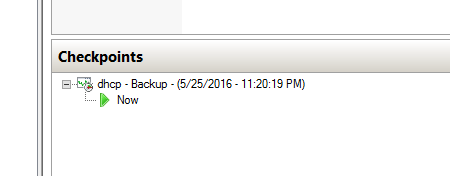
dhcp


Now you may notice that the icon is slighty different from that of a regular checkpoint, that is because this is a differencing disk. Running an inspection of the VHDX file will reveal this.


vhd


In this case a failed backup of the VM left the hindering checkpoint. The only way to deal with it is by using Powershell.

The following command will help you determine that a checkpoint is currently open on the VM:

Get-VMSnapshot -VMName VMNameWithCheckPoint -ComputerName HyperVServerName | fl

this returns the VM state

and his command will remove the checkpoint and merge the AVHDX file into it’s parent VHDX file.

Get-VMSnapshot -VMName VMNameWithCheckPoint -ComputerName HyperVServerName | Remove-VMSnapshot

Hope this helps if you find yourself in a similiar situation.

How to open the firewall port for SQL Server on Windows Server 2008/R2

🪶 Manual Method (Windows Firewall GUI)

Step 1: Open Control Panel → Windows Firewall → Advanced Settings.

Step 2: Click Inbound Rules → New Rule.

Step 3: Select Port, then choose TCP.

Step 4: Enter 1433 (default SQL Server port).

Step 5: Choose Allow the connection.

Step 6: Apply to Domain, Private, Public profiles as needed.

Step 7: Name the rule SQL Server Port 1433 and finish.

🪶 Automated Method (BAT File)

Save the following as OpenSQLPort.bat and run as Administrator:

@echo off
REM === Open SQL Server port on Windows Firewall ===
set PORT=1433
set RULE_NAME="SQL Server Port %PORT%"

netsh advfirewall firewall add rule name=%RULE_NAME% ^
    dir=in action=allow protocol=TCP localport=%PORT%

pause
    

🪶 How It Works

  • set PORT=1433 → Default SQL Server port (change if needed).
  • netsh advfirewall firewall add rule → Creates inbound rule.
  • protocol=TCP localport=%PORT% → Opens the port for SQL traffic.
  • pause → Keeps window open for confirmation.

🪶 Notes

⚠️ Security Tip: If you want to restrict access, add:

remoteip=192.168.1.100

This limits SQL connections to a specific server IP.

🗑️ To remove the rule later:

netsh advfirewall firewall delete rule name="SQL Server Port 1433"

🔍 Connectivity Test: After opening the port, confirm with:

telnet SERVERNAME 1433

If the connection opens, the firewall rule is working.

Applies to
  • Microsoft SQL Server 2005 Developer Edition
  • Microsoft SQL Server 2005 Enterprise Edition
  • Microsoft SQL Server 2005 Standard Edition
  • Microsoft SQL Server 2008 Developer
  • Microsoft SQL Server 2008 Enterprise
  • Microsoft SQL Server 2008 Standard
  • Microsoft SQL Server 2008 Web
  • Windows Server 2008 Datacenter without Hyper-V
  • Windows Server 2008 Enterprise without Hyper-V
  • Windows Server 2008 for Itanium-Based Systems
  • Windows Server 2008 Standard without Hyper-V
  • Windows Server 2008 Datacenter
  • Windows Server 2008 Enterprise
  • Windows Server 2008 Standard
  • Microsoft SQL Server 2008 R2 Developer
  • Microsoft SQL Server 2008 R2 Enterprise
  • Microsoft SQL Server 2008 R2 Standard
  • Microsoft SQL Server 2008 R2 Web
  • SQL Server 2012

source – http://support.microsoft.com/kb/968872

Killing a Windows Service that seems to hang on “Stopping”

It sometimes happens (and it’s not a good sign most of the time): you’d like to stop a Windows Service, and when you issue the stop command through the SCM (Service Control Manager) or by using the ServiceProcess classes in the .NET Framework or by other means (net stop, Win32 API), the service remains in the state of “stopping” and never reaches the stopped phase. It’s pretty simple to simulate this behavior by creating a Windows Service in C# (or any .NET language whatsoever) and adding an infinite loop in the Stop method. The only way to stop the service is by killing the process then. However, sometimes it’s not clear what the process name or ID is (e.g. when you’re running a service hosting application that can cope with multiple instances such as SQL Server Notification Services). The way to do it is as follows:

  1. •Go to the command-prompt and query the service (e.g. the SMTP service) by using sc:
    sc queryex SMTPSvc
  2. •This will give you the following information:
    SERVICE_NAME: SMTPSvc
    TYPE : 20 WIN32_SHARE_PROCESS
    STATE : 4 RUNNING
    (STOPPABLE, PAUSABLE, ACCEPTS_SHUTDOWN)
    WIN32_EXIT_CODE : 0 (0x0)
    SERVICE_EXIT_CODE : 0 (0x0)
    CHECKPOINT : 0x0
    WAIT_HINT : 0x0
    PID : 388
    FLAGS :
  3. •or something like this (the “state” will mention stopping).
    •Over here you can find the process identifier (PID), so it’s pretty easy to kill the associated process either by using the task manager or by using taskkill:
    taskkill /PID 388 /F

Please be careful when you do this; it’s useful for emergencies but you shouldn’t use it on a regular basis (use it as a last chance to solve the problem or to avoid the need of a reboot in an exceptional situation). It can even be used to stop a service that has the “NOT-STOPPABLE” and/or “IGNORES_SHUTDOWN” flag set (e.g. Terminal Services on a Windows Server 2003 is non-stoppable), at least when it’s not hosted in the system process. You can query all this information by means of the sc command.

where the /F flag is needed to force the process kill (first try without the flag).