Category Archives: Microsoft Windows

How to Minimize Windows Live Messenger to System Tray in Windows 7

Windows 7 has one of the major changes in UI in the form of task bar which is called Super taskbar. Windows Live Messenger or any other IM clients generally minimizes to system tray in Windows Vista, but in Windows 7, even when minimized it stays in the task bar. If you feel the task bar gets crowded with icons, you can minimize messengers to system tray using the simple hack.

1. First close any running instances of Windows Live Messenger and then open Program files-> Windows  Live-> Messenger folder

2. Here you can find msnmgsr.exe file. Right click on the file and select properties.

3. In the properties window, select compatibility tab. Tick the check box for Run this program in compatibility mode for under “Compatibility Mode”, and then select Windows Vista from the drop down list.

image242

4. Click OK and now sign in back to Windows Live Messenger. Now if you minimize (or click X) the messenger, it goes to system tray.


How to Create a Windows 7 Reliablity Monitor Shortcut

thumb_Action_Center

This will allow you to download a Reliability Monitor shortcut that will open Windows 7 Reliability Monitor directly instead of having to go through the Action Center.

Here’s How:

1. Click on the download button below to download the Reliability_Monitor.zip file.

download

2. Click on Save, and save the .zip file to the desktop.

3. Open the .zip file and extract the Reliability Monitor shortcut to the desktop.

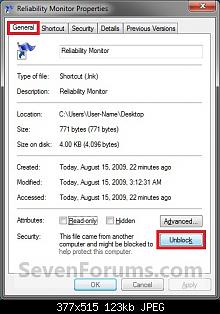
4. Right click on the Reliability Monitor shortcut, and click on Properties, General tab, and on the Unblock button. (See screenshot below)
NOTE: If you do not have a Unblock button under the General tab, then the shortcut is already unblocked and you can continue on to step 5.

Unblock

5. Move the Reliability Monitor shortcut to where you like for easy use.
NOTE: See the yellow TIP box at the top of the tutorial for about how to pin it to the taskbar if you like.

6. When done, you can delete the downloaded .zip file on the desktop if you like, or save it to use again.

Steps to change the volume licensing product key – Windows Xp

Steps to change the volume licensing product key

This article describes two methods for how to change the Windows XP product key after a Volume Licensing installation to resolve the issue. One method uses the Windows Activation Wizard graphical user interface (GUI) and the other method uses a Windows Management Instrumentation (WMI) script. The Activation Wizard method is easier. However, if you must change the product key for multiple computers, the script method is more suitable.

Method 1: Use the Activation Wizard

Important This section, method, or task contains steps that tell you how to modify the registry. However, serious problems might occur if you modify the registry incorrectly. Therefore, make sure that you follow these steps carefully. For added protection, back up the registry before you modify it. Then, you can restore the registry if a problem occurs. For more information about how to back up and restore the registry, click the following article number to view the article in the Microsoft Knowledge Base:

322756  (http://support.microsoft.com/kb/322756/ ) How to back up and restore the registry in Windows

If you only have a few volume licensing product keys to change, you can use the Activation Wizard.

Note We recommend that you run System Restore to create a new restore point before you follow these steps.

Deactivate Windows

  1. Click Start, and then click Run.
  2. In the Open box, type regedit, and then click OK.
  3. In the navigation pane, locate and then click the following registry key:
    HKEY_LOCAL_MACHINE\Software\Microsoft\WindowsNT\Current Version\WPAEvents
  4. In the topic pane, right-click OOBETimer, and then click Modify.
  5. Change at least one digit of this value to deactivate Windows.
Reactivate Windows and add new product key

  1. Click Start, and then click Run.
  2. In the Open box, type the following command, and then click OK.
    %systemroot%\system32\oobe\msoobe.exe /a
  3. Click Yes, I want to telephone a customer service representative to activate Windows, and then click Next.
  4. Click Change Product key.
  5. Type the new product key in the New key boxes, and then click Update.

    If you are returned to the previous window, click Remind me later, and then restart the computer.

  6. Repeat steps 1 and 2 to verify that Windows is activated. You receive the following message:
    Windows is already activated. Click OK to exit.
  7. Click OK.
  8. Install Windows XP Service Pack 1a or a later version of Windows XP.

If you cannot restart Windows after you install Windows XP SP1 or a later version of Windows XP, try the following steps:

  1. Restart your computer and start pressing F8 until you see the Windows Advanced Options menu.
  2. Select Last Known Good Configuration from the menu and press ENTER. This option starts Windows by using a previous good configuration.
  3. Repeat steps 1 through 8 under “Reactivate Windows and add new product key.”

If you can install SP1 or a later version of Windows XP and you can restart Windows, you have resolved the issue. If the issue has not been resolved, try method 2 or see the “Next Steps” section for more troubleshooting resources.


The security database on the server does not have a computer account for this workstation trust relationship

Error : “The security database on the server does not have a computer account for this workstation trust relationship” on Windows Vista with sp1

What to check

1

Make sure your computer account is not disabled in Active Directory users and computers

2

Check
configuration/administrative templates/network/dns client/primary DNS suffix in GPO and make sure its correct or defined

3

A) Start > Run > ADSIEDIT.MSC
B) Go to Domain Partition and mark the affected computer
C) Rightclick and Properties.
D) Doubleclick ServicePrincipalName
E) Add new value: HOST/yourcomputername.yourdomain.xyz or whatever HOST is missing.

Favorite Windows 7 Interface Changes for Netbooks

windows-7-aero-snap-to-edge-effect

Window maximize-

just dragging a window to the top of the screen maximizes it. Dragging it back down restores it to its previous size. This is incredibly useful on the netbook.

Show desktop-

 hover the cursor over the far right of the taskbar and all windows disappear until you move the cursor away. This is an easy way to hide the windows and get at the desktop to check something.

Aero peek-

hover over an icon in the taskbar and see a thumbnail of the program’s window. This is even more useful if you have multiple instances of something running, the “peek” shows thumbnails of all instances. These thumbnails are live, you can even close them from the thumbnail.

 Window shake-

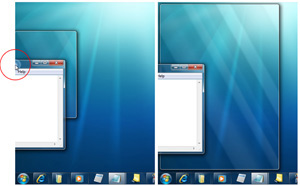
when you have multiple windows open at once and need to bring your attention to one of them, “grab” that window’s title bar and shake side-to-side. All other windows will disappear to the taskbar and your window will have your undivided attention. Shake it again when you want all the other windows to come back.

Dock to left or right side of screen-

if you need to move a window to the left or right side of the screen and resize it to half the total screen width, just drag it to the appropriate side of the screen. You can do the same thing with the Windows key + left/ right arrow key.

Make the taskbar smaller-

go to the taskbar properties (by right-clicking it) and select “small icons”. The whole taskbar shrinks to fit the smaller icons.

by James Kendrick

Install Windows from a USB drive!

 WindowsLogo_256x256USB

Imagine a situation where you need to install Windows Vista or 7 in a system but you don’t have access to DVD drive. We all know Windows Vista, Server 2008 or 7 comes in DVDs and you’ll need a DVD drive to install them. Then how will you install them? The solution is, you can create a bootable USB drive which can be used to install Windows without using DVD drive.

Requirements:

    * A USB Drive (4 GB or more)
    * Windows Vista, Server 2008 or 7 ISO image or DVD
    * Host OS: Windows Vista (SP1 or SP2), Server 2008 or 7

How to use:

Once you meet the requirements, run the utility. Its a portable utility so doesn’t need installation. Simply run it and check the option “I have read and accepted the following License Agreement”. Now click on OK button and it’ll launch the main application.

It also shows a Help window so that you can use the utility easily. The utility requires only 4 easy steps to follow:

    * Check USB drive (To check whether your USB drive is attached or not)
    * Format USB drive
    * Choose DVD or ISO image (To copy the required files to USB drive)
    * Start the process to create bootable USB drive

Download_Here

Windows 7 system requirements

windows722If you want to run Windows 7 on your PC, here’s what it takes:

  • 1 gigahertz (GHz) or faster 32-bit (x86) or 64-bit (x64) processor
  • 1 gigabyte (GB) RAM (32-bit) or 2 GB RAM (64-bit)
  • 16 GB available hard disk space (32-bit) or 20 GB (64-bit)
  • DirectX 9 graphics device with WDDM 1.0 or higher driver

Additional requirements to use certain features:

  • Internet access (fees may apply)
  • Depending on resolution, video playback may require additional memory and advanced graphics hardware
  • For some Windows Media Center functionality a TV tuner and additional hardware may be required
  • Windows Touch and Tablet PCs require specific hardware
  • HomeGroup requires a network and PCs running Windows 7
  • DVD/CD authoring requires a compatible optical drive
  • BitLocker requires Trusted Platform Module (TPM) 1.2
  • BitLocker To Go requires a USB flash drive
  • Windows XP Mode requires an additional 1 GB of RAM, an additional 15 GB of available hard disk space, and a processor capable of hardware virtualization with Intel VT or AMD-V turned on
  • Music and sound require audio output

Product functionality and graphics may vary based on your system configuration. Some features may require advanced or additional hardware.


Before you begin

Before you run the Windows 7 Upgrade Advisor Beta, be sure to plug in any USB devices or other devices such as printers, external hard drives, or scanners that are regularly used with the PC you’re evaluating.

Before you begin

Before you run the Windows 7 Upgrade Advisor Beta, be sure to plug in any USB devices or other devices such as printers, external hard drives, or scanners that are regularly used with the PC you’re evaluating.

Download the Windows 7 Upgrade Advisor Beta

Upgrade of Windows 7 Beta to RC and RTM

windows_upgrade

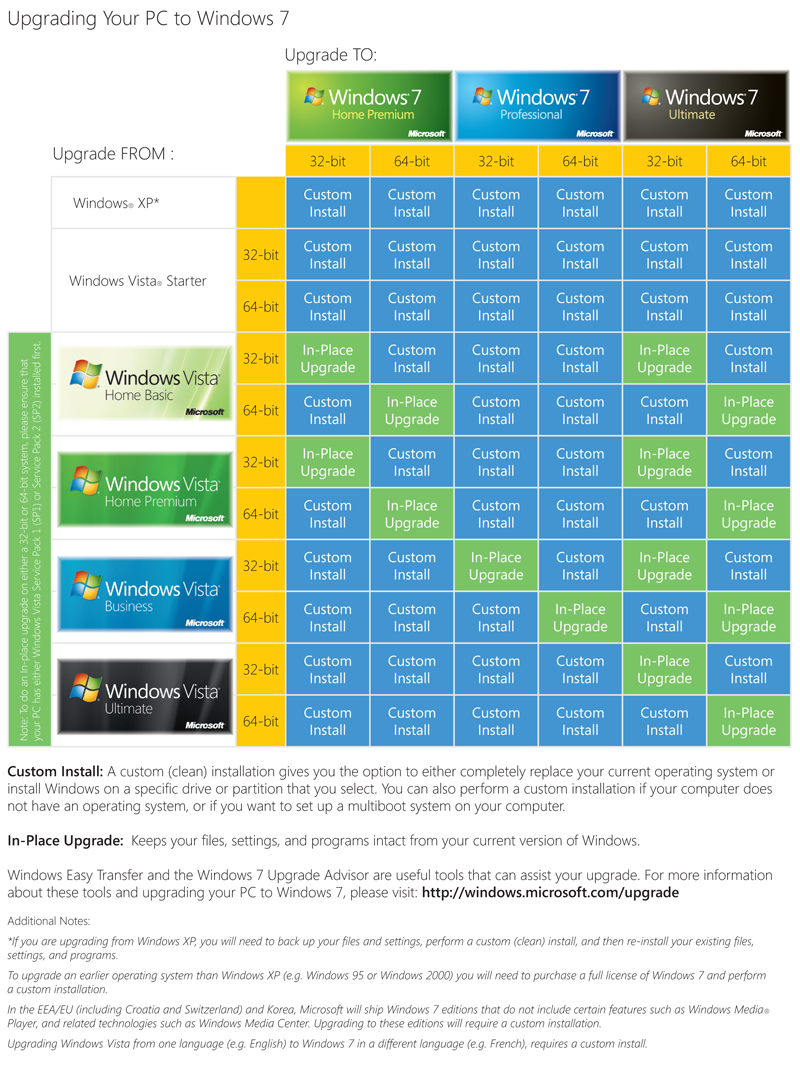
If you are running Windows 7 Beta and you try to upgrade to Windows 7 RC straight from the installation media, you’ll get an error telling you that this is not possible. Similarly, if you are trying to upgrade from Windows 7 Beta or RC to Windows 7 RTM, you’ll get a similar message.

The upgrade is possible. You just have to do a bit of mucking around. To perform the upgrade, do the following:

  1. Copy the contents of the ISO or DVD to a separate storage location (such as a bootable USB storage device, a separate partition or whatever)
  2. Open the file \sources\cversion.ini in a text editor and modify the MinClient number to a number lower than the version Windows 7 that you want to upgrade from – so for the beta you would set this to something like 6900.
  3. Save the file and then run the install routine from the location with the modified file