Category Archives: Windows 7

How to Minimize Windows Live Messenger to System Tray in Windows 7

Windows 7 has one of the major changes in UI in the form of task bar which is called Super taskbar. Windows Live Messenger or any other IM clients generally minimizes to system tray in Windows Vista, but in Windows 7, even when minimized it stays in the task bar. If you feel the task bar gets crowded with icons, you can minimize messengers to system tray using the simple hack.

1. First close any running instances of Windows Live Messenger and then open Program files-> Windows  Live-> Messenger folder

2. Here you can find msnmgsr.exe file. Right click on the file and select properties.

3. In the properties window, select compatibility tab. Tick the check box for Run this program in compatibility mode for under “Compatibility Mode”, and then select Windows Vista from the drop down list.

image242

4. Click OK and now sign in back to Windows Live Messenger. Now if you minimize (or click X) the messenger, it goes to system tray.


How to Create a Windows 7 Reliablity Monitor Shortcut

thumb_Action_Center

This will allow you to download a Reliability Monitor shortcut that will open Windows 7 Reliability Monitor directly instead of having to go through the Action Center.

Here’s How:

1. Click on the download button below to download the Reliability_Monitor.zip file.

download

2. Click on Save, and save the .zip file to the desktop.

3. Open the .zip file and extract the Reliability Monitor shortcut to the desktop.

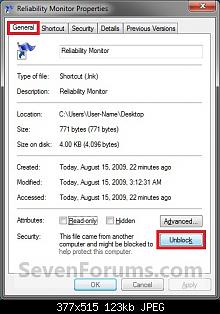
4. Right click on the Reliability Monitor shortcut, and click on Properties, General tab, and on the Unblock button. (See screenshot below)
NOTE: If you do not have a Unblock button under the General tab, then the shortcut is already unblocked and you can continue on to step 5.

Unblock

5. Move the Reliability Monitor shortcut to where you like for easy use.
NOTE: See the yellow TIP box at the top of the tutorial for about how to pin it to the taskbar if you like.

6. When done, you can delete the downloaded .zip file on the desktop if you like, or save it to use again.

Favorite Windows 7 Interface Changes for Netbooks

windows-7-aero-snap-to-edge-effect

Window maximize-

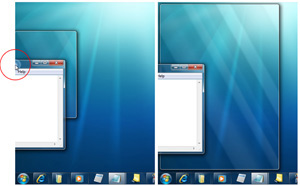
just dragging a window to the top of the screen maximizes it. Dragging it back down restores it to its previous size. This is incredibly useful on the netbook.

Show desktop-

 hover the cursor over the far right of the taskbar and all windows disappear until you move the cursor away. This is an easy way to hide the windows and get at the desktop to check something.

Aero peek-

hover over an icon in the taskbar and see a thumbnail of the program’s window. This is even more useful if you have multiple instances of something running, the “peek” shows thumbnails of all instances. These thumbnails are live, you can even close them from the thumbnail.

 Window shake-

when you have multiple windows open at once and need to bring your attention to one of them, “grab” that window’s title bar and shake side-to-side. All other windows will disappear to the taskbar and your window will have your undivided attention. Shake it again when you want all the other windows to come back.

Dock to left or right side of screen-

if you need to move a window to the left or right side of the screen and resize it to half the total screen width, just drag it to the appropriate side of the screen. You can do the same thing with the Windows key + left/ right arrow key.

Make the taskbar smaller-

go to the taskbar properties (by right-clicking it) and select “small icons”. The whole taskbar shrinks to fit the smaller icons.

by James Kendrick

Install Windows from a USB drive!

 WindowsLogo_256x256USB

Imagine a situation where you need to install Windows Vista or 7 in a system but you don’t have access to DVD drive. We all know Windows Vista, Server 2008 or 7 comes in DVDs and you’ll need a DVD drive to install them. Then how will you install them? The solution is, you can create a bootable USB drive which can be used to install Windows without using DVD drive.

Requirements:

    * A USB Drive (4 GB or more)
    * Windows Vista, Server 2008 or 7 ISO image or DVD
    * Host OS: Windows Vista (SP1 or SP2), Server 2008 or 7

How to use:

Once you meet the requirements, run the utility. Its a portable utility so doesn’t need installation. Simply run it and check the option “I have read and accepted the following License Agreement”. Now click on OK button and it’ll launch the main application.

It also shows a Help window so that you can use the utility easily. The utility requires only 4 easy steps to follow:

    * Check USB drive (To check whether your USB drive is attached or not)
    * Format USB drive
    * Choose DVD or ISO image (To copy the required files to USB drive)
    * Start the process to create bootable USB drive

Download_Here

Windows 7 system requirements

windows722If you want to run Windows 7 on your PC, here’s what it takes:

  • 1 gigahertz (GHz) or faster 32-bit (x86) or 64-bit (x64) processor
  • 1 gigabyte (GB) RAM (32-bit) or 2 GB RAM (64-bit)
  • 16 GB available hard disk space (32-bit) or 20 GB (64-bit)
  • DirectX 9 graphics device with WDDM 1.0 or higher driver

Additional requirements to use certain features:

  • Internet access (fees may apply)
  • Depending on resolution, video playback may require additional memory and advanced graphics hardware
  • For some Windows Media Center functionality a TV tuner and additional hardware may be required
  • Windows Touch and Tablet PCs require specific hardware
  • HomeGroup requires a network and PCs running Windows 7
  • DVD/CD authoring requires a compatible optical drive
  • BitLocker requires Trusted Platform Module (TPM) 1.2
  • BitLocker To Go requires a USB flash drive
  • Windows XP Mode requires an additional 1 GB of RAM, an additional 15 GB of available hard disk space, and a processor capable of hardware virtualization with Intel VT or AMD-V turned on
  • Music and sound require audio output

Product functionality and graphics may vary based on your system configuration. Some features may require advanced or additional hardware.


Before you begin

Before you run the Windows 7 Upgrade Advisor Beta, be sure to plug in any USB devices or other devices such as printers, external hard drives, or scanners that are regularly used with the PC you’re evaluating.

Before you begin

Before you run the Windows 7 Upgrade Advisor Beta, be sure to plug in any USB devices or other devices such as printers, external hard drives, or scanners that are regularly used with the PC you’re evaluating.

Download the Windows 7 Upgrade Advisor Beta

Upgrade of Windows 7 Beta to RC and RTM

windows_upgrade

If you are running Windows 7 Beta and you try to upgrade to Windows 7 RC straight from the installation media, you’ll get an error telling you that this is not possible. Similarly, if you are trying to upgrade from Windows 7 Beta or RC to Windows 7 RTM, you’ll get a similar message.

The upgrade is possible. You just have to do a bit of mucking around. To perform the upgrade, do the following:

  1. Copy the contents of the ISO or DVD to a separate storage location (such as a bootable USB storage device, a separate partition or whatever)
  2. Open the file \sources\cversion.ini in a text editor and modify the MinClient number to a number lower than the version Windows 7 that you want to upgrade from – so for the beta you would set this to something like 6900.
  3. Save the file and then run the install routine from the location with the modified file

10 reasons why Windows 7’s XP Mode is a big deal

windows-7-xp-mode

Author: Brien Posey


Windows 7 features a new twist: XP Mode, which lets you run your Windows XP apps without compatibility issues. Brien Posey explains why XP Mode is significant and outlines its benefits.


One of the most exciting Windows 7 features is Windows XP Mode. It uses a brand new version of Virtual PC to provide seamless access to Windows XP applications, either through a virtual Windows XP desktop or directly through the Windows 7 desktop. Here’s a look at some of the benefits XP Mode offers.

Note: This article is also available as a PDF download.

1: It solves compatibility problems

The biggest beef that most IT folks seem to have with Windows Vista is its notorious hardware and software compatibility problems. Windows 7’s Windows XP mode allows you to run Windows XP applications without worrying about application compatibility.

2: It provides a much needed upgrade to Virtual PC

Virtual PC has been around for a long time, and although it has improved from one version to the next, it still leaves a lot to be desired. Among the improvements in the new version is the ability to access the computer’s physical hard drives (including the host operating system’s volumes) through a virtual machine.

3: It offers USB Support

Another much needed improvement to Virtual PC (which Windows XP Mode depends on) is that it now offers USB support. It has previously been impossible to access USB devices from within a virtual machine.

4: It’s a way to modernize Windows XP

I know that there are those who would disagree with me, but Windows XP hasn’t aged well. First introduced in 2001, Windows XP is quickly becoming outdated. Windows XP Mode provides enables you to run Windows XP inside a modern operating system, which helps it take advantage of some of the improvements that have been made to things like hardware support and security. Windows XP itself hasn’t changed, but because Windows XP Mode is dependent on the host operating system, it can reap some of these benefits.

5: It ensures long-term technical support

Microsoft’s continued support for Windows XP has been questionable for quite some time now. Every time Microsoft gets ready to pull the plug on main stream technical support, they give in to pressure from customers and extend the support period. It’s great that Microsoft has been so accommodating, but nobody knows how long that will last. Having Windows XP Mode built into Windows 7 helps ensure that Windows XP support will be available for many years to come.

6: Microsoft has made a commitment to XP

For the last several years, Microsoft has urged customers to adopt Windows Vista, but most of Microsoft’s corporate customers have chosen to continue using Windows XP. By including Windows XP mode in Windows 7, Microsoft has finally acknowledged the importance of Windows XP to its customers and given diehard XP fans a real solution that will allow them to move forward without giving up the OS they’ve depended on for almost a decade.

7: It offers seamless integration

One of my favorite things about Windows XP Mode is that it’s completely seamless. Sure, you can work within a full-blown Windows XP virtual machine, but you don’t have to. In fact, if you close the Windows XP virtual machine, you can access your Windows XP applications directly through the Windows 7 start menu and run those applications seamlessly alongside applications that are installed directly on Windows 7.

8: It’s a first

This is the first time Microsoft has ever given us this type of support for an older product. Exchange 2000 included a copy of Exchange 5.5, but that was only included as part of the migration path for Exchange 5.0 users. Microsoft wasn’t expecting customers to actually use both products. Making Windows XP part of the Windows 7 operating system is unprecedented.

9: It opens the door to lightweight operating systems

Windows has always had a bad reputation for being excessively bloated. One of the reasons for the bloat is that most versions of Windows have included a significant amount of code to provide backward compatibility with the previous version. By relying on virtualization to provide this compatibility, Microsoft may be able to greatly reduce the size of the core operating system in Windows 8.

10: Future plug-ins are possible

The way Microsoft has connected Windows XP to Windows 7 through virtualization opens the door to future operating system plug-ins. Don’t be surprised if Windows 8 gives you the ability to pick and choose the legacy operating systems you want to support. Microsoft could end up offering virtualization plug-ins that will allow it to support Windows XP, Vista, and Windows 7. Using this method would allow customers to pick the type of backward compatibility they need without having to install any unnecessary legacy code


Play Your iPod Through Your Windows 7 PC’s Speakers

sshot-2009-07-30-_2_

Windows expert Ed Bott finds a useful feature in Windows 7: you can play an external audio device through your computer’s speakers without any extra software using a simple configuration setting.

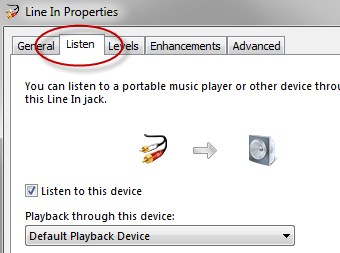
To activate the setting, you’ll need to plug the device into the Line In or microphone jacks, head to the Sounds panel, and then find the new Listen tab under the input jack. You’ll be able to direct the input from your iPod or other device to play directly from your speakers, an extremely useful feature if you’ve got a nice set of speakers connected to your PC.

Readers will note that you can always play your iPod’s music using iTunes, but this method works even if you connect a friend’s iPod or any other sound input you would like to use—and this method doesn’t require using any software.

Windows expert Ed Bott finds a useful feature in Windows 7: you can play an external audio device through your computer’s speakers without any extra software using a simple configuration setting.

To activate the setting, you’ll need to plug the device into the Line In or microphone jacks, head to the Sounds panel, and then find the new Listen tab under the input jack. You’ll be able to direct the input from your iPod or other device to play directly from your speakers, an extremely useful feature if you’ve got a nice set of speakers connected to your PC.

Readers will note that you can always play your iPod’s music using iTunes, but this method works even if you connect a friend’s iPod or any other sound input you would like to use—and this method doesn’t require using any software.