Category Archives: Windows 7

How to Search by file types in Windows 7

Search

Search is built into every aspect of Windows 7, and as we get more and more files, documents, photos, music and videos in our personal libraries it can become harder to find things, especially if we haven’t looked at them in a while.

Search in Windows 7 works in a contextual way depending on what you’re searching in.  For instance, search in the Start Menu will prioritise Start Menu items and programs, search in Explorer will prioritise documents and pictures, search in Internet Explorer will prioritise Favourite websites and browsing history and so on.

Alas, gone is the simple search of previous versions of Windows to be replaced by a more text-based search.  When you start a search a drop down will ask if you want to add a search filter.

There and a great many of these which I shall detail but the basic ones Name: and Type: for file name and file type respectively would be used in the format…

Type: pdf

…if you were looking for Adobe Acrobat files.  This is a way to help narrow down searches.

Kind: used to search the properties of a document type

Kind:email
Kind:tasks
Kind:notes
Kind:docs
Kind:music
Kind:song
Kind:folders
Kind:programs

Datemodified: to search by the date a file was modified

Datemodified:22/10/2008
Datemodified:22/10/08
Datemodified:yesterday
Datemodified:lastweek
Datemodified:pastmonth
Datemodified:27/03/03..1/4/08 

Type: to search by file type

Type:image
Type:.doc
Type:.pdf 

Name: searching by file name or by a property name for a file

Name:holiday
Name:wedding
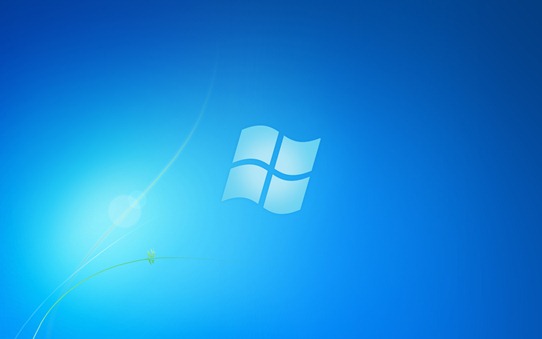
Change the wallpaper for Windows 7 starter edition

Windows7StarterWallpaper

Warning: Serious problems might occur if you modify the registry incorrectly by using Registry Editor or by using another method. These problems might require that you reinstall the operating system. Microsoft cannot guarantee that these problems can be solved. Modify the registry at your own risk. See How to back up the registry

Step by Step:
1. Open regedit (aka registry editor; you can access it from the star menu by typing “regedit” in the search box…)
2. Go to “HKEY_CURRENT_USER\Control Panel\Desktop\” folder and click on it
3. On the right hand side find there are a bunch of entries. Find the key named “wallpaper
” and double click on it and put the path of the picture you want as your new wallpaper (example path is “C:\Users\Bob\Pictures\new_wallpaper.jpg”)
4. Right-click on the “Desktop” folder in regedit that you found in step 2 and click Permissions.
5. Click “Advanced”
6. Go to “Owner” tab, highlight your name in the box that says ‘Change owner to’ ( There are only two choices the other is Administrator )… once your user name is highlighted click “OK”
7. Click on “Advanced” again
8. Uncheck the button that reads “Include inheritable permissions from the object’s parent”… click “Remove” when prompted
9. Click “Add”
10. Type “Everyone” and click “OK”
11. Check Allow “Read Control” and click “OK”
12. Click “OK” again
13. Highlight “Everyone” and check to Allow “Read” and click “OK”
14. Restart Computer and enjoy new Wallpaper

Physical Memory Limits: Windows 7 / Windows Server 2008 R2

The following table specifies the limits on physical memory for Windows 7.

Version Limit in 32-bit Windows Limit in 64-bit Windows
Windows 7 Ultimate 4 GB 192 GB
Windows 7 Enterprise 4 GB 192 GB
Windows 7 Professional 4 GB 192 GB
Windows 7 Home Premium 4 GB 16 GB
Windows 7 Home Basic 4 GB 8 GB
Windows 7 Starter 2 GB 2 GB

Physical Memory Limits: Windows Server 2008 R2

The following table specifies the limits on physical memory for Windows Server 2008 R2. Windows Server 2008 R2 is available only in 64-bit editions.

Version Limit in 64-bit Windows
Windows Server 2008 R2 Datacenter 2 TB
Windows Server 2008 R2 Enterprise 2 TB
Windows Server 2008 R2 for Itanium-Based Systems 2 TB
Windows Server 2008 R2 Foundation 8 GB
Windows Server 2008 R2 Standard 32 GB
Windows HPC Server 2008 R2 128 GB
Windows Web Server 2008 R2 32 GB

How to Find the Wi-Fi Password Using CMD in Windows?

Finding Wi-Fi Password

Step1: Press start and type CMD, right-click on the Command Prompt option shown as a search result and click on Run as administrator.  

Step 2: Type netsh wlan show profile in the command prompt and press Enter to show a list of network names that we connect to.

Step 3: Type netsh wlan show profile name= “Wi-Fi name” key=clear, Replace ‘Wi-Fi name’ with your wireless network name.

Step 4: Scroll through the results until you find an entry named Key Content Wi-Fi password will be listed next to it.  

How to Disable Clicking Sound from Internet Explorer in Vista and Windows 7?

Have you ever thought that the clicking sound is annoying when you click on the links in Internet Explorer (IE7 or IE8) or refresh the Window? Especially in the night when your friends or family members are sleeping and when you browse? Then disabling that clicking sound will be a good option. Unfortunately you can’t disable it from IE and you have to do it through the system sound settings.

So how to disable the clicking sound in IE?


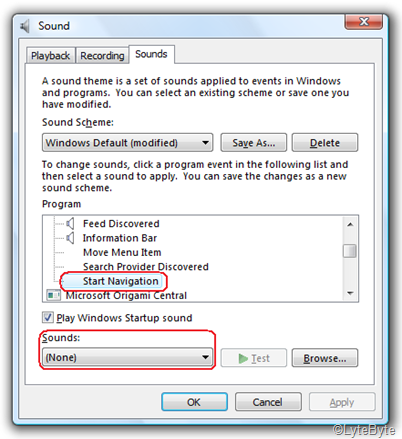
Go to Start button –> Control Panel –> Hardware and Sound.

Under Sound, click Change System Sounds.

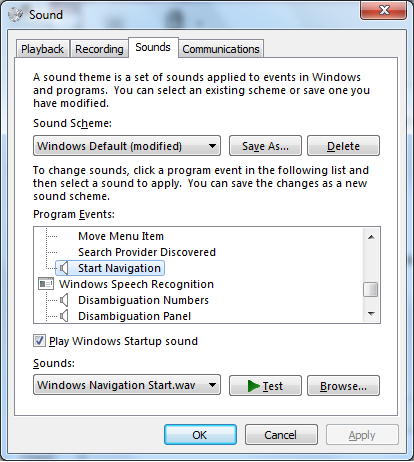
There you will see the list of programs whose sound system is managed by Windows Vista,  Scroll down to see Windows Explorer. There choose Start Navigation and from the Sounds drop down menu choose None. Click OK.

clicksound

You may also want to change the settings for Complete Navigation to None, if its not already set to None. Also if you don’t want any noise while you are browsing, you can also disable the sound when you have a blocked pop-up window. Choose Blocked Pop-up Window and change it to None.

Stupid Windows 7 trick: unlock the secret God Mode folder

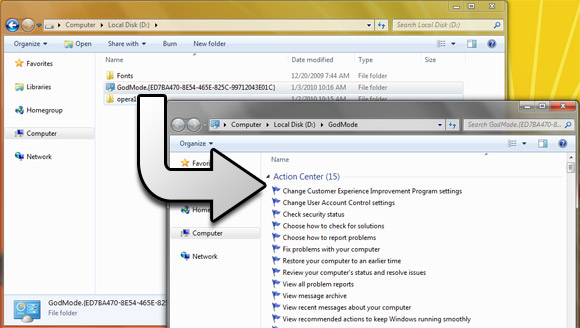
 godmode-asdvfasdf-

So, what exactly is God Mode in Windows 7?

Well, for starters, it’s not really a mode. And it’s nothing you need to be a deity to pull off, either.

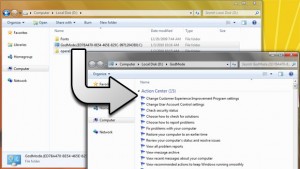
Rather, it’s a folder packed with shortcuts to just about every settings change and administrative function in Windows 7. Everything you’ll find in the Action Center, Backup and Restore, Autorun, Desktop Gadgets, Devices and Printers — it’s all there. All dumped in one central location for easy access.

No, this trick doesn’t involve entering IDDQD in the run box – but it’s just about that simple. Here’s the magic,

  • Create a new folder anywhere (I set mine up in d:\)
  • Rename the folder and paste in the following text: GodMode.{ED7BA470-8E54-465E-825C-99712043E01C}

That’s it! You’ve now got your new, somewhat handy folder. Why somewhat handy? Well, because you can already access everything in there by typing a few letters into the search box on your start menu.

Still, it’s a pretty long list of things to remember – so having a nice reference like this could actually be useful from time to time 

  • Create a new folder anywhere (I set mine up in d:\)
  • Rename the folder and paste in the following text: GodMode.{ED7BA470-8E54-465E-825C-99712043E01C}

That’s it! You’ve now got your new, somewhat handy folder. Why somewhat handy? Well, because you can already access everything in there by typing a few letters into the search box on your start menu.

Still, it’s a pretty long list of things to remember – so having a nice reference like this could actually be useful from time to time


Delete and Disable Recent Items from All Windows 7 Jumplists

Jumplists are among the most useful new features present in Windows 7. However, they can be a cause of concern for the privacy concious. The jumplist for most applications display recently opened files and/or frequently opened files. It is fairly easy to get an idea about what you have been up to, by just glancing at the jumplist entries. Unfortunately for users, how to disable this feature isn’t very obvious. In this article I will show you how to delete Recent items as well as permanently disable this feature.

How to Clear Recent Items List

win7_jmp

Windows stores the Recent items list at the location

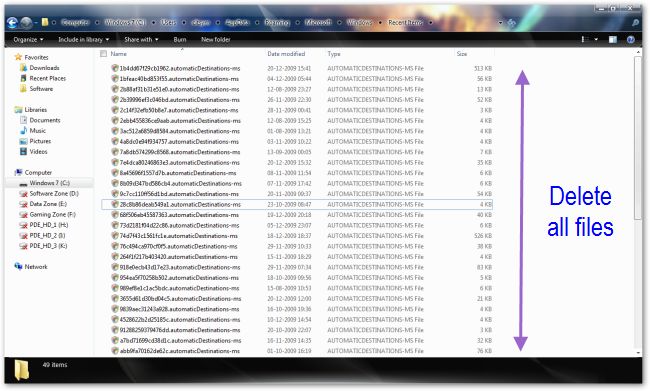
%APPDATA\Microsoft\Windows\Recent\AutomaticDestinations. Paste this path in Windows explorer and hit enter.
Simply delete all the files present in this directory to reset the jumplist for all applications.

How to Disable Recent Items in Jumplists

win7_jmp_d

Right click on an empty portion of the taskbar and select Properties from the context-menu. Browse to the Start Menu tab and uncheck the box next to “Store and Display Recently opened items in the Start menu and the taskbar“. This should make Recent items disappear from the jumplists.

How to restore default .EXE file association?

When you use the Open With dialog to associate .exe files with another application, the settings are stored in the following registry key:

HKEY_CURRENT_USER \ Software \ Microsoft \ Windows \ CurrentVersion \ Explorer \ FileExts \ .exe \ UserChoice

There will be a value named Progid in the right pane. The Progid data will contain the application’s exe file name (Applications\Notepad.exe, Applications\IExplore.exe, or a Programatic Identifier such as txtfile, jpegfile etc).

Note that despite this problem, you should be able to launch applications by double-clicking on the data files. For example, with the above setting, you should be able to launch Microsoft Word application by double-clicking on a .doc file, but not by running Winword.exe directly.)

Registry fix

To fix the problem, you need to delete the UserChoice key above using a REG file or a script. Download exefix_cu.reg attached at the end of this article, and save it to Desktop. Right-click on the REG file and choose Merge.

For other file types

To undo the Open With setting for other file types, the registry location is the same. (Replace the text .exe in the above registry key with the actual file extension).

Example:

HKEY_CURRENT_USER \ Software \ Microsoft \ Windows \ CurrentVersion \ Explorer \ FileExts \ .xyz \ UserChoice

Where .xyz is the file extension for which you want to undo the Open With action.

Download file : https://kapothi.com/wp-content/uploads/2009/10/exefix_cu.reg

How to Customize / Change Windows 7 Logon Background Wallpaper Screen

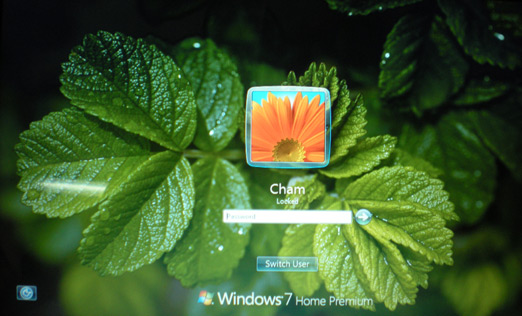
you can now officially change Windows 7 Build 7057 login UI background. Windows 7 now supports the ability to load images into the background of the login screen without the use of third-party software or manual hacks.

cham_customized_windows7_screen

Steps to Change Windows 7 Build 7057 Logon Background Image

1. press win+r key and Type Regedit at run prompt

2. Locate following registry key

HKLM\Software\Microsoft\Windows\CurrentVersion\Authentication\LogonUI\Background

3. Now in right-side pane, change value of OEMBackground to 1.

(if u cant find OEMBackground value creat a new DWORD value in right side pane)

4. Create a new folder name “info” and “backgrounds” within oobe folder

Folder path should look like this %windir%\System32\oobe\info\backgrounds

5. Now place your desired logon wallpaper within this background folder with file name as backgroundDefault.jpg

Images Name with resolutions

backgroundDefault.jpg

background768×1280.jpg (0.6)

background900×1440.jpg (0.625)

background960×1280.jpg (0.75)

background1024×1280.jpg (0.8)

background1280×1024.jpg (1.25)

background1024×768.jpg (1.33-)

background1280×960.jpg (1.33-)

background1600×1200.jpg (1.33-)

background1440×900.jpg (1.6)

background1920×1200.jpg (1.6)

background1280×768.jpg (1.66-)

background1360×768.jpg (1.770833-)

Please NOTE: Images must be less than 256kb in size

The backgroundDefault.jpg image is loaded and stretched-to-fit when a resolution/ratio specific background cannot be found.