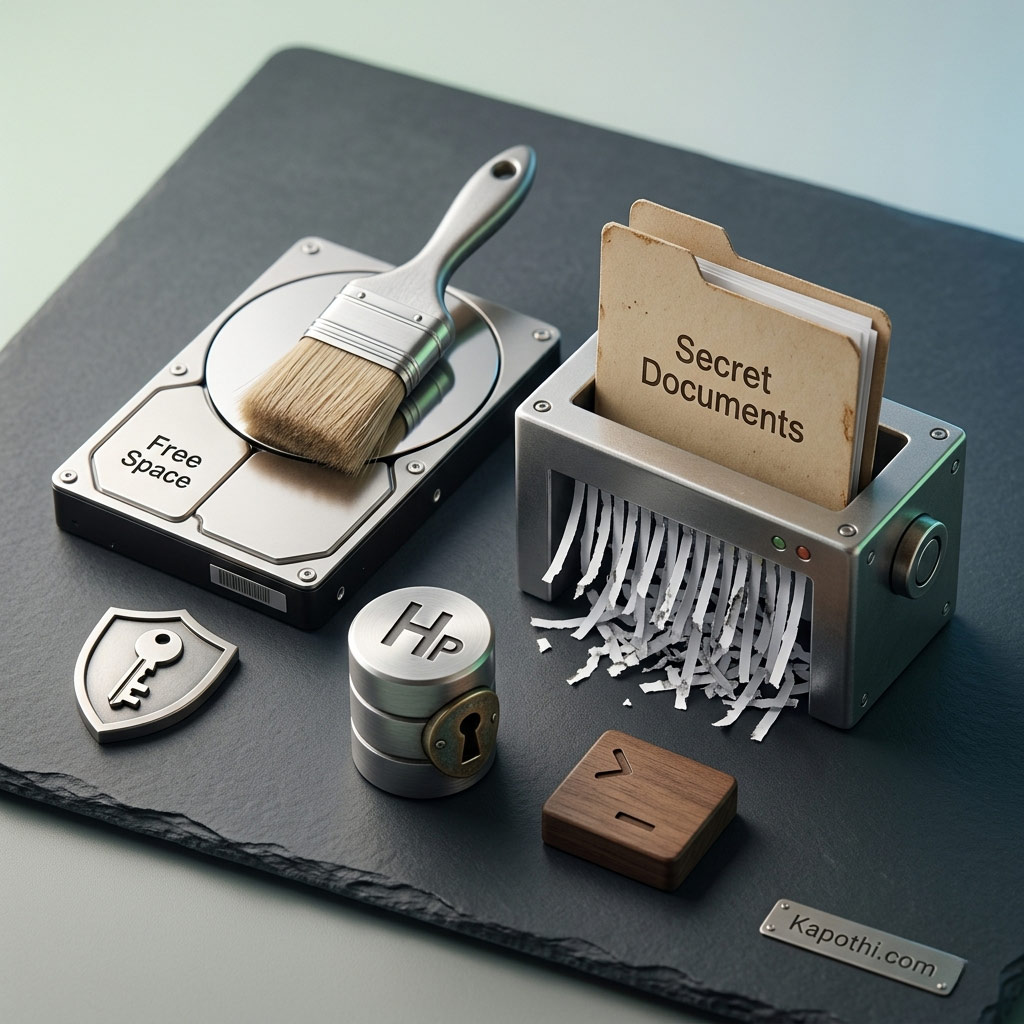
Ever wondered if the files you delete from your Windows machine are truly gone? Hint: They aren’t. Standard deletion only removes the file pointer, leaving the actual data on your storage drive until it gets overwritten. Anyone with a basic data recovery tool can sniff it out.
To permanently obliterate sensitive data, Windows professionals rely on two powerful command-line methods: Cipher and SDelete. While both achieve data sanitization, they work in entirely different ways.
1. Built-in Security: The Cipher Command
The cipher command is built directly into Windows. It is designed to wipe the Free Space on your hard drive. This means it overwrites data that has already been deleted, ensuring recovery software cannot retrieve it.
How it works:
Cipher runs a 3-pass overwrite process on the unallocated space:
- Pass 1: Overwrites with all zeros (0x00)
- Pass 2: Overwrites with all ones (0xFF)
- Pass 3: Overwrites with random numbers
How to use it:
Open Command Prompt as an Administrator and run the following command:
cipher /w:C
Note: Replace “C” with the drive letter you want to wipe. The /w switch stands for “Wipe Free Space”. Existing files will NOT be affected.
2. Surgical Precision: SDelete (Sysinternals)
Unlike Cipher, SDelete (Secure Delete) does not come built-in. It is an official tool from Microsoft’s Sysinternals Suite, heavily utilized by cybersecurity experts. Instead of wiping the entire drive’s free space, SDelete lets you target and permanently shred a specific file or folder that still exists on your system.
How to Download SDelete:
- Go to the official Microsoft Sysinternals page: Download SDelete
- Click “Download SDelete” to grab the ZIP file.
- Extract the contents (you will see
sdelete.exeandsdelete64.exe). - For easy use, copy the executable into your
C:\Windows\System32folder, or shift-right-click inside the extracted folder and select “Open Command Prompt/PowerShell here”.
How to use it:
To securely delete a specific file or directory using 3 passes (default), run:
sdelete -p 3 -s "C:\Path\To\Your\SecretFolder"
Syntax Breakdown:
-p 3: Specifies the number of overwrite passes (3 passes is standard DOD security compliance).-s: Recurses subdirectories (wipes everything inside the target folder).
Quick Comparison: Cipher vs. SDelete
| Feature | Cipher Command | SDelete Tool |
|---|---|---|
| Installation | Built-in to Windows OS | External Download (Microsoft Sysinternals) |
| Primary Function | Wipes already deleted data (Free Space) | Shreds existing files/folders instantly |
| Target Scope | Entire Drive partition | Specific File or Folder pathways |
| Execution Time | Slow (Takes hours depending on drive size) | Fast (Only processes the targeted files) |
⚠️ Important Tech Note for SSD Users: Modern Solid State Drives (SSDs) utilize Wear Leveling algorithms to distribute data evenly across flash cells. Because of this, block-level overwrite commands like Cipher and SDelete might not guarantee 100% data destruction on SSDs like they do on old HDDs. For ultimate SSD sanitization, implementing BitLocker Encryption and purging the key (Crypto-shredding) is recommended.
👉 Click here to read this article in Sinhala (සිංහලෙන් කියවන්න ක්ලික් කරන්න)
ඔබ පරිගණකයෙන් Delete කරන ෆයිල් ඇත්තටම මැකී යනවා කියා ඔබ සිතනවාද? නැත. සාමාන්ය Deletion එකකදී සිදුවන්නේ එම ෆයිල් එක තිබෙන තැන පෙන්වන ‘Pointer’ එක ඉවත් කිරීම පමණි. වෙනත් දත්ත එම ස්ථානය මත Overwrite වන තෙක් සැබෑ දත්ත Hard Drive එක තුළ සුරක්ෂිතව පවතී. ඕනෑම සරල Data Recovery මෘදුකාංගයකින් මේවා නැවත ලබාගත හැක.
මේ නිසා, රහස්ය දත්ත සදහටම විනාශ කිරීම (Wipe කිරීම) සඳහා Windows පරිශීලකයින් ප්රධාන Command-line ක්රම දෙකක් භාවිතා කරයි: Cipher සහ SDelete.
1. Cipher Command එක (Windows සමඟම ලැබෙන ක්රමය)
මෙය Windows වලම built-in එන එකකි. මෙයින් කරන්නේ දැනටමත් Delete කර ඇති ෆයිල් තිබූ ඉඩකඩ (Free Space) සම්පූර්ණයෙන්ම අතුගා දැමීමයි. එම නිදහස් ඉඩ මත 3 වතාවක් වෙනත් දත්ත Overwrite කරමින් Recovery මෘදුකාංග වලට ඒවා හසු නොවන ලෙස විනාශ කරයි.
භාවිතා කරන ආකාරය: CMD එක Administrator ලෙස open කර පහත කේතය ක්රියාත්මක කරන්න:
cipher /w:C
(මෙහි C වෙනුවට ඔබට අවශ්ය Drive එකේ අකුර යොදන්න. දැනට ඩ්රයිව් එකේ ඇති හොඳ ෆයිල් වලට මෙයින් හානියක් නොවේ).
2. SDelete Tool එක (Surgical Precision)
මෙය Windows වල කෙලින්ම එන්නේ නැත. මෙය Microsoft Sysinternals වෙතින් වෙනම බාගත (Download) කරගත යුතු ආරක්ෂිත Tool එකකි. මෙයින් කරන්නේ මුළු ඩ්රයිව් එකම Wipe කරන්නේ නැතිව, දැනට පරිගණකයේ පවතින නිශ්චිත එක ෆයිල් එකක් හෝ ෆෝල්ඩර් එකක් ඉලක්ක කර එය සදහටම නැතිවී යන ලෙස ඩීලිට් කිරීමයි.
බාගත කරගන්නා ආකාරය: Microsoft Sysinternals නිල වෙබ් අඩවියෙන් SDelete ZIP ෆයිල් එක ඩවුන්ලෝඩ් කර Extract කරගන්න. පහසුව සඳහා එහි ඇති sdelete64.exe එක C:\Windows\System32 ෆෝල්ඩරය තුළට පේස්ට් කරගන්න.
භාවිතා කරන ආකාරය:
sdelete -p 3 -s "C:\Path\To\Your\SecretFolder"
(මෙහි -p 3 මගින් තෙවරක් Overwrite කිරීමටත්, -s මගින් ෆෝල්ඩරය ඇතුළේ ඇති සියලුම දේ විනාශ කිරීමටත් නියෝග කරයි).
💡 SSD පරිශීලකයින් සඳහා විශේෂ සටහන: Modern SSD ධාවකයන් තුළ ඇති Wear Leveling තාක්ෂණය නිසා HDD වල මෙන් මේ ක්රම මගින් 100% ක්ම දත්ත විනාශ කිරීම සහතික කළ නොහැක. SSD එකක් ආරක්ෂිතව Wipe කිරීමට හොඳම ක්රමය වන්නේ BitLocker දමා එහි Encryption Key එක Delete කර දැමීමයි (Crypto-shredding).