When you run Dcpromo.exe to create a replica domain controller, you receive the “Failed to modify the necessary properties for the machine account. Access is denied” error message

http://support.microsoft.com/kb/232070

SYMPTOMS

When you run Dcpromo.exe to create a replica domain controller, you receive one…

When you run Dcpromo.exe to create a replica domain controller, you receive one of the following error messages in Dcpromo.exe:

Error message 1

Failed to modify the necessary properties for the machine account. Access is denied.

Error message 2

Error – The Active Directory Installation Wizard was unable to convert the computer account <Computer Name>$ to a domain controller account. (5)
Examination of the Dcpromoui.log file indicates that the initial part of the promotion was successful (this is also verified because the computer becomes a member server in the domain), but that the promotion to domain controller did not succeed because Dcpromo.exe could not modify the machine account.

CAUSE

This problem can occur if the account that is used for the promotion operation h…

This problem can occur if the account that is used for the promotion operation has not been assigned the “Delegation Privilege” right. Or, if this right has been assigned, the policy has not propagated yet, possibly because of replication latency. By default, only members in the Administrators group have the “Delegation Privilege” right.

RESOLUTION

To resolve this problem, use an account in the Administrators group, or add the…

To resolve this problem, use an account in the Administrators group, or add the appropriate account to the Administrators group. To grant this right to another user or group, set the delegation privilege on the Group Policy object:

  1. In the Active Directory Users and Computers snap-in, edit the Default Domain Controllers Policy on the Domain Controllers Organizational Unit.
  2. Double-click Computer Configuration, click Windows Settings, click Security Settings, click Local Policies, and then click User Rights Assignment.
  3. Under Enable Computer and User Accounts to be trusted for Delegation, add the appropriate account or group.
  4. Apply the policy using one of the following methods:
  • If it is a Windows 2000 domain controller, open a command prompt, and then type:

secedit /refreshpolicy machine_policy /enforce

  • If it is a Windows Server 2003 or a Windows Server 2008 domain controller, open a command prompt, and type:

gupdate /force

  1. Force replication from the domain controller on which the policy was changed to the other domain controllers in the domain by using repadmin, replmon, or Active Directory Sites and Services.

To apply the updated policy, restart the problematic server which you wanted to promote as a domain controller.
Conficker – How do I protect myself?

Conficker – How do I protect myself? KB Solution ID: SOLN2209|Last Revised: September 02, 2009

Your risk of exposure to the Win32/Conficker threat is due to a Microsoft operating system vulnerability (Microsoft released a patch for this vulnerability in October 2008). To help avoid infection caused by Microsoft operating system vulnerabilities make sure your computer is always up to date with the latest Microsoft Windows update. You can find the latest updates at http://update.microsoft.com/.

Preventing Infection 
If you do not wish to download all Windows updates but want to ensure that you are at least protected against the Win32/Conficker threats, download the following patches from these Microsoft Security Bulletins:


NOTE: In addition to downloading and installing the latest security patches, you can take other precautionary measures to reduce the risk of infection. Click here for more strategies to minimize the risk of a malware attack. If you are a network administrator, click here for steps you can take to minimize the rest of an infection on your network.

 
Cleaning Steps 
If you encounter or have encountered the Win32/Conficker malware, a fully updated version of an ESET security product (version 3.0 or later) will clean the infection.

Important! To avoid re-infecting the operating system, it must be patched using the links directly above.

 
If you don’t have an ESET security product (3.0 or later) installed, you can download and run our standalone cleaner:
 
 
To verify that the standalone cleaner removed the Conficker threat, rerun the standalone cleaner and then run a scan with your ESET security product.
 
After successfully running the ESET standalone cleaner, we recommend that you read the following Microsoft article for information about important security patches and recommended group changes:

NOTE: If the ESET standalone cleaner does not fully remove the Conficker threat, the following Microsoft article also contains manual Conficker removal instructions.


For maximum protection against future threats, make sure your operating system is patched according to Microsoft’s recommendations and that your ESET security product is up to date.
 
To find further information on protecting yourself against the Conficker worm please refer to our following Conficker (Update) Blog: http://www.eset.com/threat-center/blog/?p=865

How can I set up Microsoft IIS as an ESET update Mirror server?

How can I set up Microsoft IIS as an ESET update Mirror server?

KB Solution ID: SOLN2270|Last Revised: July 24, 2009

After you have created a Mirror server and configured clients to access the Mirror server for updates, you can set the Microsoft Internet Information Services (IIS) to act as the mirror server. To learn more about Mirror servers and their functionality, click here. To use Microsoft Internet Information Services (IIS) as an ESET update mirror server, follow the steps below:
Warning: If your ESET Remote Administrator Server (ERAS) is also a web server that is already hosting websites through IIS, move ERAS to another server and do not proceed with the following steps. The settings configured in the steps below may interfere with your existing websites.
Important! The following procedures use Microsoft Windows Server 2003 and Microsoft IIS Manager 6.0. Specific steps may vary slightly on other operating systems or with different versions of Microsoft IIS Manager.
 

  1. Open the ESET Remote Administrator Console (ERAC) by clicking Start → All Programs → ESET → ESET Remote Administrator Console → ESET Remote Administrator Console.
  2. Click Tools → Server Options → Updates. Deselect the Provide update files via internal HTTP server option. Click OK.
  3. Open IIS Manager by clicking Start → All Programs → Administrative Tools → Internet Information Services (IIS) Manager.
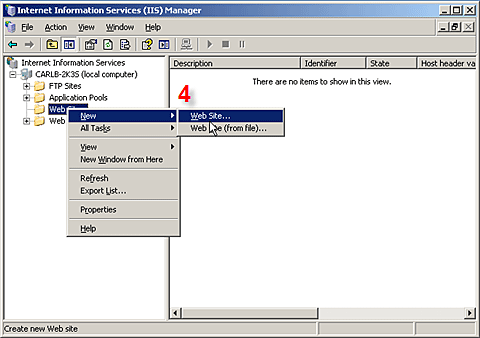
  4. Click the + next to your server name to expand the menu tree. Right-click Web sites and select New → Web site from the context menu to open the Web Site Creation Wizard. Click Next in the first screen of the Web Site Creation Wizard to begin.

1
Fig. 1-1


  1. Enter a name for the website in the Description field. For example: ESET mirror. Click Next.
  2. Leave the Enter the IP address to use for this Web site field at its default setting: (All Unassigned). Enter 2221 in the TCP port this Web site should use field (default is 80). Leave the Host header for this Web site field empty. Click Next.

2
Fig. 1-2


  1. Click the Browse button and browse to the mirror folder by following the path below:

C:\Documents and Settings\All Users\Application Data\ESET\ESET Remote Administrator\Server\Mirror
NOTE: The path above is the default location for the Mirror folder.
 

Select the Allow anonymous access to this Web site option. Click Next.

  1. Select the Read check box from the list of access permissions. Click Next and then Finish to complete and exit the Web Site Creation Wizard.
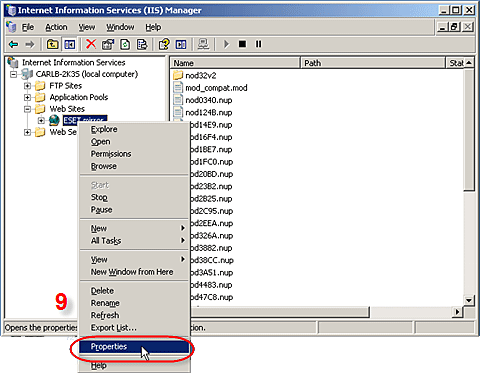
  2. ESET Mirror should now be listed under Web Sites in the IIS Manager menu tree, with the contents of the mirror folder displayed in the primary window. Right-click ESET Mirror from the menu tree and select Properties from the context menu.

3

Fig. 1-3

  1. On the Web Site tab, check that the TCP port field is set to 2221 and the SSL port field is blank.
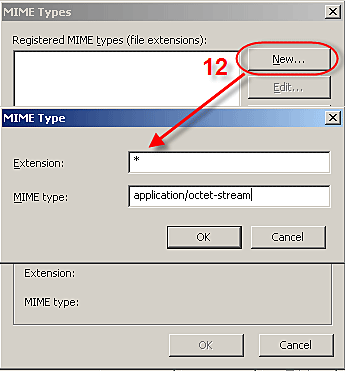
  2. Click the HTTP Headers tab and then click the MIME Types… button.
     
  3. In the MIME Types window, click New…. In the pop-up MIME Type window, enter * in the Extension field and then enter application/octet-stream in the MIME type field. Click OK in each window.

4

Fig. 1-4


  1. Click the Documents tab and deselect Enable default content page. Click OK to return to IIS Manager.
  2. Close IIS Manager. Open a web browser and enter the following URL:

http://servername:2221/update.ver
Important! In the above URL, servername should be replaced with the server name.
 

If there are no errors, your web browser will display a text file with update information.

  1. Test the newly configured mirror server by directing an ESET client workstation (running ESET Smart Security or ESET NOD32 Antivirus) to update from http://servername:2221/update.ver and check its connection.

How to Minimize Windows Live Messenger to System Tray in Windows 7

Windows 7 has one of the major changes in UI in the form of task bar which is called Super taskbar. Windows Live Messenger or any other IM clients generally minimizes to system tray in Windows Vista, but in Windows 7, even when minimized it stays in the task bar. If you feel the task bar gets crowded with icons, you can minimize messengers to system tray using the simple hack.

1. First close any running instances of Windows Live Messenger and then open Program files-> Windows  Live-> Messenger folder

2. Here you can find msnmgsr.exe file. Right click on the file and select properties.

3. In the properties window, select compatibility tab. Tick the check box for Run this program in compatibility mode for under “Compatibility Mode”, and then select Windows Vista from the drop down list.

image242

4. Click OK and now sign in back to Windows Live Messenger. Now if you minimize (or click X) the messenger, it goes to system tray.


How to Create a Windows 7 Reliablity Monitor Shortcut

thumb_Action_Center

This will allow you to download a Reliability Monitor shortcut that will open Windows 7 Reliability Monitor directly instead of having to go through the Action Center.

Here’s How:

1. Click on the download button below to download the Reliability_Monitor.zip file.

download

2. Click on Save, and save the .zip file to the desktop.

3. Open the .zip file and extract the Reliability Monitor shortcut to the desktop.

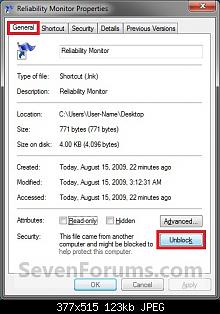
4. Right click on the Reliability Monitor shortcut, and click on Properties, General tab, and on the Unblock button. (See screenshot below)
NOTE: If you do not have a Unblock button under the General tab, then the shortcut is already unblocked and you can continue on to step 5.

Unblock

5. Move the Reliability Monitor shortcut to where you like for easy use.
NOTE: See the yellow TIP box at the top of the tutorial for about how to pin it to the taskbar if you like.

6. When done, you can delete the downloaded .zip file on the desktop if you like, or save it to use again.

Steps to change the volume licensing product key – Windows Xp

Steps to change the volume licensing product key

This article describes two methods for how to change the Windows XP product key after a Volume Licensing installation to resolve the issue. One method uses the Windows Activation Wizard graphical user interface (GUI) and the other method uses a Windows Management Instrumentation (WMI) script. The Activation Wizard method is easier. However, if you must change the product key for multiple computers, the script method is more suitable.

Method 1: Use the Activation Wizard

Important This section, method, or task contains steps that tell you how to modify the registry. However, serious problems might occur if you modify the registry incorrectly. Therefore, make sure that you follow these steps carefully. For added protection, back up the registry before you modify it. Then, you can restore the registry if a problem occurs. For more information about how to back up and restore the registry, click the following article number to view the article in the Microsoft Knowledge Base:

322756  (http://support.microsoft.com/kb/322756/ ) How to back up and restore the registry in Windows

If you only have a few volume licensing product keys to change, you can use the Activation Wizard.

Note We recommend that you run System Restore to create a new restore point before you follow these steps.

Deactivate Windows

  1. Click Start, and then click Run.
  2. In the Open box, type regedit, and then click OK.
  3. In the navigation pane, locate and then click the following registry key:
    HKEY_LOCAL_MACHINE\Software\Microsoft\WindowsNT\Current Version\WPAEvents
  4. In the topic pane, right-click OOBETimer, and then click Modify.
  5. Change at least one digit of this value to deactivate Windows.
Reactivate Windows and add new product key

  1. Click Start, and then click Run.
  2. In the Open box, type the following command, and then click OK.
    %systemroot%\system32\oobe\msoobe.exe /a
  3. Click Yes, I want to telephone a customer service representative to activate Windows, and then click Next.
  4. Click Change Product key.
  5. Type the new product key in the New key boxes, and then click Update.

    If you are returned to the previous window, click Remind me later, and then restart the computer.

  6. Repeat steps 1 and 2 to verify that Windows is activated. You receive the following message:
    Windows is already activated. Click OK to exit.
  7. Click OK.
  8. Install Windows XP Service Pack 1a or a later version of Windows XP.

If you cannot restart Windows after you install Windows XP SP1 or a later version of Windows XP, try the following steps:

  1. Restart your computer and start pressing F8 until you see the Windows Advanced Options menu.
  2. Select Last Known Good Configuration from the menu and press ENTER. This option starts Windows by using a previous good configuration.
  3. Repeat steps 1 through 8 under “Reactivate Windows and add new product key.”

If you can install SP1 or a later version of Windows XP and you can restart Windows, you have resolved the issue. If the issue has not been resolved, try method 2 or see the “Next Steps” section for more troubleshooting resources.

Solution to Fix Youtube or Other Embedded Flash Video No Sound in External Websites

youtubenosound

A video plays fine and properly when played directly in originating video sharing and hosting sites Youtube, MetaCafe, Google Video, CNet Videos, DailyMotion, iFilm, and Revver themselves, complete with the sound heard nicely. However, the audio is lost and no sound is heard when the Flash video is played on another third party or external sites or blogs that embedded these Youtube and other sites’ videos, although the video still moving. The symptom happens when users computers is using Flash 8 or 9, and uninstalling and reinstalling Adobe Flash Player won’t help.

Here is a simple solution to fix the problem that embedded flash video from Youtube, Google Video, Daily Motion, Revver, iFilm and Metacafe on third party websites or blogs failed to play sound and audio.

  1. Visit a web page with a Flash video embedded on the page.
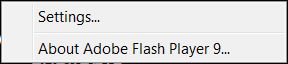
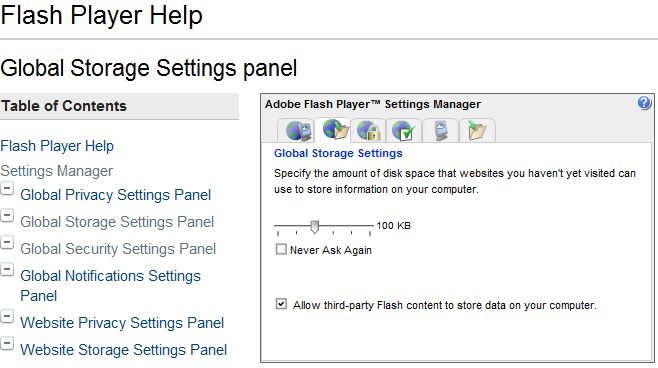
  2. Click on the Flash video to activate the Flash plugin (only on SP2 or above), then right click on video to display the Flash properties menu.Adobe Flash Settings
  3. Click on “Settings” on contextual menu, then click the “Advanced…” button.Adobe Flash Advanced Settings
  4. A new web page window will launch loading Adobe – Flash Player – Manager. On the left pane, click on “Global Storage Settings Panel” link under “Flash Player Help Settings Manager” sub-section under “Table of Contents” section.
  5. A Adobe Flash Player Settings Manager applet will load on the right pane as a Flash object. Check (tick) the “Allow third-party Flash content to store data on your computer” checkbox so that it’s checked. The settings should be auto-save, if the setting is not saved, try to close all Internet Explorer or Firefox web browser windows and launch the Flash Manager to set the option again.Flash Global Storage Settings
  6. Try to play Flash video. The sound should be played properly.

Exchange best practices analyzer asking to install dotnet frame work 1.1 and after install owa is not working

Basically, you (or the software you were installing) switched your IIS site where OWA is installed into either a 32bit mode or ASP.NET 1.1. Since Exchange 2007 Outlook Web Access 2007 only runs on ASP.NET 2.0 in 64bit mode, you need to fix it back.

First, disable the 32bit mode for your web site. By default OWA goes into the Default Web Site context (0) so the following will take care of that:

cscript C:\inetpub\adminscripts\adsutil.vbs SET W3SVC/AppPools/Enable32bitAppOnWin64 0

Second, register ASP.NET 2.0 as the default framework for that web site:

C:\Windows\Microsoft.NET\Framework64\v2.0.50727>
aspnet_regiis.exe -i
Start installing ASP.NET (2.0.50727).
……………………………….
Finished installing ASP.NET (2.0.50727)

Restart IIS and you should be all set.