My ESET firewall is blocking the HomeGroup feature in Windows 7. How do I fix it?

If the Windows 7 HomeGroup feature is having difficulty connecting to other users, your ESET Smart Security Perasonal firewall may be blocking the connection. To allow HomeGroup connectivity, you will need to create rules on every computer protected by the ESET Smart Security firewall on the network.

  1. Open the main program window by clicking the ESET icon  next to the system clock or by clicking Start → All Programs → ESET → ESET Smart Security.
  2. If you see Display: Standard mode in the lower left corner, switch to Advanced mode by clicking Change… or by pressing CTRL + M on your keyboard.
  3. Click Setup → Personal firewall in the main menu on the left and then click Switch to interactive filtering mode in the Personal firewall area.                                                                                                                                                      
  4. Attempt to connect to other computers in your HomeGroup. Your ESET Personal firewall will prompt you to allow or deny each connection that is not defined by an existing rule. To create the rules you need, select the Remember action (create rule) option in the dialog window.

.

When you have created the rules you need, set the Personal firewall to Automatic mode with exceptions: While in the Advanced mode display, click Setup → Personal firewall (see steps 1-3) and then click Switch to automatic filtering mode with exceptions

The Personal firewall will now function as it would in Automatic mode, while maintaining the specific exceptions (rules) that you defined for problematic applications in Interactive mode. For advanced troubleshooting information on blocked connections in the Personal firewall, click here.

Settings are password protected How to Remove ESET Smart Security and ESET NOD32 Antivirus 3.x)


http://www.eset.eu/knowledge-base/settings-are-password-protected

PROBLEM:
When I try to access the settings, the program asks for a password. What should I do?

SOLUTION:
Such notification is displayed when the ESET NOD32 Antivirus (or ESET Smart Security) program settings are password-protected. The password serves as a protection against incidental or unauthorized changes.  If you don’t know the password, ask the person who set it to give it to you – if it is a company network, ask your network administrator. In the event that you created the password and later forgot it, ESET has created an Unlock Utility to remove the administrative password and restore your access to the configuration settings. Please follow the instructions below to use the ESET Unlock Utility:

  1. Save the program unlockv3.exe to your local harddisk.
  2. Run program unlockv3.exe (double-click on the file icon) – a new window displays on the desktop.
  3. Send us the ID number that displays via e-mail to [email protected] together with your username and password that was sent to you after the purchase (for verification). If you don’t know your username and password, it is possible to have them sent. (More detailed info here ).
  4. Close the window by clicking on the Quit button.
  5. Wait for your UNLOCK CODE – it will be sent back to your e-mail address.
  6. When you receive the e-mail with your UNLOCK CODE, run unlockv3.exe again. (in Windows Vista, please make sure you run it under an administrator account).
  7. Insert the UNLOCK CODE into the “UNLOCK CODE” dialog box (please enter the code correctly).
  8. Click on the “Unlock” button.
  9. Click on the Quit button.

Program parameters should be unlocked now. 

How do I reset the ESET Remote Administrator Console password? (3.1.11)

KB Solution ID: SOLN741|Last Revised: October 01, 2009

ESET Remote Administrator (ERA) should be installed on a computer which is accessible by system or network administrators only. The information in this article is intended for such users.

The ESET Remote Administrator Console (ERAC) password is used to prevent unauthorized changes to the ESET Remote Administrator Server (ERAS) settings. By default, this password is blank (If no password has been created, leave the Password field blank and click OK when prompted). However, if a previously created password has been lost or forgotten, the password can be reset. Please follow the steps below to remove the ERAC password:


NOTE: Confirm that you can see hidden files and folders by  clicking Start → Control Panel → Appearance and Personalizations → Show hidden files and folders under Folder Options and select the Show hidden files and folders option. 

Windows XP:

  1. Click Start Run and type:

    C:\Documents and Settings\All Users\Application Data\ESET\ESET Remote Administrator\Server\configuration
     

  2. Click OK. Right-click the era_private.xml file and choose Open With Wordpad. 


  3. Remove the entire line containing ‘ps_password_hash_con’. Close and save the file.


  • Restart the ESET Remote Administrator Server service.
     
  • You will now be able to open ERAC without entering a password (When prompted for a password, leave it blank and click OK).
  • Windows Vista:

    1. Click Start Run and type:

      C:\Program Data\ESET\ESET Remote Administrator\Server\configuration
       

    2. Click OK. Right-click the era_private.xml file and choose Open With Wordpad.

    3. Remove the entire line containing ‘ps_password_hash_con’. Close and save the file.
       
    4. Restart the ESET Remote Administrator Server service.
       
    5. You will now be able to open ERAC without entering a password (When prompted for a password, leave it blank and click OK).

    NOTE: If you wish to set a new password for ERAC, click Tools → Server Options, and click the Security tab. Click the Change… button to the right of Password for Console.

    How to restore default .EXE file association?

    When you use the Open With dialog to associate .exe files with another application, the settings are stored in the following registry key:

    HKEY_CURRENT_USER \ Software \ Microsoft \ Windows \ CurrentVersion \ Explorer \ FileExts \ .exe \ UserChoice

    There will be a value named Progid in the right pane. The Progid data will contain the application’s exe file name (Applications\Notepad.exe, Applications\IExplore.exe, or a Programatic Identifier such as txtfile, jpegfile etc).

    Note that despite this problem, you should be able to launch applications by double-clicking on the data files. For example, with the above setting, you should be able to launch Microsoft Word application by double-clicking on a .doc file, but not by running Winword.exe directly.)

    Registry fix

    To fix the problem, you need to delete the UserChoice key above using a REG file or a script. Download exefix_cu.reg attached at the end of this article, and save it to Desktop. Right-click on the REG file and choose Merge.

    For other file types

    To undo the Open With setting for other file types, the registry location is the same. (Replace the text .exe in the above registry key with the actual file extension).

    Example:

    HKEY_CURRENT_USER \ Software \ Microsoft \ Windows \ CurrentVersion \ Explorer \ FileExts \ .xyz \ UserChoice

    Where .xyz is the file extension for which you want to undo the Open With action.

    Download file : https://kapothi.com/wp-content/uploads/2009/10/exefix_cu.reg

    How do I display the ESET icon in my Windows 7 system tray (next to the system clock)?

    How do I display the ESET icon in my Windows 7 system tray (next to the system clock)?

    KB Solution ID: SOLN2350|Last Revised: October 22, 2009

    By default, Windows 7 will not display your ESET security product’s icon in the Windows notification area (system tray). To place the icon next to your system clock, follow the steps below:

    1. Click the small up arrow next to the system clock in the bottom-right corner of your screen. 
    2. Click Customize… from the context menu.
    3. Find the ESET GUI listing, and select Show icons and notifications from the drop-down menu on the right.

    4. Click OK.  Your ESET icon will now be displayed in the system tray at all times.

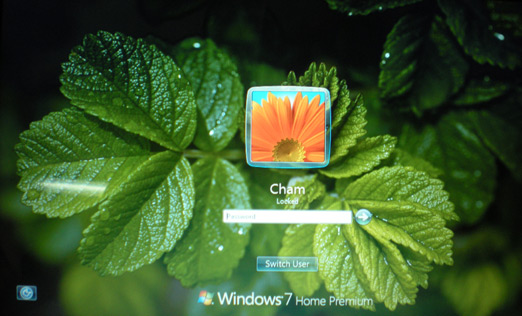
    How to Customize / Change Windows 7 Logon Background Wallpaper Screen

    you can now officially change Windows 7 Build 7057 login UI background. Windows 7 now supports the ability to load images into the background of the login screen without the use of third-party software or manual hacks.

    cham_customized_windows7_screen

    Steps to Change Windows 7 Build 7057 Logon Background Image

    1. press win+r key and Type Regedit at run prompt

    2. Locate following registry key

    HKLM\Software\Microsoft\Windows\CurrentVersion\Authentication\LogonUI\Background

    3. Now in right-side pane, change value of OEMBackground to 1.

    (if u cant find OEMBackground value creat a new DWORD value in right side pane)

    4. Create a new folder name “info” and “backgrounds” within oobe folder

    Folder path should look like this %windir%\System32\oobe\info\backgrounds

    5. Now place your desired logon wallpaper within this background folder with file name as backgroundDefault.jpg

    Images Name with resolutions

    backgroundDefault.jpg

    background768×1280.jpg (0.6)

    background900×1440.jpg (0.625)

    background960×1280.jpg (0.75)

    background1024×1280.jpg (0.8)

    background1280×1024.jpg (1.25)

    background1024×768.jpg (1.33-)

    background1280×960.jpg (1.33-)

    background1600×1200.jpg (1.33-)

    background1440×900.jpg (1.6)

    background1920×1200.jpg (1.6)

    background1280×768.jpg (1.66-)

    background1360×768.jpg (1.770833-)

    Please NOTE: Images must be less than 256kb in size

    The backgroundDefault.jpg image is loaded and stretched-to-fit when a resolution/ratio specific background cannot be found.

    ESET NOD32 Antivirus installation error codes (Windows)

    KB Solution ID: SOLN177|Last Revised: June 08, 2009

     When installing ESET NOD32 Antivirus for Windows, several different error codes may be encountered. See the list below for descriptions of potential installation errors.

    Error 

    Meaning 
    101 administration rights required
    102 no configuration file specified
    103 lack of memory
    104 old version of the Operating System
    105 cannot create a temporary folder for extracting the installation files
    106 error extracting files
    107 internal program error
    108 attempting to overinstall with an older component
    109 internal program error
    110 internal program error
    111 cannot create a file on the disk
    112 internal program error
    113 internal program error
    114 SETUP.XML file damaged or missing; error can also be caused by Norton still being present
    115 the current version is not compatible with the old version (you need to uninstall the old version)
    116 error writing to the operating system registry
    117 upgrade required (installation failed)
    118 attempting to overinstall with a different language version (uninstall the previous version first)
    119 corrupt uninstall file
    120 registering service error
    121 component installation error
    122 cannot install a cetrain component to the computer
    123 attempting to install the trial version again errror
    124 wrong Operating System, the installation is intended for:
    Windows NT/2000/XP/2003 Operating System
    125 wrong Operating System, the installation is intended for:
    – Windows 95/98/ME Operating System


    To help determine the cause of a failed installation, run the install file (setup.exe file) with the /TEST parameter (i.e., setup.exe/test). A detailed description of the installation progress, along with possible error messages, will be saved in the C:\Program Files\Eset\Install\nsetup.txt file.

    Send the nsetup.txt file to our technical support lab at the address supplied by our support team. Our experts will help you to solve your problem. For detailed information on running the install file with the /TEST parameter, click here. To create a new case using our Customer Care Support Form, click here.

    Copy the names in AutoComplete to another computer

    Important You must exit Outlook before starting the following procedure. The names will be included in AutoComplete when you restart Outlook.

    On the computer with the saved AutoComplete names, go to drive:\Documents and Settings\user name\Application Data\Microsoft\Outlook.

    Note Depending on your file settings, this folder might be hidden. To view the files in this folder, do one of the following:

    Microsoft Windows XP

    1. Click Start, and then click My Computer.
    2. On the Tools menu, click Folder Options.
    3. Click the View tab, and then, under Advanced settings, under Hidden files and folders, click Show hidden files and folders.

      Microsoft Windows 2000

      1. Double-click My Computer on your desktop.
      2. On the Tools menu, click Folder Options.
      3. Click the View tab, and then click Show hidden files and folders.

    1. Right-click profile name.nk2, and then click Copy.Tip You can copy the file to removable media, such as a floppy disk or a CD, and then copy the file to the correct location on the other computer. Or you can attach the file to an e-mail message and send the message to yourself. On the new computer, open the attachment in Outlook, and then save it to the correct location.
    2. On the computer where you want to populate the AutoComplete feature, copy the file to drive:\Documents and Settings\user name\Application Data\Microsoft\Outlook.
    3. If the Outlook user profile name is different on the computer where you are moving the .nk2 file, you must rename the file with the same Outlook user profile name after you copy it to the correct folder. For example, if you move Kim Akers.nk2 from the original computer with an Outlook user profile name of Kim Akers, and you copy the Kim Akers.nk2 file to the new computer, you must rename it with the Outlook profile name being used on the new computer.
    4. When prompted about replacing the existing file, click Yes.
    5. Open Outlook to view changes.

    How to turn on automatic logon in Windows XP

    If you set a computer for automatic logon, anyone who can physically gain access to the computer can also gain access to everything that is on the computer, including any network or networks that the computer is connected to. Additionally, if you turn on automatic logon, the password is stored in the registry in plain text. The specific registry key that stores this value is remotely readable by the Authenticated Users group. Therefore, only use this setting if the computer is physically secured and if you make sure that users who you do not trust cannot remotely see the registry.

    You can use Registry Editor to add your log on information. To do this, follow these steps:

    1. Click Start, click Run, type regedit, and then click OK.
    2. Locate the following registry key:
      HKEY_LOCAL_MACHINE\SOFTWARE\Microsoft\Windows NT\CurrentVersion\Winlogon
    3. Using your account name and password, double-click the DefaultUserName entry, type your user name, and then click OK.
    4. Double-click the DefaultPassword entry, type your password under the value data box, and then click OK.

      If there is no DefaultPassword value, create the value. To do this, follow these steps:

      1. In Registry Editor, click Edit, click New, and then click String Value.
      2. Type DefaultPassword as the value name, and then press ENTER.
      3. Double-click the newly created key, and then type your password in the Value Data box.

      If no DefaultPassword string is specified, Windows XP automatically changes the value of the AutoAdminLogon registry key from 1 (true) to 0 (false) to turn off the AutoAdminLogon feature.

    5. Double-click the AutoAdminLogon entry, type 1 in the Value Data box, and then click OK.

      If there is no AutoAdminLogon entry, create the entry. To do this, follow these steps:

      1. In Registry Editor, click Edit, click New, and then click String Value.
      2. Type AutoAdminLogon as the value name, and then press ENTER.
      3. Double-click the newly created key, and then type 1 in the Value Data box.
    6. Quit Registry Editor.
    7. Click Start, click Restart, and then click OK.

    After your computer restarts and Windows XP starts, you can log on automatically.

    If you want to bypass the automatic logon to log on as a different user, hold down the SHIFT key after you log off or after Windows XP restarts. Note that this procedure applies only to the first logon. To enforce this setting for future logoffs, the administrator must set the following registry key:

    HKEY_LOCAL_MACHINE\SOFTWARE\Microsoft\Windows NT\CurrentVersion\Winlogon

    Value:ForceAutoLogon
    Type: REG_SZ
    Data: 1

    You can also use turn on automatic logon without editing the registry in Microsoft Windows XP Home Edition and in Microsoft Windows XP Professional on a computer that is not joined to a domain. To do this, follow these steps:

    1. Click Start, and then click Run.
    2. In the Open box, type control userpasswords2, and then click OK.

      Note When users try to display help information in the User Accounts window in Windows XP Home Edition, the help information is not displayed. Additionally, users receive the following error message:

      Cannot find the Drive:\Windows\System32\users.hlp Help file. Check to see that the file exists on your hard disk drive. If it does not exist, you must reinstall it.
    3. Clear the “Users must enter a user name and password to use this computer” check box, and then click Apply.
    4. In the Automatically Log On window, type the password in the Password box, and then retype the password in the Confirm Password box.
    5. Click OK to close the Automatically Log On window, and then click OK to close the User Accounts window.

    APPLIES TO
    • Microsoft Windows XP Home Edition
    • Microsoft Windows XP Professional
    • Microsoft Windows XP Professional x64 Edition