
Merging two AVI (DivX) files using VirtualDub

divx

Ever had that urge to merge 2 video’s ? For example you converted your favorite DVD to AVI and every VOB is converted seperatly ? Well, then this might be helpfull for you; Merging the files…

For this we need VirtualDub by Avery Lee, you can it at the VirtualDub site. Download it and install it. For additional info take also a look at the VirtualDub page on this website.

Now the process is pretty straight forward.

You can only merge files to one file at a time. So if you have more than 2 files to merge then first merge file A and B.

Just for example purposes, let’s say we have these files A, B, C and D. And we would like to merge these to file ABCD.

Step 1. Merge file A and B, let’s call this merged file AB.
Step 2. Merge file AB and C, let’s call this ABC.
Finally merge ABC with file D.

Note: all files merged MUST to be of EXACTLY the same format !


1. open VirtualDub.

2. Select “File” – “Open video file…” (or just press CTRL+O) and select the first file you want to have for your merge (in our example: file A).

3. Select “Video” and click on “Direct Stream Copy“.

4. Select “File” – “Append video segment” -> if the file formats don’t match, VirtualDub will warn you.

5. Select “File” – “Save AVI” (or press F7)

6. If you have more than 2 files to merge, then select “File” – “Close video file” and repeat step 2 to 6 until you have merged all files.

Note: Simply useing the copy command (DOS or Windows Command Shell) will not work since the AVI header does not contain the proper timecode anymore. The mergefile will be bigger, but at the end of the first AVI the movie will halt.
Delete and Disable Recent Items from All Windows 7 Jumplists

Jumplists are among the most useful new features present in Windows 7. However, they can be a cause of concern for the privacy concious. The jumplist for most applications display recently opened files and/or frequently opened files. It is fairly easy to get an idea about what you have been up to, by just glancing at the jumplist entries. Unfortunately for users, how to disable this feature isn’t very obvious. In this article I will show you how to delete Recent items as well as permanently disable this feature.

How to Clear Recent Items List

win7_jmp

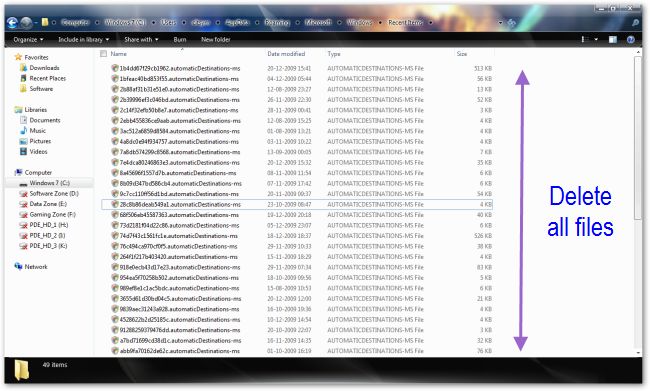
Windows stores the Recent items list at the location

%APPDATA\Microsoft\Windows\Recent\AutomaticDestinations. Paste this path in Windows explorer and hit enter.
Simply delete all the files present in this directory to reset the jumplist for all applications.

How to Disable Recent Items in Jumplists

win7_jmp_d

Right click on an empty portion of the taskbar and select Properties from the context-menu. Browse to the Start Menu tab and uncheck the box next to “Store and Display Recently opened items in the Start menu and the taskbar“. This should make Recent items disappear from the jumplists.

Eset Standalone malware removal tools

servers_tabs[1]
ESET security products automatically identify and clean the majority of infected files. Occationally, infiltrations require a special removal tool to completely clean the system. ESET provides tools to remove particularly resilient threats, including rogue antivirus programs and malware.

If you are experiencing trouble removing one of the following viruses, you can download the relevant malware removal tool from below link :

http://kb.eset.com/esetkb/index?page=content&id=SOLN2372&actp=LIST_RECENT

Google Introduce – Google Public DNS

What is Google Public DNS?

Google Public DNS is a free, global Domain Name System (DNS) resolution service, that you can use as an alternative to your current DNS provider.

To try it out:

  • Configure your network settings to use the IP addresses 8.8.8.8 and 8.8.4.4 as your DNS servers or
  • Read our configuration instructions.

If you decide to try Google Public DNS, your client programs will perform all DNS lookups using Google Public DNS.


Why does DNS matter?

The DNS protocol is an important part of the web’s infrastructure, serving as the Internet’s phone book: every time you visit a website, your computer performs a DNS lookup. Complex pages often require multiple DNS lookups before they start loading, so your computer may be performing hundreds of lookups a day.


Why should you try Google Public DNS?

By using Google Public DNS you can: