All posts by Kapuwa

Merging two AVI (DivX) files using VirtualDub

divx

Ever had that urge to merge 2 video’s ? For example you converted your favorite DVD to AVI and every VOB is converted seperatly ? Well, then this might be helpfull for you; Merging the files…

For this we need VirtualDub by Avery Lee, you can it at the VirtualDub site. Download it and install it. For additional info take also a look at the VirtualDub page on this website.

Now the process is pretty straight forward.

You can only merge files to one file at a time. So if you have more than 2 files to merge then first merge file A and B.

Just for example purposes, let’s say we have these files A, B, C and D. And we would like to merge these to file ABCD.

Step 1. Merge file A and B, let’s call this merged file AB.
Step 2. Merge file AB and C, let’s call this ABC.
Finally merge ABC with file D.

Note: all files merged MUST to be of EXACTLY the same format !


1. open VirtualDub.

2. Select “File” – “Open video file…” (or just press CTRL+O) and select the first file you want to have for your merge (in our example: file A).

3. Select “Video” and click on “Direct Stream Copy“.

4. Select “File” – “Append video segment” -> if the file formats don’t match, VirtualDub will warn you.

5. Select “File” – “Save AVI” (or press F7)

6. If you have more than 2 files to merge, then select “File” – “Close video file” and repeat step 2 to 6 until you have merged all files.

Note: Simply useing the copy command (DOS or Windows Command Shell) will not work since the AVI header does not contain the proper timecode anymore. The mergefile will be bigger, but at the end of the first AVI the movie will halt.

Delete and Disable Recent Items from All Windows 7 Jumplists

Jumplists are among the most useful new features present in Windows 7. However, they can be a cause of concern for the privacy concious. The jumplist for most applications display recently opened files and/or frequently opened files. It is fairly easy to get an idea about what you have been up to, by just glancing at the jumplist entries. Unfortunately for users, how to disable this feature isn’t very obvious. In this article I will show you how to delete Recent items as well as permanently disable this feature.

How to Clear Recent Items List

win7_jmp

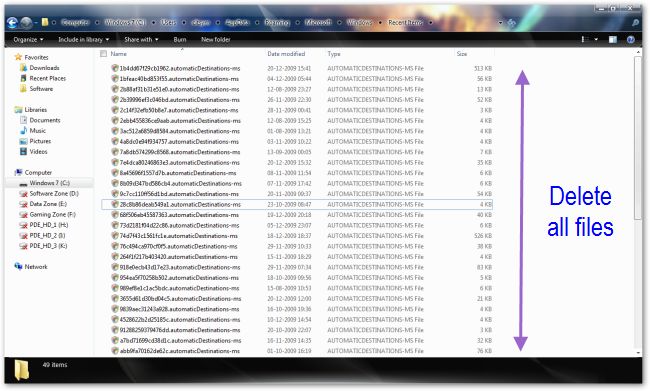
Windows stores the Recent items list at the location

%APPDATA\Microsoft\Windows\Recent\AutomaticDestinations. Paste this path in Windows explorer and hit enter.
Simply delete all the files present in this directory to reset the jumplist for all applications.

How to Disable Recent Items in Jumplists

win7_jmp_d

Right click on an empty portion of the taskbar and select Properties from the context-menu. Browse to the Start Menu tab and uncheck the box next to “Store and Display Recently opened items in the Start menu and the taskbar“. This should make Recent items disappear from the jumplists.

Google Introduce – Google Public DNS

What is Google Public DNS?

Google Public DNS is a free, global Domain Name System (DNS) resolution service, that you can use as an alternative to your current DNS provider.

To try it out:

  • Configure your network settings to use the IP addresses 8.8.8.8 and 8.8.4.4 as your DNS servers or
  • Read our configuration instructions.

If you decide to try Google Public DNS, your client programs will perform all DNS lookups using Google Public DNS.


Why does DNS matter?

The DNS protocol is an important part of the web’s infrastructure, serving as the Internet’s phone book: every time you visit a website, your computer performs a DNS lookup. Complex pages often require multiple DNS lookups before they start loading, so your computer may be performing hundreds of lookups a day.


Why should you try Google Public DNS?

By using Google Public DNS you can:

Office 2007 Breaks Spell Check: French Only

  1. Run Setup from another Office installation disk.
  2. Select “Custom Install”.
  3. You’ll have to insert your Product Key.
  4. Turn Off ALL of the product installations. (Right-Click icon and select “Not Available”)
  5. Under “Office Shared Features”, set “Proofing Tools” to “Run all from My Computer”  This should install the English, French, and Spanish dictionaries.  English alone would probably solve the problem,Still have the problem?? if yes install windows live mail to fix the issue for more info pls visit
    http://support.microsoft.com/kb/932974

Still no luck??? download install spelloe_setup and restart ur pc.

How to Customize / Change Windows 7 Logon Background Wallpaper Screen

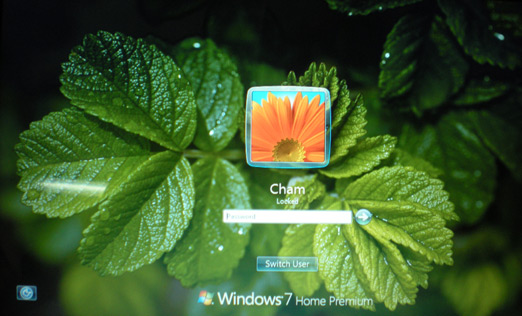
you can now officially change Windows 7 Build 7057 login UI background. Windows 7 now supports the ability to load images into the background of the login screen without the use of third-party software or manual hacks.

cham_customized_windows7_screen

Steps to Change Windows 7 Build 7057 Logon Background Image

1. press win+r key and Type Regedit at run prompt

2. Locate following registry key

HKLM\Software\Microsoft\Windows\CurrentVersion\Authentication\LogonUI\Background

3. Now in right-side pane, change value of OEMBackground to 1.

(if u cant find OEMBackground value creat a new DWORD value in right side pane)

4. Create a new folder name “info” and “backgrounds” within oobe folder

Folder path should look like this %windir%\System32\oobe\info\backgrounds

5. Now place your desired logon wallpaper within this background folder with file name as backgroundDefault.jpg

Images Name with resolutions

backgroundDefault.jpg

background768×1280.jpg (0.6)

background900×1440.jpg (0.625)

background960×1280.jpg (0.75)

background1024×1280.jpg (0.8)

background1280×1024.jpg (1.25)

background1024×768.jpg (1.33-)

background1280×960.jpg (1.33-)

background1600×1200.jpg (1.33-)

background1440×900.jpg (1.6)

background1920×1200.jpg (1.6)

background1280×768.jpg (1.66-)

background1360×768.jpg (1.770833-)

Please NOTE: Images must be less than 256kb in size

The backgroundDefault.jpg image is loaded and stretched-to-fit when a resolution/ratio specific background cannot be found.

Copy the names in AutoComplete to another computer

Important You must exit Outlook before starting the following procedure. The names will be included in AutoComplete when you restart Outlook.

On the computer with the saved AutoComplete names, go to drive:\Documents and Settings\user name\Application Data\Microsoft\Outlook.

Note Depending on your file settings, this folder might be hidden. To view the files in this folder, do one of the following:

Microsoft Windows XP

  1. Click Start, and then click My Computer.
  2. On the Tools menu, click Folder Options.
  3. Click the View tab, and then, under Advanced settings, under Hidden files and folders, click Show hidden files and folders.

    Microsoft Windows 2000

    1. Double-click My Computer on your desktop.
    2. On the Tools menu, click Folder Options.
    3. Click the View tab, and then click Show hidden files and folders.

  1. Right-click profile name.nk2, and then click Copy.Tip You can copy the file to removable media, such as a floppy disk or a CD, and then copy the file to the correct location on the other computer. Or you can attach the file to an e-mail message and send the message to yourself. On the new computer, open the attachment in Outlook, and then save it to the correct location.
  2. On the computer where you want to populate the AutoComplete feature, copy the file to drive:\Documents and Settings\user name\Application Data\Microsoft\Outlook.
  3. If the Outlook user profile name is different on the computer where you are moving the .nk2 file, you must rename the file with the same Outlook user profile name after you copy it to the correct folder. For example, if you move Kim Akers.nk2 from the original computer with an Outlook user profile name of Kim Akers, and you copy the Kim Akers.nk2 file to the new computer, you must rename it with the Outlook profile name being used on the new computer.
  4. When prompted about replacing the existing file, click Yes.
  5. Open Outlook to view changes.

How to turn on automatic logon in Windows XP

If you set a computer for automatic logon, anyone who can physically gain access to the computer can also gain access to everything that is on the computer, including any network or networks that the computer is connected to. Additionally, if you turn on automatic logon, the password is stored in the registry in plain text. The specific registry key that stores this value is remotely readable by the Authenticated Users group. Therefore, only use this setting if the computer is physically secured and if you make sure that users who you do not trust cannot remotely see the registry.

You can use Registry Editor to add your log on information. To do this, follow these steps:

  1. Click Start, click Run, type regedit, and then click OK.
  2. Locate the following registry key:
    HKEY_LOCAL_MACHINE\SOFTWARE\Microsoft\Windows NT\CurrentVersion\Winlogon
  3. Using your account name and password, double-click the DefaultUserName entry, type your user name, and then click OK.
  4. Double-click the DefaultPassword entry, type your password under the value data box, and then click OK.

    If there is no DefaultPassword value, create the value. To do this, follow these steps:

    1. In Registry Editor, click Edit, click New, and then click String Value.
    2. Type DefaultPassword as the value name, and then press ENTER.
    3. Double-click the newly created key, and then type your password in the Value Data box.

    If no DefaultPassword string is specified, Windows XP automatically changes the value of the AutoAdminLogon registry key from 1 (true) to 0 (false) to turn off the AutoAdminLogon feature.

  5. Double-click the AutoAdminLogon entry, type 1 in the Value Data box, and then click OK.

    If there is no AutoAdminLogon entry, create the entry. To do this, follow these steps:

    1. In Registry Editor, click Edit, click New, and then click String Value.
    2. Type AutoAdminLogon as the value name, and then press ENTER.
    3. Double-click the newly created key, and then type 1 in the Value Data box.
  6. Quit Registry Editor.
  7. Click Start, click Restart, and then click OK.

After your computer restarts and Windows XP starts, you can log on automatically.

If you want to bypass the automatic logon to log on as a different user, hold down the SHIFT key after you log off or after Windows XP restarts. Note that this procedure applies only to the first logon. To enforce this setting for future logoffs, the administrator must set the following registry key:

HKEY_LOCAL_MACHINE\SOFTWARE\Microsoft\Windows NT\CurrentVersion\Winlogon

Value:ForceAutoLogon
Type: REG_SZ
Data: 1

You can also use turn on automatic logon without editing the registry in Microsoft Windows XP Home Edition and in Microsoft Windows XP Professional on a computer that is not joined to a domain. To do this, follow these steps:

  1. Click Start, and then click Run.
  2. In the Open box, type control userpasswords2, and then click OK.

    Note When users try to display help information in the User Accounts window in Windows XP Home Edition, the help information is not displayed. Additionally, users receive the following error message:

    Cannot find the Drive:\Windows\System32\users.hlp Help file. Check to see that the file exists on your hard disk drive. If it does not exist, you must reinstall it.
  3. Clear the “Users must enter a user name and password to use this computer” check box, and then click Apply.
  4. In the Automatically Log On window, type the password in the Password box, and then retype the password in the Confirm Password box.
  5. Click OK to close the Automatically Log On window, and then click OK to close the User Accounts window.

APPLIES TO
  • Microsoft Windows XP Home Edition
  • Microsoft Windows XP Professional
  • Microsoft Windows XP Professional x64 Edition

How to Minimize Windows Live Messenger to System Tray in Windows 7

Windows 7 has one of the major changes in UI in the form of task bar which is called Super taskbar. Windows Live Messenger or any other IM clients generally minimizes to system tray in Windows Vista, but in Windows 7, even when minimized it stays in the task bar. If you feel the task bar gets crowded with icons, you can minimize messengers to system tray using the simple hack.

1. First close any running instances of Windows Live Messenger and then open Program files-> Windows  Live-> Messenger folder

2. Here you can find msnmgsr.exe file. Right click on the file and select properties.

3. In the properties window, select compatibility tab. Tick the check box for Run this program in compatibility mode for under “Compatibility Mode”, and then select Windows Vista from the drop down list.

image242

4. Click OK and now sign in back to Windows Live Messenger. Now if you minimize (or click X) the messenger, it goes to system tray.