All posts by Kapuwa

How to Create a Windows 7 Reliablity Monitor Shortcut

thumb_Action_Center

This will allow you to download a Reliability Monitor shortcut that will open Windows 7 Reliability Monitor directly instead of having to go through the Action Center.

Here’s How:

1. Click on the download button below to download the Reliability_Monitor.zip file.

download

2. Click on Save, and save the .zip file to the desktop.

3. Open the .zip file and extract the Reliability Monitor shortcut to the desktop.

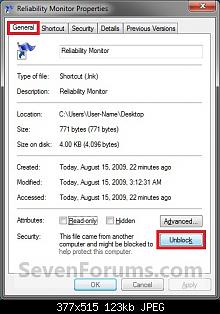
4. Right click on the Reliability Monitor shortcut, and click on Properties, General tab, and on the Unblock button. (See screenshot below)
NOTE: If you do not have a Unblock button under the General tab, then the shortcut is already unblocked and you can continue on to step 5.

Unblock

5. Move the Reliability Monitor shortcut to where you like for easy use.
NOTE: See the yellow TIP box at the top of the tutorial for about how to pin it to the taskbar if you like.

6. When done, you can delete the downloaded .zip file on the desktop if you like, or save it to use again.

Steps to change the volume licensing product key – Windows Xp

Steps to change the volume licensing product key

This article describes two methods for how to change the Windows XP product key after a Volume Licensing installation to resolve the issue. One method uses the Windows Activation Wizard graphical user interface (GUI) and the other method uses a Windows Management Instrumentation (WMI) script. The Activation Wizard method is easier. However, if you must change the product key for multiple computers, the script method is more suitable.

Method 1: Use the Activation Wizard

Important This section, method, or task contains steps that tell you how to modify the registry. However, serious problems might occur if you modify the registry incorrectly. Therefore, make sure that you follow these steps carefully. For added protection, back up the registry before you modify it. Then, you can restore the registry if a problem occurs. For more information about how to back up and restore the registry, click the following article number to view the article in the Microsoft Knowledge Base:

322756  (http://support.microsoft.com/kb/322756/ ) How to back up and restore the registry in Windows

If you only have a few volume licensing product keys to change, you can use the Activation Wizard.

Note We recommend that you run System Restore to create a new restore point before you follow these steps.

Deactivate Windows

  1. Click Start, and then click Run.
  2. In the Open box, type regedit, and then click OK.
  3. In the navigation pane, locate and then click the following registry key:
    HKEY_LOCAL_MACHINE\Software\Microsoft\WindowsNT\Current Version\WPAEvents
  4. In the topic pane, right-click OOBETimer, and then click Modify.
  5. Change at least one digit of this value to deactivate Windows.
Reactivate Windows and add new product key

  1. Click Start, and then click Run.
  2. In the Open box, type the following command, and then click OK.
    %systemroot%\system32\oobe\msoobe.exe /a
  3. Click Yes, I want to telephone a customer service representative to activate Windows, and then click Next.
  4. Click Change Product key.
  5. Type the new product key in the New key boxes, and then click Update.

    If you are returned to the previous window, click Remind me later, and then restart the computer.

  6. Repeat steps 1 and 2 to verify that Windows is activated. You receive the following message:
    Windows is already activated. Click OK to exit.
  7. Click OK.
  8. Install Windows XP Service Pack 1a or a later version of Windows XP.

If you cannot restart Windows after you install Windows XP SP1 or a later version of Windows XP, try the following steps:

  1. Restart your computer and start pressing F8 until you see the Windows Advanced Options menu.
  2. Select Last Known Good Configuration from the menu and press ENTER. This option starts Windows by using a previous good configuration.
  3. Repeat steps 1 through 8 under “Reactivate Windows and add new product key.”

If you can install SP1 or a later version of Windows XP and you can restart Windows, you have resolved the issue. If the issue has not been resolved, try method 2 or see the “Next Steps” section for more troubleshooting resources.


Solution to Fix Youtube or Other Embedded Flash Video No Sound in External Websites

youtubenosound

A video plays fine and properly when played directly in originating video sharing and hosting sites Youtube, MetaCafe, Google Video, CNet Videos, DailyMotion, iFilm, and Revver themselves, complete with the sound heard nicely. However, the audio is lost and no sound is heard when the Flash video is played on another third party or external sites or blogs that embedded these Youtube and other sites’ videos, although the video still moving. The symptom happens when users computers is using Flash 8 or 9, and uninstalling and reinstalling Adobe Flash Player won’t help.

Here is a simple solution to fix the problem that embedded flash video from Youtube, Google Video, Daily Motion, Revver, iFilm and Metacafe on third party websites or blogs failed to play sound and audio.

  1. Visit a web page with a Flash video embedded on the page.
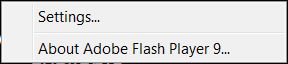
  2. Click on the Flash video to activate the Flash plugin (only on SP2 or above), then right click on video to display the Flash properties menu.Adobe Flash Settings
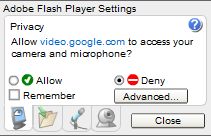
  3. Click on “Settings” on contextual menu, then click the “Advanced…” button.Adobe Flash Advanced Settings
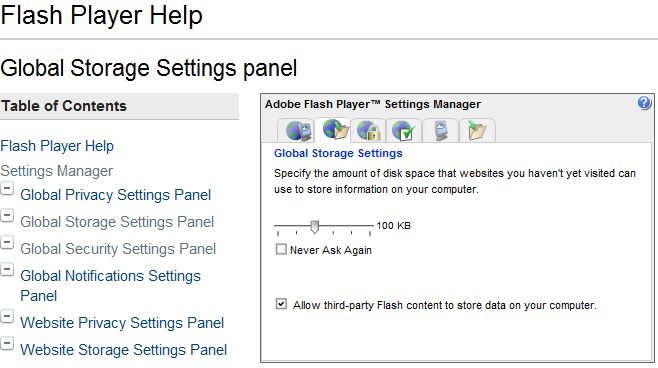
  4. A new web page window will launch loading Adobe – Flash Player – Manager. On the left pane, click on “Global Storage Settings Panel” link under “Flash Player Help Settings Manager” sub-section under “Table of Contents” section.
  5. A Adobe Flash Player Settings Manager applet will load on the right pane as a Flash object. Check (tick) the “Allow third-party Flash content to store data on your computer” checkbox so that it’s checked. The settings should be auto-save, if the setting is not saved, try to close all Internet Explorer or Firefox web browser windows and launch the Flash Manager to set the option again.Flash Global Storage Settings
  6. Try to play Flash video. The sound should be played properly.

Exchange best practices analyzer asking to install dotnet frame work 1.1 and after install owa is not working

Basically, you (or the software you were installing) switched your IIS site where OWA is installed into either a 32bit mode or ASP.NET 1.1. Since Exchange 2007 Outlook Web Access 2007 only runs on ASP.NET 2.0 in 64bit mode, you need to fix it back.

First, disable the 32bit mode for your web site. By default OWA goes into the Default Web Site context (0) so the following will take care of that:

cscript C:\inetpub\adminscripts\adsutil.vbs SET W3SVC/AppPools/Enable32bitAppOnWin64 0

Second, register ASP.NET 2.0 as the default framework for that web site:

C:\Windows\Microsoft.NET\Framework64\v2.0.50727>
aspnet_regiis.exe -i
Start installing ASP.NET (2.0.50727).
……………………………….
Finished installing ASP.NET (2.0.50727)

Restart IIS and you should be all set.

The security database on the server does not have a computer account for this workstation trust relationship

Error : “The security database on the server does not have a computer account for this workstation trust relationship” on Windows Vista with sp1

What to check

1

Make sure your computer account is not disabled in Active Directory users and computers

2

Check
configuration/administrative templates/network/dns client/primary DNS suffix in GPO and make sure its correct or defined

3

A) Start > Run > ADSIEDIT.MSC
B) Go to Domain Partition and mark the affected computer
C) Rightclick and Properties.
D) Doubleclick ServicePrincipalName
E) Add new value: HOST/yourcomputername.yourdomain.xyz or whatever HOST is missing.

To use the Exchange Management Console to configure mail forwarding for a mailbox

  1. Start the Exchange Management Console.
  2. In the console tree, expand Recipient Configuration, and then click Mailbox.
  3. In the result pane, right-click the mailbox for which you want to configure mail forwarding and click Properties.
  4. In <Mailbox> Properties, on the Mail Flow Settings tab, click Delivery Options, and then click Properties.
  5. Click the Forward to check box. This enables the Browse button.
  6. Click Browse to open the Select Recipient dialog box. Select the recipient to whom you want to forward messages, and then click OK.
    Bb851509.note(en-us,EXCHG.80).gifNote:
    By default, the dialog box displays all recipients that are in the current recipient scope that is specified in the Recipient Configuration node. To learn more about the recipient scope and its impact on the recipient work center, see Understanding Recipient Scope.
  7. If you want incoming messages to be delivered to the mailbox as well as to the forwarding address configured, select the Deliver message to both forwarding address and mailbox check box. Clear this check box to forward all incoming messages without retaining copies in the mailbox.
  8. Click OK to return to <Mailbox> Properties.
  9. Click OK.

Favorite Windows 7 Interface Changes for Netbooks

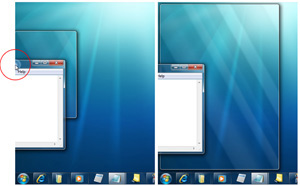
windows-7-aero-snap-to-edge-effect

Window maximize-

just dragging a window to the top of the screen maximizes it. Dragging it back down restores it to its previous size. This is incredibly useful on the netbook.

Show desktop-

 hover the cursor over the far right of the taskbar and all windows disappear until you move the cursor away. This is an easy way to hide the windows and get at the desktop to check something.

Aero peek-

hover over an icon in the taskbar and see a thumbnail of the program’s window. This is even more useful if you have multiple instances of something running, the “peek” shows thumbnails of all instances. These thumbnails are live, you can even close them from the thumbnail.

 Window shake-

when you have multiple windows open at once and need to bring your attention to one of them, “grab” that window’s title bar and shake side-to-side. All other windows will disappear to the taskbar and your window will have your undivided attention. Shake it again when you want all the other windows to come back.

Dock to left or right side of screen-

if you need to move a window to the left or right side of the screen and resize it to half the total screen width, just drag it to the appropriate side of the screen. You can do the same thing with the Windows key + left/ right arrow key.

Make the taskbar smaller-

go to the taskbar properties (by right-clicking it) and select “small icons”. The whole taskbar shrinks to fit the smaller icons.

by James Kendrick

Install Windows from a USB drive!

 WindowsLogo_256x256USB

Imagine a situation where you need to install Windows Vista or 7 in a system but you don’t have access to DVD drive. We all know Windows Vista, Server 2008 or 7 comes in DVDs and you’ll need a DVD drive to install them. Then how will you install them? The solution is, you can create a bootable USB drive which can be used to install Windows without using DVD drive.

Requirements:

    * A USB Drive (4 GB or more)
    * Windows Vista, Server 2008 or 7 ISO image or DVD
    * Host OS: Windows Vista (SP1 or SP2), Server 2008 or 7

How to use:

Once you meet the requirements, run the utility. Its a portable utility so doesn’t need installation. Simply run it and check the option “I have read and accepted the following License Agreement”. Now click on OK button and it’ll launch the main application.

It also shows a Help window so that you can use the utility easily. The utility requires only 4 easy steps to follow:

    * Check USB drive (To check whether your USB drive is attached or not)
    * Format USB drive
    * Choose DVD or ISO image (To copy the required files to USB drive)
    * Start the process to create bootable USB drive

Download_Here

Uninstallers (removal tools) for common antivirus software

antivirus

Running two antivirus products on the same computer can cause system instability and degraded performance. It is important that any previously installed antivirus software is uninstalled from your system before installing your ESET security product.

For your convenience, as typical uninstallation using the Windows removal tool (Add/Remove Programs) is often insufficient,  removal tools* for common antivirus programs can be downloaded by following the links below.

  1. Click the link associated with the antivirus software currently installed on your system and follow the prompts or instructions on the website.
     
  2. After uninstallation is complete, you will need to restart your computer. You may then proceed with installing your ESET security product.

ESET

http://kb.eset.com/esetkb/index?page=content&id=SOLN2289&actp=search&viewlocale=en_US&searchid=1250477370884

Avast:
http://files.avast.com/files/eng/aswclear.exe

AVG:
www.avg.com/download-tools 

BitDefender:
http://kb.bitdefender.com/KB333-en–How-to-uninstall-BitDefender.html

CA:
http://homeofficekb.ca.com/CIDocument.asp?KDId=3125&Preview=0&Return=0&GUID=DF325E0AA0AB4264AF47E4BEA49F571B

F-Secure:
http://support.f-secure.com/enu/corporate/downloads/removeav.shtml

Kaspersky:
http://usa.kaspersky.com/support/home-support.php?selected_faq_id=193239348&selected_product_id=176492845&selected_topic_id=176492916

McAfee:
http://download.mcafee.com/products/licensed/cust_support_patches/MCPR.exe

Panda:
http://www.pandasecurity.com/resources/sop/UNINSTALLER_08.exe

Symantec (Norton):
http://solutions.symantec.com/sdccommon/asp/symcu…


Trend Micro:

http://esupport.trendmicro.com/support/viewxml.do?ContentID=EN-1033129