Category Archives: Microsoft Windows

Killing a Windows Service that seems to hang on “Stopping”

It sometimes happens (and it’s not a good sign most of the time): you’d like to stop a Windows Service, and when you issue the stop command through the SCM (Service Control Manager) or by using the ServiceProcess classes in the .NET Framework or by other means (net stop, Win32 API), the service remains in the state of “stopping” and never reaches the stopped phase. It’s pretty simple to simulate this behavior by creating a Windows Service in C# (or any .NET language whatsoever) and adding an infinite loop in the Stop method. The only way to stop the service is by killing the process then. However, sometimes it’s not clear what the process name or ID is (e.g. when you’re running a service hosting application that can cope with multiple instances such as SQL Server Notification Services). The way to do it is as follows:

  1. •Go to the command-prompt and query the service (e.g. the SMTP service) by using sc:
    sc queryex SMTPSvc
  2. •This will give you the following information:
    SERVICE_NAME: SMTPSvc
    TYPE : 20 WIN32_SHARE_PROCESS
    STATE : 4 RUNNING
    (STOPPABLE, PAUSABLE, ACCEPTS_SHUTDOWN)
    WIN32_EXIT_CODE : 0 (0x0)
    SERVICE_EXIT_CODE : 0 (0x0)
    CHECKPOINT : 0x0
    WAIT_HINT : 0x0
    PID : 388
    FLAGS :
  3. •or something like this (the “state” will mention stopping).
    •Over here you can find the process identifier (PID), so it’s pretty easy to kill the associated process either by using the task manager or by using taskkill:
    taskkill /PID 388 /F

Please be careful when you do this; it’s useful for emergencies but you shouldn’t use it on a regular basis (use it as a last chance to solve the problem or to avoid the need of a reboot in an exceptional situation). It can even be used to stop a service that has the “NOT-STOPPABLE” and/or “IGNORES_SHUTDOWN” flag set (e.g. Terminal Services on a Windows Server 2003 is non-stoppable), at least when it’s not hosted in the system process. You can query all this information by means of the sc command.

where the /F flag is needed to force the process kill (first try without the flag).

Configuring updates stage 3 of 3. 0% complete – SYSTEM RESTARTS [Windows Vista , win2008, win7]


First
make sure you are able to boot to the desktop.

You can try performing the Method 3 suggested in the article

( http://support.microsoft.com/kb/949358)

Try performing the following steps:

Start Windows Vista and go to the System Recovery options:

1.
Insert the Windows Vista installation disc in the disc drive, and then restart
the computer.

2. When you are prompted to restart from the disc, press any key.

3. When you are prompted, configure the Language to install, Time and currency
format, and Keyboard or input method options that you want, and then click
Next.

4. On the Install Windows page, click Repair your computer.

5. On the System Recovery Options page, click the version of the Windows Vista
operating system that you want to repair, and then click Next.

6. Use the System Recovery options to rename the Pending.xml file and edit the
registry:

7. On the System Recovery Options page, click Command Prompt.

8. Type cd C:\windows\winsxs, and then press ENTER.

9. Type ren pending.xml pending.old, and then press ENTER.

10. Type regedit, and then press ENTER.

11. Select HKEY_LOCAL_MACHINE.

12. On the File menu, click Load Hive.

13. Locate the following folder:

14. C:\windows\system32\config\components

15. When you are prompted for a name, type Offline_Components.

16. In Registry Editor, locate and then delete the following registry subkey:

17. HLKM\Offline Components\AdvancedInstallersNeedResolving

18. HKLM\Offline Components\PendingXmlIdentifier

19. Exit Registry Editor, At the command prompt, type exit to exit Registry
Editor. Press ENTER.Click Restart.

20. Once you are back on the desktop try performing windows updates and check

Windows update error code 80072ee6

1st try this

Click “Start”

Then Click “Run”

Copy and Paste this ” regsvr32 MSXML3.dll ”

Click “OK”

You should see a dialog box stating that the operation has suceeded.

Then open Messenger again and sign in.

If this doesn’t work then try to clear your DNS cache by:

Click “Start” then “Run” and type “cmd.exe”

Then type “ipconfig /flushdns”. You should get a message stating that the cache has been cleared.


if thats not working try this


edit the registry and find for this key ‘UseWUServer’ if the value is ‘1’ ). I changed it to ‘0’, rebooted, and Run Windows Update

How to turn your Windows 7 laptop into a wireless hotspot

thanks to a new Windows 7 feature called Virtual Wi-Fi.

The idea is a simple one: the operating system can virtualise any compatible wireless adapter, to make it appear as though you’ve as many additional adapters as you need.

The effect is dramatic. Once it’s set up, then any Wi-Fi compatible device that can connect to you – another desktop, laptop, or an iPod Touch, say – will immediately be able to get online, by sharing your internet connection through a duplicate of your wireless adapter.

Getting this working isn’t too difficult, either, as long as you can get over the first hurdle: finding a virtual Wi-Fi-compatible driver for your wireless adapter.

Intel’s latest 32-bit and 64-bit drivers now include support, as do various others for Atheros, Broadcom, Realtek and other big players, but these don’t apply to every chipset. Check the support site for your wireless adapter to see what’s available.

If you’re in luck and manage to find and install an up-to-date Windows 7 driver for your adapter, then the next step is to set it up, and for that you’ll need an elevated command prompt. Click Start, type CMD, right-click the Cmd.exe link and select “Run as Administrator”.

Now type the following command:

netsh wlan set hostednetwork mode=allow ssid=MyNet key=MyPassword

and press [Enter]. Replace “MyNet” with the name you’d like to use for your custom network, and “MyPassword” with a password that’s a little harder to guess.

Still at the command line, type

netsh wlan start hostednetwork

and press [Enter] to fire up the virtual adapter.

Now click Control Panel > Network and Internet > Network and Sharing Centre > Change Adapter Settings, right-click your internet connection and select Properties. Click the Sharing tab, check “Allow other network users to connect…”, choose your virtual Wi-Fi adaptor – and that’s it.

Any nearby Wi-Fi enabled device should see a new network appear with the SSID you defined above. They’ll be able to connect to it using your password, and can then immediately share your internet connection

The “Desktop Wallpaper” Group Policy setting is not applied in Windows 7 or in Windows Server 2008 R2

n an Active Directory domain network environment, you apply a “Desktop Wallpaper” Group Policy setting to the domain users. However, the setting is not applied to domain users who log on to client computers that are running Windows 7 or Windows Server 2008 R2.

This issue varies if the following conditions are true:

  • If the domain user logs on the domain after you deploy the “Desktop Wallpaper” Group Policy setting, the desktop background changes to black.
    Note The color of the desktop background varies, depending on the color scheme that you set.
  • If the domain user logs on the domain before you apply the “Desktop Wallpaper” Group Policy setting, the desktop background does not change.

Additionally, in the Personalization window of the client computer, the desktop background is displayed as being changed to the setting that you applied.

Hotfix Download Available

windows 7 / windows 2008 R2 x64

Download

windows 7 / windows 2008 R2 x86

Download

Tech Doc source
http://support.microsoft.com/kb/977944

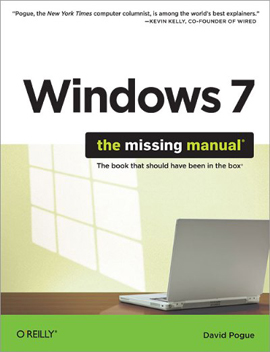
Windows 7: The Missing Manual (2010)

19l46p

In early reviews, geeks raved about Windows 7. But if you’re an ordinary mortal, learning what this new system is all about will be challenging. Fear not: David Pogue’s Windows 7: The Missing Manual comes to the rescue. Like its predecessors, this book illuminates its subject with reader-friendly insight, plenty of wit, and hardnosed objectivity for beginners as well as veteran PC users.
Windows 7 fixes many of Vista’s most painful shortcomings. It’s speedier, has fewer intrusive and nagging screens, and is more compatible with peripherals. Plus, Windows 7 introduces a slew of new features, including better organization tools, easier WiFi connections and home networking setup, and even touchscreen computing for those lucky enough to own the latest hardware.

With this book, you’ll learn how to:

Navigate the desktop, including the fast and powerful search function
Take advantage of Window’s apps and gadgets, and tap into 40 free programs
Breeze the Web with Internet Explorer 8, and learn the email, chat, and videoconferencing programs
Record TV and radio, display photos, play music, and record any of these to DVD using the Media Center
Use your printer, fax, laptop, tablet PC, or smartphone with Windows 7
Beef up your system and back up your files
Collaborate and share documents and other files by setting up a workgroup network
In early reviews, geeks raved about Windows 7. But if you’re an ordinary mortal, learning what this new system is all about will be challenging. Fear not: David Pogue’s Windows 7: The Missing Manual comes to the rescue. Like its predecessors, this book illuminates its subject with reader-friendly insight, plenty of wit, and hardnosed objectivity for beginners as well as veteran PC users.
Windows 7 fixes many of Vista’s most painful shortcomings. It’s speedier, has fewer intrusive and nagging screens, and is more compatible with peripherals. Plus, Windows 7 introduces a slew of new features, including better organization tools, easier WiFi connections and home networking setup, and even touchscreen computing for those lucky enough to own the latest hardware.

With this book, you’ll learn how to:

Navigate the desktop, including the fast and powerful search function
Take advantage of Window’s apps and gadgets, and tap into 40 free programs
Breeze the Web with Internet Explorer 8, and learn the email, chat, and videoconferencing programs
Record TV and radio, display photos, play music, and record any of these to DVD using the Media Center
Use your printer, fax, laptop, tablet PC, or smartphone with Windows 7
Beef up your system and back up your files
Collaborate and share documents and other files by setting up a workgroup network

DOWNLOAD

Solution to Windows 7 Installation Hang at 62% or 72% during Upgrade from Vista

Many users are facing problems with Windows 7 installation while upgrading from Windows Vista. Windows 7 installation stuck or hangs at 62% or 72% when upgrading from Vista via “Upgrade as install method”. The setup process stops and hangs and the system does not respond specially when it reaches 62% or 72% of completion. Even if you try to restart your system to resume failure installation process, it does not respond.

This installation problem happens because of iphlpsvc service and if you check the setupact.log file, you can see the error message as :

Warning [0x080b50] MIG AsyncCallback_ApplyStatus: Progress appears to be stuck. Current progress: 62

If the setup installation error file tells the above and exact error for installation hang at 62% or 72%, then there is an workaround to get rid of this problem and continue with the installation process. Remember that this installation failure happens during Windows 7 upgrade from Vista only.

Fix Windows 7 Install Hangs at 62% or 72% Error

  1. Reboot your computer for the system to roll back to Windows Vista OS
  2. Navigate to Start >> right click on Computer >> Properties >> Advanced Settings >> Environment Variables
  3. Under System Variables, click New >> press ENTER
  4. Type in the following variable information:
  5. Variable Name: MIG_UPGRADE_IGNORE_PLUGINS
    Variable value: IphlpsvcMigPlugin.dll

  6. Reboot your computer and restart Windows 7 installation process
  7. You are done.

The above workaround should fix the Windows 7 installation failure at 62% or 72% problem while upgrading from Vista and you can continue installing Windows 7 on your system without much hassles.

How to Search by file types in Windows 7

Search

Search is built into every aspect of Windows 7, and as we get more and more files, documents, photos, music and videos in our personal libraries it can become harder to find things, especially if we haven’t looked at them in a while.

Search in Windows 7 works in a contextual way depending on what you’re searching in.  For instance, search in the Start Menu will prioritise Start Menu items and programs, search in Explorer will prioritise documents and pictures, search in Internet Explorer will prioritise Favourite websites and browsing history and so on.

Alas, gone is the simple search of previous versions of Windows to be replaced by a more text-based search.  When you start a search a drop down will ask if you want to add a search filter.

There and a great many of these which I shall detail but the basic ones Name: and Type: for file name and file type respectively would be used in the format…

Type: pdf

…if you were looking for Adobe Acrobat files.  This is a way to help narrow down searches.

Kind: used to search the properties of a document type

Kind:email
Kind:tasks
Kind:notes
Kind:docs
Kind:music
Kind:song
Kind:folders
Kind:programs

Datemodified: to search by the date a file was modified

Datemodified:22/10/2008
Datemodified:22/10/08
Datemodified:yesterday
Datemodified:lastweek
Datemodified:pastmonth
Datemodified:27/03/03..1/4/08 

Type: to search by file type

Type:image
Type:.doc
Type:.pdf 

Name: searching by file name or by a property name for a file

Name:holiday
Name:wedding

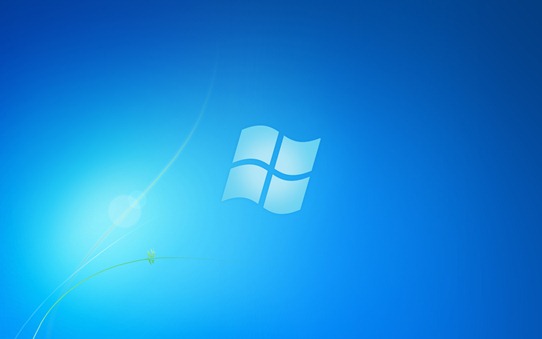
Change the wallpaper for Windows 7 starter edition

Windows7StarterWallpaper

Warning: Serious problems might occur if you modify the registry incorrectly by using Registry Editor or by using another method. These problems might require that you reinstall the operating system. Microsoft cannot guarantee that these problems can be solved. Modify the registry at your own risk. See How to back up the registry

Step by Step:
1. Open regedit (aka registry editor; you can access it from the star menu by typing “regedit” in the search box…)
2. Go to “HKEY_CURRENT_USER\Control Panel\Desktop\” folder and click on it
3. On the right hand side find there are a bunch of entries. Find the key named “wallpaper
” and double click on it and put the path of the picture you want as your new wallpaper (example path is “C:\Users\Bob\Pictures\new_wallpaper.jpg”)
4. Right-click on the “Desktop” folder in regedit that you found in step 2 and click Permissions.
5. Click “Advanced”
6. Go to “Owner” tab, highlight your name in the box that says ‘Change owner to’ ( There are only two choices the other is Administrator )… once your user name is highlighted click “OK”
7. Click on “Advanced” again
8. Uncheck the button that reads “Include inheritable permissions from the object’s parent”… click “Remove” when prompted
9. Click “Add”
10. Type “Everyone” and click “OK”
11. Check Allow “Read Control” and click “OK”
12. Click “OK” again
13. Highlight “Everyone” and check to Allow “Read” and click “OK”
14. Restart Computer and enjoy new Wallpaper