An A to Z Index of the Windows command line

An A to Z Index of the Windows command line

ADDUSERS Add or list users to/from a CSV file
ARP Address Resolution Protocol
ASSOC Change file extension associations•
ASSOCIAT One step file association
ATTRIB Change file attributes
b
BOOTCFG Edit Windows boot settings
BROWSTAT Get domain, browser and PDC info
c
CACLS Change file permissions
CALL Call one batch program from another•
CD Change Directory – move to a specific Folder•
CHANGE Change Terminal Server Session properties
CHKDSK Check Disk – check and repair disk problems
CHKNTFS Check the NTFS file system
CHOICE Accept keyboard input to a batch file
CIPHER Encrypt or Decrypt files/folders
CleanMgr Automated cleanup of Temp files, recycle bin
CLEARMEM Clear memory leaks
CLIP Copy STDIN to the Windows clipboard.
CLS Clear the screen•
CLUSTER Windows Clustering
CMD Start a new CMD shell
COLOR Change colors of the CMD window•
COMP Compare the contents of two files or sets of files
COMPACT Compress files or folders on an NTFS partition
COMPRESS Compress individual files on an NTFS partition
CON2PRT Connect or disconnect a Printer
CONVERT Convert a FAT drive to NTFS.
COPY Copy one or more files to another location•
CSCcmd Client-side caching (Offline Files)
CSVDE Import or Export Active Directory data
d
DATE Display or set the date•
DEFRAG Defragment hard drive
DEL Delete one or more files•
DELPROF Delete NT user profiles
DELTREE Delete a folder and all subfolders
DevCon Device Manager Command Line Utility
DIR Display a list of files and folders•
DIRUSE Display disk usage
DISKCOMP Compare the contents of two floppy disks
DISKCOPY Copy the contents of one floppy disk to another
DISKPART Disk Administration
DNSSTAT DNS Statistics
DOSKEY Edit command line, recall commands, and create macros
DSACLs Active Directory ACLs
DSAdd Add items to active directory (user group computer)
DSGet View items in active directory (user group computer)
DSQuery Search for items in active directory (user group computer)
DSMod Modify items in active directory (user group computer)
DSMove Move an Active directory Object
DSRM Remove items from Active Directory
e
ECHO Display message on screen•
ENDLOCAL End localisation of environment changes in a batch file•
ERASE Delete one or more files•
EVENTCREATE Add a message to the Windows event log
EXIT Quit the current script/routine and set an errorlevel•
EXPAND Uncompress files
EXTRACT Uncompress CAB files
f
FC Compare two files
FIND Search for a text string in a file
FINDSTR Search for strings in files
FOR /F Loop command: against a set of files•
FOR /F Loop command: against the results of another command•
FOR Loop command: all options Files, Directory, List•
FORFILES Batch process multiple files
FORMAT Format a disk
FREEDISK Check free disk space (in bytes)
FSUTIL File and Volume utilities
FTP File Transfer Protocol
FTYPE Display or modify file types used in file extension associations•
g
GLOBAL Display membership of global groups
GOTO Direct a batch program to jump to a labelled line•
GPUPDATE Update Group Policy settings
h
HELP Online Help
i
iCACLS Change file and folder permissions
IF Conditionally perform a command•
IFMEMBER Is the current user in an NT Workgroup
IPCONFIG Configure IP
k
KILL Remove a program from memory
l
LABEL Edit a disk label
LOCAL Display membership of local groups
LOGEVENT Write text to the NT event viewer
LOGOFF Log a user off
LOGTIME Log the date and time in a file
m
MAPISEND Send email from the command line
MBSAcli Baseline Security Analyzer.
MEM Display memory usage
MD Create new folders•
MKLINK Create a symbolic link (linkd)
MODE Configure a system device
MORE Display output, one screen at a time
MOUNTVOL Manage a volume mount point
MOVE Move files from one folder to another•
MOVEUSER Move a user from one domain to another
MSG Send a message
MSIEXEC Microsoft Windows Installer
MSINFO Windows NT diagnostics
MSTSC Terminal Server Connection (Remote Desktop Protocol)
MUNGE Find and Replace text within file(s)
MV Copy in-use files
n
NET Manage network resources
NETDOM Domain Manager
NETSH Configure Network Interfaces, Windows Firewall & Remote access
NETSVC Command-line Service Controller
NBTSTAT Display networking statistics (NetBIOS over TCP/IP)
NETSTAT Display networking statistics (TCP/IP)
NOW Display the current Date and Time
NSLOOKUP Name server lookup
NTBACKUP Backup folders to tape
NTRIGHTS Edit user account rights
o
OPENFILES Query or display open files
p
PATH Display or set a search path for executable files•
PATHPING Trace route plus network latency and packet loss
PAUSE Suspend processing of a batch file and display a message•
PERMS Show permissions for a user
PERFMON Performance Monitor
PING Test a network connection
POPD Restore the previous value of the current directory saved by PUSHD•
PORTQRY Display the status of ports and services
POWERCFG Configure power settings
PRINT Print a text file
PRNCNFG Display, configure or rename a printer
PRNMNGR Add, delete, list printers set the default printer
PROMPT Change the command prompt•
PsExec Execute process remotely
PsFile Show files opened remotely
PsGetSid Display the SID of a computer or a user
PsInfo List information about a system
PsKill Kill processes by name or process ID
PsList List detailed information about processes
PsLoggedOn Who’s logged on (locally or via resource sharing)
PsLogList Event log records
PsPasswd Change account password
PsService View and control services
PsShutdown Shutdown or reboot a computer
PsSuspend Suspend processes
PUSHD Save and then change the current directory•
q
QGREP Search file(s) for lines that match a given pattern.
r
RASDIAL Manage RAS connections
RASPHONE Manage RAS connections
RECOVER Recover a damaged file from a defective disk.
REG Registry: Read, Set, Export, Delete keys and values
REGEDIT Import or export registry settings
REGSVR32 Register or unregister a DLL
REGINI Change Registry Permissions
REM Record comments (remarks) in a batch file•
REN Rename a file or files•
REPLACE Replace or update one file with another
RD Delete folder(s)•
RMTSHARE Share a folder or a printer
ROBOCOPY Robust File and Folder Copy
ROUTE Manipulate network routing tables
RUNAS Execute a program under a different user account
RUNDLL32 Run a DLL command (add/remove print connections)
s
SC Service Control
SCHTASKS Schedule a command to run at a specific time
SCLIST Display NT Services
SET Display, set, or remove environment variables•
SETLOCAL Control the visibility of environment variables•
SETX Set environment variables permanently
SFC System File Checker
SHARE List or edit a file share or print share
SHIFT Shift the position of replaceable parameters in a batch file•
SHORTCUT Create a windows shortcut (.LNK file)
SHOWGRPS List the NT Workgroups a user has joined
SHOWMBRS List the Users who are members of a Workgroup
SHUTDOWN Shutdown the computer
SLEEP Wait for x seconds
SLMGR Software Licensing Management (Vista/2008)
SOON Schedule a command to run in the near future
SORT Sort input
START Start a program or command in a separate window•
SU Switch User
SUBINACL Edit file and folder Permissions, Ownership and Domain
SUBST Associate a path with a drive letter
SYSTEMINFO List system configuration
t
TASKLIST List running applications and services
TASKKILL Remove a running process from memory
TIME Display or set the system time•
TIMEOUT Delay processing of a batch file
TITLE Set the window title for a CMD.EXE session•
TLIST Task list with full path
TOUCH Change file timestamps
TRACERT Trace route to a remote host
TREE Graphical display of folder structure
TYPE Display the contents of a text file•
u
USRSTAT List domain usernames and last login
v
VER Display version information•
VERIFY Verify that files have been saved•
VOL Display a disk label•
w
WHERE Locate and display files in a directory tree
WHOAMI Output the current UserName and domain
WINDIFF Compare the contents of two files or sets of files
WINMSD Windows system diagnostics
WINMSDP Windows system diagnostics II
WMIC WMI Commands
x
XCACLS Change file and folder permissions
XCOPY Copy files and folders

Evaluation Version of Microsoft Lync Server 2010 to licensed version

To update a computer from the evaluation version of Lync Server 2010 to the licensed version of the software:
Updating from the Evaluation Version of Microsoft Lync Server 2010

1.Log on to the computer as a local administrator.

2.Click Start, click All Programs, click Microsoft Lync Server 2010, and then click Lync Server Management Shell.

3.In the Lync Server Management Shell, type the following command and then press ENTER:

msiexec.exe /fvomus server.msi EVALTOFULL=1 /qb
Note that you might need to specify the full path to the file server.msi. This file can be found in the Setup folder of the Lync Server Volume media installation files.

4.After Setup finishes running, type the following from the command prompt and then press ENTER:

Enable-CsComputer
5.Repeat this procedure on any other Front End Server, Director, or Edge Server running an evaluation copy of Lync Server. This procedure should also be performed on any Branch Office Servers that were deployed by using the Lync Server media installation files.
If you are not sure if the evaluation version of Lync Server is running on a given computer you can verify that by running the following command from within the Lync Server Management Shell:
Get-CsServerVersion

Rename SharePoint Server 2010 (in a domain)

The following steps are necessary for renaming the computer or changing the domain:

Step 1: Update Alternative Access Mappings
a. Open Central Administration -> Operations -> Alternate access mappings
b. Modify each mapping item to reflect your newly chosen server name (<newname>)

Step 2: Use stsadm to migrate ConfigDatabase
a. Open a command prompt window
b. Go to the 14-Folder/BIN: C:\Program Files\Common Files\Microsoft Shared\web server extensions\14\BIN
c. Execute: stsadm.exe –o renameserver –newservername <newname> -oldservername <oldname>

Step 3: Rename your Server
a. Open System, “Computer Name” tab, Change button
b. Input your new server name <newname> / domain name
c. Reboot the server NOW

Step 4: Update Central Administration Webapp-pool
a. Open a command prompt window
b. Go to the 14-Folder/BIN: C:\Program Files\Common Files\Microsoft Shared\web server extensions\14\BIN
c. Execute: stsadm.exe –o updatefarmcredentials –userlogin <FARMADMINUSERNAME> -password <FARMADMINPASSWORD>
This is necassary if the account has changed (lokal computer account is used or domain has changed)

Step 5: Update IIS Apppool Accounts
a. Open Internet Information Services and check if all AppPools run with the user in the new Domain or new local computer name

Step 6: Update Central Administration Service accounts
a. Open Central Administration
b. Go to Operations\Service accounts
c. Modify all WebApplication users to run within the new user name

Step 7: iisreset

Now the SharePoint server is renamed and the SharePoint 2010 should work again.

Remove Saved Passwords on windows xp

Windows XP does not offer a very easy way to review or remove the saved passwords though. If you follow the steps below though you can access a graphical interface to add, remove or edit the saved passwords on a given system.

1. Click Start and select Run

2. In the Open field type “rundll32.exe keymgr.dll, KRShowKeyMgr”

3. Once the Stored Usernames and Passwords interface opens you can select any of the entries and select Properties to view the existing information

4. To remove a saved password you can select one of the entries and select Remove. A confirmation screen will appear. Click on OK and the account will be removed

5. You can add additional saved passwords as well by clicking on the Add button and entering the appropriate information

6. Repeat the steps above as needed to add, remove or edit saved passwords

7. When you are done using the interface click the Close button

How to Increase the number of remembered servers remote desktop list (Remote desktop Recent list)

In order to increase this value:

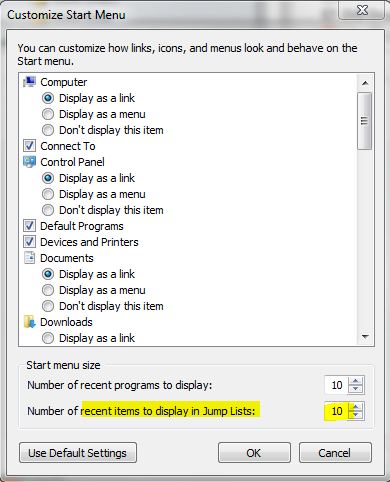
  • Right click on your Windows button and select Properties
  • Click the Start Menu tab and click the Customize button
  • Down at the bottom you will see the Start menu size options including the “recent programs to display” and the “recent items to display in Jump Lists:” value
  • Increase the size of the Jump Lists value

__________

Can I uninstall Windows 8 Release Preview?

No. To go back to your previous version of Windows, you’ll need to reinstall it from the recovery or installation media that came with your PC; typically DVD media. If you don’t have recovery media you might be able to create it from a recovery partition on your PC using software provided by your PC manufacturer. Check the support section of your PC manufacturer’s website for more information. After you install Windows 8, you won’t be able to use the recovery partition on your PC to go back to your previous version of Windows.

For instructions on reinstalling Windows 7, see Installing and reinstalling Windows 7.

Internet Explorer 10 Release Preview


Where do I find my favorites?

Internet Explorer 10 doesn’t use the traditional Favorites from previous versions. Instead, you can pin websites to the Start screen or open a list of pinned sites and frequently visited sites using New tab. If you open Internet Explorer for the desktop, you can use the traditional Favorites, but you can’t access the pinned sites from the Start screen.

How do I view a website in Compatibility View?

To view a website in Compatibility View, open Internet Explorer for the desktop, and then click the Compatibility view button in the address bar.

How do I set my default web browser?

  1. On the Start screen, swipe in from the right edge of the screen, and then tap Search.
    (If you’re using a mouse, point to the upper-right corner of the screen, and then click Search.)
  2. Enter Default programs, and then tap or click Apps.
  3. In the search results, tap or click Default Programs.
  4. Tap or click Set your Default Programs.
  5. Choose the browser you want from the list.
  6. Select Set this program as default, and then tap or click OK.


I can’t find the Internet Explorer 10 tile on the Start screen. How do I get it back?


Internet Explorer 10 might have accidentally become unpinned. To pin it back to your Start screen, follow these steps:

  1. Swipe in from the right edge of the screen, and then tap Search.
    (If you’re using a mouse, point to the upper-right corner of the screen, and then click Search.)
  2. Enter Internet Explorer, and then tap or click Apps.
  3. In the search results, swipe down on the Internet Explorer icon, and then tap Pin to Start.
    (If you’re using a mouse, right-click Internet Explorer, and then click Pin to Start.)

Internet Explorer 10 Release Preview – Why don’t toolbars and add-ons work?


Internet Explorer 10 provides an “add-on free” experience. It supports HTML 5 for video content, but you can’t install toolbars and add-ons in Internet Explorer 10.

If you are viewing a webpage that requires an add-on or uses Flash, you can view the content by opening the website in  Internet Explorer for the desktop. To do this, swipe in from the right edge of the screen (if you’re using a mouse, point to the upper-right corner of the screen), tap or click Settings, and then tap or click Use the desktop.

How to add Media Center to Windows 8 (Release Preview)

As we know Media Center is no longer an integral part of Windows 8 and will be delivered as an Add-on to Windows 8 for few bucks.


Windows Media Center is not preinstalled in Windows 8 Release Preview. If you want to use Windows Media Center, you need to add it by following these steps:

  1. Swipe in from the right edge of the screen, and then tap Search.
    (If you’re using a mouse, point to the upper-right corner of the screen, and then click Search.)
  2. Enter add features in the search box, and then tap or click                     Add features to Windows 8.
  3. Tap or click I already have a product key.
  4. Enter this product key: MBFBV-W3DP2-2MVKN-PJCQD-KKTF7 and then click Next.
  5. Select the checkbox to accept the license terms  and then click Add features.

    Your PC will restart and Windows Media Center will now be on your PC and the tile will be pinned to the Start screen.