How to shutdown Windows 8

Shutdown Windows 8 and close all apps running on Windows 8 OS is a 3-step process.
First move your mouse to the bottom right corner of the Windows 8 screen.


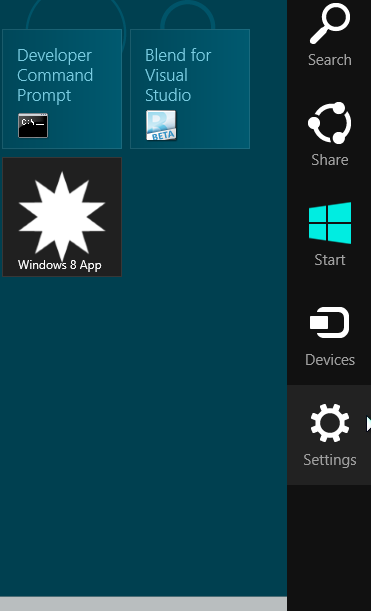
A dynamic menu will appear on the right side of the screen. These controls are new with Windows 8 and they are called charms.


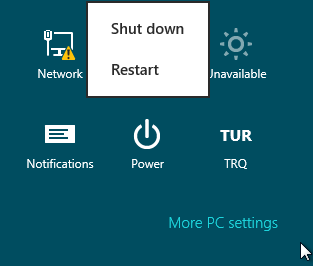
Click on the Settings icon to display Settings charm. You will see Power icon on the Windows 8 Settings charm. When you click on the Power icon, a context menu will be displayed. You will see Shut down and Restart menu commands.


When you click Shut down in the Power context menu, Windows 8 will close all apps and turn off the PC.

Is it confusing? I guess you will get use to shut down Windows 8, new Windows OS on your PC by using the new Windows 8 Settings charm Power button.

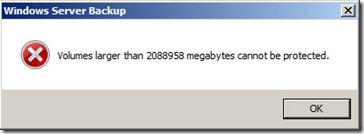
Volumes larger than 2088958 megabytes cannot be protected

Windows Server Backup – Can’t handle greater than 2TB Volumes

I have just discovered that Windows Server Backup on Windows server 2008 R2 is incapable of backing up any volume 2TB or over. This, it turns out, is due to a VHD file limit. Backup essentially creates a VHD for each volume in the backup, which is great for recovery, but causes this annoying problem.

The not very helpful message you will receive if you try a full server backup when one of the volumes is too large is

“Volumes larger than 2088958 megabytes cannot be protected.”The work-around is to not do full volume backups, but make your selection of folders. Choose ‘Custom’ backup configuration and then just select all the folders on the volume that is too large.


The work-around is to not do full volume backups, but make your selection of folders. Choose ‘Custom’ backup configuration and then just select all the folders on the volume that is too large.

Killing a Windows Service that seems to hang on “Stopping”

It sometimes happens (and it’s not a good sign most of the time): you’d like to stop a Windows Service, and when you issue the stop command through the SCM (Service Control Manager) or by using the ServiceProcess classes in the .NET Framework or by other means (net stop, Win32 API), the service remains in the state of “stopping” and never reaches the stopped phase. It’s pretty simple to simulate this behavior by creating a Windows Service in C# (or any .NET language whatsoever) and adding an infinite loop in the Stop method. The only way to stop the service is by killing the process then. However, sometimes it’s not clear what the process name or ID is (e.g. when you’re running a service hosting application that can cope with multiple instances such as SQL Server Notification Services). The way to do it is as follows:

  1. •Go to the command-prompt and query the service (e.g. the SMTP service) by using sc:
    sc queryex SMTPSvc
  2. •This will give you the following information:
    SERVICE_NAME: SMTPSvc
    TYPE : 20 WIN32_SHARE_PROCESS
    STATE : 4 RUNNING
    (STOPPABLE, PAUSABLE, ACCEPTS_SHUTDOWN)
    WIN32_EXIT_CODE : 0 (0x0)
    SERVICE_EXIT_CODE : 0 (0x0)
    CHECKPOINT : 0x0
    WAIT_HINT : 0x0
    PID : 388
    FLAGS :
  3. •or something like this (the “state” will mention stopping).
    •Over here you can find the process identifier (PID), so it’s pretty easy to kill the associated process either by using the task manager or by using taskkill:
    taskkill /PID 388 /F

Please be careful when you do this; it’s useful for emergencies but you shouldn’t use it on a regular basis (use it as a last chance to solve the problem or to avoid the need of a reboot in an exceptional situation). It can even be used to stop a service that has the “NOT-STOPPABLE” and/or “IGNORES_SHUTDOWN” flag set (e.g. Terminal Services on a Windows Server 2003 is non-stoppable), at least when it’s not hosted in the system process. You can query all this information by means of the sc command.

where the /F flag is needed to force the process kill (first try without the flag).

Retrieve License Details In ESET

ESET’s customers can recover a lost Username and/or Password by entering the email address used to purchase or activate the software or the Username, below. To find your username, open the ESET Smart Security or ESET NOD32 Antivirus main program window and click Update → Username and Password setup. Your username will appear in the License details window.

Follow the following link

http://go.eset.com/us/support/lost-license


You receive a “c1034a7f” error message when you delete a mailbox store: “One or more users currently use this mailbox store”

This article describes several methods that you can use to work around an issue in which you cannot delete a Microsoft Exchange 2000 Server or Microsoft Exchange Server 2003 mailbox store.


When you try to delete a mailbox store from a server that is running Exchange 2000 or Exchange 2003, you may receive the following error message:

One or more users currently use this mailbox store. These users must be moved to a different mailbox store or be mail disabled before deleting this store.

ID no: c1034a7f

Exchange System Manager

This issue occurs if there are mailboxes that are homed on the store that you are trying to delete. You cannot delete a mailbox store if there are any users who have mailboxes that are homed on that store.

The following sections offer a different method to find the mailboxes that are homed on a mailbox store. When you have determined that a particular account owns a mailbox on a particular store, you can either move the mailbox or disable the account.

Method 1: Use the LDP tool to search for mailboxes that are on a mailbox store


  1. Start Ldp.exe.
  2. Click Connection, and then click Connect.
  3. Enter the name of a domain controller, and then click OK.
  4. Click Connection, and then click Bind.
  5. Enter the user name, the password, and the domain name of an administrative account, and then click OK.
  6. On the View menu, click Tree.
  7. Make sure that the Base DN box is blank, and then click OK.

    If the Base DN box is not blank, clear its contents, and then click OK.

  8. Right-click the container that you want to search, such as the CN=Users container, and then click Search.
  9. Click the Filter box, and then type the following:
    (&(objectCategory=person)(objectClass=user)(msExchHomeServerName=/o=ORGANIZATION NAME/ou=ADMINISTRATIVE GROUP NAME/cn=Configuration/cn=Servers/cn=SERVER-NAME-TO-REMOVE))
  10. Click Subtree, and then click Run.
  11. When you have identified which users have mailboxes on this store, you can use Active Directory Users and Computers to move the mailboxes to a different store or to delete the user’s mailbox.

Method 2: Use the LDP tool (Ldp.exe) to browse for mailboxes that are on a mailbox store


You can use the LDP tool to find all the accounts that have mailboxes on a particular mailbox store. This tool is included with the Microsoft Windows 2000 Support Tools package.

To use the LDP tool to find all the accounts that have mailboxes on a particular mailbox store, follow these steps:

  1. Start Ldp.exe.
  2. Click Connection, and then click Connect.
  3. Enter the name of a domain controller, and then click OK.

    We recommend that you enter a domain controller in the root domain of the forest.

  4. Click Connection, and then click Bind.
  5. Enter the user name, the password, and the domain name of an administrative account, and then click OK.
  6. On the Browse menu, click Search.
  7. Click to select the “DC=domainname,DC=local” by Base DN check box.
  8. Click the Filter box, and then type the following text:
    (msExchHomeServerName=*Exchange Virtual Server Name*)
  9. Click Subtree, and then click Run.
  10. Identify the users who have mailboxes on this store. Then, use the Active Directory Users and Computers snap-in to move the mailboxes to a different store or to delete the mailboxes.

For more information about how to use the LDP tool, see the LDP documentation in the Microsoft Windows 2000 Resource Kit.

For more information about how to find data by using the LDP tool, click the following article number to view the article in the Microsoft Knowledge Base:

224543 (http://support.microsoft.com/kb/224543/ ) Using Ldp.exe to find data in the Active Directory

Method 3: Use Active Directory Users and Computers to browse for mailboxes that are on a mailbox store


  1. Start Active Directory Users and Computers on a computer that has Exchange System Manager installed on it.
  2. In Active Directory Users and Computers, click View, click to select the Advanced Features check box, and then click OK.
  3. Click View, and then click Choose Columns.
  4. In the Modify Columns box, click Exchange Mailbox Store in the Hidden Columns list, click Add, and then click OK to add the Exchange Mailbox Store to the Displayed Columns list.

    An Exchange Mailbox Store column appears in Active Directory Users and Computers that shows the mailbox store that a user has a mailbox on.

  5. When you have identified which users have mailboxes on this store, you can use Active Directory Users and Computers either to move the mailboxes to a different store or to delete the user’s mailbox.

Method 4: Use Active Directory Users and Computers to search for mailboxes that are on a mailbox store


  1. Start Active Directory Users and Computers.
  2. Right-click the domain that you want, and then click Find.
  3. Click the Advanced tab, click Field, point to User, and then click Exchange Home Server.
  4. In the Condition list, click Ends with, type the name of the Exchange computer, and then click Find Now.
  5. If you are prompted to add the current criteria to your search, click Yes.
  6. When you have identified which users have mailboxes on this store, you can use Active Directory Users and Computers either to move the mailboxes to a different store or to delete the user’s mailbox.

The mailbox search results appear in the bottom pane.

Method 5: Use the LDIFDE tool (Ldifde.exe) to create an export file that contains the mailboxes that are on a mailbox store


  1. At a command prompt, type an LDIFDE command that resembles the following. Then press ENTER.

    ldifde -d “DC=ROOT,DC=COM” -f c:\output.txt -r “(&(objectCategory=person)(objectClass=user)(msExchHomeServerName=/o=ORGANIZATION NAME/ou=ADMINISTRATIVE GROUP NAME/cn=Configuration/cn=Servers/cn=SERVER-NAME-TO-REMOVE))”

  2. Quit the command prompt.
  3. Start Notepad or some other text editor, and then load the Output.txt file that you created in step 1 to view the mailboxes that are on the mailbox store.
  4. When you have identified which users have mailboxes on this store, you can use Active Directory Users and Computers either to move the mailboxes to a different store or to delete the user’s mailbox.

For more information about the LDIFDE tool, type the following command at a command prompt on a computer that is running a product that is listed in the “Applies To” section:

ldifde /?

How to manually install the Alert Manager for BrightStor ARCserve Backup For Windows

Description

When trying to launch the Alert Manager, the Alert Manager may not launch or
the following error message is produced, “Failed to open the Alert Service”

Solution

This problem may occur when the Alert Manager Component is not working
properly. To resolve this problem without affecting the ARCserve base option use
the following steps to manually install the Alert Manager component

  1. Close the ARCserve Manager.
  2. Run cstop.bat from c:\Program files\CA\BrightStor ARCserve Backup

Figure 1

Rename the Existing Alert shared folders from
c:\Program files\CA\Shared Components\Alert to Alert_Old

Figure 2


From the BrightStor ARCserve CD Browse to the below path and Extract the
AlertPackage.exe7 (For English Language)

X:\IntelNT\ARCserve\Data1.cab file

Figure 3

After the extracting rename from AlertPackage.exe7 to AlertPackage.exe (English)

Figure 4

Right-click and open with WinZip


Figure 5

Extract the file to a temporary folder


Figure 6


  • Select all files and remove the “Read Only” attributeEdit the InstAlrt.ini file, as below

    InstallToPath=C:\Program
    Files\CA\SharedComponents\Alert
    AppName=ARCserve (Change from Inoculan)

    AppData=ARCserveIT to AppData= BrightStor AB

  • Figure 7

    Figure 8

    Figure 9

    Run InstallAlert.exe from temporary folder

    Figure 10

    Copy all files from temporary folder to C:\Program Files\CA\SharedComponents\Alert

    Figure 11

    Perform CSTART.bat from C:\Program files\CA\Brightstor Arcserve Backup.

    Figure 12

    This should finish the manual installation of the Alert Component for ARCserve
    Backup for Windows.

    Configuring updates stage 3 of 3. 0% complete – SYSTEM RESTARTS [Windows Vista , win2008, win7]


    First
    make sure you are able to boot to the desktop.

    You can try performing the Method 3 suggested in the article

    ( http://support.microsoft.com/kb/949358)

    Try performing the following steps:

    Start Windows Vista and go to the System Recovery options:

    1.
    Insert the Windows Vista installation disc in the disc drive, and then restart
    the computer.

    2. When you are prompted to restart from the disc, press any key.

    3. When you are prompted, configure the Language to install, Time and currency
    format, and Keyboard or input method options that you want, and then click
    Next.

    4. On the Install Windows page, click Repair your computer.

    5. On the System Recovery Options page, click the version of the Windows Vista
    operating system that you want to repair, and then click Next.

    6. Use the System Recovery options to rename the Pending.xml file and edit the
    registry:

    7. On the System Recovery Options page, click Command Prompt.

    8. Type cd C:\windows\winsxs, and then press ENTER.

    9. Type ren pending.xml pending.old, and then press ENTER.

    10. Type regedit, and then press ENTER.

    11. Select HKEY_LOCAL_MACHINE.

    12. On the File menu, click Load Hive.

    13. Locate the following folder:

    14. C:\windows\system32\config\components

    15. When you are prompted for a name, type Offline_Components.

    16. In Registry Editor, locate and then delete the following registry subkey:

    17. HLKM\Offline Components\AdvancedInstallersNeedResolving

    18. HKLM\Offline Components\PendingXmlIdentifier

    19. Exit Registry Editor, At the command prompt, type exit to exit Registry
    Editor. Press ENTER.Click Restart.

    20. Once you are back on the desktop try performing windows updates and check

    How to move ESET Remote Administrator (ERA) clients from one server to another?

    To change the server your clients report to from OLD_SERVER to NEW_SERVER in ESET Remote Administrator (ERA), ERA Server must be running on both servers. You can then direct all the clients under OLD_SERVER’s control to start reporting to NEW_SERVER by following the steps below:

    1. From ERA Console, connect to OLD_SERVER.
    2. From the Clients tab, select all clients that currently connect to OLD_SERVER.
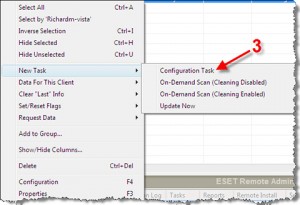
    3. Right-click the selected clients, and select New Task → Configuration Task.


    4. In the Configuration for Clients dialog box, click Create…

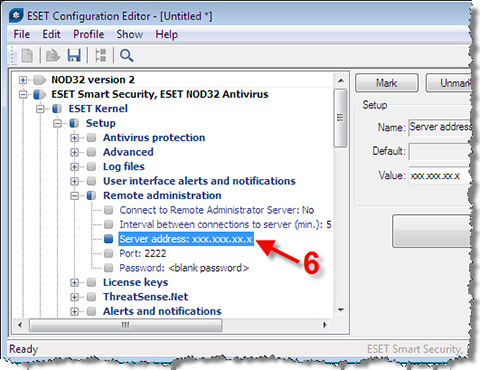
    5. In the Configuration Editor, navigate to ESET Smart Security, ESET NOD32 AntivirusESET KernelSetupRemote administration.

    6. Change the Server address to NEW_SERVER (no http://), or use the IP address of NEW_SERVER, in the form xxx.xxx.xx.x (again no http://).

  • 7. To configure the update server, navigate to Update moduleProfile Setup.
  • 8. In the Update server parameter, enter the IP address of NEW_SERVER (http://xxx.xxx.x.x:xxxx).

  • 9. Close the Configuration Editor and click Yes when asked to save changes.
  • 10. Within a few minutes (according to the Interval between connections to server setting) the clients will pick up the configuration change and begin reporting to the new server.
  • Archive items manually – Outlook 2010


    An efficient
    way to reduce the size of your Outlook Data File (.pst) or Exchange mailbox is
    to regularly archive older items. Unlike a traditional backup in which a copy of
    Outlook items is made, archived items are moved to a separate Outlook Data File
    (.pst). Archived items can be accessed at any time by opening the file.

    Note The Archive command and feature doesn’t appear
    for any account in your Outlook profile if you include an Exchange Server
    account and your organization uses Microsoft Exchange Server Online Archive.
    Your network administrator can also disable this feature.

    By default, older Outlook items archived automatically on a regular interval.
    To learn more about AutoArchive, see Use
    AutoArchive to back up or delete items
    .
    You can also manually back up and archive items, in addition to AutoArchive
    or as a replacement. Manual archiving provides flexibility, and allows you to
    specify exactly which folders are included in the archive, and which archive
    Outlook Data File (.pst) is used.
    To manually archive Outlook items, do the following:

    1. Click the File tab
    2. Click Cleanup Tools.
    3. Click Archive.
    4. Click the Archive this folder and all subfolders option, and
      then click the folder that you want to archive. Any subfolder of the folder you
      select is included in this manual archive.
    5. Under Archive items older than, enter a date.

    Archive dialog box

    1. If you do not want to use the default file or location, under Archive file, click Browse to specify a new file or
      location. Browse to find the file that you want, or enter the file name, then
      click OK. The destination file location appears in the Archive file box.
    2. Select the Include items with “Do not AutoArchive” checked
      check box to include any items that might be individually marked to be excluded
      from automatic archiving. This option does not remove that exclusion from these
      items, but instead ignores the Do not AutoArchive check box for
      this archive only.

    Turn off AutoArchive

    If you want to archive only manually, you must turn off AutoArchive. Do the
    following:

    1. Click the File tab.
    2. Click Options.
    3. On the Advanced tab, under AutoArchive,
      click AutoArchive Settings.
    4. Clear the Run AutoArchive every n days check box.