All posts by Kapuwa

๐Ÿš€ Beyond Discs: The Flash & Cloud Storage Journey

๐Ÿš€ Beyond Discs: The Flash & Cloud Storage Journey

Hey Tech Explorers! ๐Ÿ‘‹
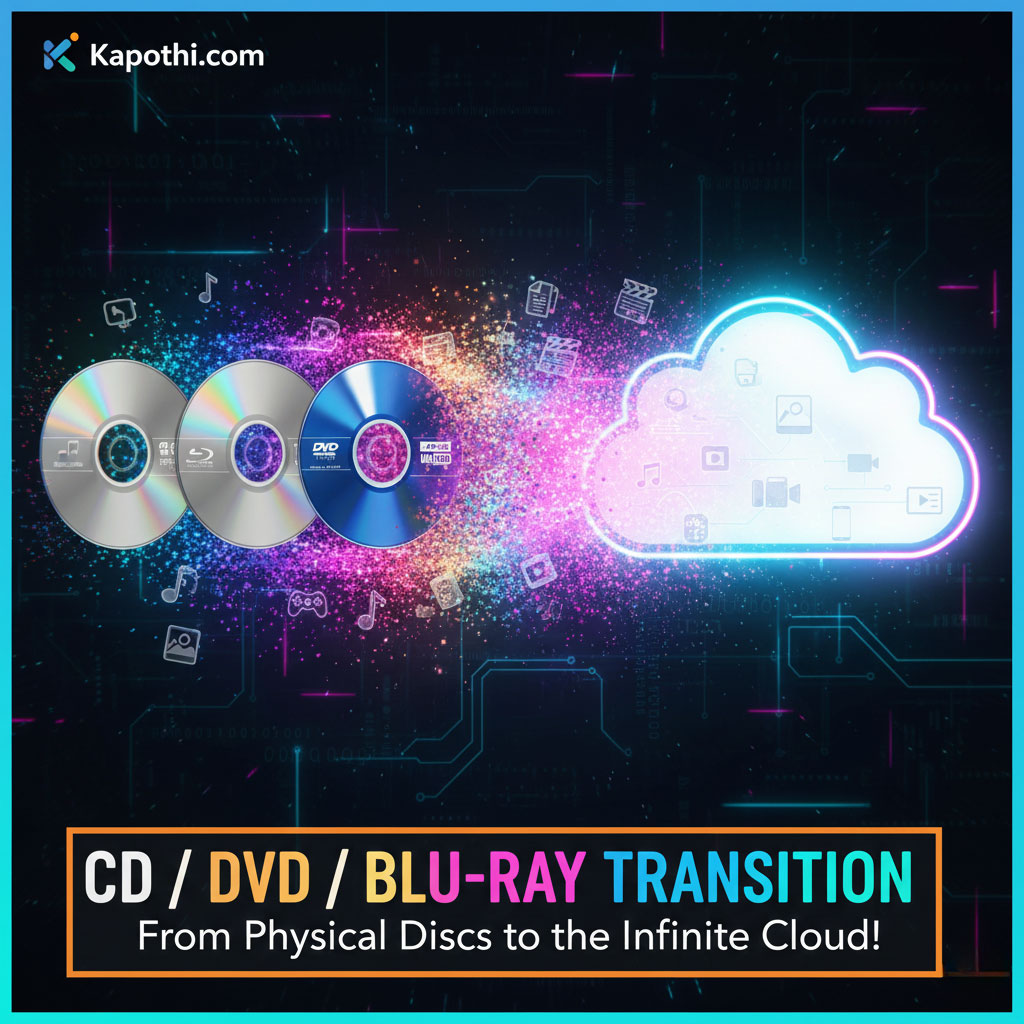
Remember when we journeyed through the eras of CDs, DVDs, and Blu-rays? Those shiny discs were amazing for their time, but technology never stops evolving! Today, we’re blasting off into the next chapter of digital storage: the super-fast, super-portable world of Flash Memory and the limitless expanse of the Cloud!

Get ready to discover how our photos, videos, and important files moved from physical discs to tiny sticks, and then up into the internet skies!


The Flash Memory Era: Small Size, Big Storage!

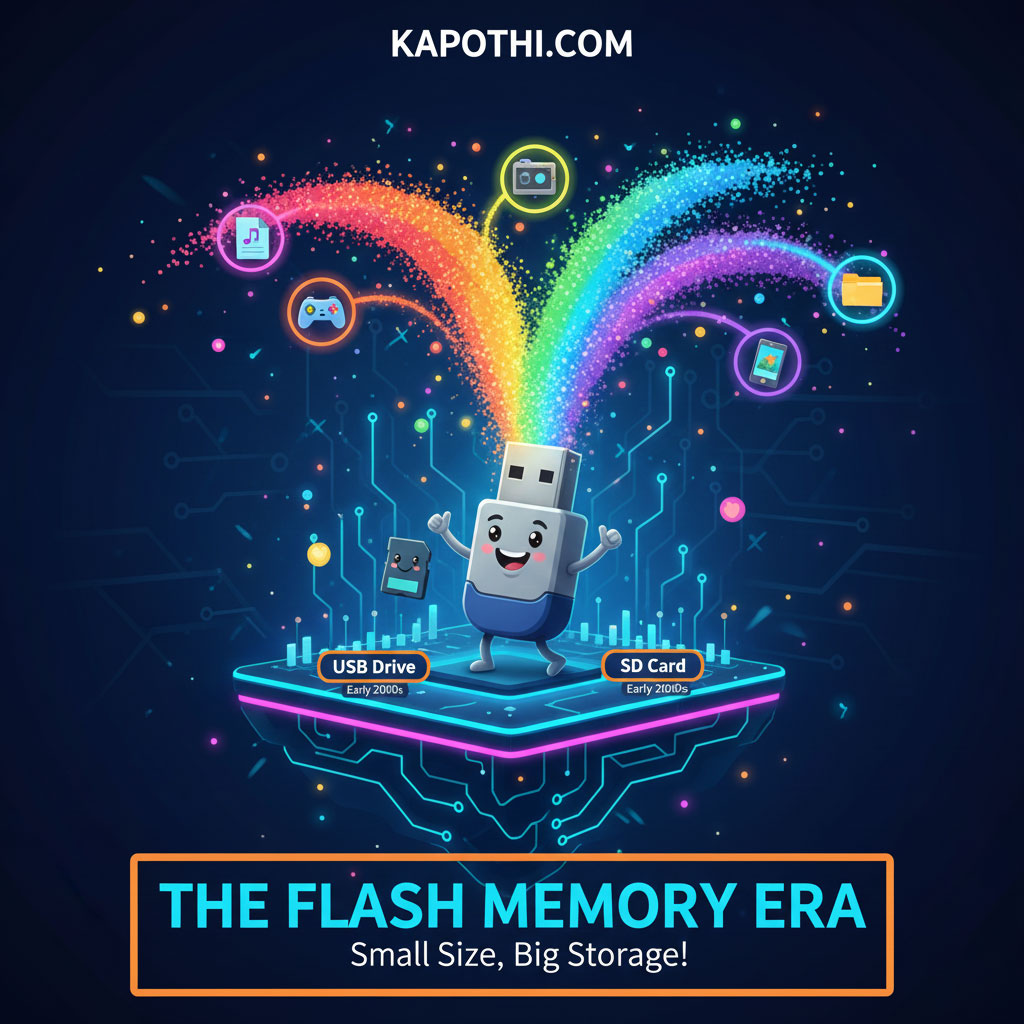
Remember those floppy disks or even CDs for carrying files? They were bulky! Then came Flash Memory, tiny wonders that changed everything. Flash memory stores data electronically, with no moving parts, making it super fast and durable.

A tiny USB flash drive glowing with digital light, symbolizing the flash memory era of small size and big storage capacity.

  • USB Drives (Thumb Drives / Pen Drives):
    • Timeline: Early 2000s (became widely popular)
    • These little sticks became the go-to for carrying files. Plug it in, drag and drop, and go! Capacity started small (like 8MB!) but quickly grew to hundreds of gigabytes.
  • SD Cards:
    • Timeline: Early 2000s (introduced, gained popularity through digital cameras)
    • Tiny postage stamp-sized cards that powered digital cameras, smartphones, and even gaming consoles. Perfect for expanding storage on small devices.
  • Main Uses: Portable file transfer, camera storage, expanding device memory, booting small operating systems.
  • Key Benefit: Small, durable, fast, and reusable!

The Rise of Solid State Drives (SSDs): Speed Beyond Spin!

For decades, computers used Hard Disk Drives (HDDs) with spinning platters. They worked, but they were slow and fragile. Then, SSDs arrived, taking flash memory technology and putting it into your computer!

A sleek solid state drive glowing with futuristic light, symbolizing the SSD era of speed beyond spinning disks.

  • How they work: Like a giant, super-fast USB drive for your computer! No spinning parts means incredibly quick boot times, faster app loading, and instant file access.
  • Timeline: Mid-2000s (consumer introduction, gained traction Late 2000s / Early 2010s)
  • Capacity: Started smaller but now rivals and often exceeds traditional hard drives.
  • Main Uses: Primary storage for laptops, desktops, and servers, making everything feel snappier.
  • Key Benefit: Extreme speed, silent operation, more durable than HDDs.

Network Attached Storage (NAS): Your Own Private Cloud!

As our digital lives grew, so did our need for shared storage at home or in small offices. Enter NAS! Think of it as your very own, mini-server designed just for storing and sharing files over your home network.

A modern NAS device with glowing network lights, symbolizing the NAS era of creating your own private cloud for data storage and sharing.

  • What it is: A specialized computer box with multiple hard drives (or SSDs) connected to your home network.
  • Timeline: Early 2000s (commercial availability, widespread home adoption Mid-2000s onwards)
  • Shared Access: Everyone in the house (or office) can store, access, and share files from their devices.
  • Media Server: Great for storing all your movies and music to stream to smart TVs or phones.
  • Key Benefit: Centralized storage, easy sharing, private and under your control.

The Cloud Era: Storage in the Sky!

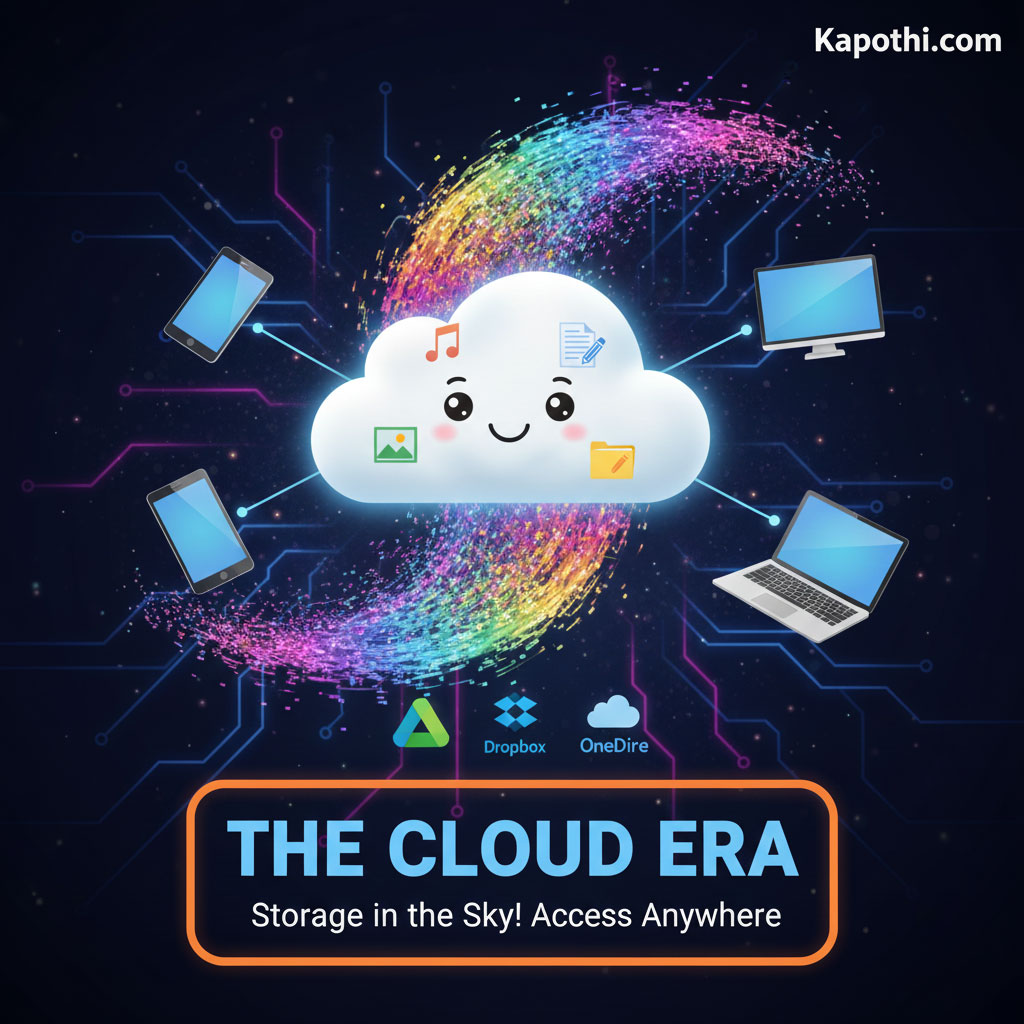
And finally, the ultimate shift: the Cloud! Instead of storing files on your own device or a local drive, you store them on powerful servers maintained by companies like Google, Microsoft, or Amazon, accessed over the internet.

A glowing cloud filled with digital streams, symbolizing the cloud era of storage in the sky with limitless access.

  • How it works: Your files live on massive data centers far away. You access them from anywhere with an internet connection.
  • Timeline: Mid-2000s (early services like Dropbox emerge), Late 2000s / 2010s onwards (widespread adoption and integration into daily life).
  • Examples: Google Drive, Dropbox, OneDrive, iCloud.
  • Main Uses: Backups, sharing large files, syncing documents across devices, streaming media without using device space.
  • Key Benefit: Access anywhere, automatic backups, easy sharing, scalability (buy more space when you need it).

From Tiny Chips to Global Networks!

From the simplicity of a USB stick to the vastness of the cloud, digital storage has come a long way. Each step has made our data more portable, faster to access, and easier to share. What an incredible journey!

What’s your favorite way to store your files today? Share your thoughts in the comments below!


Storage Trilogy: This is Part 3 โ€” Flash Storage Era. Previous: Floppy Disk Era โ†’ Optical Disk Era.

๐Ÿš€From Shiny Discs to Invisible Clouds: Our Digital Storage Adventure!

๐Ÿš€ From Shiny Discs to Invisible Clouds: Our Digital Storage Adventure!

Hey Tech Explorers! ๐Ÿ‘‹

Get ready for an amazing journey through time! Remember how we talked about the super old floppy disks? Well, after those came shiny discs, and now our digital stuff lives in invisible clouds! This story isn’t just about technology changing; it’s about how we listen to music, watch movies, and keep our memories safe. Come with us as we zoom from holding music in our hands to having entire libraries ready to stream anywhere!


Our Awesome Storage Timeline!

Check out how our storage world kept growing and changing:

CD Era (1980sโ€“1990s): Music in a Disc!
This is when we started collecting music albums and getting our first computer games on shiny discs!
DVD Era (1990sโ€“2000s): Movies on Demand (at home)!
Suddenly, movies came home on discs with awesome menus and special features. Big computer programs got delivered this way too!
Blu-ray Era (2006 Onward): Super HD Power!
Super clear movies, amazing PlayStation games, and really, really big files found their home on Blu-ray discs.
Cloud & Streaming Era (2010s Onward): Invisible Libraries!
No more discs! Now we stream movies, music, and save our files ‘in the cloud’ โ€“ accessible from anywhere!
Awesome Fact: We went from holding our digital treasures in our hands to accessing them magically from anywhere with the internet!

The CD Era: Our First Shiny Discs!

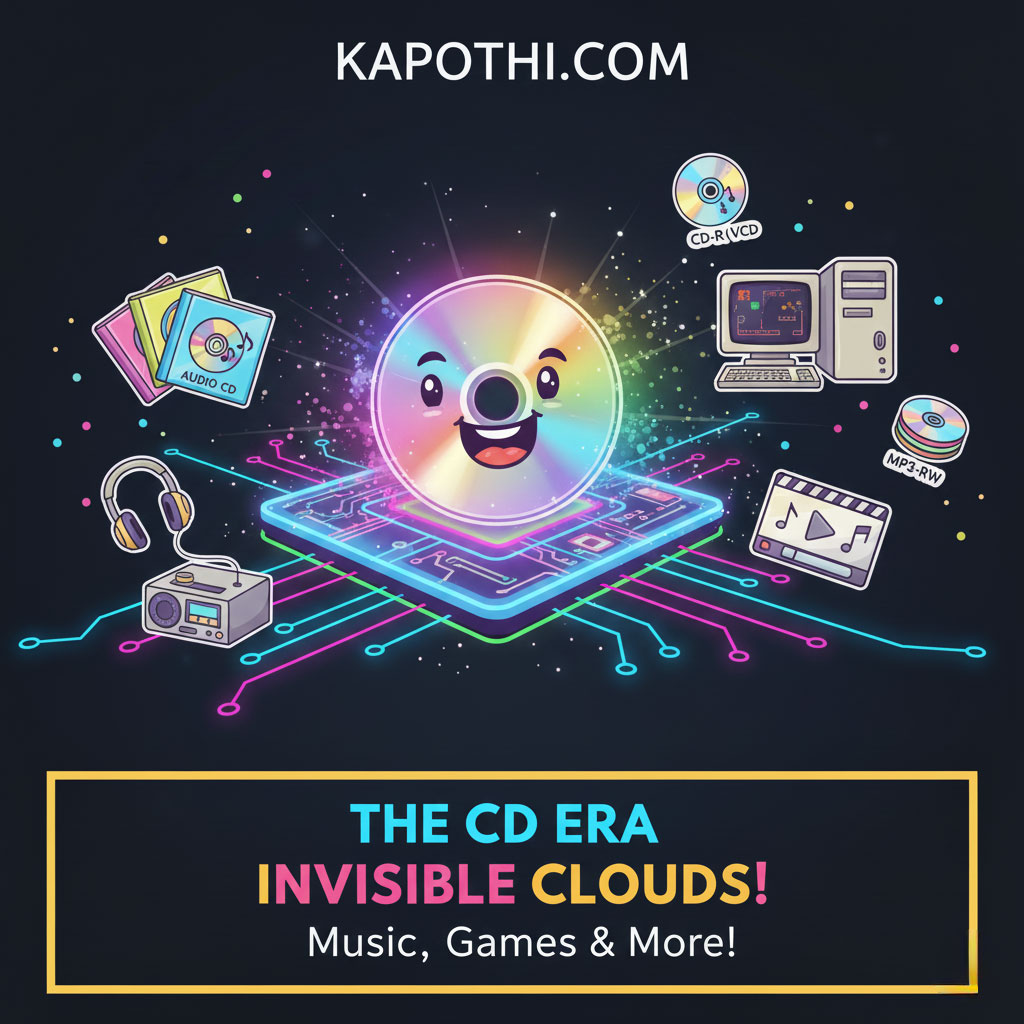
A shiny compact disc reflecting rainbow light, symbolizing the CD era of music, software, and data storage.

Imagine your favorite songs on a shiny silver disc! CDs taught us the joy of owning music, with cool album art and the fun of making mixtapes for friends.

  • How much it held: Around 700 MB (Megabytes). That’s like a few hundred photos!
  • What we used them for: Listening to music albums, installing early computer software, and backing up small files.
  • Different Kinds of CDs:
    • Audio CD: For music! You could play them in your home stereo or car.
    • CD-ROM: For computers! These held games (like encyclopedias!) and software you could read (ROM = Read-Only Memory).
    • CD-R: You could record on these ONCE, like making a special music mix or saving your own files.
    • CD-RW: These were super cool because you could record, erase, and record again, perfect for backups!
    • MP3 CD: These could hold hundreds of songs on just one disc because the songs were compressed to be smaller!
Fun Memory: The joy of opening a new CD, looking at the artwork, and sharing your favorite music with friends!

The DVD Era: Hello, Hollywood at Home!

A sleek DVD disc glowing with silver light, symbolizing the DVD era of movies, software, and data storage.

DVDs came along and changed movie nights forever! These discs held way more than CDs, bringing bigger, better movies and huge computer programs right to our homes.

  • How much it held: 4.7 GB (Gigabytes) on one side, or 8.5 GB on a super-duper dual-layer disc! (That’s like 7-12 CDs of storage!)
  • What we used them for: Watching awesome movies, installing big PC games and software, and storing lots of data.
  • Different Kinds of DVDs:
    • DVD-Video: Standard movies with cool menus and extra scenes, just like at the cinema!
    • VCD (Video CD): These were like mini-DVDs popular in some parts of the world, making movies affordable.
    • DVD-ROM: For computers! Held big software suites and lots of games.
    • DVD-R / DVD+R: Record on these once, great for saving home videos or big backups.
    • DVD-RW / DVD+RW: Rewritable, so you could use them again and again for different projects.
    • MiniDVD: Smaller DVDs often used in camcorders to record family memories.
Fun Memory: Family movie nights were born, and our shelves filled up with our favorite films!

The Blu-ray Era: Crystal Clear Super Storage!

A glossy Blu-ray disc glowing with deep blue light, symbolizing the Blu-ray era of high-definition movies, games, and large data storage.

When TVs got super clear (High Definition!), we needed even bigger discs! Blu-ray discs stepped up, bringing amazing picture quality and even more storage for giant files.

  • How much it held: 25 GB per layer! Some had many layers, holding up to 100 GB! (That’s like 5-10 DVDs or over 140 CDs!)
  • What we used them for: Watching super-high-definition movies (even 4K!), playing awesome PlayStation games, and backing up huge projects.
  • Different Kinds of Blu-rays:
    • Blu-ray Video: For movies in incredible detail, with extra cool features.
    • Blu-ray Data Disc: For archiving and saving massive computer files.
    • BD-R: Record-once Blu-ray for burning huge amounts of data.
    • BD-RE: Rewritable Blu-ray for saving and updating large archives.
    • Mini Blu-ray: Smaller discs, sometimes used in special camcorders.
Fun Memory: Seeing movies in amazing clarity and building huge collections of console games!

The Great Shift: From Discs to Invisible Clouds!

An abstract cloud glowing with digital streams, symbolizing the great shift from physical discs to invisible cloud storage.

After all those awesome discs, something even bigger and more magical happened: our stuff started living in the **Cloud!** This means our music, movies, and files don’t need a physical disc anymore; they live on super-powerful computers (servers) far away, and we access them through the internet!

  • Cloud Storage: Like Google Drive or Dropbox! Your files live online, so you can access them from your phone, tablet, or computer โ€“ anywhere, anytime!
  • Streaming Services: Hello Netflix, YouTube, and Spotify! Now, you just press “play” and the movie or music starts instantly, without needing a disc.
  • No Discs Needed: Many new computers don’t even have a disc drive anymore because we just stream or download everything!
  • Super Portable: Instead of carrying a disc wallet, your whole music and movie library fits in your phone!
Magical Moment: We went from holding our favorite movie discs to trusting that our favorite shows are always waiting for us in the ‘unseen’ cloud!

Why Did Our Shiny Discs Go Away?

It’s not that discs weren’t cool anymore, but new technology offered even *more* amazing things! We found new ways to store and share data that were faster, bigger, and super convenient.

  • Running out of Space: Our files got HUGE! A single Blu-ray disc, even with 100GB, wasn’t enough for endless movies or massive games.
  • Faster is Better: Storing things on super-fast computer hard drives (like SSDs) or directly in the cloud became much quicker than reading from a disc.
  • Cheaper Tech: Making those giant data centers for the cloud became more affordable, so we could all get lots of storage for less money.
  • New Computers: Laptops got super thin, and there wasn’t room for a disc drive anymore!
  • “Tap & Play” Wins: It’s just easier to tap a screen and start a song or movie than to find, load, and put away a disc.
Still Around! While most of us don’t use them daily, Blu-ray discs are still used by collectors for super-high-quality movies, and some special “archival discs” can keep data safe for hundreds of years! So they’re not *totally* gone!

Kapothi.com Fun Fact: From the earliest CDs that let us share music with friends, to the amazing cloud that holds endless shows, every step in storage history is super cool! What’s your favorite way to save or stream your favorite things today? Tell us below!


Storage Trilogy: This is Part 2 โ€” Optical Disk Era. Previous: Floppy Disk Era โ†’ Next: Flash Storage Era (USB, SD, SSD).

Windows Activation โ€” Error Codes and Remedies

Troubleshooting Windows Activation Errors: Codes and Fixes

๐Ÿ“œ Windows Activation Rituals โ€” Error Codes and Remedies

A complete guide to Windows activation error codes, meanings, and fixes. Learn how to resolve common issues like 0x80072EE2, 0xC004F074, and more. Keywords: Windows activation error codes, Windows Server activation, slmgr.vbs, KMS errors, Microsoft activation troubleshooting

Activation is the ritual that binds your Windows Server or client to Microsoftโ€™s trust shrine. When it fails, cryptic error codes appear. This scroll documents the most common activation errors, their meanings, and the remedies to restore trust.

Common error codes and fixes

Code Meaning Fix ritual
0x80072EE2 Timeout contacting activation server Verify internet, DNS, firewall; retry activation
0xC004C003 Product key blocked Use valid key, contact Microsoft support
0xC004F074 KMS server not reachable Check KMS DNS records, firewall, ensure KMS host is online
0xC004C008 Key already used elsewhere Transfer license or obtain new key
0xC004C020 Multiple activations detected Contact Microsoft support for resolution
0xC004F050 Invalid product key Reโ€‘enter correct key for edition
0x8007007B DNS name not available Correct KMS DNS entry or use MAK key
0xC004E003 Licensing service failure Reinstall license files; run slmgr.vbs /rilc
0xC004F038 KMS count not met Ensure minimum 25 clients (or 5 servers) for KMS activation
0xC004F00F Hardware ID changed Reactivate with original key or contact support

Stylized command windows

Windows Script Host โ€” Status
PS C:\> slmgr.vbs /dlv

Tip: Press Win + R, type cmd, then run the command.
Windows Script Host โ€” Expiry
PS C:\> slmgr.vbs /xpr

Shows permanent/expiry status of the current activation.
Windows Script Host โ€” Activate
PS C:\> slmgr.vbs /ato

If you see 0x80072EE2, verify internet connectivity, DNS, and firewall before retrying.
Windows Activation โ€” Error Details
Run: slui.exe 0x2a 0x80072EE2
Displays detailed text for the activation error in a GUI dialog.

Troubleshooting ritual notes

  • Connectivity: Ensure the server has internet access and can resolve activation.sls.microsoft.com.
  • DNS: Use nslookup to confirm resolution; fix any proxy or DNS issues.
  • Firewall: Temporarily allow outbound traffic to test; then add permanent rules as needed.
  • Edition and key: Verify your product key matches the installed edition (e.g., Server Standard vs Datacenter).
  • KMS specifics: Confirm KMS host availability, DNS SRV records, and minimum client count.

Closing: Each error code is a ritual reminder: activation depends on connectivity, valid keys, and trust. By documenting these codes, we build a communal scroll that helps every administrator resolve activation failures quickly and confidently.

๐Ÿ’พ The Floppy Disk Adventure: Our First Portable Files!

๐Ÿ’พ The Floppy Disk Adventure: Our First Portable Files!

Hey Tech Time Travelers! ๐Ÿ‘‹

Before shiny CDs, before tiny USB sticks, and way before our files lived in the invisible cloud, there was a super-cool, slightly chunky hero of storage: the **Floppy Disk!**

Imagine carrying your favorite game or your homework on a flexible square of plastic. Floppy disks were like the very first lunchboxes for your digital stuff. They were a bit slow and needed gentle care, but they were *revolutionary*! They carried our first computer programs, documents, and games, teaching us all about saving and sharing.


The Floppy Story: A Timeline of Tech!

Let’s spin back in time and see how these amazing disks evolved:

The Big One: 8-inch Floppy (Early 1970s)
Imagine a dinner plate! These giant floppies helped really big computers (like mainframes) get started.
The Pizza Slice: 5.25-inch Floppy (Late 1970s – 1980s)
Smaller, squishier, and super popular with early home computers like the IBM PC. This is where many classic video games lived!
The Pocket Pal: 3.5-inch Floppy (1980s – Early 2000s)
The most famous floppy! It had a hard plastic shell, fit in your pocket, and helped us save everything from homework to Windows 95!
Cool Fact: Each floppy size was a giant leap for computers, making them more personal and portable!

Meet the Floppies Up Close!

Let’s peek inside each floppy’s world:

The 8-inch Floppy: The Gentle Giant

A cheerful 3.5-inch floppy disk icon sending out data representing homework, files, and drivers, symbolizing its common uses.

  • Capacity: Around 80 Kilobytes (KB) to 1 Megabyte (MB). (That’s tiny! A single photo today is usually much bigger!)
  • What it ran: Helped super-old computers start up and run very basic programs.
  • Imagine this: It was like the computer’s brain โ€“ without it, the machine couldn’t even wake up!
Fun Memory: Before hard drives, the computer itself was silent until you fed it a giant floppy!

The 5.25-inch Floppy: The Game Changer

A friendly 5.25-inch floppy disk icon interacting with classic PC games, a computer monitor, and a stack of floppy disks, highlighting its role in gaming and software installation.

  • Capacity: From 360 KB up to 1.2 MB.
  • What it ran: Famous early computer games like King’s Quest and Ultima, and important programs for early PCs.
  • Imagine this: To install a game or software, you often had a stack of these disks! You’d hear a noisy “clatter” as the computer asked: “Insert Disk 2 to continue!”
Fun Memory: Swapping disks was a cool ritual of playing early computer games!

The 3.5-inch Floppy: The Everyday Hero

A cheerful 3.5-inch floppy disk icon sending out data representing homework, files, and drivers, symbolizing its common uses.

  • Capacity: 720 KB to 1.44 MB.
  • What it ran: Saved your homework, shared photos, and even helped install big operating systems like Windows 95!
  • Why it was cool: It had a hard plastic cover and a cool sliding metal door, making it much tougher and truly “pocket-sized.”
  • Cultural impact: It became so famous, its shape is *still* the “Save” icon we click today!
Fun Memory: This was the first time we could easily carry our digital world in our pocket!

Why Did Floppies Disappear?

Even heroes sometimes have to make way for new adventures! Floppy disks eventually faded because:

  • Too Small: 1.44 MB just wasn’t enough for the huge files we started creating (like big photos and videos).
  • A Bit Fragile: They used magnets, so if you got them too close to a strong magnet, your data could vanish!
  • New Heroes Arrived: CDs, then DVDs, then super-fast USB drives, and now the amazing Cloud, all offered more space and speed.
A Lasting Legacy: Every time you click the “Save” icon in your apps, you’re giving a little nod to the mighty floppy disk! It taught us how to save and protect our digital work.

Kapothi.com Fun Fact: Floppies were like fragile scrolls of magic, carrying programs and games, and showing us the first taste of digital freedom. From dinner-plate sizes to pocket-pals, they paved the way for all the amazing storage we have today!

What’s your favorite old-school tech memory? Share it with us below!


Storage Trilogy: This is Part 1 โ€” Floppy Disk Era. Next: Optical Disk Era (CDs, DVDs, Bluโ€‘ray) โ†’ Then: Flash Storage Era (USB, SD, SSD).

SQL Express on Windows 11 โ€” Connection Limits Explained

SQL Express on Windows 11 โ€” Connection Limits Explained

Windows 11 is widely used for development and small-scale hosting. When installing SQL Server Express, itโ€™s important to understand which limits apply to the operating system and which are specific to SQL Express itself.


Connection limits in Windows 11

  • File sharing (SMB): Limited to 20 concurrent inbound connections.
  • Remote Desktop (RDP): Only 1 interactive session at a time.
  • SQL Server Express via TCP (port 1433): No operating system limit. Multiple users can connect, subject to hardware resources.

SQL Server Express resource limits

  • Database size: 10 GB per database.
  • Memory usage: 1 GB RAM per instance.
  • CPU usage: 1 socket, up to 4 cores.
  • Connections: No hard cap; performance depends on the above limits.

Windows 11 vs Windows Server โ€” Connection limits

Feature / Limit Windows 11 (Client OS) Windows Server (Server OS)
File sharing (SMB) Max 20 concurrent inbound connections Thousands of concurrent connections supported
Remote Desktop (RDP) 1 interactive session at a time Multiple concurrent sessions (with RDS licensing)
SQL Server Express (TCP) No OS-imposed limit; resource-bound only No OS-imposed limit; resource-bound only
Database size (Express) 10 GB per database 10 GB per database (same Express cap)
Memory (Express) 1 GB RAM per instance 1 GB RAM per instance (same Express cap)
CPU (Express) 1 socket, up to 4 cores 1 socket, up to 4 cores (same Express cap)
Scalability Suitable for small apps, dev/test Suitable for production workloads, large user bases

Best use cases

  • Windows 11 + SQL Express: Ideal for developers, testing environments, small business apps, or limited multi-user scenarios.
  • Windows Server + SQL Server (Express/Standard/Enterprise): Recommended for production workloads, larger user bases, multiple RDP sessions, or when SMB connections exceed 20.

Download and install SQL Server Express 2022 on Windows 11

Option A: Quick GUI install (official installer)

  1. Download: Visit the official Microsoft SQL Server Express download page and get SQL Server 2022 Express.
  2. Run the installer: Choose โ€œBasicโ€ for a fast setup or โ€œCustomโ€ to select features and installation path.
  3. Finish: Note the instance name (default: SQLEXPRESS), and confirm SQL Server Browser service if you plan remote connections.

Option B: Command line install (silent)

Use a silent unattended install for repeatable setups and documentation.

# 1) Download the SQL Server 2022 Express setup bootstrapper
$uri = "https://go.microsoft.com/fwlink/?linkid=2203201"  # SQL 2022 Express bootstrapper (evergreen link)
$setup = "$env:TEMP\SQLEXPRESS2022.exe"
Invoke-WebRequest -Uri $uri -OutFile $setup

# 2) Run a silent install of Database Engine only
& $setup /QS /ACTION=Install /FEATURES=SQLEngine /INSTANCENAME=SQLEXPRESS `
  /IACCEPTSQLSERVERLICENSETERMS `
  /SECURITYMODE=SQL /SAPWD="Strong!Passw0rd" `
  /TCPENABLED=1 /SQLSVCACCOUNT="NT AUTHORITY\NETWORK SERVICE" `
  /UPDATEENABLED=TRUE

# Notes:
# - Change SAPWD to your strong password if enabling Mixed Mode (SQL logins).
# - /QS = quiet simple UI; use /Q for fully silent.

Enable remote TCP connections (optional)

  1. Open SQL Server Configuration Manager: Enable TCP/IP under โ€œSQL Server Network Configurationโ€ for your instance.
  2. Firewall rule: Allow inbound TCP on port 1433 (or your chosen port).
    New-NetFirewallRule -DisplayName "SQL Server 1433" -Direction Inbound -Protocol TCP -LocalPort 1433 -Action Allow
        
  3. Restart services: Restart the SQL Server (SQLEXPRESS) service after changes.

SQL Server Management Studio (SSMS)

  • Download SSMS: Install SSMS to manage databases, users, and queries.
  • Connect: Use localhost\SQLEXPRESS or machine-name\SQLEXPRESS. For remote clients, use IP:1433 if a custom port is configured.

Post-install checklist

  • Authentication mode: Choose Windows-only or Mixed Mode depending on your app requirements.
  • Backups: Set up regular backups (full/diff/log) based on change rate and recovery objectives.
  • Performance basics: Verify indexes, set appropriate file growth, and monitor memory usage (Express cap is 1 GB per instance).
  • Security: Restrict inbound access, use strong passwords, and patch regularly.

Summary

Windows 11 limits SMB connections (20) and allows only one interactive RDP session, but it does not impose a limit on TCP connections to SQL Server Express. SQL Express caps database size, memory, and CPU, not connection count. For higher concurrency and production workloads, Windows Server with SQL Server Standard or Enterprise is the recommended path.

๐Ÿš€ Kids’ IT Glossary: Unlock the Secrets of the Digital World!


Hey Future Tech Whizzes! ๐Ÿ‘‹

Ever wonder what goes on inside your computer, tablet, or smartphone? It’s like a magical world filled with secret codes, tiny helpers, and super-fast thinkers! Sometimes, grown-ups use big, confusing words for these things. But guess what? We’re going to make it easy and super fun!

Welcome to our Kids’ IT Glossary, where we turn tricky tech words into awesome, easy-to-understand ideas with cool pictures. Get ready to unlock the secrets of the digital world!


Your First Digital Discoveries!

  • Firmware ๐Ÿงพ: Imagine a hidden script inside your favorite toy. That’s firmware! It’s the secret set of instructions deep inside hardware that tells devices like your gaming console or smart speaker exactly how to work.
  • Server ๐Ÿ“š: Think of a giant, super-organized library that shares all its books (which are like information or data!) with everyone online. When you watch a video or visit a website, a server is probably sharing that data with you!
  • Cloud โ˜๏ธ: No, not the fluffy white things in the sky! In the computer world, the “cloud” is like borrowing space and power from other people’s super-computers through the internet. It’s how your photos stay safe even if your phone breaks!
  • Codec ๐Ÿ”„: Ever seen a super long video squeezed into a small file? That’s thanks to a codec! It’s like a clever translator for videos and songs โ€” it squishes them smaller so they’re easier to send, and then unsquishes them perfectly when you want to play them!
  • IP Address ๐Ÿ : Every house has an address, right? Well, your computer, phone, or tablet also has one when it’s on the internet! It’s called an IP Address, and it helps data know exactly where to go.

More Awesome Tech Words!

  • Cache ๐ŸŽ’: Your computer is super smart! It has a tiny “backpack” called a cache where it keeps things it needs often, like parts of a game or website. This makes everything load much faster next time!
  • Encryption ๐Ÿ”’: Have you ever sent a secret message to a friend? Encryption is like a super-secret code that locks your messages (and your private stuff!) so only the right person with the special “key” can read them. Super safe!
  • Bandwidth ๐Ÿšฐ: Imagine your internet is like water flowing through a pipe. Bandwidth is how wide that pipe is! A bigger pipe means more internet “water” (data) can flow at once, so your games load faster and videos play smoothly!
  • Bug ๐Ÿž: Sometimes, computer programs have little mistakes that make them act funny, like a toy with a loose spring. We call these “bugs”! Programmers work hard to find and fix them.
  • Algorithm ๐Ÿฒ: Ever followed a recipe to make a delicious cookie? An algorithm is just like that! It’s a step-by-step recipe that tells the computer exactly how to solve a problem or complete a task.

Even More Digital Wonders!

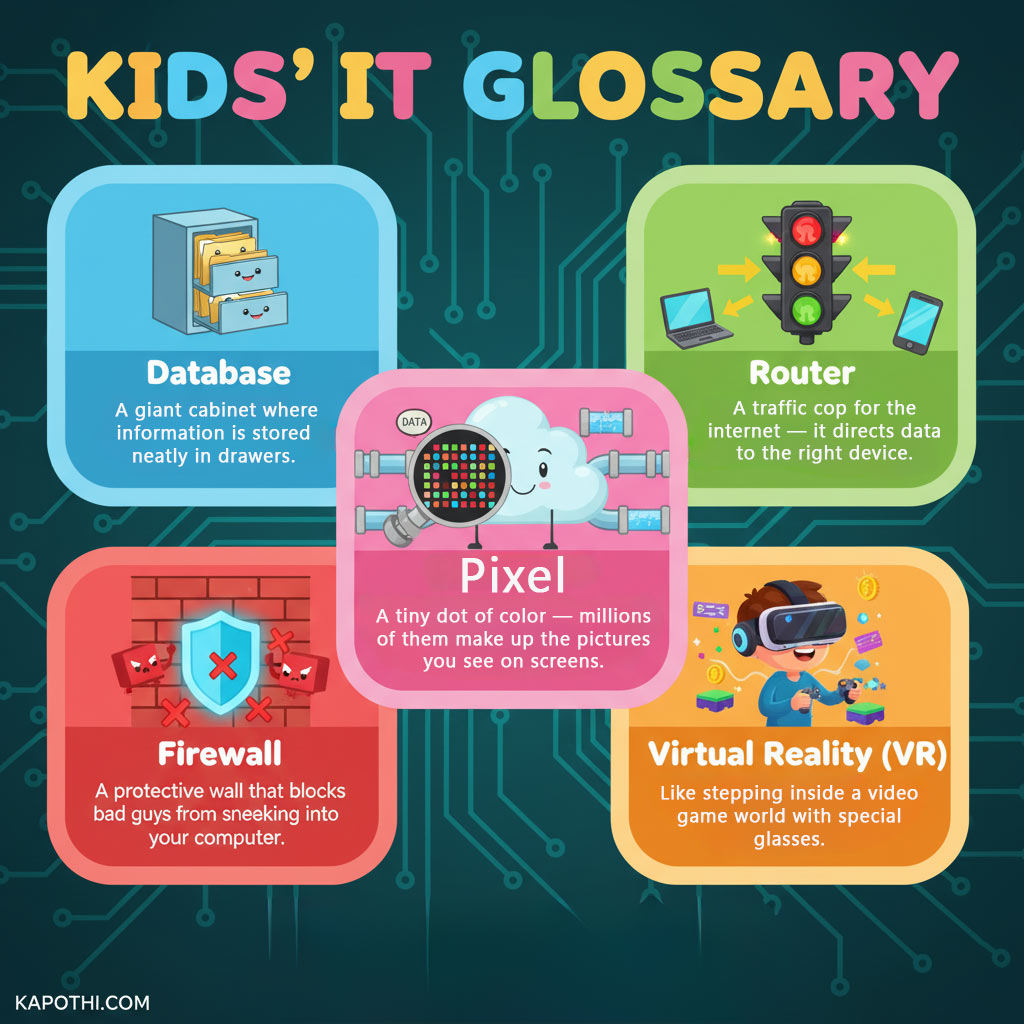
  • Database ๐Ÿ—‚๏ธ: Where does all that information from websites and apps go? Into a database! Think of it as a giant, super-organized filing cabinet where information is stored neatly in drawers, ready to be found instantly.
  • Router ๐Ÿšฆ: Your internet needs a traffic cop, and that’s your router! It’s like a traffic light for the internet that directs all the data (like game info or video streams) to the right device in your home.
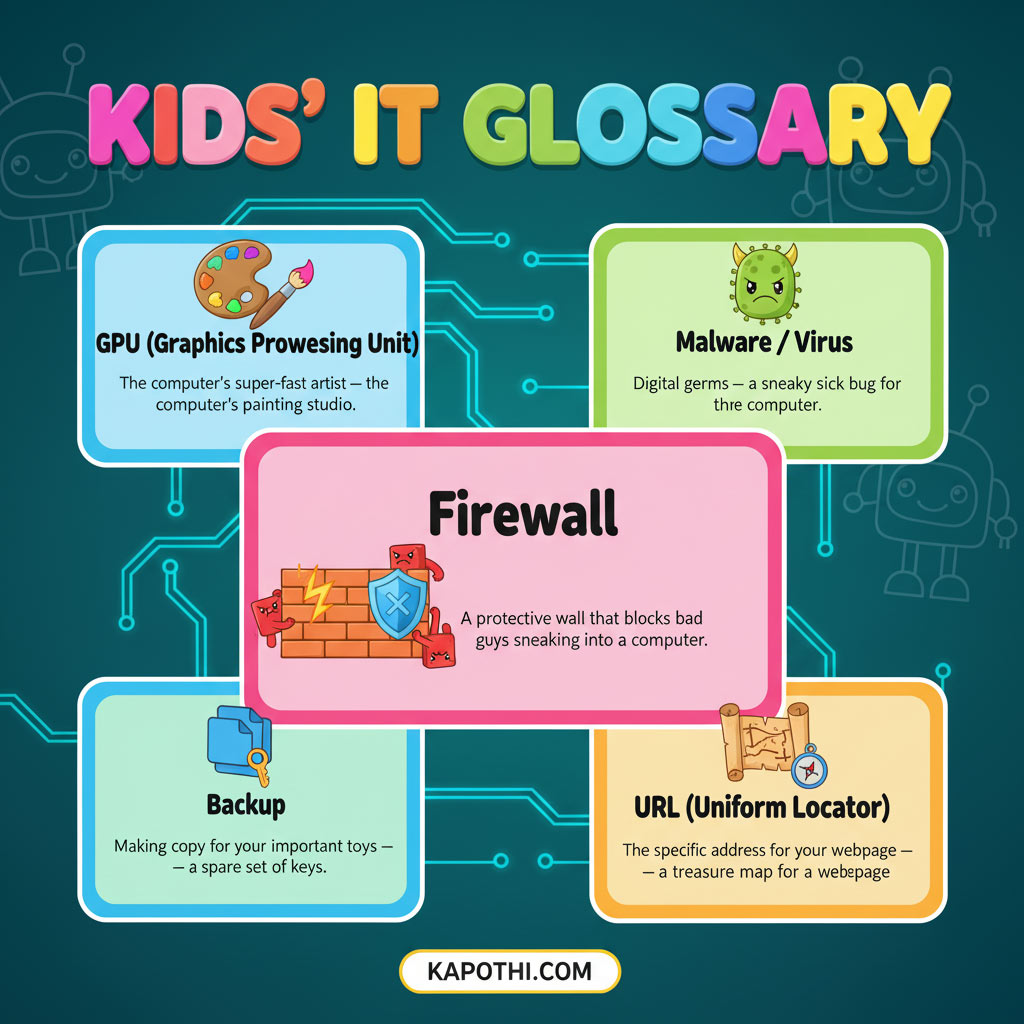
  • Firewall ๐Ÿงฑ: Just like a strong brick wall protects a castle, a firewall is a protective wall for your computer! It blocks bad guys and unwanted software from sneaking in and causing trouble.
  • Pixel ๐Ÿ”ฒ: Look super close at your screen! See those tiny dots of color? Each one is a pixel! Millions of these tiny dots work together to create all the amazing pictures and videos you see on screens.
  • Virtual Reality (VR) ๐ŸŽฎ: Ever dreamed of stepping inside your favorite video game? With special glasses and a headset, Virtual Reality lets you do just that! It’s like being transported into a whole new digital world!

The Computer’s Inner Team!

  • Operating System (OS) ๐Ÿง : The OS is like the conductor of a super-big orchestra! It’s the boss program that makes all the parts of your computer (and all your other apps!) work together smoothly. Think of it as the computer’s brain!
  • Input/Output (I/O) โ†•๏ธ: How do you talk to your computer, and how does it talk back? That’s Input/Output! Input is like you typing on a keyboard or clicking a mouse, and Output is like the computer showing you things on the screen or playing sounds.
  • RAM (Random Access Memory) ๐Ÿ“: Imagine your computer has a super-fast workbench or a temporary notepad. That’s RAM! It’s where the computer keeps all the things it’s actively working on right now so it can grab them super quickly. But, like a notepad, it forgets everything when you turn the computer off!
  • ROM (Read-Only Memory) ๐Ÿ“œ: If RAM is a temporary notepad, ROM is like the computer’s permanent rulebook, written on a stone tablet! It holds the most important instructions the computer needs to wake up and get started, and those rules never change.
  • CPU (Central Processing Unit) ๐Ÿ’ก: The CPU is the ultimate “thinker” inside your computer! It’s like a super-fast calculator and problem-solver that does all the heavy lifting to run your games, apps, and everything else.

More Power and Protection!

  • GPU (Graphics Processing Unit) ๐ŸŽจ: While the CPU thinks, the GPU is the computer’s super-fast artist! It’s specially designed to draw all the incredible pictures, animations, and videos you see on your screen, making your games and movies look amazing!
  • Malware / Virus ๐Ÿฆ : Uh oh! Malware is like digital “germs” or a sneaky sick bug for your computer. It’s bad software designed to cause trouble, slow things down, or even try to steal your information. Always be careful online!
  • Backup ๐Ÿ’พ: Ever worried about losing your favorite game saves or important drawings? A backup is like making extra copies of all your important digital stuff! If something happens to the originals, you have a spare set, safe and sound.
  • URL (Uniform Resource Locator) ๐Ÿ—บ๏ธ: When you want to visit a website, you type in its address, right? That’s a URL! It’s like a super specific treasure map that tells your internet browser exactly where to find a page on the internet, like kapothi.com/kids-it-glossary.

Conclusion

Wow! You’ve just learned so many cool things about how computers and the internet work. You’re becoming a real digital explorer! Keep exploring, keep learning, and keep being curious about the amazing world of technology.

What’s your favorite new tech word? Let us know in the comments below!


ClusterStorage Ghost Folders | Why They Appear and How to Check

ClusterStorage Ghost Folders | Why They Appear and How to Check

In Windows Failover Clustering, you may sometimes notice extra folders like ClusterStorage.000 or ClusterStorage.001 on one host. These are ghost mount points created when the system couldnโ€™t attach the shared volume to the usual C:\ClusterStorage path. They often appear after a failover, reboot, or storage hiccup, and remain even after the cluster stabilizes.

The important thing is: they donโ€™t mean your cluster is broken. Theyโ€™re just remnants of a past event. Still, itโ€™s wise to verify that no workloads are tied to those ghost paths and that your Cluster Shared Volumes (CSV) are healthy.

๐Ÿ” What to Check

  • Cluster Shared Volume health โ€” confirm all shared volumes are online and coordinated by a healthy node.
  • List all VM storage paths โ€” review where your virtual disks (VHDX files) are stored.
  • Check VM configuration files โ€” inspect configs, snapshots, and paging files.
  • Verify CSV mount points โ€” ensure volumes are mounted under C:\ClusterStorage not ghost folders.
  • Inspect cluster resources and logs โ€” check disk resources and recent cluster events.
  • Check redirected I/O state โ€” confirm CSVs are in direct I/O mode.

๐Ÿ› ๏ธ Testing Commands


# List all VM disk paths
Get-VM | Get-VMHardDiskDrive | Select-Object VMName, Path

# Check VM configuration, snapshots, and paging file locations
Get-VM | Select-Object Name, ConfigurationLocation, SnapshotFileLocation, SmartPagingFilePath

# Verify Cluster Shared Volume mount points
Get-ClusterSharedVolume | Select-Object Name, @{Name="Path";Expression={$_.SharedVolumeInfo.FriendlyVolumeName}}

# Run full cluster validation (storage, network, system health)
Test-Cluster

# Show physical disk resources and their status
Get-ClusterResource | Where-Object {$_.ResourceType -eq "Physical Disk"}

# Check cluster events/logs for recent disk or CSV issues
Get-ClusterLog -UseLocalTime -TimeSpan 1

# Show CSV I/O mode (Direct vs Redirected)
Get-ClusterSharedVolumeState

โœ… Resolution

If ghost folders are empty and unused, they can be safely deleted. If they contain files, relocate them to the proper ClusterStorage\VolumeX path first. Use the above commands to confirm CSV health and ensure no VM references ghost paths.

๐Ÿ•ฏ๏ธ Kapothi Insight

Ghost doors remain when the shrine once faltered โ€” but the true doorway is open and strong today.

Tags

Hyperโ€‘V, Failover Clustering, ClusterStorage, Kapothi Legacy, Digital Forensics

PowerShell Remoting โ€” Allowing Only One Trusted Server

PowerShell Remoting โ€” Allowing Only One Trusted Server

For years, Windows admins used WMIC (Windows Management Instrumentation Command-line) to check hardware and system details. Microsoft is now retiring WMIC because itโ€™s old and no longer updated. Instead, they want everyone to use PowerShell, which is more secure, flexible, and future-proof.

If you use WMIC in scripts or management tools, youโ€™ll need to move to PowerShell commands. This guide shows how to safely allow only one trusted server to run PowerShell commands remotely on another server.


Steps to allow only Server2 to access Server1

PowerShell # Enable remoting on Server1
Enable-PSRemoting -Force

PowerShell # Restrict firewall to Server2โ€™s IP
New-NetFirewallRule -DisplayName “Allow WinRM from Server2” `
  -Direction Inbound -Protocol TCP -LocalPort 5985 `
  -RemoteAddress 192.168.1.20 -Action Allow

PowerShell # Configure TrustedHosts on Server2
Set-Item WSMan:\localhost\Client\TrustedHosts -Value “Server1”

PowerShell # Connect with credentials from Server2
Enter-PSSession -ComputerName Server1 -Credential (Get-Credential)

Continue reading PowerShell Remoting โ€” Allowing Only One Trusted Server

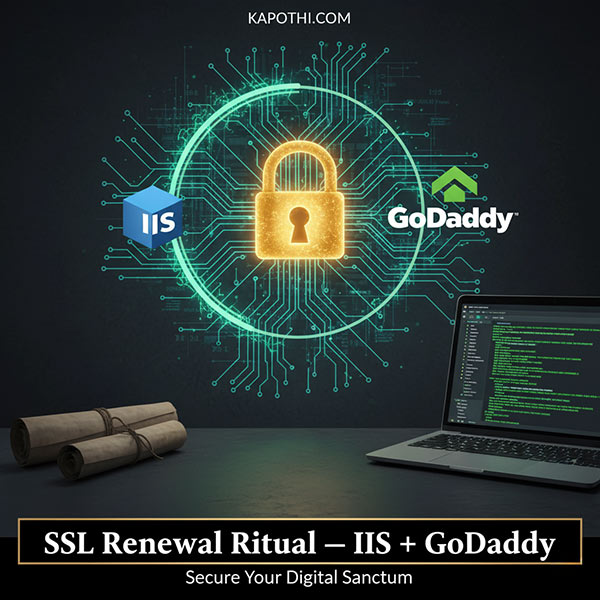
๐Ÿ›ก๏ธ SSL Renewal โ€” IIS + GoDaddy

๐Ÿ›ก๏ธ Kapothi SSL Renewal Ritual โ€” IIS + GoDaddy

Date: 2025-11-11

Domain: oa.kapothi.com

Status: โœ… Successfully installed renewed SSL certificate


๐Ÿ“ฆ Files received from GoDaddy

  • Server certificate: yourdomain.crt
  • Intermediate chain: gd-g2_iis_intermediates.p7b
  • Alternate format: yourdomain.pem

๐Ÿ”ง Step-by-step ritual

  1. Convert CRT to CER: Open .crt โ†’ Details tab โ†’ Copy to File โ†’ Baseโ€‘64 encoded X.509 (.CER) โ†’ Save as oa.kapothi.com.cer.
  2. Complete certificate request: IIS Manager โ†’ Server Certificates โ†’ Complete Certificate Request โ†’ Select oa.kapothi.com.cer โ†’ Store as Web Hosting.
  3. Import intermediate chain: MMC โ†’ Intermediate Certification Authorities โ†’ Certificates โ†’ Import gd-g2_iis_intermediates.p7b.
  4. Bind certificate: IIS Manager โ†’ Site โ†’ Bindings โ†’ HTTPS โ†’ Edit โ†’ Select the new certificate โ†’ Save.

๐Ÿงช Verification chants

# PowerShell Commands

# Check Web Hosting store (IIS-managed certs)
Get-ChildItem Cert:\LocalMachine\WebHosting | Select Subject, HasPrivateKey, Thumbprint, NotAfter

# Check all stores for certainty
Get-ChildItem Cert:\LocalMachine\* | Where-Object { $_.Subject -like "*kapothi.com*" } | Select PSParentPath, Subject, HasPrivateKey, Thumbprint, NotAfter
  

๐Ÿ“œ Legacy capsule metadata

  • Thumbprint (current): [insert new thumbprint]
  • Validity (NotAfter): [insert expiry date]
  • Chain: Go Daddy Secure Certificate Authority โ€“ G2 โ†’ Go Daddy Root Certificate Authority โ€“ G2 โ†’ Go Daddy Class 2 CA
  • Binding: IIS HTTPS, Web Hosting store

๐Ÿ•ฏ๏ธ The scroll is forged, the chain is whole, and the shrine sings without resistance.

Optimizing BlueStacks VHDX Files to Reclaim Disk Space

Optimizing BlueStacks VHDX Files to Reclaim Disk Space

Author: IGCAS
Published: November 2025
Tags: BlueStacks, VHDX, Optimize-VHD, Hyper-V, Disk Cleanup, Windows 10, Windows 11

Overview

BlueStacks, a popular Android emulator for Windows, stores its virtual disk as a .vhdx file โ€” typically located at:

C:\ProgramData\BlueStacks_nxt\Engine\Pie64\Data.vhdx

Over time, this file can grow significantly larger than the actual data stored inside the emulator. In one observed case, the .vhdx file reached 54 GB, while actual usage was under 20 GB. This guide explains how to safely compact the file using PowerShell and Hyper-V tools.

Before You Begin: Hyper-V Compatibility

The Optimize-VHD cmdlet is part of the Hyper-V PowerShell module, which requires Hyper-V to be enabled.

Important: Enabling Hyper-V may interfere with other virtualization platforms such as VMware Workstation or VirtualBox. Proceed only if compatible with your setup.


Step-by-Step Instructions

0. Run BlueStacks Disk Cleanup First

Before compacting the .vhdx file, run the built-in Disk Cleanup tool to remove residual data and shrink the virtual disk internally:

  1. Open BlueStacks 5
  2. Go to Settings โ†’ User Data โ†’ Disk Cleanup
  3. Follow the prompts to clean up unused space

1. Enable Hyper-V (if not already installed)

Run PowerShell as Administrator:

Enable-WindowsOptionalFeature -Online -FeatureName Microsoft-Hyper-V -All

Restart your system if prompted.

2. Import the Hyper-V Module

Import-Module Hyper-V

3. Run the Optimization Command

Optimize-VHD -Path "C:\ProgramData\BlueStacks_nxt\Engine\Pie64\Data.vhdx" -Mode Full

This process may take a few minutes depending on disk speed and file size.

Results

  • Before: 54 GB
  • After: 27 GB
  • Space Saved: 27 GB

This significantly reduces backup size, improves SSD efficiency, and enhances emulator responsiveness.

Who Should Use This

  • Gamers running large Android titles
  • Developers testing APKs and emulated environments
  • Power users managing multiple BlueStacks instances
  • Archivists preserving emulator states and minimizing storage overhead

Additional Notes

  • This method applies to BlueStacks 5 and newer
  • Works only on Windows 10/11 with virtualization support
  • If Hyper-V is not an option, consider third-party VHD tools or manual disk migration

Article prepared by IGCAS โ€” styled for clarity, resilience, and technical accessibility.