All posts by Kapuwa

BitLocker auto‑unlock for a data disk in a Hyper‑V VM (no TPM)

BitLocker auto‑unlock for a data disk in a Hyper‑V VM (no TPM)

This enables automatic unlock for a BitLocker‑protected data volume inside a Hyper‑V VM without TPM. Unlock once, then turn on auto‑unlock.

Prerequisites

  • Scope: Data disk (not OS partition)
  • Inside VM: Run all commands in the guest Windows VM
  • Drive letter: Replace D: with your data volume

Step 1: Unlock the data disk once

Use your BitLocker password (you will be prompted interactively):

manage-bde -unlock D: -Password
  

Step 2: Enable automatic unlock

Tell Windows to remember the key and auto‑unlock this data volume whenever the OS volume is unlocked:

manage-bde -autounlock -enable D:
  

Step 3: Verify status

Confirm that auto‑unlock is enabled:

manage-bde -status D:
  

Notes

  • No TPM needed: Auto‑unlock for data volumes stores the key on the OS volume.
  • VM moves: If the VM/VHDX is moved or restored, re‑enable auto‑unlock.
  • Backup: Keep the recovery key safely backed up (file, printout, or account).

Active Directory SID Quick Reference

Active Directory SID Quick Reference

  • SID format: S-1-5-21-<domainID>-<RID>
  • Domain ID: The long middle section (e.g. 3450839898-1007371689-2406560646) is constant for all accounts in the domain.
  • RID: The last number (e.g. 7147) uniquely identifies the user or group.
  • Identity resolution:
Get-ADUser -Identity <SID>
  

→ Returns the user object (SamAccountName, DistinguishedName, etc.).

Useful PowerShell Commands

Full details of user

Get-ADUser -Identity <SID> -Properties *
  

Group memberships

Get-ADUser -Identity <SID> | Get-ADPrincipalGroupMembership
  

Username → SID lookup

Get-ADUser -Identity <username> | Select SID
  

Ritual View 🌱

  • Domain ID → temple walls (shared by all accounts).
  • RID → unique scroll inside the shrine.
  • SID → the true identity key, unchanged even if names are altered.

🌀 Kapothi Tech Adventure: The Space That Broke the Sync

🌀 Kapothi Tech Adventure: The Space That Broke the Sync

The Mystery

OneDrive showed a scary error:

Bad Request (status code 400)… The provided name cannot contain leading, or trailing, spaces.

The file looked fine, but hidden at the start was a sneaky space:
" Ada Vessantara Raja Putha - Various Artists.mp3"

The Fix

  • Step 1: Spot the hidden space.
  • Step 2: Rename the file to remove it.
  • Step 3: Sync again — and it works!

The PowerShell Spell (for 100s of files)

# Go to the folder where your files are
cd "C:\SINHALA\OLD\Noorthi Gee Collection"

# Clean all filenames in this folder
Get-ChildItem -File | ForEach-Object {
    $newName = $_.Name.Trim()
    if ($newName -ne $_.Name) {
        Rename-Item $_.FullName $newName
    }
}

# If you want to include subfolders too:
Get-ChildItem -File -Recurse | ForEach-Object {
    $newName = $_.Name.Trim()
    if ($newName -ne $_.Name) {
        Rename-Item $_.FullName $newName
    }
}
  

The Lesson

Even invisible spaces can break big systems. Computers are precise, so every character matters.
Removing those ghost spaces turns errors into success — whether it’s one file or hundreds.

The Super-Speedy Story of the Internet!

Kapothi Kids Internet Scroll Header: Super Speedy Story

🌟 Kapothi Kids Scroll: The Super-Speedy Story of the Internet!

Hello, amazing adventurers! Do you ever wonder how videos, games, and messages zoom across the world instantly? Let’s peek behind the screen and see the incredible journey of the Internet!


The Internet Story: A Timeline of Tech!

Let’s zoom back in time and see how our digital world grew up:

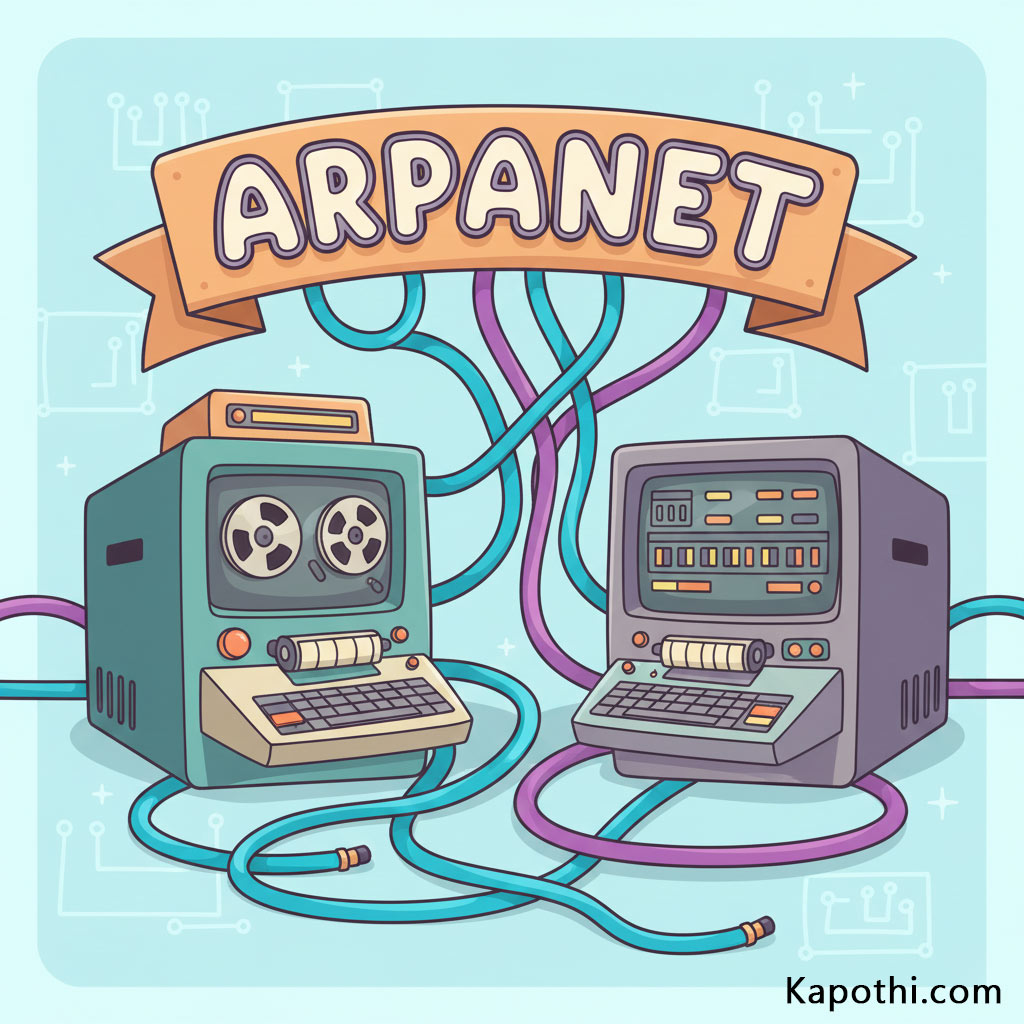
Giant old computers connected by secret tunnels (ARPANET)

🚀 Chapter 1: The Secret Whisper (The First Spark)

Long, long ago, computers were HUGE—bigger than your bedroom! Scientists wanted these giant brains to talk to each other, but they needed a way to connect them.

They built a secret system called ARPANET.

Imagine building underground tunnels 🚇 between secret laboratories, so the computers could whisper important secrets back and forth. This secret whisper network was the grandpa of the internet!

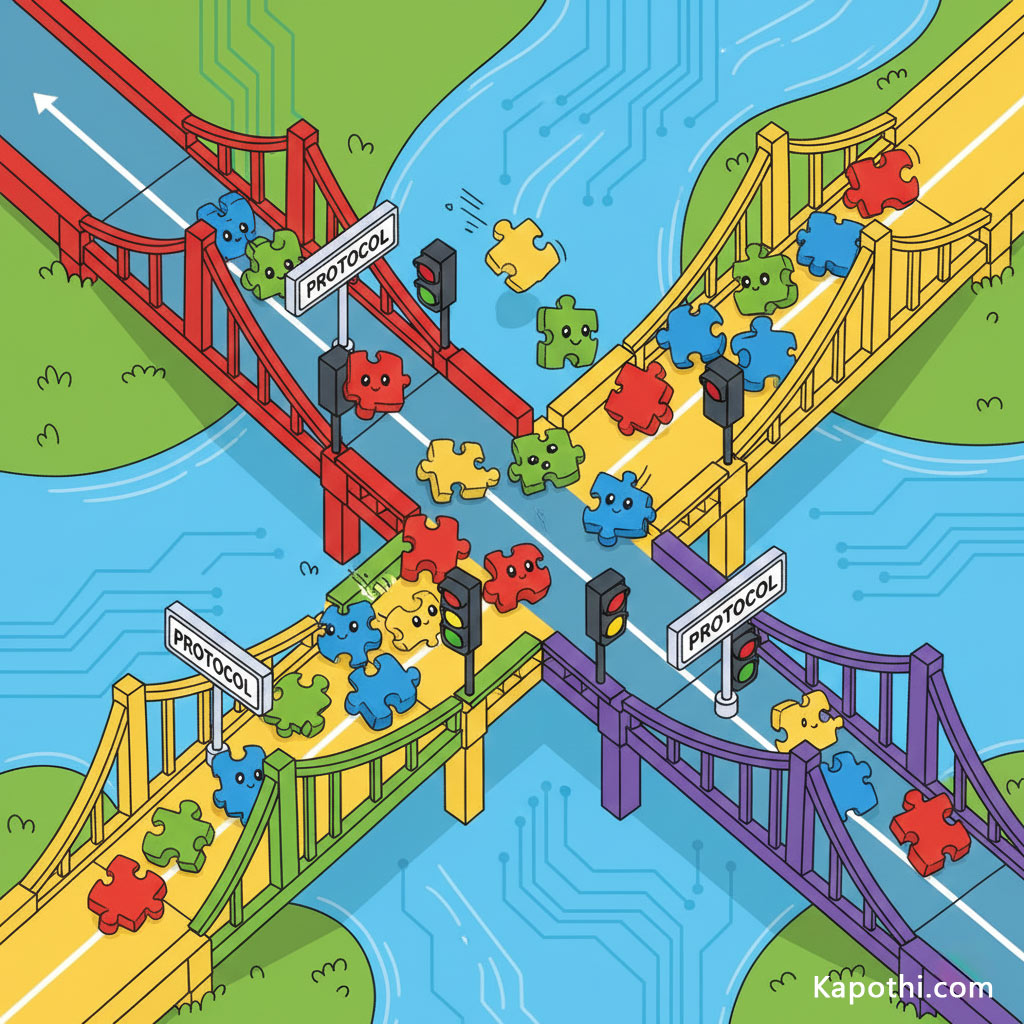
Tiny delivery trucks carrying puzzle pieces (Packets)

🧱 Chapter 2: The Mighty Puzzle Pieces (Building Bridges)

How does a whole picture or movie travel? It doesn’t go all at once!

When you send a message, it gets chopped up into tiny, super-fast puzzle pieces called packets 🧩.

These packets race across bridges and wires (like tiny, speedy delivery trucks). The protocols are like traffic lights 🚦 and rules that make sure no packet gets lost or bumps into another packet. They all travel separately, and then—whoosh!—they reassemble perfectly at the destination!

A magical library with linked books (World Wide Web)

🌐 Chapter 3: The Magical Library (The World Wide Web)

In 1989, a brilliant inventor named Tim Berners-Lee created the World Wide Web. This was the real game changer!

He made it so you could click on words and pictures (links), and they would instantly teleport you to a different page. It was like opening a huge, never-ending, magical library where every book (or website) is linked to every other book!

Your web browser (like Chrome or Firefox) is your magical viewing window, allowing you to explore this infinite world with just a click! 🖱️

Invisible radio waves connecting a smartphone (Wi-Fi)

📡 Chapter 4: Power of the Invisible Air (The Age of Wi‑Fi)

For a long time, the internet needed thick, messy cables. But then came Wi‑Fi!

Wi‑Fi lets the internet travel through the air using invisible radio waves. 💨 It’s like giving your tablet or phone a superpower that allows it to catch knowledge floating all around you, even when you’re outside playing!

Your smartphone became a pocket portal, letting you explore anywhere you go! 🗺️

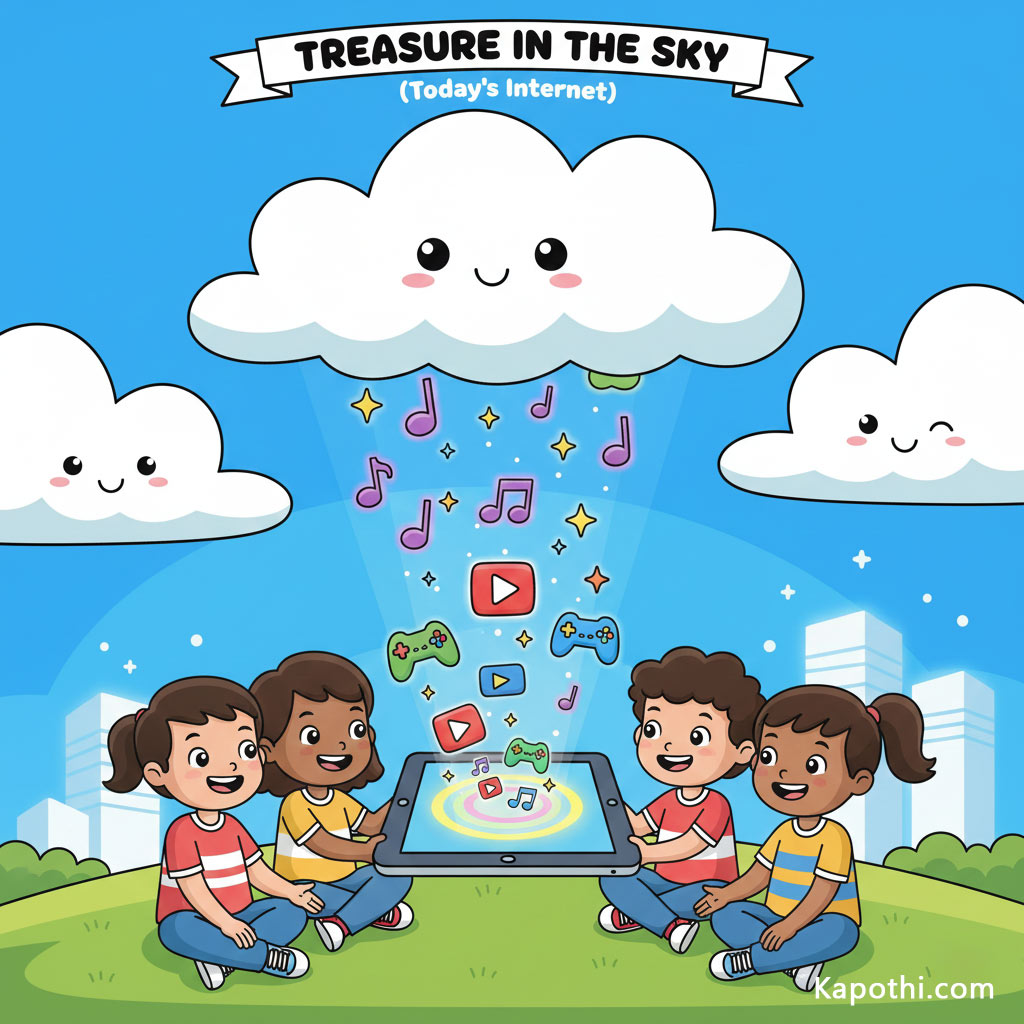
Cloud raining down data and songs (The Cloud)

☁️ Chapter 5: Treasure in the Sky (Today’s Internet)

Where does all the data go? It floats in the Cloud!

The “Cloud” is just a fancy name for giant buildings filled with thousands of computers (servers) that store everything—your favorite games, your parents’ photos, and all the music in the world. They are giant digital treasure chests! 💰

When you stream a video, the song doesn’t even need to download; it travels instantly from the Cloud to your screen. It’s like the clouds are raining down songs and stories just for you! ☔🎶


Kapothi.com Fun Fact: The simple idea of letting two computers talk led to the biggest invention since the printing press. Every time you connect, you’re part of that giant conversation!

What’s your favorite part of the Internet? Share it with us below!

Create an AppLocker rule to allow QuickFox.exe for standard users

Create an AppLocker rule to allow QuickFox.exe for standard users

This guide lets QuickFox run for non-admin users without repeated admin prompts by whitelisting it with AppLocker.


Prerequisites

  • Admin access: You need to perform these steps with an administrator account.
  • Windows edition: AppLocker is available on Windows 10/11 Enterprise/Education (and some Pro editions with limitations).
  • QuickFox path: Know the exact path to QuickFox.exe (e.g., C:\Program Files\QuickFox\QuickFox.exe).

Step-by-step instructions

  1. Open Group Policy Editor
    • Press Win + R, type gpedit.msc, and press Enter.
  2. Navigate to AppLocker
    Computer Configuration └─ Windows Settings └─ Security Settings └─ Application Control Policies └─ AppLocker └─ Executable Rules 
  3. Create a new Executable Rule
    • Right-click Executable RulesCreate New Rule….
    • Action: Select Allow, then click Next.
    • User or Group: Choose the standard user group (e.g., Users) who should run QuickFox, then Next.
    • Condition: Pick one:
      • Path (simple): e.g., C:\Program Files\QuickFox\QuickFox.exe
      • Publisher (safer, if signed): Allow all signed versions from QuickFox’s publisher.
      • File Hash (locked to version): Use if the file isn’t signed and the path may change.
    • Exceptions (optional): Leave blank unless you need to exclude other executables.
    • Name & Description: Enter something clear like Allow QuickFox for Users, then click Create.
  4. Enable enforcement
    • In the AppLocker root, right-click → Properties.
    • Under Executable Rules, set Enforcement to Enforce rules.
    • Click Apply and OK.
  5. Apply and test
    • Run gpupdate /force or restart the computer.
    • Log in as a standard user and launch QuickFox. It should run without asking for admin credentials.

Tips

  • If QuickFox updates: Path and Publisher rules usually survive updates; File Hash rules must be recreated after each update.
  • Keep UAC enabled: Do not disable UAC globally; AppLocker provides targeted allowance for trusted apps.
  • Fallback: If AppLocker isn’t available, use Task Scheduler to run QuickFox at logon with Run with highest privileges.
Note: AppLocker requires appropriate Windows editions and admin rights. Always whitelist only trusted applications.

Cyclone Ditwah: The Devastation Remembered

Cyclone Ditwah: The Devastation Remembered

The day Cyclone Ditwah made landfall remains one of the darkest chapters in Sri Lanka’s history. This is a chronicle of the relentless winds, catastrophic floods, and widespread destruction — and the resilience of the Sri Lankan people.

🌊 Coastal & Inland Flooding

Record-breaking rainfall and storm surges caused flash floods.

⚡ Infrastructure Collapse

High winds toppled towers and severed roads.

🌾 Agricultural Ruin

Paddy, tea, and coconut plantations devastated.

🏠 Humanitarian Crisis

Hundreds of thousands displaced; health crises followed.

Continue reading Cyclone Ditwah: The Devastation Remembered

🌪️➡️🌞 After Ditwah, the Sun Returns

Chronicle Entry: The Day the Sun Returned

For days, Sri Lanka was bound in Ditwah’s storm scroll. Winds tore through villages, rains drowned the roads, bridges collapsed into silence. Thousands were displaced, carrying fragments of their lives into shelters. The island felt like a verse erased by the cyclone’s hand.

But then, the sun came. Its light fell on broken roads, on shelters filled with weary families, on volunteers carrying food and hope. Children stepped outside, their laughter rising like a new chant. Farmers looked at their fields, and fishermen, who had carried their boats on lorries to support other areas, stood among the helpers. All saw not just damage but the promise of renewal.

The Chronicle turns a page

  • Destruction → resilience: Communities begin to clear, repair, and rebuild.
  • Darkness → light: Sunlight returns, bringing clarity and calm.
  • Loss → rebuilding: Aid, solidarity, and everyday rituals resume.

Ditwah will be remembered as a storm that tore verses from our scroll, but this day — the day the sun came — will be remembered as the first ink stroke of recovery.

Ditwah has passed away from the island, moving toward India, but the after‑effects are still unfolding. Even this morning, landslides continue to strike, reminding us that the storm’s story is not yet finished. Communities must remain vigilant, careful, and united as recovery begins. The sun has returned, but caution and resilience are still needed to protect lives and rebuild safely.

Latest updates (as of Nov 30, 2025):
Cyclone Ditwah nears Tamil Nadu after Sri Lanka toll hits 153, disrupting flights and shutting schools
Cyclone Ditwah Tracker LIVE: Heavy rains in Tamil Nadu as India braces for storm
Cyclone Ditwah LIVE: Storm nears Tamil Nadu-Puducherry coastline; Sri Lanka death toll crosses 200
Cyclone Ditwah: Death toll crosses 200 in Sri Lanka; India aids rescue under Operation Sagar Bandhu
Cyclone Ditwah: Toll rises to 193 in Sri Lanka; India rushes more relief


🌪️➡️🌞 After Ditwah, the Sun Returns
Days of rain, winds, and broken roads… Sri Lanka stood in darkness.
Today the sun came back — shining on shelters, on faces lifted with hope, on the first steps of recovery.
This is not just light — it’s the first ink stroke of resilience.

Windows 11’s Feature Flood vs Windows 10’s Lean Rituals

Windows 11’s Many New Features vs Windows 10’s Simple Focus

Introduction

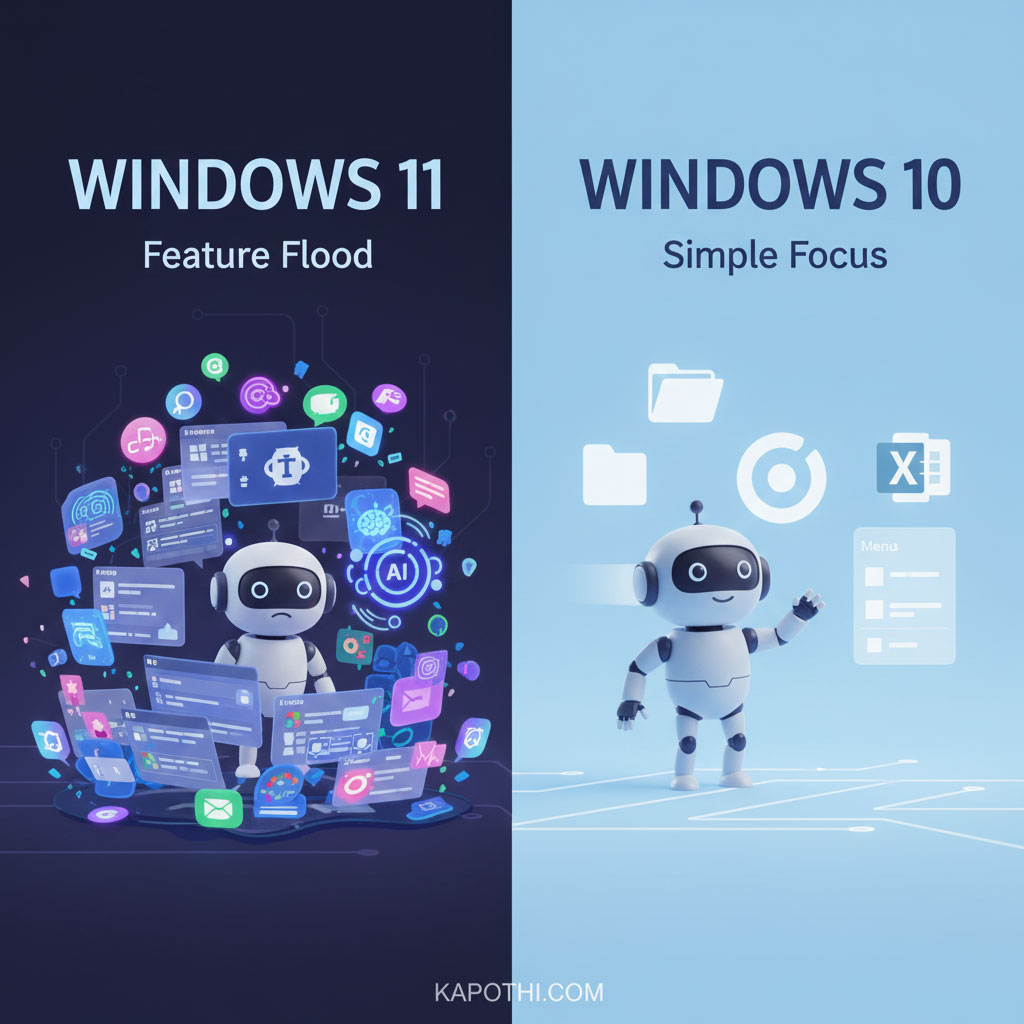
Microsoft’s Windows computer system is always changing and getting new things. With Windows 11, they added lots and lots of new features – like widgets, built-in Teams chat, smart ways to arrange windows, and easy-to-use touch menus. But the truth is simple: most people don’t use these new things. They stick to the same everyday tasks they’ve done for years.

What most people do on Windows every day

  • File Explorer: opening, copying, renaming, and organizing files.
  • Web browsing: Using Chrome, Edge, or Firefox for daily internet stuff.
  • Office apps: Word, Excel, Outlook — important tools for work or school.
  • Basic settings: Adjusting Wi‑Fi, printers, sound, and screen.
  • Entertainment: watching videos, listening to music, or playing simple games.

These are the main things people do every day. Everything else just sits there, unused.

Why Windows 11 feels slow or heavy

  • Background programs: Widgets, data collection, and Teams chat run all the time, even if you’re not using them.
  • Design extras: Rounded corners and fancy looks use up more of your computer’s power.
  • Right-click menu changes: You often have to click “Show more options” which takes longer for experienced users.
  • Preloaded apps: Many apps come already installed, using up computer resources even when idle.
  • Memory use: Windows 11 uses more RAM (your computer’s short-term memory) when just sitting there, compared to Windows 10.

For many, this makes Windows 11 feel a bit heavy and slow, even if it looks nice.

The difference between what Microsoft wants and what users do

Microsoft sees Windows as a system for everything: getting work done, having fun, working together, and using AI. But most people just use it as a simple tool for their main tasks. This difference causes problems: new features keep appearing, but not many people actually use them.

Why Windows 10 still feels right

  • Fast performance: It has fewer programs running in the background.
  • Direct design: No extra clicks needed for menus.
  • Less extra software: Fewer pre-installed apps.
  • Familiar setup: Users already know where everything is.

Windows 10 is like a clear, simple tool — fast, direct, and easy to use.

Conclusion

Windows 11 might have over a thousand features, but most people only need a few. The rest are just extra decorations, admired by some but ignored by many. For everyday computer use, keeping things simple is better than having too much. Windows 10 stays faster and more responsive for those who prefer speed and clarity over fancy looks.

Windows 10 vs Windows 11: Rituals of Use

# Daily ritual Windows 10 Windows 11
1 File Explorer Classic, direct, full context menu Decluttered, extra “Show more options” step
2 Web browsing Runs smoothly with minimal background load Slightly heavier due to Edge integration & services
3 Office apps Seamless, lightweight performance Same apps, but UI layering adds overhead
4 Basic settings Straightforward Control Panel & Settings Modern Settings app, but slower navigation
5 Entertainment Lean playback, minimal bundled extras Extra apps & services preloaded, heavier footprint
6 Background services Fewer processes, lighter idle RAM use Widgets, Teams, telemetry increase idle load
7 UI design Flat, fast, minimal GPU demand Rounded corners, Fluent Design = heavier graphics
8 System footprint Lower RAM and CPU usage Higher idle RAM, more processes
9 User adoption Familiar, widely trusted Mixed — many stick to basics, ignore new features
10 Overall feel Light, responsive shrine Decorated shrine — heavier, ornamental

🚀 The Secret Life of Apps! Your Tiny Digital Helpers!

🚀 The Secret Life of Apps! Your Tiny Digital Helpers!

Hey Tech Explorers!

Get ready for an amazing adventure into the secret world of apps! You use them every day, right? For playing awesome games, watching your favorite videos, learning cool stuff for school, or talking to your family and friends. But have you ever stopped to wonder… What is an app, anyway?

A cheerful, friendly robot app character with various app icons like games, videos, and books floating around it, on a glowing circuit board.

Imagine this: Apps are like tiny, super-smart robot helpers that live inside your phone, tablet, or even your computer! Each one has a special job. Just like you have different toys for different kinds of fun, your devices have different apps for different kinds of tasks. They’re always ready to spring into action when you tap their icon!

Who Makes These Magical Mini-Robots?

A friendly cartoon kid with colorful hair happily typing code on a computer, with app robots appearing on the screen, illustrating app development.

These amazing app robots don’t just appear out of thin air! Real people, often called App Builders, Programmers, or Developers, create them! They’re like digital architects who design and build entire worlds inside your devices.

App builders use a special “computer language” called code. It’s like writing a super-detailed recipe or a set of instructions that only computers understand. They tell the app robot exactly what to do: “When the user taps this button, show this picture!” or “If the player jumps, move them up!”

It all starts with an idea, then lots of planning, drawing, coding, and testing! App builders try out their apps many times to make sure they work perfectly, are fun to use, and don’t have any silly bugs (mistakes) that could make the app crash. It’s a bit like building a Lego castle and making sure all the pieces fit just right!

How Do Apps Talk to You? (And You to Them!)

Have you ever wondered how you tell an app what to do, or how the app shows you cool things? It’s all about talking!

A cheerful smartphone app character interacting with a finger tap, with icons for camera, microphone, and location sensors around it, on a glowing circuit board.
  • Buttons & Taps: This is the easiest way! When you tap a button on the screen, you’re giving the app a command, like “Start game!” or “Show next picture!” Your finger is like a magic wand!
  • Screens & Sounds: Apps talk back to you by showing colorful pictures, videos, and text on your screen. They also use fun sounds, music, and even voices to get your attention or celebrate your victories!
  • Sensors: Their Eyes, Ears, and Feelers! Your phone or tablet has special parts called sensors. Apps use these to understand the world around them:
    • Camera: The app uses your device’s “eyes” to take photos or scan QR codes.
    • Microphone: The app uses your device’s “ears” to listen for your voice commands or record sounds.
    • Touchscreen: The app feels where your finger is, so it knows what you’re pointing at or drawing.
    • GPS (Location): Some apps use a “sense of direction” to know where you are, like map apps.

It’s like the app is a clever robot using all its senses to interact with you and its environment!

Where Do Apps Live? (On Your Device & in the Cloud!)

A cute, friendly smartphone on one side, connected by colorful lines to a happy cloud on the other side, representing apps living on devices and in the cloud, with app icons traveling between them.

So, once you download an app, where does it actually go? Apps have two main “homes”:

  1. Your Device’s Storage: Most of an app’s main “body” and some of its data (like your game saves, if you play offline) live right on your phone or tablet’s memory. Think of it like your toys that live in your room – they’re always there when you want to play!
  2. The Cloud (The Internet Home!): Many apps also have a special second home “in the sky” – which is really a fancy way of saying they live on huge, powerful computers (called servers) far away on the internet!
    • Why the cloud? This is how you can play games with friends who are in a different house, save your important drawings online so you don’t lose them, or watch endless videos without using up all your device’s space. The cloud helps apps share information and connect with the whole world!

So, apps are a bit like superheroes with two bases: one on your device for quick action, and one in the cloud for global adventures!

Apps for Everything! (Different Kinds of Robot Helpers)

A cheerful smartphone app character surrounded by various app icons representing different types: games, learning, creativity, and communication, on a glowing circuit board.

Just like there are different types of robots for different jobs, there are tons of apps, each with a special purpose!

  • Games for Fun! These are the app robots that bring you exciting adventures, puzzles, and challenges right to your fingertips.
  • Learning & School! Some apps are super smart teachers! They can help you learn new words, practice math, explore space, or discover amazing facts about animals.
  • Creative Apps! Want to draw a masterpiece, compose a song, or edit a cool photo? There are apps that help you become an artist, musician, or photographer!
  • Communication Apps! These apps help you talk to your family and friends, whether they’re next door or across the world, using messages, calls, or video chats.
  • Everyday Helpers! You’ll find apps for almost anything – checking the weather, finding your way on a map, telling you how to cook a yummy snack, or even helping you identify a plant!

No matter what you want to do, there’s probably an app robot ready to help!

Being a Smart App User (App Safety Basics)

A smart cartoon kid looking at a phone with a lock icon, thinking about privacy and safety, representing responsible app usage.

Apps are amazing, but it’s super important to be a smart app user, just like you’re smart when you cross the road! Here are some golden rules:

  • Always Ask a Grown-Up: Before you download any new app, always ask your parent or guardian for permission. They can help you choose safe and appropriate apps.
  • Privacy Patrol: Apps sometimes ask for information, like your location, your name, or access to your camera. This is called “privacy.” Always ask a grown-up if it’s okay to share this information. If an app asks for too much, it might be best to say no!
  • Don’t Click Everything: Be careful with pop-ups, ads, or links inside apps. Some might take you to places you don’t want to go. If something looks strange, tell a grown-up.
  • Balance Your Screen Time: Apps are fun, but remember there are lots of other exciting things to do outside, with friends, or with a good book! Make sure you balance your app time with other activities.

By being a smart app user, you can enjoy all the amazing things apps offer safely!

Conclusion: Amazing Apps!

Wow! We’ve explored the secret life of apps! Now you know that apps are like tiny, helpful robots, built by clever programmers, that talk to you through screens and sounds, use your device’s sensors, and can live both on your device and far away in the cloud!

Keep being curious, keep asking questions, and keep exploring the amazing world of technology safely! Happy app adventures, Tech Explorers!