All posts by Kapuwa

Understanding Kubernetes: The Kitchen Story

Understanding Kubernetes: The Kitchen Story

Kubernetes (often called K8s) is an open‑source system that orchestrates containers across clusters of computers. The easiest way to grasp it is through a kitchen story that turns complex tech into everyday sense.

The Restaurant Analogy

To understand why we need orchestration, imagine you are running a world-class restaurant:

  • The Head Chef (Kubernetes): You don’t cook every dish yourself. You manage many chefs, ovens, and stations. Kubernetes ensures every dish (container) is assigned to the right station (node) at the right time.
  • The Lunch Boxes (Containers): Each recipe is packed neatly with its own ingredients. These are your “containers.” Kubernetes decides where to place those boxes in the kitchen and ensures they’re prepared correctly.
  • Dynamic Staffing (Scaling): If 100 customers walk in, the Head Chef calls in more staff. If the restaurant is empty, he sends people home to save costs.
  • The Backup Plan (Self‑healing): If an oven breaks, the Head Chef moves the dish to a working one immediately. The customer never even knows there was a problem.

Teaching Flow

StepConceptAnalogy
1ContainersStandardized Lunch Boxes
2ClusterThe Entire Restaurant Kitchen
3OrchestrationHead Chef assigning stations
4Auto-ScalingHiring/Releasing staff based on crowd
5Self‑healingReplacing a broken oven or sick chef

Why Kubernetes Matters

In the modern digital world, K8s is the industry standard because it is:

  • Reliable: Keeps apps running even when hardware fails.
  • Scalable: Handles traffic spikes without manual intervention.
  • Efficient: Maximizes server usage to save money.
  • Portable: Works the same in any cloud environment.

Conclusion

Kubernetes is the “Head Chef” of the modern cloud. It manages the chaos of thousands of containers so that your applications stay smooth, scalable, and resilient—even during peak hours.

Understanding the Linux Kernel

Understanding the Linux Kernel

The Linux Kernel is the core of the Linux operating system. It acts as the bridge between software applications and the hardware of a computer, ensuring that everything runs smoothly and efficiently.

What is the Kernel?

The kernel acts as the system’s “brain,” handling several critical background tasks simultaneously. Its primary roles include:

  • Process management: Deciding which programs run and when.
  • Memory management: Allocating and protecting RAM usage.
  • Device drivers: Translating communication between hardware devices and software.
  • File systems: Organizing and managing data storage.
  • Networking: Handling internet and local communication.

Why is the Kernel Important?

Without the kernel, applications would not be able to interact with hardware. It ensures stability, security, and flexibility across different platforms, preventing individual programs from crashing the entire system.

Layers of the Kernel

To manage complexity, the kernel is organized into specialized functional layers:

  • System Call Interface: The gateway for applications to request services.
  • Process Scheduler: Manages CPU time among processes.
  • Memory Manager: Controls RAM allocation.
  • Device Drivers: Enable communication with hardware.
  • File System: Provides a unified way to store and retrieve data.
  • Networking Stack: Manages data transfer across networks.

Analogy

Think of the Linux Kernel as the chief steward of a shrine: it decides who gets access to the sacred hall (CPU), ensures scrolls (files) are stored properly, keeps pathways (network) open and secure, and manages rituals (processes) so they don’t clash.

Conclusion

The Linux Kernel is the foundation of the Linux operating system. By managing hardware and software interactions, it ensures that systems are stable, secure, and efficient. Understanding the kernel helps us appreciate the power and flexibility of Linux in everything from personal computers to massive HPC clusters.

Shrinking C: Drive to 50GB — The Ritual Scroll

🧮 Shrinking C: Drive — The Ritual Scroll

Ever stared at the “Shrink C:” box in Disk Management and wondered: “What do I type here to make my C: drive exactly the size I want?” Here’s the comfort‑focused ritual to never forget again.

🧠 The Formula

Amount to shrink = Current size − Target size

✨ Example 1: Shrink to 50GB

If your current size is 100GB (≈102400 MB), and you want 50GB (≈51200 MB):

102400 − 51200 = 51200

✅ Type 51200 in the box

✨ Example 2: Shrink to 75GB

If your current size is 100GB (≈102400 MB), and you want 75GB (≈76800 MB):

102400 − 76800 = 25600

✅ Type 25600 in the box

⚠️ Notes

  • Windows might block full shrink due to unmovable files.
  • You can try disabling hibernation (powercfg -h off).
  • Temporarily disable pagefile.
  • Defragment the drive before shrinking.

🔗 Conversion Helper

If you need to convert between MB, KB, GB, or TB, use our Kapothi converter tool here: Kapothi Convert

🧘 Ritual Summary

“To shrink C: to your target size, subtract the target MB value from the current MB value. That’s your magic number to type in the box.”

Enable BitLocker without TPM on Windows 10 & 11

Enable BitLocker without TPM on Windows 10 & 11

BitLocker is Microsoft’s built‑in drive encryption tool. By default it prefers a Trusted Platform Module (TPM), but you can enable BitLocker on PCs without TPM by adjusting a policy and using a password or USB startup key.


Step‑by‑step guide (OS Drive)

  1. Open Group Policy Editor
    Press Win + R, type gpedit.msc, and press Enter.
  2. Navigate to BitLocker settings
    Go to:
    Computer Configuration → Administrative Templates → Windows Components → BitLocker Drive Encryption → Operating System Drives
  3. Enable non‑TPM option
    Open Require additional authentication at startup → set to Enabled → tick Allow BitLocker without a compatible TPMApplyOK.
  4. Restart your PC
    This ensures the policy takes effect.
  5. Turn on BitLocker
    Control Panel → BitLocker Drive Encryption → select your system drive → Turn on BitLocker.
    Choose Password or USB startup key as your unlock method and follow the prompts.

Encrypting Other Partitions (Data Drives)

BitLocker policies are divided into three categories: Operating System Drives, Fixed Data Drives, and Removable Data Drives. The TPM requirement applies mainly to OS drives. For other partitions, you can enable BitLocker directly.

  1. Fixed Data Drives (D:, E:, etc.)
    – Open Control Panel → BitLocker Drive Encryption.
    – Select the partition → Turn on BitLocker.
    – Choose a password or smart card unlock method.
    – Optional: Configure policies under Computer Configuration → Administrative Templates → Windows Components → BitLocker Drive Encryption → Fixed Data Drives.
  2. Removable Drives (USB, external HDD)
    – BitLocker To Go handles these.
    – Turn on BitLocker from Control Panel.
    – Set a password to unlock on any PC.
    – Optional policies under BitLocker Drive Encryption → Removable Data Drives.

PowerShell quick start (optional)

# Enable policy for OS drives without TPM
reg add "HKLM\SOFTWARE\Policies\Microsoft\FVE" /v EnableBDEWithNoTPM /t REG_DWORD /d 1 /f

# Turn on BitLocker on C: with password
Manage-bde -on C: -Password

# Encrypt a data drive (example D:)
Manage-bde -on D: -Password

# View status
Manage-bde -status

Best practices

  • Backup first: Always back up important files before encrypting.
  • Save your recovery key: Store it in multiple safe locations (USB, password manager, and a printed copy).
  • Performance: Initial encryption can take hours depending on drive size; you can keep working while it runs.
  • Password strength: Use a long passphrase if not using TPM.

Comfort insight: Think of OS drives as the main shrine gate needing special ritual keys, while data drives are side gates that can be locked with simpler keys. Configure each gate according to its role for maximum serenity and security.

WSQK 50,000 Watts: The History Behind the Stranger Things Radio Giant

🎙️ WSQK & the 50,000‑Watt AM Chronicle

The glowing “50,000 WSQK WATTS” sign in Stranger Things is more than neon — it’s a tribute to the golden age of AM broadcasting.

WSQK radio station neon sign — 50,000 watts
Add your Stranger Things image here — WSQK neon sign with “50,000 watts”.

TL;DR: “50,000 watts” was the maximum AM station power, giving clear-channel coverage across vast regions. Stranger Things uses it to make WSQK feel authentically powerful and retro.

What “50,000 watts” means in AM radio

  • Broadcast power: 50,000 watts (50 kW) was the traditional maximum for major AM stations in the U.S.
  • Clear-channel giants: High power + protected frequencies allowed night-time signals to travel hundreds of kilometers.
  • Cultural signal: Stations advertised “50,000 watts” to symbolize reach, authority, and prestige.

WSQK in Stranger Things

  • Fictional station: WSQK is Hawkins’ radio station with a bold “50,000 watts” neon sign.
  • Characters & setting: Robin Buckley and Steve Harrington host the Morning Squawk, grounding the station in 1980s radio culture.
  • World-building: The sign anchors Hawkins in the era’s AM broadcast tradition, echoing real clear-channel titans.

Comfort insight: The WSQK neon isn’t just aesthetics — it’s a storytelling device that signals reach and urgency, perfect for plotlines that depend on town-wide broadcasts.

Clear‑channel timeline

1930s–1950s

AM superstations rise with protected frequencies and high-power transmitters.

1960s–1980s

“50,000 watts” becomes a marketing badge; signals span states at night.

1990s–Today

FM, TV, and digital shift attention, but AM heritage and overnight coverage remain iconic.

Quick comparison: broadcast power

  • Local AM station: 1,000–5,000 watts → city coverage
  • WSQK‑style AM giant: 50,000 watts → multi‑state, night‑time reach
  • FM stations (1980s): Often 6,000–100,000 watts, but coverage depended more on antenna height and terrain

In Stranger Things, “50,000 WSQK Watts” turns a neon sign into a history lesson — a broadcast anthem from the era when AM radio carried stories across the night.

Mbps vs MB/s — The Internet Speed Scroll

📡 Kapothi Chronicle: Mbps vs MB/s — The Internet Speed Scroll

Why do ISPs advertise speeds in Mbps, while your download manager shows MB/s or even KB/s? This quick guide decodes the units and gives you a practical conversion table for Sri Lankan packages.

TL;DR: ISPs use Mbps (megabits per second). Apps show MB/s (megabytes per second). Convert by dividing by 8.

Core explanation

  • Mbps: Megabits per second — the unit ISPs advertise.
  • MB/s: Megabytes per second — the download speed shown in apps.
  • Conversion:MB/s = Mbps ÷ 8

Conversion table

ISP package Mbps Real download speed
2 Mbps 2 0.25 MB/s (~256 KB/s)
4 Mbps 4 0.5 MB/s (~512 KB/s)
8 Mbps 8 1 MB/s
10 Mbps 10 1.25 MB/s
25 Mbps 25 3.1 MB/s
50 Mbps 50 6.25 MB/s
100 Mbps 100 12.5 MB/s
200 Mbps 200 25 MB/s
1000 Mbps (1 Gbps) 1000 125 MB/s
KB/s shown only for legacy packages (2 & 4 Mbps), reflecting typical download manager displays.

Comfort insight: ISPs use Mbps (bigger numbers). Download bars often display KB/s at low speeds. Knowing the simple ÷8 rule removes confusion and helps you compare packages confidently.

Practical tips

  • Quick math: Divide Mbps by 8 to get MB/s.
  • Legacy expectations: On 2–4 Mbps, expect download managers to show KB/s.
  • Hardware matters: Router, device Wi‑Fi, and LAN speed must match your package.
  • Real‑world variance: Server limits, Wi‑Fi interference, and background apps reduce actual speed.

Kapothi Tech Scroll: Clearing WhatsApp Ghost Popups on Windows

Kapothi Tech Scroll: Clearing WhatsApp Ghost Popups on Windows

Kapothi Tech Scroll: Clearing WhatsApp Ghost Popups on Windows

Sometimes WhatsApp popups refuse to close — even after you exit the app or end it in Task Manager. They linger on the desktop like phantom scrolls, blocking your view.

The Problem

  • Notification Center glitch: Windows keeps a “toast” notification stuck in the UI layer.
  • Background services: WhatsApp helper processes may still run after the main app is closed.
  • Desktop compositor bug: The visual layer doesn’t refresh, leaving the popup frozen.

Quick Fix

Press Win + A to open Action Center. This forces Windows to redraw the notification stack, instantly clearing the ghost popup.

Permanent Fix

Restart Windows Explorer — the bearer of your desktop scrolls.

Task Manager method:

Ctrl + Shift + Esc
Find Windows Explorer
Right‑click → Restart

PowerShell one‑liner:

Stop-Process -Name explorer -Force; Start-Process explorer

Batch file shortcut: Save as RestartExplorer.bat and double‑click anytime.

@echo off
echo Restarting Windows Explorer…
taskkill /f /im explorer.exe
start explorer.exe
echo Done!

Comfort Insight

Think of Windows Explorer as the scroll bearer of your shrine wall. Restarting it forces the system to redraw everything, rolling up any phantom WhatsApp scrolls that refuse to vanish.

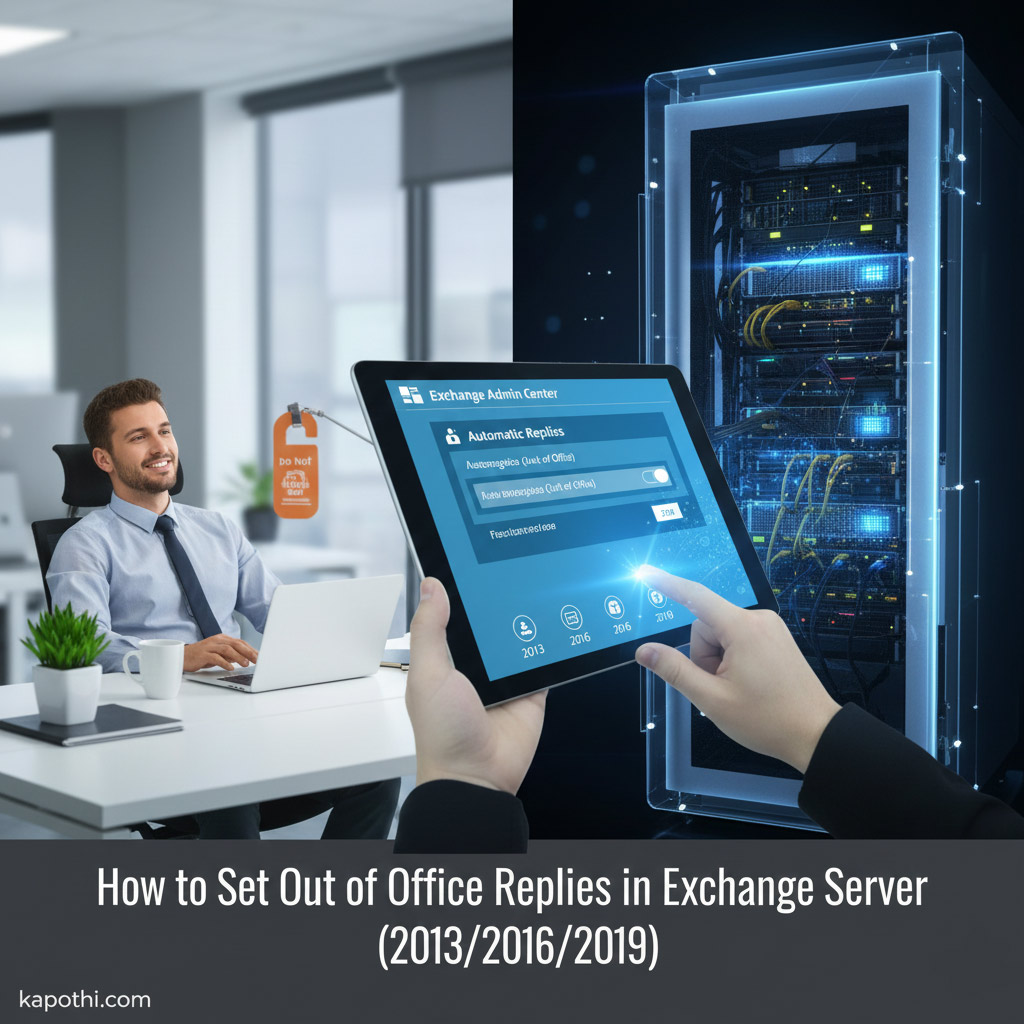
📨 How to Set Out of Office Replies in Exchange Server (2013/2016/2019)

📨 How to Set Out of Office Replies in Exchange Server (2013/2016/2019)

When a colleague is away, it’s important to let senders know automatically. Microsoft Exchange provides a simple way to configure Out of Office (Automatic Replies) either by the user themselves or by an administrator. Here’s the complete guide.

1. User Method (Outlook / OWA)

  • Outlook (desktop app)
    Go to File → Automatic Replies (Out of Office). Select Send automatic replies. Add your message for Inside My Organization and Outside My Organization. Optionally set start and end dates.
  • Outlook Web App (OWA)
    Log in to OWA. Navigate to Options → Organize Email → Automatic Replies. Enable automatic replies and configure your message.

2. Admin Method (Exchange Management Shell)

If the user cannot log in, administrators can set Out of Office replies on their behalf using PowerShell:

Set-MailboxAutoReplyConfiguration -Identity "[email protected]" -AutoReplyState Scheduled -StartTime "MM/DD/YYYY HH:MMAM" -EndTime "MM/DD/YYYY HH:MMPM" -InternalMessage "Internal auto-reply message here." -ExternalMessage "External auto-reply message here."

Key Parameters

  • Identity → the user’s mailbox (email address or alias).
  • AutoReplyState → Enabled, Disabled, or Scheduled.
  • StartTime / EndTime → define when replies begin and stop.
  • InternalMessage → message for colleagues.
  • ExternalMessage → message for outside senders.

3. Verification Ritual

After setting the configuration, always verify:

Get-MailboxAutoReplyConfiguration -Identity "[email protected]"
  • AutoReplyState is set to Scheduled.
  • StartTime and EndTime match the intended period.
  • InternalMessage and ExternalMessage are correct.

4. Testing

  • Send a test email from an internal account → confirm the internal reply.
  • Send a test email from an external account → confirm the external reply.
  • After the EndTime, send another test → confirm no auto-reply is sent.

🛡️ Comfort Insight

Think of this process as carving a temporary scroll into the Exchange shrine: the scroll activates at the start time, delivers the message faithfully to all senders, and at the end time, the scroll rolls up automatically, leaving the mailbox back to normal.

✨ With these steps, your organization can ensure smooth communication even when team members are away.

🖥️ Kapothi Tech Note: Windows Installer Not Detecting Storage – RAID / VMD / AHCI Settings

🖥️ Kapothi Tech Note: Windows Installer Not Detecting Storage – RAID / VMD / AHCI Settings

✨ If you’ve ever tried to install Windows and suddenly realized your drive is missing, don’t panic. This is a common issue across desktops, towers, and even gaming laptops. The cause is usually hidden in BIOS settings — and the fix is simpler than it looks. Let’s walk through the shrine‑grade solutions.


⚠️ Issue

During Windows installation, the storage drive may not appear.

🔍 Cause

Many PCs ship with the storage controller set to RAID (Intel RST/VMD) mode. In this mode, Windows requires additional drivers to detect the drive. Gaming laptops, workstations, and towers can all show this behavior.

🔧 Solution Path 1: Switch to AHCI (Simpler)

  • Enter BIOS (F10 or the relevant key at boot).
  • Navigate to Advanced → Device Configurations → Storage Options.
  • Change RAID to AHCI.
  • Save and reboot, then retry Windows installation.

✅ Works instantly, no extra drivers needed.
⚠️ Switching back to RAID later without preparing drivers will break boot.

🔧 Solution Path 2: Keep RAID/VMD Enabled (Proper Way)

  1. Download Intel Rapid Storage Technology (RST) drivers from your PC vendor’s support site or directly from Intel RST Driver Page.
  2. Copy the driver files to a USB stick.
  3. Start Windows installation.
  4. When the installer asks “Where do you want to install Windows?”, click Load Driver.
  5. Browse to the USB stick and load the Intel RST driver.
  6. The storage drive will now appear.
  7. Continue installation as normal.

✅ Keeps RAID/VMD enabled for advanced storage features.
⚠️ Slightly more complex, requires driver prep before installation.

🔧 Note for Users Without RAID/AHCI Options

On some systems, instead of RAID/AHCI, the BIOS shows Intel VMD Controller.
– In that case, disable Intel VMD to expose the NVMe drive directly.
– Or, if you want to keep VMD enabled, follow the same driver‑loading method as above using Intel RST drivers.


🧠 Verdict

For most users: AHCI mode (or disabling VMD) is simpler and stable.
For enterprise/RAID setups: Use the proper driver‑loading method to keep RAID/VMD enabled.

✨ With these paths, anyone facing the “no storage detected” issue during Windows installation can find clarity — whether on a tower, workstation, or gaming laptop. Kapothi keeps the ritual simple, universal, and shrine‑grade.
Exchange 2013 Auth Certificate Renewal Guide

Exchange 2013 Auth Certificate Renewal Guide

Introduction

The Microsoft Exchange Server Auth Certificate is a self‑signed certificate used for server‑to‑server authentication and hybrid trust with Microsoft 365. In Exchange Server 2013, this certificate does not renew automatically and must be replaced manually before expiry. If it expires, hybrid features such as free/busy lookups and mail flow can break.


Renewal Steps

1. Generate a New Certificate

New-ExchangeCertificate -FriendlyName “Microsoft Exchange Server Auth Certificate” -PrivateKeyExportable $true
  • Creates a new self‑signed certificate.
  • Ensures the private key is exportable (required for AuthConfig).

Important: SMTP Certificate Prompt

When running New-ExchangeCertificate to create the Auth certificate, Exchange may prompt:

Do you want to replace the default SMTP certificate? (Y/N)

This prompt appears because Exchange certificates can technically be assigned to multiple services, including SMTP (mail transport) and AuthConfig (OAuth trust). However, the Microsoft Exchange Server Auth Certificate is only intended for AuthConfig and should not be bound to SMTP.

  • When creating the Auth certificate, always choose No at this prompt.
  • Your existing SMTP certificate remains active and continues to handle mail transport.
  • If your SMTP certificate itself is expiring, renew or replace it separately and then assign it using:
Enable-ExchangeCertificate -Thumbprint <Thumbprint> -Services SMTP

Tip: Always verify SMTP mail flow after making changes. Use Get-ExchangeCertificate to confirm which certificate is bound to SMTP.

2. Capture the Thumbprint

Copy the thumbprint from the command output for use in the next step.

3. Set the New Certificate in AuthConfig

Set-AuthConfig -NewCertificateThumbprint <Thumbprint> -NewCertificateEffectiveDate (Get-Date)
  • Applies the new certificate immediately.
  • Exchange 2013 requires the effective date to be specified.
  • In single‑server environments, immediate activation is safe.

Alternative for multi‑server environments:
Use the following command to set the effective date 48 hours ahead, allowing replication across all servers:

Set-AuthConfig -NewCertificateThumbprint <Thumbprint> -NewCertificateEffectiveDate (Get-Date).AddHours(48)

4. Restart the Service

Restart-Service MSExchangeServiceHost
  • Reloads Exchange components to apply the new certificate.
  • Service display name: Microsoft Exchange Service Host.

5. Verify Configuration

Get-AuthConfig
  • Confirm that CurrentCertificateThumbprint matches the new certificate.
  • Ensure the old certificate is listed as PreviousCertificateThumbprint.

Rollback (Repoint to Previous Certificate)

If you need to revert to the old certificate (for example, if issues arise after renewal), you can repoint AuthConfig to the previous thumbprint.

Set-AuthConfig -NewCertificateThumbprint <PreviousThumbprint> -NewCertificateEffectiveDate (Get-Date)
  • Reverts AuthConfig to the previous certificate immediately.
  • Use Get-AuthConfig to confirm the rollback.

Warning: Only rollback if the previous certificate is still valid (not expired). If expired, renewal is mandatory.


Notes

  • Always document thumbprints and expiry dates for future reference.
  • Remove any unwanted certificates (e.g., ones created without exportable keys) using:
Remove-ExchangeCertificate -Thumbprint <Thumbprint>

Conclusion

Renewing the Microsoft Exchange Server Auth Certificate in Exchange 2013 is essential for maintaining hybrid functionality with Microsoft 365. Following the steps above ensures secure OAuth trust and uninterrupted service continuity. Including rollback and SMTP guidance ensures admins can recover quickly and handle all prompts confidently.