Category Archives: Microsoft Windows

Kapothi Tech Scroll: Clearing WhatsApp Ghost Popups on Windows

Kapothi Tech Scroll: Clearing WhatsApp Ghost Popups on Windows

Kapothi Tech Scroll: Clearing WhatsApp Ghost Popups on Windows

Sometimes WhatsApp popups refuse to close — even after you exit the app or end it in Task Manager. They linger on the desktop like phantom scrolls, blocking your view.

The Problem

  • Notification Center glitch: Windows keeps a “toast” notification stuck in the UI layer.
  • Background services: WhatsApp helper processes may still run after the main app is closed.
  • Desktop compositor bug: The visual layer doesn’t refresh, leaving the popup frozen.

Quick Fix

Press Win + A to open Action Center. This forces Windows to redraw the notification stack, instantly clearing the ghost popup.

Permanent Fix

Restart Windows Explorer — the bearer of your desktop scrolls.

Task Manager method:

Ctrl + Shift + Esc
Find Windows Explorer
Right‑click → Restart

PowerShell one‑liner:

Stop-Process -Name explorer -Force; Start-Process explorer

Batch file shortcut: Save as RestartExplorer.bat and double‑click anytime.

@echo off
echo Restarting Windows Explorer…
taskkill /f /im explorer.exe
start explorer.exe
echo Done!

Comfort Insight

Think of Windows Explorer as the scroll bearer of your shrine wall. Restarting it forces the system to redraw everything, rolling up any phantom WhatsApp scrolls that refuse to vanish.

🖥️ Kapothi Tech Note: Windows Installer Not Detecting Storage – RAID / VMD / AHCI Settings

🖥️ Kapothi Tech Note: Windows Installer Not Detecting Storage – RAID / VMD / AHCI Settings

✨ If you’ve ever tried to install Windows and suddenly realized your drive is missing, don’t panic. This is a common issue across desktops, towers, and even gaming laptops. The cause is usually hidden in BIOS settings — and the fix is simpler than it looks. Let’s walk through the shrine‑grade solutions.


⚠️ Issue

During Windows installation, the storage drive may not appear.

🔍 Cause

Many PCs ship with the storage controller set to RAID (Intel RST/VMD) mode. In this mode, Windows requires additional drivers to detect the drive. Gaming laptops, workstations, and towers can all show this behavior.

🔧 Solution Path 1: Switch to AHCI (Simpler)

  • Enter BIOS (F10 or the relevant key at boot).
  • Navigate to Advanced → Device Configurations → Storage Options.
  • Change RAID to AHCI.
  • Save and reboot, then retry Windows installation.

✅ Works instantly, no extra drivers needed.
⚠️ Switching back to RAID later without preparing drivers will break boot.

🔧 Solution Path 2: Keep RAID/VMD Enabled (Proper Way)

  1. Download Intel Rapid Storage Technology (RST) drivers from your PC vendor’s support site or directly from Intel RST Driver Page.
  2. Copy the driver files to a USB stick.
  3. Start Windows installation.
  4. When the installer asks “Where do you want to install Windows?”, click Load Driver.
  5. Browse to the USB stick and load the Intel RST driver.
  6. The storage drive will now appear.
  7. Continue installation as normal.

✅ Keeps RAID/VMD enabled for advanced storage features.
⚠️ Slightly more complex, requires driver prep before installation.

🔧 Note for Users Without RAID/AHCI Options

On some systems, instead of RAID/AHCI, the BIOS shows Intel VMD Controller.
– In that case, disable Intel VMD to expose the NVMe drive directly.
– Or, if you want to keep VMD enabled, follow the same driver‑loading method as above using Intel RST drivers.


🧠 Verdict

For most users: AHCI mode (or disabling VMD) is simpler and stable.
For enterprise/RAID setups: Use the proper driver‑loading method to keep RAID/VMD enabled.

✨ With these paths, anyone facing the “no storage detected” issue during Windows installation can find clarity — whether on a tower, workstation, or gaming laptop. Kapothi keeps the ritual simple, universal, and shrine‑grade.

Active Directory SID Quick Reference

Active Directory SID Quick Reference

  • SID format: S-1-5-21-<domainID>-<RID>
  • Domain ID: The long middle section (e.g. 3450839898-1007371689-2406560646) is constant for all accounts in the domain.
  • RID: The last number (e.g. 7147) uniquely identifies the user or group.
  • Identity resolution:
Get-ADUser -Identity <SID>
  

→ Returns the user object (SamAccountName, DistinguishedName, etc.).

Useful PowerShell Commands

Full details of user

Get-ADUser -Identity <SID> -Properties *
  

Group memberships

Get-ADUser -Identity <SID> | Get-ADPrincipalGroupMembership
  

Username → SID lookup

Get-ADUser -Identity <username> | Select SID
  

Ritual View 🌱

  • Domain ID → temple walls (shared by all accounts).
  • RID → unique scroll inside the shrine.
  • SID → the true identity key, unchanged even if names are altered.

🌀 Kapothi Tech Adventure: The Space That Broke the Sync

🌀 Kapothi Tech Adventure: The Space That Broke the Sync

The Mystery

OneDrive showed a scary error:

Bad Request (status code 400)… The provided name cannot contain leading, or trailing, spaces.

The file looked fine, but hidden at the start was a sneaky space:
" Ada Vessantara Raja Putha - Various Artists.mp3"

The Fix

  • Step 1: Spot the hidden space.
  • Step 2: Rename the file to remove it.
  • Step 3: Sync again — and it works!

The PowerShell Spell (for 100s of files)

# Go to the folder where your files are
cd "C:\SINHALA\OLD\Noorthi Gee Collection"

# Clean all filenames in this folder
Get-ChildItem -File | ForEach-Object {
    $newName = $_.Name.Trim()
    if ($newName -ne $_.Name) {
        Rename-Item $_.FullName $newName
    }
}

# If you want to include subfolders too:
Get-ChildItem -File -Recurse | ForEach-Object {
    $newName = $_.Name.Trim()
    if ($newName -ne $_.Name) {
        Rename-Item $_.FullName $newName
    }
}
  

The Lesson

Even invisible spaces can break big systems. Computers are precise, so every character matters.
Removing those ghost spaces turns errors into success — whether it’s one file or hundreds.

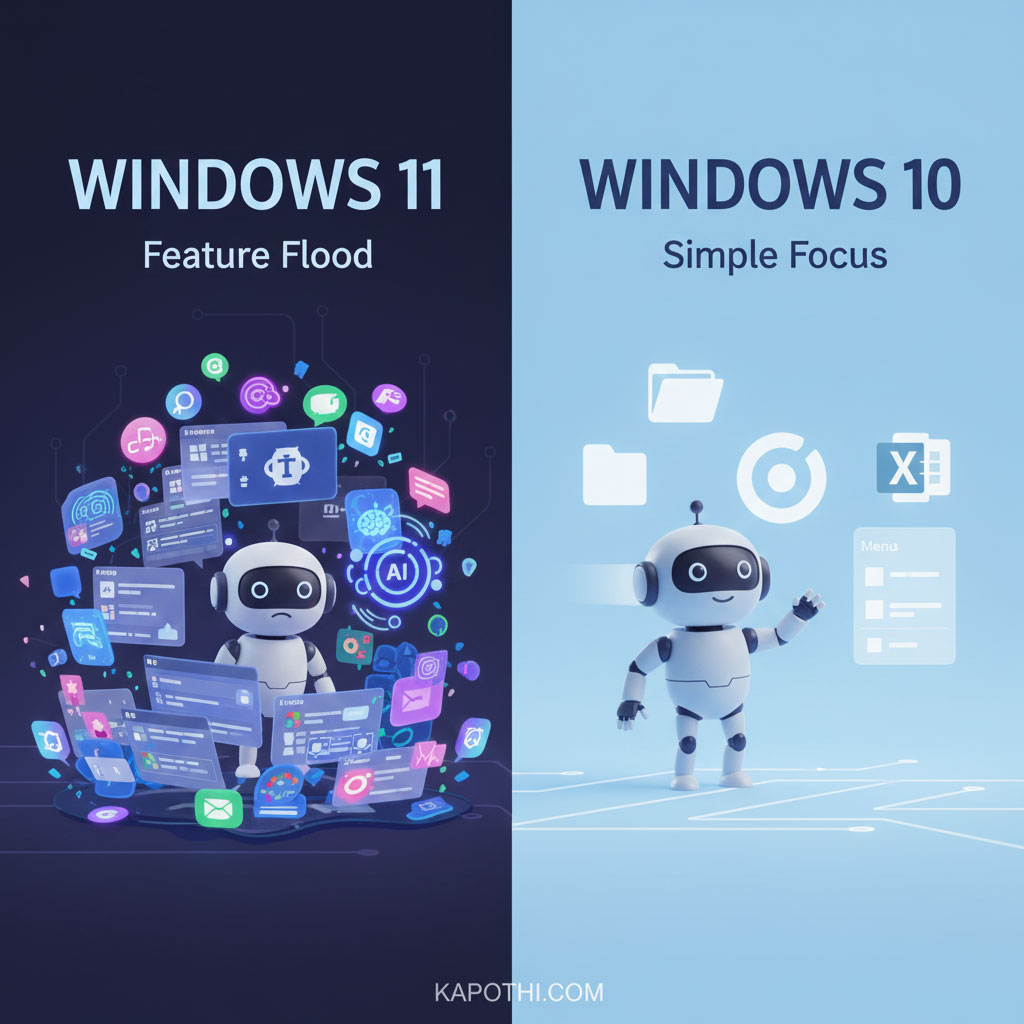
Windows 11’s Feature Flood vs Windows 10’s Lean Rituals

Windows 11’s Many New Features vs Windows 10’s Simple Focus

Introduction

Microsoft’s Windows computer system is always changing and getting new things. With Windows 11, they added lots and lots of new features – like widgets, built-in Teams chat, smart ways to arrange windows, and easy-to-use touch menus. But the truth is simple: most people don’t use these new things. They stick to the same everyday tasks they’ve done for years.

What most people do on Windows every day

  • File Explorer: opening, copying, renaming, and organizing files.
  • Web browsing: Using Chrome, Edge, or Firefox for daily internet stuff.
  • Office apps: Word, Excel, Outlook — important tools for work or school.
  • Basic settings: Adjusting Wi‑Fi, printers, sound, and screen.
  • Entertainment: watching videos, listening to music, or playing simple games.

These are the main things people do every day. Everything else just sits there, unused.

Why Windows 11 feels slow or heavy

  • Background programs: Widgets, data collection, and Teams chat run all the time, even if you’re not using them.
  • Design extras: Rounded corners and fancy looks use up more of your computer’s power.
  • Right-click menu changes: You often have to click “Show more options” which takes longer for experienced users.
  • Preloaded apps: Many apps come already installed, using up computer resources even when idle.
  • Memory use: Windows 11 uses more RAM (your computer’s short-term memory) when just sitting there, compared to Windows 10.

For many, this makes Windows 11 feel a bit heavy and slow, even if it looks nice.

The difference between what Microsoft wants and what users do

Microsoft sees Windows as a system for everything: getting work done, having fun, working together, and using AI. But most people just use it as a simple tool for their main tasks. This difference causes problems: new features keep appearing, but not many people actually use them.

Why Windows 10 still feels right

  • Fast performance: It has fewer programs running in the background.
  • Direct design: No extra clicks needed for menus.
  • Less extra software: Fewer pre-installed apps.
  • Familiar setup: Users already know where everything is.

Windows 10 is like a clear, simple tool — fast, direct, and easy to use.

Conclusion

Windows 11 might have over a thousand features, but most people only need a few. The rest are just extra decorations, admired by some but ignored by many. For everyday computer use, keeping things simple is better than having too much. Windows 10 stays faster and more responsive for those who prefer speed and clarity over fancy looks.

Windows 10 vs Windows 11: Rituals of Use

# Daily ritual Windows 10 Windows 11
1 File Explorer Classic, direct, full context menu Decluttered, extra “Show more options” step
2 Web browsing Runs smoothly with minimal background load Slightly heavier due to Edge integration & services
3 Office apps Seamless, lightweight performance Same apps, but UI layering adds overhead
4 Basic settings Straightforward Control Panel & Settings Modern Settings app, but slower navigation
5 Entertainment Lean playback, minimal bundled extras Extra apps & services preloaded, heavier footprint
6 Background services Fewer processes, lighter idle RAM use Widgets, Teams, telemetry increase idle load
7 UI design Flat, fast, minimal GPU demand Rounded corners, Fluent Design = heavier graphics
8 System footprint Lower RAM and CPU usage Higher idle RAM, more processes
9 User adoption Familiar, widely trusted Mixed — many stick to basics, ignore new features
10 Overall feel Light, responsive shrine Decorated shrine — heavier, ornamental

Windows Activation — Error Codes and Remedies

Troubleshooting Windows Activation Errors: Codes and Fixes

📜 Windows Activation Rituals — Error Codes and Remedies

A complete guide to Windows activation error codes, meanings, and fixes. Learn how to resolve common issues like 0x80072EE2, 0xC004F074, and more. Keywords: Windows activation error codes, Windows Server activation, slmgr.vbs, KMS errors, Microsoft activation troubleshooting

Activation is the ritual that binds your Windows Server or client to Microsoft’s trust shrine. When it fails, cryptic error codes appear. This scroll documents the most common activation errors, their meanings, and the remedies to restore trust.

Common error codes and fixes

Code Meaning Fix ritual
0x80072EE2 Timeout contacting activation server Verify internet, DNS, firewall; retry activation
0xC004C003 Product key blocked Use valid key, contact Microsoft support
0xC004F074 KMS server not reachable Check KMS DNS records, firewall, ensure KMS host is online
0xC004C008 Key already used elsewhere Transfer license or obtain new key
0xC004C020 Multiple activations detected Contact Microsoft support for resolution
0xC004F050 Invalid product key Re‑enter correct key for edition
0x8007007B DNS name not available Correct KMS DNS entry or use MAK key
0xC004E003 Licensing service failure Reinstall license files; run slmgr.vbs /rilc
0xC004F038 KMS count not met Ensure minimum 25 clients (or 5 servers) for KMS activation
0xC004F00F Hardware ID changed Reactivate with original key or contact support

Stylized command windows

Windows Script Host — Status
PS C:\> slmgr.vbs /dlv

Tip: Press Win + R, type cmd, then run the command.
Windows Script Host — Expiry
PS C:\> slmgr.vbs /xpr

Shows permanent/expiry status of the current activation.
Windows Script Host — Activate
PS C:\> slmgr.vbs /ato

If you see 0x80072EE2, verify internet connectivity, DNS, and firewall before retrying.
Windows Activation — Error Details
Run: slui.exe 0x2a 0x80072EE2
Displays detailed text for the activation error in a GUI dialog.

Troubleshooting ritual notes

  • Connectivity: Ensure the server has internet access and can resolve activation.sls.microsoft.com.
  • DNS: Use nslookup to confirm resolution; fix any proxy or DNS issues.
  • Firewall: Temporarily allow outbound traffic to test; then add permanent rules as needed.
  • Edition and key: Verify your product key matches the installed edition (e.g., Server Standard vs Datacenter).
  • KMS specifics: Confirm KMS host availability, DNS SRV records, and minimum client count.

Closing: Each error code is a ritual reminder: activation depends on connectivity, valid keys, and trust. By documenting these codes, we build a communal scroll that helps every administrator resolve activation failures quickly and confidently.

SQL Express on Windows 11 — Connection Limits Explained

SQL Express on Windows 11 — Connection Limits Explained

Windows 11 is widely used for development and small-scale hosting. When installing SQL Server Express, it’s important to understand which limits apply to the operating system and which are specific to SQL Express itself.


Connection limits in Windows 11

  • File sharing (SMB): Limited to 20 concurrent inbound connections.
  • Remote Desktop (RDP): Only 1 interactive session at a time.
  • SQL Server Express via TCP (port 1433): No operating system limit. Multiple users can connect, subject to hardware resources.

SQL Server Express resource limits

  • Database size: 10 GB per database.
  • Memory usage: 1 GB RAM per instance.
  • CPU usage: 1 socket, up to 4 cores.
  • Connections: No hard cap; performance depends on the above limits.

Windows 11 vs Windows Server — Connection limits

Feature / Limit Windows 11 (Client OS) Windows Server (Server OS)
File sharing (SMB) Max 20 concurrent inbound connections Thousands of concurrent connections supported
Remote Desktop (RDP) 1 interactive session at a time Multiple concurrent sessions (with RDS licensing)
SQL Server Express (TCP) No OS-imposed limit; resource-bound only No OS-imposed limit; resource-bound only
Database size (Express) 10 GB per database 10 GB per database (same Express cap)
Memory (Express) 1 GB RAM per instance 1 GB RAM per instance (same Express cap)
CPU (Express) 1 socket, up to 4 cores 1 socket, up to 4 cores (same Express cap)
Scalability Suitable for small apps, dev/test Suitable for production workloads, large user bases

Best use cases

  • Windows 11 + SQL Express: Ideal for developers, testing environments, small business apps, or limited multi-user scenarios.
  • Windows Server + SQL Server (Express/Standard/Enterprise): Recommended for production workloads, larger user bases, multiple RDP sessions, or when SMB connections exceed 20.

Download and install SQL Server Express 2022 on Windows 11

Option A: Quick GUI install (official installer)

  1. Download: Visit the official Microsoft SQL Server Express download page and get SQL Server 2022 Express.
  2. Run the installer: Choose “Basic” for a fast setup or “Custom” to select features and installation path.
  3. Finish: Note the instance name (default: SQLEXPRESS), and confirm SQL Server Browser service if you plan remote connections.

Option B: Command line install (silent)

Use a silent unattended install for repeatable setups and documentation.

# 1) Download the SQL Server 2022 Express setup bootstrapper
$uri = "https://go.microsoft.com/fwlink/?linkid=2203201"  # SQL 2022 Express bootstrapper (evergreen link)
$setup = "$env:TEMP\SQLEXPRESS2022.exe"
Invoke-WebRequest -Uri $uri -OutFile $setup

# 2) Run a silent install of Database Engine only
& $setup /QS /ACTION=Install /FEATURES=SQLEngine /INSTANCENAME=SQLEXPRESS `
  /IACCEPTSQLSERVERLICENSETERMS `
  /SECURITYMODE=SQL /SAPWD="Strong!Passw0rd" `
  /TCPENABLED=1 /SQLSVCACCOUNT="NT AUTHORITY\NETWORK SERVICE" `
  /UPDATEENABLED=TRUE

# Notes:
# - Change SAPWD to your strong password if enabling Mixed Mode (SQL logins).
# - /QS = quiet simple UI; use /Q for fully silent.

Enable remote TCP connections (optional)

  1. Open SQL Server Configuration Manager: Enable TCP/IP under “SQL Server Network Configuration” for your instance.
  2. Firewall rule: Allow inbound TCP on port 1433 (or your chosen port).
    New-NetFirewallRule -DisplayName "SQL Server 1433" -Direction Inbound -Protocol TCP -LocalPort 1433 -Action Allow
        
  3. Restart services: Restart the SQL Server (SQLEXPRESS) service after changes.

SQL Server Management Studio (SSMS)

  • Download SSMS: Install SSMS to manage databases, users, and queries.
  • Connect: Use localhost\SQLEXPRESS or machine-name\SQLEXPRESS. For remote clients, use IP:1433 if a custom port is configured.

Post-install checklist

  • Authentication mode: Choose Windows-only or Mixed Mode depending on your app requirements.
  • Backups: Set up regular backups (full/diff/log) based on change rate and recovery objectives.
  • Performance basics: Verify indexes, set appropriate file growth, and monitor memory usage (Express cap is 1 GB per instance).
  • Security: Restrict inbound access, use strong passwords, and patch regularly.

Summary

Windows 11 limits SMB connections (20) and allows only one interactive RDP session, but it does not impose a limit on TCP connections to SQL Server Express. SQL Express caps database size, memory, and CPU, not connection count. For higher concurrency and production workloads, Windows Server with SQL Server Standard or Enterprise is the recommended path.

ClusterStorage Ghost Folders | Why They Appear and How to Check

ClusterStorage Ghost Folders | Why They Appear and How to Check

In Windows Failover Clustering, you may sometimes notice extra folders like ClusterStorage.000 or ClusterStorage.001 on one host. These are ghost mount points created when the system couldn’t attach the shared volume to the usual C:\ClusterStorage path. They often appear after a failover, reboot, or storage hiccup, and remain even after the cluster stabilizes.

The important thing is: they don’t mean your cluster is broken. They’re just remnants of a past event. Still, it’s wise to verify that no workloads are tied to those ghost paths and that your Cluster Shared Volumes (CSV) are healthy.

🔍 What to Check

  • Cluster Shared Volume health — confirm all shared volumes are online and coordinated by a healthy node.
  • List all VM storage paths — review where your virtual disks (VHDX files) are stored.
  • Check VM configuration files — inspect configs, snapshots, and paging files.
  • Verify CSV mount points — ensure volumes are mounted under C:\ClusterStorage not ghost folders.
  • Inspect cluster resources and logs — check disk resources and recent cluster events.
  • Check redirected I/O state — confirm CSVs are in direct I/O mode.

🛠️ Testing Commands


# List all VM disk paths
Get-VM | Get-VMHardDiskDrive | Select-Object VMName, Path

# Check VM configuration, snapshots, and paging file locations
Get-VM | Select-Object Name, ConfigurationLocation, SnapshotFileLocation, SmartPagingFilePath

# Verify Cluster Shared Volume mount points
Get-ClusterSharedVolume | Select-Object Name, @{Name="Path";Expression={$_.SharedVolumeInfo.FriendlyVolumeName}}

# Run full cluster validation (storage, network, system health)
Test-Cluster

# Show physical disk resources and their status
Get-ClusterResource | Where-Object {$_.ResourceType -eq "Physical Disk"}

# Check cluster events/logs for recent disk or CSV issues
Get-ClusterLog -UseLocalTime -TimeSpan 1

# Show CSV I/O mode (Direct vs Redirected)
Get-ClusterSharedVolumeState

✅ Resolution

If ghost folders are empty and unused, they can be safely deleted. If they contain files, relocate them to the proper ClusterStorage\VolumeX path first. Use the above commands to confirm CSV health and ensure no VM references ghost paths.

🕯️ Kapothi Insight

Ghost doors remain when the shrine once faltered — but the true doorway is open and strong today.

Tags

Hyper‑V, Failover Clustering, ClusterStorage, Kapothi Legacy, Digital Forensics

PowerShell Remoting — Allowing Only One Trusted Server

PowerShell Remoting — Allowing Only One Trusted Server

For years, Windows admins used WMIC (Windows Management Instrumentation Command-line) to check hardware and system details. Microsoft is now retiring WMIC because it’s old and no longer updated. Instead, they want everyone to use PowerShell, which is more secure, flexible, and future-proof.

If you use WMIC in scripts or management tools, you’ll need to move to PowerShell commands. This guide shows how to safely allow only one trusted server to run PowerShell commands remotely on another server.


Steps to allow only Server2 to access Server1

PowerShell # Enable remoting on Server1
Enable-PSRemoting -Force

PowerShell # Restrict firewall to Server2’s IP
New-NetFirewallRule -DisplayName “Allow WinRM from Server2” `
  -Direction Inbound -Protocol TCP -LocalPort 5985 `
  -RemoteAddress 192.168.1.20 -Action Allow

PowerShell # Configure TrustedHosts on Server2
Set-Item WSMan:\localhost\Client\TrustedHosts -Value “Server1”

PowerShell # Connect with credentials from Server2
Enter-PSSession -ComputerName Server1 -Credential (Get-Credential)

Continue reading PowerShell Remoting — Allowing Only One Trusted Server

XTS‑AES 256‑bit encryption in Windows | Bitlocker

Kapothi legacy post: XTS‑AES 256‑bit encryption in Windows

Seal your restored archives inside a sovereign capsule — by law (Group Policy) or by ritual (PowerShell).

What is XTS‑AES 256‑bit encryption?

XTS is a mode of operation designed for disk encryption. It encrypts data by sector and resists manipulation by binding encryption to the physical layout of the disk.

AES 256‑bit uses a 256‑bit key, offering extremely strong protection against brute‑force attacks and aligning with modern enterprise standards.

Combined, XTS‑AES 256 is the industry standard for full‑disk and volume encryption, used by tools like BitLocker and VeraCrypt to protect sensitive archives.

“The capsule holds the scrolls, the cipher seals them — together they become unbreakable legacy.”

What is the default in Windows?

By default, BitLocker uses XTS‑AES 128‑bit encryption for new volumes. It’s efficient and secure, but archivists often choose XTS‑AES 256‑bit for maximum resilience and future‑proofing.

Enable XTS‑AES 256‑bit with Group Policy (system‑wide default)

  1. Press Win + R, type gpedit.msc, and press Enter.
  2. Navigate to:
    Computer Configuration > Administrative Templates > Windows Components > BitLocker Drive Encryption
  3. Open Choose drive encryption method and cipher strength for each drive type you use.
  4. Set the policy to Enabled and choose XTS‑AES 256‑bit.
  5. Apply and restart Windows.

Enable XTS‑AES 256‑bit with PowerShell (per‑drive ritual)

BitLocker requires a protector (password, recovery key, TPM, etc.). The correct ritual is a three‑step sequence:

Step 1: Enable BitLocker with a password protector

Enable-BitLocker -MountPoint "Y:" -PasswordProtector -EncryptionMethod XtsAes256
    

Step 2: Add a recovery key protector

Add-BitLockerKeyProtector -MountPoint "Y:" -RecoveryPasswordProtector
    

Step 3: Verify encryption and protectors

Get-BitLockerVolume -MountPoint "Y:"
    

Replace Y: with your drive letter. This ensures the capsule is sealed with XTS‑AES 256‑bit and has redundant unlock methods.

Optional: Create and encrypt a VHD capsule

  1. Create VHD: Open Disk Management → Action → Create VHD → choose location/size → initialize (GPT) → format (NTFS).
  2. Assign a drive letter (e.g., Y:).
  3. Encrypt with the three‑step PowerShell ritual above.
  4. Save the recovery key to an offline location (print or store in a separate, secured archive).

Verify BitLocker Encryption Strength

You can confirm whether a drive is sealed with XTS‑AES 128 or XTS‑AES 256 using these commands:

PowerShell

Get-BitLockerVolume -MountPoint "Y:" | fl
  

Command Prompt

manage-bde -status Y:
  

Replace Y: with your drive letter. Both commands will display the Encryption Method, showing whether the capsule is protected with XTS‑AES 128 or XTS‑AES 256.

Troubleshooting common errors

  • Access denied: Run PowerShell as Administrator.
  • Not associated with BitLocker volume: Ensure the drive is mounted, initialized, and formatted.
  • Parameter set cannot be resolved: Only one protector can be used with Enable-BitLocker. Add others afterwards with Add-BitLockerKeyProtector.

“The capsule must be mounted, the scroll must be formatted, and the ritual must be invoked with authority.”

Kapothi editorial note: This scroll now includes the corrected three‑step PowerShell ritual, stylized command boxes, and troubleshooting guidance for archivists sealing their capsules.