Category Archives: Windows 7

Install stuck at “setup is preparing your computer for first use”…


1) I clicked SHIFT+F10 to get a command prompt, then typed in devmgmt.msc to get the device manager. It will have the unknown or devices without drivers expanded. I disabled some but I also found that you can install drivers too. If you have all your manufacturer drivers on a USB stick then just right-mouse and select update driver and then browse to the root of your USB stick e.g. E:\ and have it search subdirectories and it should find the right driver for that device.

—-and at the same time I..

2)   typed in taskmgr.exe to get the Task Manager and in  the processes list I killed any running msiexec.exe processes and cmd.exe command prompts if they looked like they were hung i.e. no CPU and the disk light on the Laptop wasn’t really running. This step 2) is the most important step as it seemed to allow the first use setup to step on.

The install then quickly finished the “setup is preparing your computer for first use” stage and I got the username, hostname and so-on questions.

The SHIFT+F10 trick and using the devmgmr.msc and taskmgr.exe works at any stage from the “setup is preparing your computer for first use” display onwards because Windows is actually running only services haven’t started and the hostname and account details haven’t been created.

How to Increase the number of remembered servers remote desktop list (Remote desktop Recent list)

In order to increase this value:

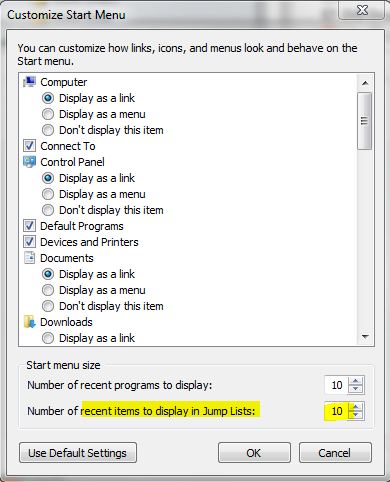
  • Right click on your Windows button and select Properties
  • Click the Start Menu tab and click the Customize button
  • Down at the bottom you will see the Start menu size options including the “recent programs to display” and the “recent items to display in Jump Lists:” value
  • Increase the size of the Jump Lists value

__________

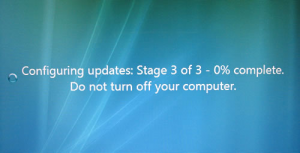
Configuring updates stage 3 of 3. 0% complete – SYSTEM RESTARTS [Windows Vista , win2008, win7]


First
make sure you are able to boot to the desktop.

You can try performing the Method 3 suggested in the article

( http://support.microsoft.com/kb/949358)

Try performing the following steps:

Start Windows Vista and go to the System Recovery options:

1.
Insert the Windows Vista installation disc in the disc drive, and then restart
the computer.

2. When you are prompted to restart from the disc, press any key.

3. When you are prompted, configure the Language to install, Time and currency
format, and Keyboard or input method options that you want, and then click
Next.

4. On the Install Windows page, click Repair your computer.

5. On the System Recovery Options page, click the version of the Windows Vista
operating system that you want to repair, and then click Next.

6. Use the System Recovery options to rename the Pending.xml file and edit the
registry:

7. On the System Recovery Options page, click Command Prompt.

8. Type cd C:\windows\winsxs, and then press ENTER.

9. Type ren pending.xml pending.old, and then press ENTER.

10. Type regedit, and then press ENTER.

11. Select HKEY_LOCAL_MACHINE.

12. On the File menu, click Load Hive.

13. Locate the following folder:

14. C:\windows\system32\config\components

15. When you are prompted for a name, type Offline_Components.

16. In Registry Editor, locate and then delete the following registry subkey:

17. HLKM\Offline Components\AdvancedInstallersNeedResolving

18. HKLM\Offline Components\PendingXmlIdentifier

19. Exit Registry Editor, At the command prompt, type exit to exit Registry
Editor. Press ENTER.Click Restart.

20. Once you are back on the desktop try performing windows updates and check
How to turn your Windows 7 laptop into a wireless hotspot

thanks to a new Windows 7 feature called Virtual Wi-Fi.

The idea is a simple one: the operating system can virtualise any compatible wireless adapter, to make it appear as though you’ve as many additional adapters as you need.

The effect is dramatic. Once it’s set up, then any Wi-Fi compatible device that can connect to you – another desktop, laptop, or an iPod Touch, say – will immediately be able to get online, by sharing your internet connection through a duplicate of your wireless adapter.

Getting this working isn’t too difficult, either, as long as you can get over the first hurdle: finding a virtual Wi-Fi-compatible driver for your wireless adapter.

Intel’s latest 32-bit and 64-bit drivers now include support, as do various others for Atheros, Broadcom, Realtek and other big players, but these don’t apply to every chipset. Check the support site for your wireless adapter to see what’s available.

If you’re in luck and manage to find and install an up-to-date Windows 7 driver for your adapter, then the next step is to set it up, and for that you’ll need an elevated command prompt. Click Start, type CMD, right-click the Cmd.exe link and select “Run as Administrator”.

Now type the following command:

netsh wlan set hostednetwork mode=allow ssid=MyNet key=MyPassword

and press [Enter]. Replace “MyNet” with the name you’d like to use for your custom network, and “MyPassword” with a password that’s a little harder to guess.

Still at the command line, type

netsh wlan start hostednetwork

and press [Enter] to fire up the virtual adapter.

Now click Control Panel > Network and Internet > Network and Sharing Centre > Change Adapter Settings, right-click your internet connection and select Properties. Click the Sharing tab, check “Allow other network users to connect…”, choose your virtual Wi-Fi adaptor – and that’s it.

Any nearby Wi-Fi enabled device should see a new network appear with the SSID you defined above. They’ll be able to connect to it using your password, and can then immediately share your internet connection

The “Desktop Wallpaper” Group Policy setting is not applied in Windows 7 or in Windows Server 2008 R2

n an Active Directory domain network environment, you apply a “Desktop Wallpaper” Group Policy setting to the domain users. However, the setting is not applied to domain users who log on to client computers that are running Windows 7 or Windows Server 2008 R2.

This issue varies if the following conditions are true:

  • If the domain user logs on the domain after you deploy the “Desktop Wallpaper” Group Policy setting, the desktop background changes to black.
    Note The color of the desktop background varies, depending on the color scheme that you set.
  • If the domain user logs on the domain before you apply the “Desktop Wallpaper” Group Policy setting, the desktop background does not change.

Additionally, in the Personalization window of the client computer, the desktop background is displayed as being changed to the setting that you applied.

Hotfix Download Available

windows 7 / windows 2008 R2 x64

Download

windows 7 / windows 2008 R2 x86

Download

Tech Doc source
http://support.microsoft.com/kb/977944

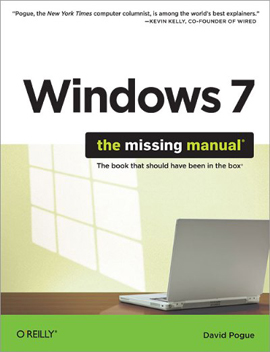
Windows 7: The Missing Manual (2010)

19l46p

In early reviews, geeks raved about Windows 7. But if you’re an ordinary mortal, learning what this new system is all about will be challenging. Fear not: David Pogue’s Windows 7: The Missing Manual comes to the rescue. Like its predecessors, this book illuminates its subject with reader-friendly insight, plenty of wit, and hardnosed objectivity for beginners as well as veteran PC users.
Windows 7 fixes many of Vista’s most painful shortcomings. It’s speedier, has fewer intrusive and nagging screens, and is more compatible with peripherals. Plus, Windows 7 introduces a slew of new features, including better organization tools, easier WiFi connections and home networking setup, and even touchscreen computing for those lucky enough to own the latest hardware.

With this book, you’ll learn how to:

Navigate the desktop, including the fast and powerful search function
Take advantage of Window’s apps and gadgets, and tap into 40 free programs
Breeze the Web with Internet Explorer 8, and learn the email, chat, and videoconferencing programs
Record TV and radio, display photos, play music, and record any of these to DVD using the Media Center
Use your printer, fax, laptop, tablet PC, or smartphone with Windows 7
Beef up your system and back up your files
Collaborate and share documents and other files by setting up a workgroup network
In early reviews, geeks raved about Windows 7. But if you’re an ordinary mortal, learning what this new system is all about will be challenging. Fear not: David Pogue’s Windows 7: The Missing Manual comes to the rescue. Like its predecessors, this book illuminates its subject with reader-friendly insight, plenty of wit, and hardnosed objectivity for beginners as well as veteran PC users.
Windows 7 fixes many of Vista’s most painful shortcomings. It’s speedier, has fewer intrusive and nagging screens, and is more compatible with peripherals. Plus, Windows 7 introduces a slew of new features, including better organization tools, easier WiFi connections and home networking setup, and even touchscreen computing for those lucky enough to own the latest hardware.

With this book, you’ll learn how to:

Navigate the desktop, including the fast and powerful search function
Take advantage of Window’s apps and gadgets, and tap into 40 free programs
Breeze the Web with Internet Explorer 8, and learn the email, chat, and videoconferencing programs
Record TV and radio, display photos, play music, and record any of these to DVD using the Media Center
Use your printer, fax, laptop, tablet PC, or smartphone with Windows 7
Beef up your system and back up your files
Collaborate and share documents and other files by setting up a workgroup network

DOWNLOAD

Solution to Windows 7 Installation Hang at 62% or 72% during Upgrade from Vista

Many users are facing problems with Windows 7 installation while upgrading from Windows Vista. Windows 7 installation stuck or hangs at 62% or 72% when upgrading from Vista via “Upgrade as install method”. The setup process stops and hangs and the system does not respond specially when it reaches 62% or 72% of completion. Even if you try to restart your system to resume failure installation process, it does not respond.

This installation problem happens because of iphlpsvc service and if you check the setupact.log file, you can see the error message as :

Warning [0x080b50] MIG AsyncCallback_ApplyStatus: Progress appears to be stuck. Current progress: 62

If the setup installation error file tells the above and exact error for installation hang at 62% or 72%, then there is an workaround to get rid of this problem and continue with the installation process. Remember that this installation failure happens during Windows 7 upgrade from Vista only.

Fix Windows 7 Install Hangs at 62% or 72% Error

  1. Reboot your computer for the system to roll back to Windows Vista OS
  2. Navigate to Start >> right click on Computer >> Properties >> Advanced Settings >> Environment Variables
  3. Under System Variables, click New >> press ENTER
  4. Type in the following variable information:
  5. Variable Name: MIG_UPGRADE_IGNORE_PLUGINS
    Variable value: IphlpsvcMigPlugin.dll

  6. Reboot your computer and restart Windows 7 installation process
  7. You are done.

The above workaround should fix the Windows 7 installation failure at 62% or 72% problem while upgrading from Vista and you can continue installing Windows 7 on your system without much hassles.