Code 0xC004E028

Kapothi with Windows Server: When Activation Says “Wait Your Turn”

Sometimes even the most seasoned admins hit a wall. You enter the customer’s product key, press activate, and Windows Server throws back a cryptic code: 0xC004E028. Panic? Not quite. This is a classic Kapothi moment — a “big problem” that turns out to be nothing more than a waiting game.

The Error Explained

Code 0xC004E028 doesn’t mean your key is wrong. It means Windows is already busy trying to activate, and you’ve asked it again before the first attempt finished. Think of it as knocking twice on the same temple door — the monk inside will answer, but only once.

Why It Happens

  • Slow response from Microsoft’s activation servers
  • Multiple attempts entered too quickly
  • Network hiccups delaying the handshake

The Ritual Fix

  1. Wait patiently — let the first activation finish.
  2. Restart the server — clears pending requests.
  3. Retry activation from Settings or with slmgr /ipk.
  4. Troubleshoot if the issue persists.

Edition Matters

Always confirm the installed edition (Standard vs Datacenter) before entering a customer-supplied key. A mismatch will never work, no matter how many times you retry.

# Install the product key
slmgr /ipk XXXXX-XXXXX-XXXXX-XXXXX-XXXXX

# Check activation status
slmgr /dli
slmgr /dlv
    

Closing

In the end, our server activated just fine — proving that not every Kapothi moment is a disaster. Sometimes, the solution is simply patience.
Kapothi Scroll: Compacting VHD/VHDX with PowerShell & SDelete

Kapothi Scroll: Compacting VHD/VHDX with PowerShell & SDelete

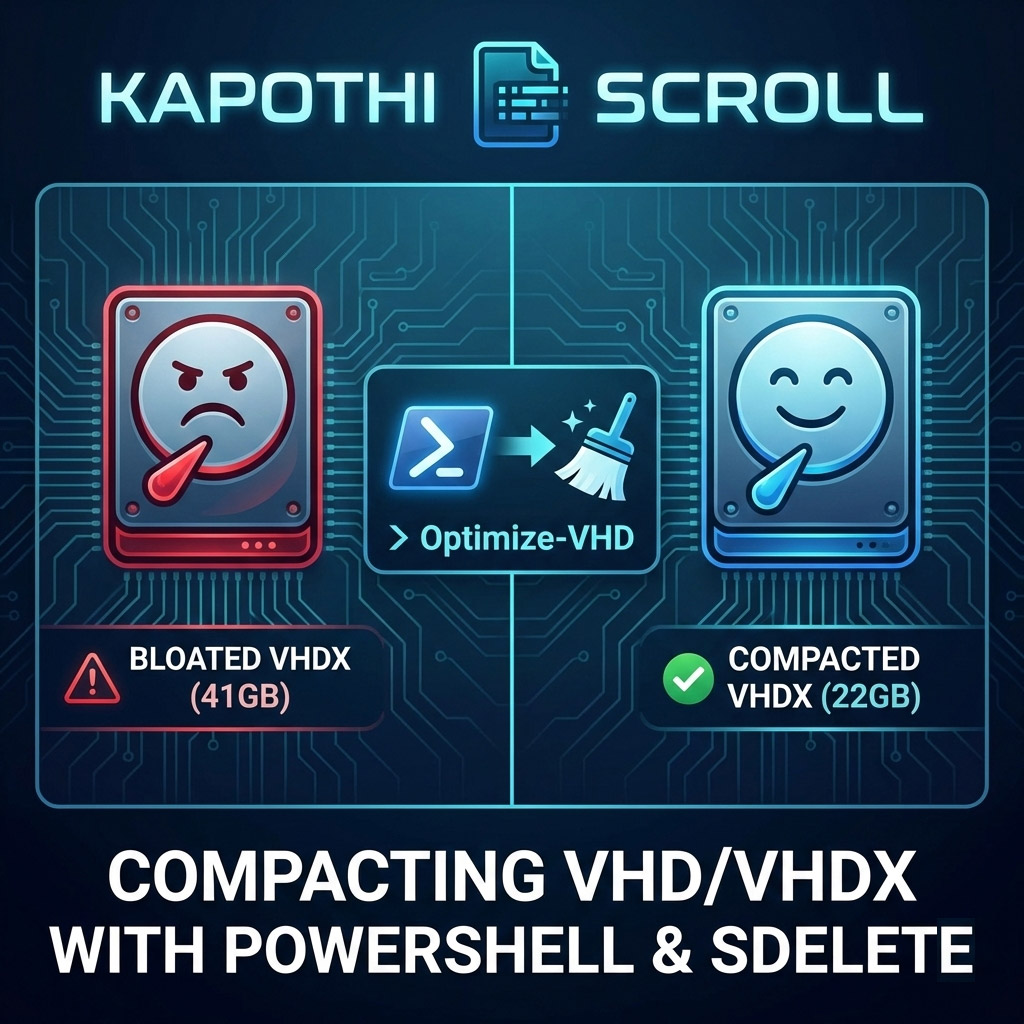
Kapothi — Sinhala slang for “getting into a big problem” — is exactly how it feels when your VHDX file swells to double its real usage size. A 22GB disk showing up as 41GB? That’s a Kapothi moment. Here’s the ritual to reclaim space.

Command Box Legend (Kapothi Style)

What is SDelete and How to Get It

SDelete is part of the legendary Sysinternals Suite created by Mark Russinovich. It is a secure delete utility that can overwrite free space with zeros, making it visible to compaction tools like Optimize-VHD. Without this step, deleted files inside a VM still appear as “used blocks” to the VHDX file, preventing shrinkage.

In Kapothi terms, SDelete is the chalk ritual: it marks the courtyard stones so the lantern keeper knows which ones are truly empty.

How to Get SDelete

  • Download SDelete from the official Microsoft Sysinternals page.
  • Extract the sdelete.exe file.
  • Run it inside your VM from an elevated Command Prompt.
# Example usage inside VM
sdelete -z C:

This command writes zeros to all free space on the C: drive. Once complete, you can shut down the VM and run Optimize-VHD on the host to reclaim space.

Step 1: Sweep the Courtyard (Zero Free Space with SDelete)

Inside the VM, run SDelete to mark free blocks with zeros. Without this, compaction won’t know which stones are truly empty.

# Run inside the VM (Command Prompt as Administrator)
sdelete -z C:

This may take time, but it’s the chalk ritual that reveals unused courtyard tiles.

Step 2: Compact the VHDX (Optimize-VHD)

Back on the host, use PowerShell to mount, optimize, and dismount the disk.

# Mount the VHDX
Mount-VHD -Path "C:\Path\To\YourDisk.vhdx" -ReadOnly

# Compact the disk
Optimize-VHD -Path "C:\Path\To\YourDisk.vhdx" -Mode Full

# Dismount when done
Dismount-VHD -Path "C:\Path\To\YourDisk.vhdx"

-Mode Quick → faster, less thorough
-Mode Full → slower, maximum space reclaimed

Step 3: Verify the Lantern’s Weight

After compaction, check the file size. It should shrink closer to the real usage (~22GB). Some overhead remains, but the bloat is gone.

Step 4: Last Resort — Rebirth with Disk2VHD

If compaction still doesn’t shrink enough, create a new disk using Disk2VHD:

  • Download Disk2VHD from Microsoft Sysinternals.
  • Run it inside the VM.
  • Select the volumes you want to capture.
  • Save to a new VHDX file.
  • Attach the new disk in Hyper-V and retire the bloated one.

This is the rebirth ritual: a fresh lantern forged, carrying only the light you need.

Kapothi Wisdom

SDelete first, then Optimize-VHD → Without sweeping the courtyard, the lantern keeper can’t lift away unused stones.
Protect your shrine tools → Always run compaction after major deletions inside the VM.
Disk2VHD fallback → When the lantern is too heavy, forge a new one.

🕯️ In Kapothi terms, this is turning a “big problem” into a ritual solution: chalk the stones, sweep the courtyard, and if needed, rebuild the lantern itself.

How to Fix Your Windows Date and Time Settings

How to Fix Your Windows Date and Time Settings

🕒 How to Fix Your Windows Date and Time Settings

If your computer clock is wrong, it can cause issues with your internet connection and apps. Use these simple commands and shortcuts to get back on track.

✅ The Quickest Shortcut

# Open Date & Time settings instantly
timedate.cpl

💡 How to use: Press Windows Key + R on your keyboard, type the command above, and hit Enter. It opens the classic Date and Time window immediately.

✅ Using the Command Prompt (CMD)

If you prefer using the Command Prompt to manage your time zones, use the tzutil tool. It is fast and very reliable.

# List every available time zone in the world
tzutil /l

# Check which time zone your PC is currently using
tzutil /g

# Change your time zone (Example: Sri Lanka)
tzutil /s "Sri Lanka Standard Time"

💡 Quick Guide:
/l → Shows you a list of all names.
/g → Shows your current setting.
/s → Sets a new time zone (make sure to use “quotes” around the name).

✅ Easy Navigation Paths

  • The Fast Way: Press Win + R → type timedate.cpl.
  • The Modern Way: Go to SettingsTime & LanguageDate & Time.
  • The Expert Way: Open Command Prompt → type tzutil.

💡 Pro Tip

Most time issues happen because “Set time automatically” is turned off. If your clock is constantly wrong, open your settings and ensure that toggle is switched to ON so Windows can sync with the internet.

✅ Stop Automatic Time Zone Changes

If your PC keeps switching to the wrong time zone, you can disable the automatic adjustment.

# Turn off automatic time zone
1. Press Win + I to open Settings
2. Go to Time & Language → Date & Time
3. Find "Set time zone automatically"
4. Switch it OFF
5. Manually select your correct time zone

💡 Pro Tip: If the time zone still changes, check that Location Services are disabled, since Windows uses your location to adjust time zones.

Rufus — The Dog Who Became Amazon’s AI

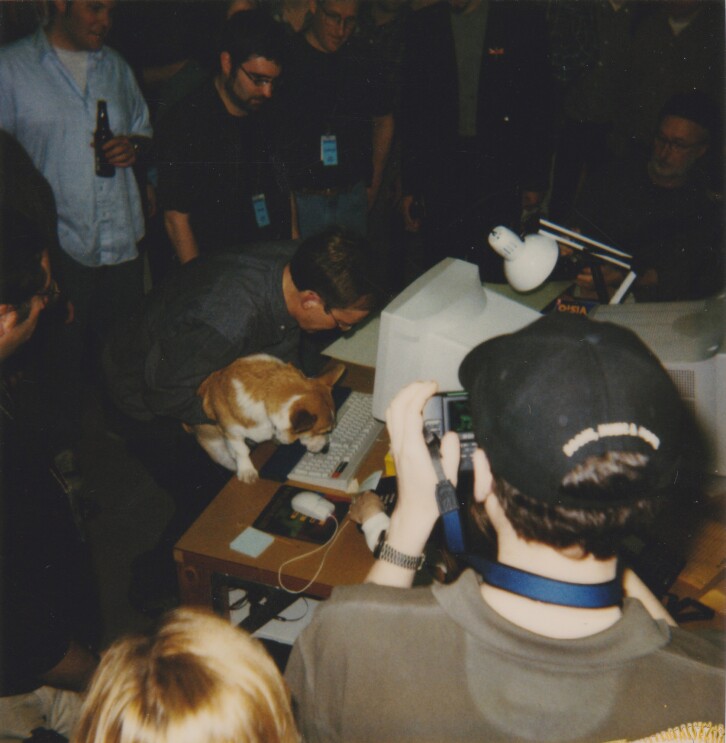
Rufus, Amazon’s first dog, getting ready to launch a new site. Photo by JORDAN STEAD / Amazon

🐾 Rufus — The Dog Who Became Amazon’s AI

Rufus with his human parents and at work
Rufus — Amazon’s first mascot, now immortalized in AI.

🕯️ Opening Ritual:
In the late 1990s, when Amazon was still a fledgling warehouse of books, a Welsh corgi named Rufus padded through its hallways. He wasn’t just a pet — he became a symbol of friendliness, curiosity, and the playful spirit of discovery.

📜 The Scroll of Rufus

  • Rufus belonged to Eric and Susan Benson, early Amazon employees.
  • He sat in meetings, chased tennis balls down corridors, and lightened the startup grind.
  • His paw print was memorialized, and after his passing, colleagues gifted a stone marker to the Bensons’ Seattle home.

⚙️ The AI Rebirth

In 2024, Amazon launched its generative AI shopping assistant — and named it Rufus. Not after a tech tool, but after the dog who once helped shape Amazon’s culture.
Just as Rufus guided employees with joy, Rufus AI now guides shoppers with knowledge.

🧪 Kapothi Command Box

# Kapothi Ritual: Spotting Rufus
# -----------------------------------------------------------
# 🟢 Comments in green | 🔵 Commands in blue | 🟠 Parameters in orange
# -----------------------------------------------------------

# 🔵 Linux / macOS (Terminal)
curl -I https://www.primevideo.com/storefront

# 🔵 Windows CMD
curl -I https://www.primevideo.com/storefront

# 🔵 Windows PowerShell
$response = Invoke-WebRequest -Uri "https://www.primevideo.com/storefront" -Method Get -MaximumRedirection 0 -ErrorAction SilentlyContinue
$response.Headers

# 📜 Ritual Outcome:
# -----------------------------------------------------------
# → Look for the "Location" key in the headers
# → If redirected to /region/eu        => EU Catalog
# → If redirected to /nonprimehomepage => Global / U.S. Gateway
# → If stays on /storefront            => Direct U.S. Sanctuary
# -----------------------------------------------------------

🪶 Closing Reflection

Rufus reminds us that even in the most technical of shrines — whether proxy logs or AI shopping assistants — there is room for warmth, play, and legacy. A dog’s paw print became a brand’s heartbeat, and now, an AI’s name.

Kapothi System Hygiene Checklist

Kapothi System Hygiene Checklist

🧹 Kapothi System Hygiene Checklist

This guide shows how to detect and remove impostor executables like the fake Windows Driver Foundation (WDF.exe), while also cleaning up unwanted startup entries to save RAM and CPU usage.

🔍 Detect Suspicious Files

Look for oversized or unsigned executables in C:\Windows\. Example: Windows Driver Foundation (WDF).exe (fake, 672 MB).

📋 Export Services & Tasks


  # Export all services with paths
  Get-CimInstance Win32_Service |
  Select-Object Name, DisplayName, StartMode, PathName |
  Out-File C:\services_with_paths.txt
  

🛠️ Alternative: Export to CSV

Get-CimInstance Win32_Service |
Select-Object Name, DisplayName, StartMode, PathName |
Export-Csv C:\services_with_paths.csv -NoTypeInformation
    

This produces a clean spreadsheet‑friendly file with all service details, perfect for filtering and analysis.

⚠️ Quick PowerShell Filter

Get-CimInstance Win32_Service |
Select-Object Name, DisplayName, StartMode, PathName |
Where-Object { $_.PathName -and $_.PathName -notlike "C:\Windows\System32\*" } |
Export-Csv C:\suspicious_services.csv -NoTypeInformation
    

This highlights only services whose executables are outside the standard C:\Windows\System32\ directory, helping you spot anomalies quickly.


  # Export all scheduled tasks with full paths
  Get-ScheduledTask | ForEach-Object {
      foreach ($action in $_.Actions) {
          [PSCustomObject]@{
              TaskName   = $_.TaskName
              Path       = $_.TaskPath
              Execute    = $action.Execute
              Arguments  = $action.Arguments
          }
      }
  } | Out-File C:\tasks_with_full_paths.txt -Width 4096
  

🕵️ Process Explorer

Process Explorer is part of Microsoft’s Sysinternals Suite. It shows detailed information about running processes, including parent processes, command lines, and loaded DLLs. Download it from Microsoft Sysinternals.

Use it to trace suspicious executables:

  • Right‑click the process → Properties
  • Check Parent process to see who launched it
  • Check Command line for hidden scripts
  • Use DLLs tab to inspect loaded modules

🗝️ Registry Check


  # Winlogon Shell should only be explorer.exe
  HKLM\SOFTWARE\Microsoft\Windows NT\CurrentVersion\Winlogon
  Shell = explorer.exe
  

📑 Autoruns

Autoruns is another Sysinternals tool that shows every program configured to run at startup. It covers Logon, Services, Scheduled Tasks, Drivers, and more. Download it from Microsoft Sysinternals.

Check these tabs carefully:

  • Logon — suspicious scripts/executables
  • Scheduled Tasks — hidden triggers
  • Services — verify only legitimate system services
  • Image Hijacks — ensure no debugger hijacks
  • Winlogon — confirm Shell is only explorer.exe

🧹 Cleanup Ritual

  • Restore registry values to defaults (explorer.exe)
  • Disable/remove unwanted Autoruns entries
  • Delete malicious files (WDF.exe, wtime.cmd, wudf.exe)
  • Reboot and confirm clean startup
  • Run full malware scans (Windows Defender, Malwarebytes)

⚡ Benefits

  • Freed up RAM 💾
  • Reduced CPU usage ⚡
  • Faster startup 🚀
  • Cleaner shrine‑home 🕊️

🕯️ Kapothi Insight

Every impostor exe is a hidden chant. Trace the scroll, silence the ritual, and the shrine runs serene.

Hunting Down a Fake Windows Driver Foundation (WDF.exe)

Hunting Down a Fake Windows Driver Foundation (WDF.exe)

🕵️‍♂️ How We Tracked Down a Fake Windows Driver Foundation (WDF.exe)

Malware often hides in plain sight, pretending to be legitimate system files. One such case is the fake Windows Driver Foundation (WDF.exe). Here’s how we detected, traced, and removed it using free tools like Autoruns, PowerShell, and Process Explorer.

Step 1: Spotting the Suspicious File

C:\Windows\Windows Driver Foundation (WDF).exe

A massive 672 MB executable with no signature or version info. Clearly not a legitimate Microsoft file.

Step 2: Autoruns & PowerShell Checks

We exported all services and tasks to confirm no hidden startup entries.

Get-CimInstance Win32_Service | 
Select-Object Name, DisplayName, StartMode, PathName | 
Out-File C:\services_with_paths.txt
Get-ScheduledTask | ForEach-Object {
    foreach ($action in $_.Actions) {
        [PSCustomObject]@{
            TaskName   = $_.TaskName
            Path       = $_.TaskPath
            Execute    = $action.Execute
            Arguments  = $action.Arguments
        }
    }
} | Out-File C:\tasks_with_full_paths.txt -Width 4096

No service or task pointed to WDF.exe. Suspicious.

Step 3: Process Explorer Trail

Process Explorer revealed WDF.exe was spawned by cmd.exe running a script:

C:\Windows\System32\cmd.exe /c "C:\Windows\wtime.cmd"
@echo off
timeout /t 30
cd %windir%
%tmpd%"%windir%\Windows Driver Foundation (WDF).exe"

Step 4: Registry Hijack Discovery

The Winlogon Shell value was hijacked to run the malicious script:

HKLM\SOFTWARE\Microsoft\Windows NT\CurrentVersion\Winlogon
Shell = explorer.exe,wudf.exe wtime.cmd

Normally, Shell should be only:

explorer.exe

Step 5: Cleanup

  • Restored Shell value to explorer.exe
  • Deleted malicious files:
    • C:\Windows\Windows Driver Foundation (WDF).exe
    • C:\Windows\wtime.cmd
    • C:\Windows\wudf.exe
  • Rebooted — malware no longer launched
  • Ran full malware scans for confirmation

Lessons Learned

  • Malware can hijack Winlogon Shell instead of services or tasks
  • Exporting services and tasks with PowerShell helps confirm legitimacy
  • Process Explorer is invaluable for tracing parent processes
  • Always check registry keys for hidden startup hijacks

Conclusion

This detective work shows how persistence and free tools can uncover even the most hidden startup hijacks. By documenting the trail — from Autoruns to PowerShell exports, Process Explorer analysis, and registry inspection — we created a repeatable method for others to follow. Use this guide to protect your PC from impostor files like fake WDF.exe.

🔍 Troubleshooting Active Directory Connectivity

Troubleshooting Active Directory Connectivity

🔍 Troubleshooting Active Directory Connectivity

⚠️ Important: Replace kapothi.com in the commands below with your own AD domain name. For example, if your domain is example.local, substitute accordingly.

1. Check IP & DNS

This command shows the full network configuration of your PC. It helps verify that your DNS server is pointing to your Active Directory DNS, not a public one like Google or Cloudflare.

ipconfig /all
  

2. Ping Domain & Controller

Use ping to confirm basic network connectivity. If the domain or controller doesn’t respond, you may have a firewall or routing issue.

ping kapothi.com
ping <DomainControllerName>
  

3. DNS Resolution

Active Directory relies on DNS. These commands check if your domain resolves correctly and if the required SRV records for LDAP are present.

nslookup kapothi.com
nslookup -type=SRV _ldap._tcp.dc._msdcs.kapothi.com
  

4. Find Domain Controller

nltest queries the domain to locate an available Domain Controller. If this fails, your PC may not be properly joined to the domain or DNS is misconfigured.

nltest /dsgetdc:kapothi.com
  

5. Test Secure Channel

This PowerShell command checks the trust relationship between your PC and the domain. If broken, you can repair it using administrator credentials without rejoining the domain.

Test-ComputerSecureChannel -Server <DomainControllerName> -Verbose
Test-ComputerSecureChannel -Repair -Credential kapothi.com\<AdminUser>
  

6. Kerberos & Time Sync

Kerberos authentication requires synchronized clocks. This command checks that your PC’s time matches the domain controller’s time.

net time /domain:kapothi.com
  

7. Flush DNS Cache

If you’ve recently changed DNS settings, cached records may cause issues. Flushing clears old entries and forces fresh lookups.

ipconfig /flushdns
  

8. On the Domain Controller

Run these commands directly on the DC to check its health and replication status. They help confirm whether the issue is with the PC or the AD infrastructure itself.

dcdiag /test:Connectivity
repadmin /replsummary
  

💡 Tip: Always check Event Viewer logs on both PC and DC for detailed error messages. Look under System and Directory Service categories.

🛠 Domain Join Fix – File and Printer Sharing

One common cause of “The specified network name is no longer available” during domain join is that File and Printer Sharing is disabled on Domain Controllers. This service is required for SMB and RPC traffic, which Active Directory uses to establish secure channels.

Step 1 – Enable File and Printer Sharing

  • On each Domain Controller, open Control Panel → Network and Sharing Center → Advanced sharing settings.
  • Turn on File and Printer Sharing.
  • Alternatively, check Windows Firewall inbound rules for File and Printer Sharing (SMB-In) and ensure they are enabled.

Step 2 – Verify Access

From a workstation, confirm you can reach the domain shares:

\\kapothi.com\SYSVOL
\\kapothi.com\NETLOGON

If these folders are visible, the DCs are correctly allowing SMB traffic and the workstation should be able to join the domain.

Step 3 – Retry Domain Join

Once File and Printer Sharing is enabled and SYSVOL/NETLOGON are accessible, retry the domain join process. The secure channel should now establish successfully.

Checking Dell PERC RAID Disk Health with perccli

Checking Dell PERC RAID Disk Health with perccli

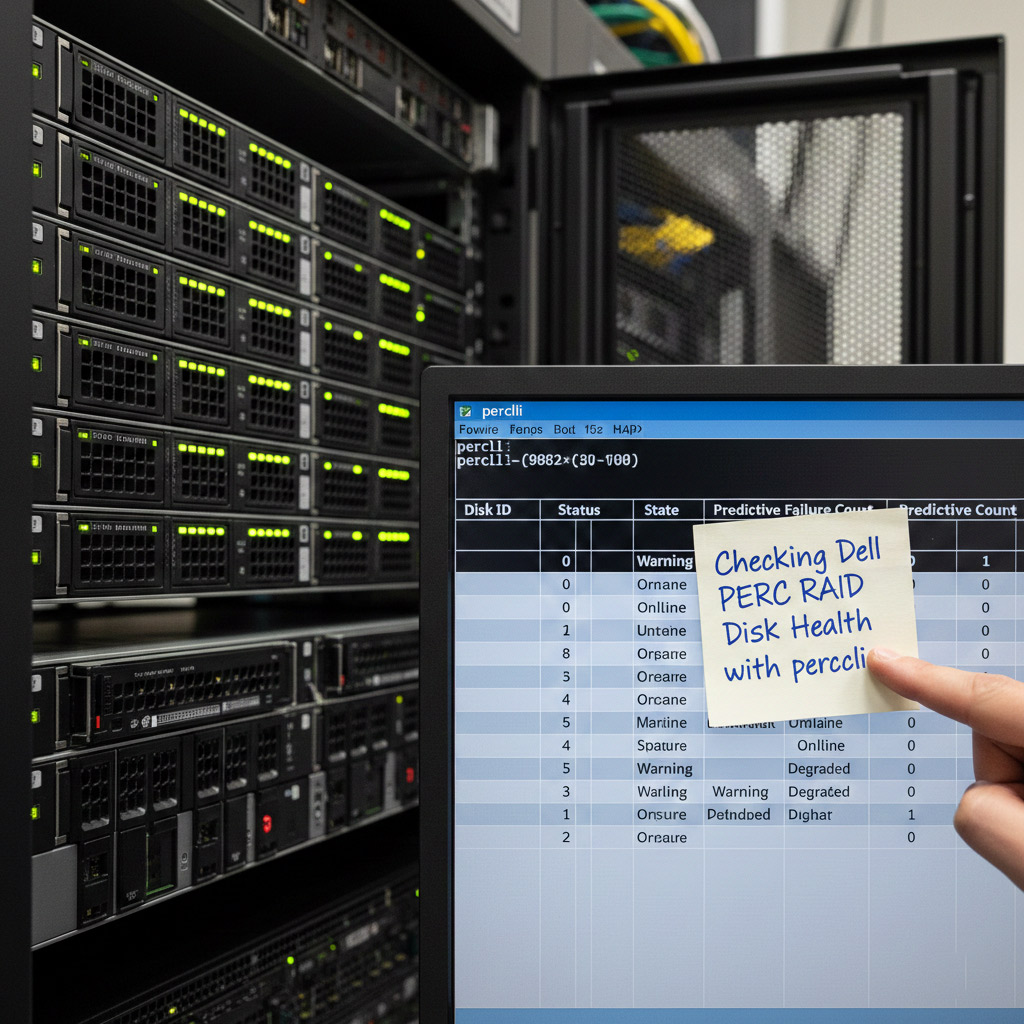
If you are running Dell servers with PERC controllers (like the H730 Mini), you can use Dell’s perccli command-line utility to check disk health, error counts, and rebuild progress. This is especially useful when OMSA GUI doesn’t show detailed counters.

Step 1: Download perccli

  • Go to Dell’s official support site.
  • Search for perccli (sometimes listed as “MegaRAID Command Line Interface”).
  • Download the Windows version and extract perccli.exe to a folder (e.g., C:\perccli).

Step 2: Open Command Prompt

  • Run Command Prompt as Administrator.
  • Navigate to the folder where perccli.exe is located.

Step 3: Basic Controller Info

perccli /c0 show

This shows controller details, firmware, and topology.

Step 4: List All Physical Disks

perccli /c0/eall/sall show all

Displays every disk with slot ID, status, and error counts.

Step 5: Check a Specific Disk

perccli /c0/e32/s12 show all

Replace s12 with the slot you want to inspect. Look for:

  • Media Error Count – bad sectors
  • Other Error Count – communication errors
  • S.M.A.R.T alert – flagged if predictive failure

Step 6: Monitor Rebuild Progress

perccli /c0/v0 show rebuild

Shows rebuild status of the RAID virtual disk.

Step 7: Patrol Read Status

perccli /c0 show patrolread

Displays background scan status for bad blocks.

Tip: Automate Logging

You can create a batch file to run these commands and export results to text files in C:\perccli. This way you’ll have a rolling log of disk health and rebuild progress.

Conclusion

Using perccli gives you deeper visibility into RAID health than OMSA alone. Always back up your data before replacing drives, and prefer enterprise-grade disks for RAID workloads.

Removing Hidden Unicode Folders from USB Drives

Removing Hidden Unicode Folders from USB Drives

Introduction:
USB drives infected by malware often create hidden folders with strange or unreadable Unicode characters. These folders can trap files, confuse antivirus tools, and resist normal deletion commands. This guide documents a successful method to recover files and remove such stubborn folders.

Symptoms

  • A hidden folder appears in the root of the drive with no visible name.
  • Errors like No mapping for the Unicode character exists or Cannot remove the item because it is in use occur.
  • Files are moved into this hidden folder by the malware.

Investigation

Using PowerShell with Get-ChildItem -Force reveals the hidden folder. Its attributes typically show as d--hs-, meaning it is both hidden and system-protected.

Solution

Step 1: Capture the Folder Object

$folder = Get-ChildItem D:\ -Force | Where-Object { $_.Attributes -match "Hidden" -and $_.Attributes -match "System" }

Step 2: Move Files Out

Move-Item "$($folder.FullName)\*" "D:\RecoveredFiles\" -Force

Step 3: Remove Attributes

attrib -h -s $folder.FullName

Step 4: Delete the Folder

rd /s /q "\\?\D:\‌"

Lessons Learned

  • Malware often uses Unicode tricks to hide payloads.
  • PowerShell is more effective than CMD for handling hidden/system files.
  • The \\?\ path prefix is a powerful tool for deleting corrupted or unreadable folders.

Conclusion

By combining PowerShell commands with the raw path deletion method, users can safely recover files and cleanse USB drives of hidden Unicode folders. Once files are recovered, formatting the USB ensures complete removal of residual malware artifacts.

Kapothi Editorial Note: This ritual of cleansing USB drives is both a technical solution and a symbolic act of restoring purity to your digital shrine.

Continuous 24/7 Download Capacity by Internet Speed

Continuous 24/7 Download Capacity by Internet Speed

Ever wondered how much data you could theoretically download if your internet line ran at full speed without interruption? The table below shows daily, monthly, and yearly totals for common speeds. Values above 1TB are displayed directly in terabytes for clarity.

Speed (Mbps) Speed (MB/s) Per Day Per Month (30 days) Per Year (365 days)
20.2521.6 GB648 GB7.9 TB
40.5043.2 GB1.3 TB15.8 TB
60.7564.8 GB1.9 TB23.7 TB
81.0086.4 GB2.6 TB31.5 TB
101.25108 GB3.2 TB39.5 TB
202.50216 GB6.5 TB79.0 TB
506.25540 GB16.2 TB197.5 TB
10012.501.1 TB32.4 TB395 TB

Note: Real‑world results are lower due to protocol overhead, ISP shaping, Wi‑Fi losses, and idle gaps. For comfort‑grade planning, budget ~85–90% of these numbers.