Bandwidth, Resolution, Refresh Rate, and Use Cases
As of 2025, both HDMI and DisplayPort have evolved dramatically. Whether you’re building a sovereign workstation, upgrading a gaming rig, or designing immersive signage, understanding these standards is essential.
📊 Specification Table
Standard
Bandwidth
Max Resolution
Max Refresh Rate
Cable Type
HDMI 2.2
96 Gbps
16K
4K @ 480Hz<br>8K @ 240Hz<br>10K @ 120Hz
Ultra96 certified
DisplayPort 2.1b
80 Gbps (DP80LL)
16K
10K @ 120Hz HDR<br>8K @ 240Hz
DP80LL low-loss
🆕 What’s New in HDMI 2.2
Bandwidth doubled from HDMI 2.1’s 48 Gbps to 96 Gbps
Supports 4K @ 480Hz, 8K @ 240Hz, and 10K @ 120Hz
Introduces Latency Indication Protocol (LIP) for better audio-video sync
Requires Ultra96 cables to unlock full spec
Ideal for AR/VR, medical imaging, light field displays, and digital signage
Enable Drag and Drop using Windows Registry Editor
SPECIAL NOTE* After This registry entry some times start menu will not work with latest build’s of Windows 11 like mine was 21H2 (OS Build 2200.739), if that happened to you just delete the added registry and and reboot.
You can enable and adjust the drag and drop sensitivity settings in Windows by creating a system restore point in the Windows Registry Editor. For example, to enable drag and drop in Windows 11 using the Windows Registry Editor, follow the given steps.
Press Windows + R on your keyboard
This will open the Run command box.
In the command box, type in the following command “regedit” and press OK.
The Windows Registry Editor is now visible on your screen
Now, navigate to the below-mentioned path
HKEY_LOCAL_MACHINE\SOFTWARE\Microsoft\Windows\CurrentVersion\Shell \Update\Packages

6 Now, right-click on the blank white space on the right navigation pane
7 Here, choose New > DWORD (32-bit) Value.
8 This will create a new value in the registry editor
9 Right-click on this newly created value file
10 Choose Rename
11 Rename this value file as follows UndockingDisabled
12 Right-click on UndockingDisabled
13 Select Modify
14 Now, change the value to 0 to 1
15 Click OK to save the settings

Now restart your computer. After restart, you will notice the taskbar will appear same as like in Windows 10 and the drag and drop functionality feature will now be restored on your computer.
1) Go to Programs & Features, and in the Features section, enable/install “Desktop Experience”. The downside to this is that you will need to reboot your server after installating this and it installs other components you do not need on a server.
The torrent history is saved in resume.dat stored in %appdata%\utorrent.
A quick solution is to move the partial files (if you want to store on your new HD of course) then the folder %appdata%\utorrent to the new HD. Then you edit resume.dat with http://forum.utorrent.com/viewtopic.php?id=31306 by using the function ‘find/replace’ to change the path or drive letter if something changed.
Then you start uT, it should resume your torrents.
A lot of companies are starting to sell portable 3G routers that you can take with you when you go out, but what happens when you forget, luckily How-To Geek is here to save the day with this neat command line trick.
Creating Your Own WI-FI Hotspot
Press the Windows + R key combination to bring up a run box, type ncpa.cpl and hit enter.
When your network connections open right-click on your Wireless network adapter and select properties from the context menu.
Now switch over to the Sharing tab and allow other devices to use your machines internet by selecting the first checkbox and then unchecking the second before clicking on the OK button.
Now right-click in the bottom left of your screen, to launch an administrative command prompt.
The first thing we need to do is set up the wireless network, this is done using the netsh command like so:
netsh wlan set hostednetwork mode=allow ssid=”How-To Geek” key=”Pa$$w0rd”
Where ssid is the name of your network and key is the password you want users to connect with, its also worth mentioning that the access point is created with WPA2-PSK (AES) encryption.
Now we are ready to start broadcasting our network:
netsh wlan start hostednetwork
The last command you will need to know is the show command, it will tell you things like the channel you are on as well as the number of clients connected to your network:
If you’re an avid Facebook use you’ll have a lot of information on the site. It’s a good idea to make a backup so, should Facebook fail, you won’t lose everything
To backup your data on Facebook:
Login to your account.
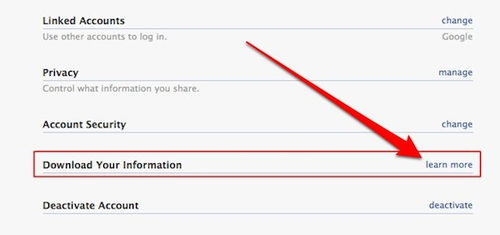
then open the Account menu on the top right. Choose Account Settings. At the next screen, scroll down to the Download your information option and click the ‘learn more’ link
It is on this screen as you confirm that you want to save your data.
A popup window appears, click Download.
Your request has been sent to Facebook.
Within a few hours or days you will receive an email with a link allowing you to download your data.